
Product Overview
The SteelSeries Arctis 3 headset redefines gaming audio with its innovative design, delivering superior sound, comfort, and style across all major gaming platforms. It features a completely overhauled audio system and a new microphone design for unmatched clarity.
Key Features
- Optimal PS5 compatibility: Requires user to change settings on Sony PS5 – disable Sony 3D Audio and then increase default volume to 100%.
- All-Platform Design: Designed for everywhere you game, with superior sound, comfort and style on all gaming platforms, including PC, PlayStation, Xbox One, Nintendo Switch via detachable 3.5 millimeter cables.
- ClearCast Microphone: Widely recognized as the best mic in gaming, the Discord certified ClearCast microphone delivers studio quality voice clarity and background noise cancellation.
- Superior Audio: Sound is your competitive advantage with the S1 speaker drivers, engineered to produce ultra-low distortion audio so you hear every detail.
- All-Day Comfort: Play all day with athletics inspired performance fabric AirWeave ear cushions that keep your ears cool and dry.
- Spatial Audio Ready: Windows Sonic Spatial Audio fully compatible with native surround sound built into Windows 10 PCs and Xbox One consoles; Headphone sensitivity: 98 dB.
What's in the Box
- Headset
- User Manual

The SteelSeries Arctis 3 headset and its included accessories, ready for setup.
Setup
Connecting Your Headset
The Arctis 3 headset connects via detachable 3.5mm cables, ensuring broad compatibility across various gaming platforms.
PC Connection
For PC, use the included splitter extension cable to connect the headset's 3.5mm jack to separate microphone and headphone ports on your computer.
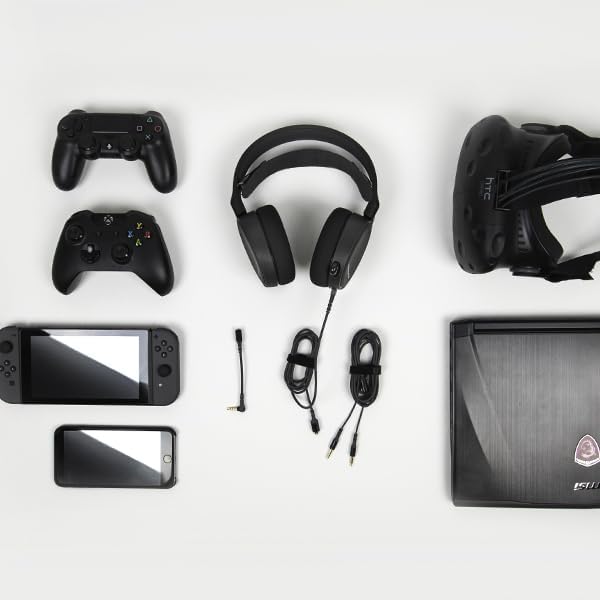
The SteelSeries Arctis 3 headset shown with various compatible devices and connection cables, highlighting its multi-platform design.
Console Connection (PlayStation, Xbox One, Nintendo Switch)
For consoles, connect the headset directly to your controller's 3.5mm audio jack.
Important PS5 Compatibility Note: To ensure optimal PS5 compatibility, disable Sony 3D Audio in your PS5 settings and increase the default volume to 100%.
Official SteelSeries video demonstrating the features and compatibility of the Arctis 3 Black Gaming Headset.
Operating Your Headset
Microphone Usage
The Discord-certified ClearCast microphone is retractable and delivers studio-quality voice clarity with background noise cancellation.
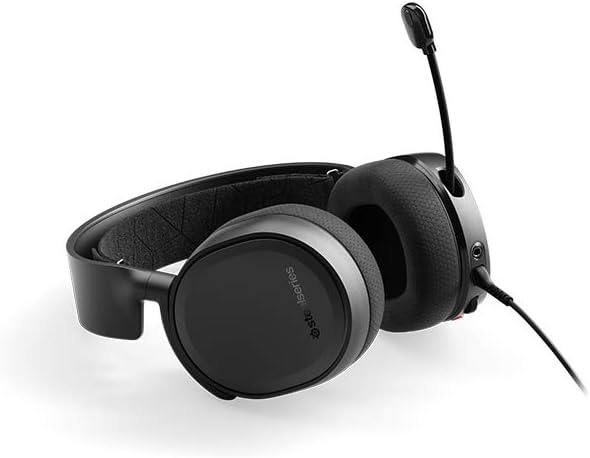
The SteelSeries Arctis 3 headset with its ClearCast microphone extended, ready for voice communication.
To extend the microphone, gently pull it out from the left earcup. To retract, push it back into the earcup until it is flush.
On-Headset Controls
The left earcup features convenient controls for volume adjustment and microphone muting.
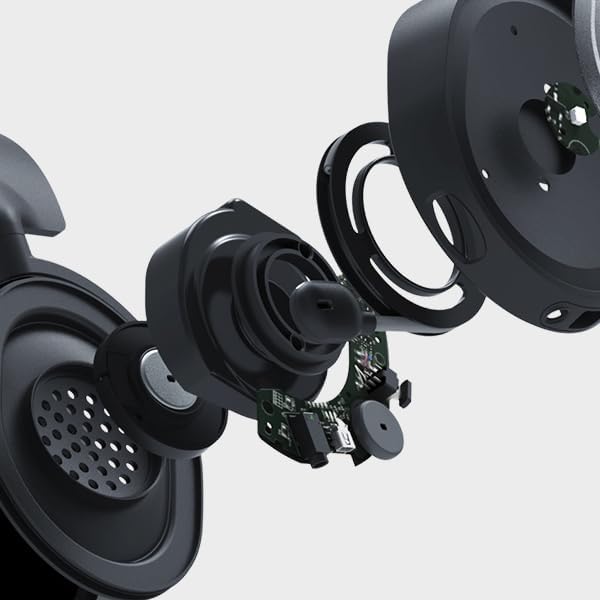
Close-up view of the volume scroll wheel and microphone mute button located on the left earcup of the Arctis 3 headset.
- Volume Wheel: Scroll up or down to adjust the audio volume.
- Microphone Mute Button: Press to mute or unmute your microphone.
Maintenance
To ensure the longevity and optimal performance of your SteelSeries Arctis 3 headset, follow these maintenance guidelines:
- Cleaning: Use a soft, dry cloth to wipe down the earcups and headband. Avoid abrasive cleaners or solvents.
- Storage: Store the headset in a cool, dry place away from direct sunlight and extreme temperatures. When not in use, retract the microphone to protect it.
- Cable Care: Handle cables gently. Avoid sharp bends or excessive pulling to prevent damage.
- Earcup Maintenance: The AirWeave ear cushions are designed for comfort and breathability. Periodically check them for wear and tear.
Troubleshooting
If you encounter issues with your SteelSeries Arctis 3 headset, refer to the following common troubleshooting steps:
- No Audio/Low Volume:
- Ensure the 3.5mm cable is securely connected to both the headset and your device.
- Check the volume wheel on the headset and your device's audio settings.
- Verify that the microphone mute button is not engaged.
- For PS5 users, confirm Sony 3D Audio is disabled and volume is at 100% as per setup instructions.
- Microphone Not Working:
- Ensure the microphone is fully extended.
- Check that the microphone mute button is not engaged.
- Verify microphone input settings on your PC or console.
- If using the PC splitter cable, ensure both jacks are correctly inserted into the microphone and headphone ports.
- Sound Distortion:
- Lower the volume on both the headset and your device.
- Test the headset with another device to rule out a device-specific issue.
Specifications
| Feature | Detail |
|---|---|
| Headphones Jack | Mini-phone |
| Model Name | Arctis |
| Connectivity Technology | Wired |
| Included Components | User Manual, Headset |
| Specific Uses For Product | Gaming |
| Theme | Video Game |
| Control Type | Noise Control |
| Cable Feature | Detachable |
| Item Weight | 10.4 ounces |
| Customer Package Type | Standard Packaging |
| Unit Count | 1.0 Count |
| Style | Arctis 3 |
| Number of Items | 1 |
| UPC | 813682025212 |
| Global Trade Identification Number | 00813682025212 |
| Manufacturer | SteelSeries APS |
| Product Dimensions | 7.93 x 7.08 x 3.58 inches |
| ASIN | B07G12Z1HR |
| Item model number | 61503 |
| Batteries | 1 Lithium Polymer batteries required. |
| Customer Reviews | 4.2 out of 5 stars (12,688 ratings) |
| Best Sellers Rank | #23,643 in Video Games, #856 in PC Game Headsets |
| Is Discontinued By Manufacturer | No |
| Date First Available | August 28, 2018 |
| Brand | SteelSeries |
| Color | Black |
| Form Factor | Over Ear |
| Impedance | 32 Ohm |
| Frequency Response | 22000 Hz |
Warranty and Support
The SteelSeries Arctis 3 headset comes with a manufacturer's warranty. For detailed warranty information and support, please refer to the official SteelSeries website or the user manual.
You can download the full User Manual in PDF format: User Manual (PDF)
For further assistance, visit the official SteelSeries store page: SteelSeries Store


