1. Introduction
Thank you for choosing the ONIKUMA K6 Gaming Headset. This manual provides essential information for setting up, operating, and maintaining your headset to ensure optimal performance and longevity. Please read this manual thoroughly before using the product.
2. Product Overview
2.1 Package Contents
- ONIKUMA K6 Gaming Headset
- 3.5mm Audio Adapter (for PC/Laptop)
- User Manual
2.2 Key Features
- Over-Ear Design
- Integrated Microphone with Noise Cancelling
- 7.1 Surround Sound (simulated)
- Red LED Lighting
- Wired Connectivity (3.5mm jack)
- Multi-platform Compatibility (PC, PS4, Xbox One, Mobile, Mac, Nintendo Switch)
- Inline Volume Control and Microphone Mute
2.3 Headset Components
Familiarize yourself with the main components of your ONIKUMA K6 headset:

Image 1: The ONIKUMA K6 Gaming Headset, showing the adjustable headband, earcups with LED lighting, flexible microphone, and the inline control unit with 3.5mm and USB connectors.

Image 2: An exploded diagram illustrating the 50mm enlarged driver within the earcup, designed for clear and accurate audio reproduction.

Image 3: A close-up view of the flexible microphone, highlighting its noise-cancelling capabilities for improved voice clarity.
3. Setup Instructions
3.1 Connecting to Devices
The ONIKUMA K6 headset offers broad compatibility. Refer to the specific instructions for your device:

Image 4: The ONIKUMA K6 headset connected to a game controller, illustrating its universal compatibility with PC, PlayStation 4, Nintendo Switch, and Xbox One (adapter may be required).

Image 5: A visual guide demonstrating how to connect the ONIKUMA K6 headset to various platforms, including Xbox One (requires Microsoft adapter, not included), PS4/Xbox One S/Mobile/iPad, Nintendo Switch/3DS, and PC/Laptop using the 3.5mm audio adapter.
- PC/Laptop: Connect the 3.5mm jack to the included audio adapter (if your PC has separate audio/mic ports), then plug the adapter into the corresponding ports on your computer. The USB connector is for LED lighting only.
- PlayStation 4 (PS4): Plug the 3.5mm jack directly into the controller's headset port.
- Xbox One: For older Xbox One controllers without a 3.5mm port, a Microsoft Stereo Headset Adapter (not included) is required. For newer controllers with a 3.5mm port, plug the jack directly into the controller.
- Mobile/Tablet/Nintendo Switch: Plug the 3.5mm jack directly into the device's audio port.
3.2 LED Lighting
The USB connector on the headset cable powers the LED lighting. Plug the USB connector into any available USB port on your device (PC, console, or USB power adapter) to activate the red LED lights on the earcups.
4. Operating Instructions
4.1 Volume Control
Adjust the volume using the scroll wheel located on the inline control unit on the headset cable. Rotate the wheel up to increase volume and down to decrease it.
4.2 Microphone Mute
To mute or unmute the microphone, use the switch labeled 'ON'/'OFF' on the inline control unit. Slide the switch to 'OFF' to mute the microphone and 'ON' to activate it.
4.3 PS4 Audio Settings
For optimal audio and microphone performance on PlayStation 4, follow these steps:
- Go to "Peripherals" (Périphérique).
- Select "Audio Devices" (Périphériques audio).
- Click on "Output to Headphones" (Sortie vers le casque d'écoute) and select "All Audio" (Tout l'audio).
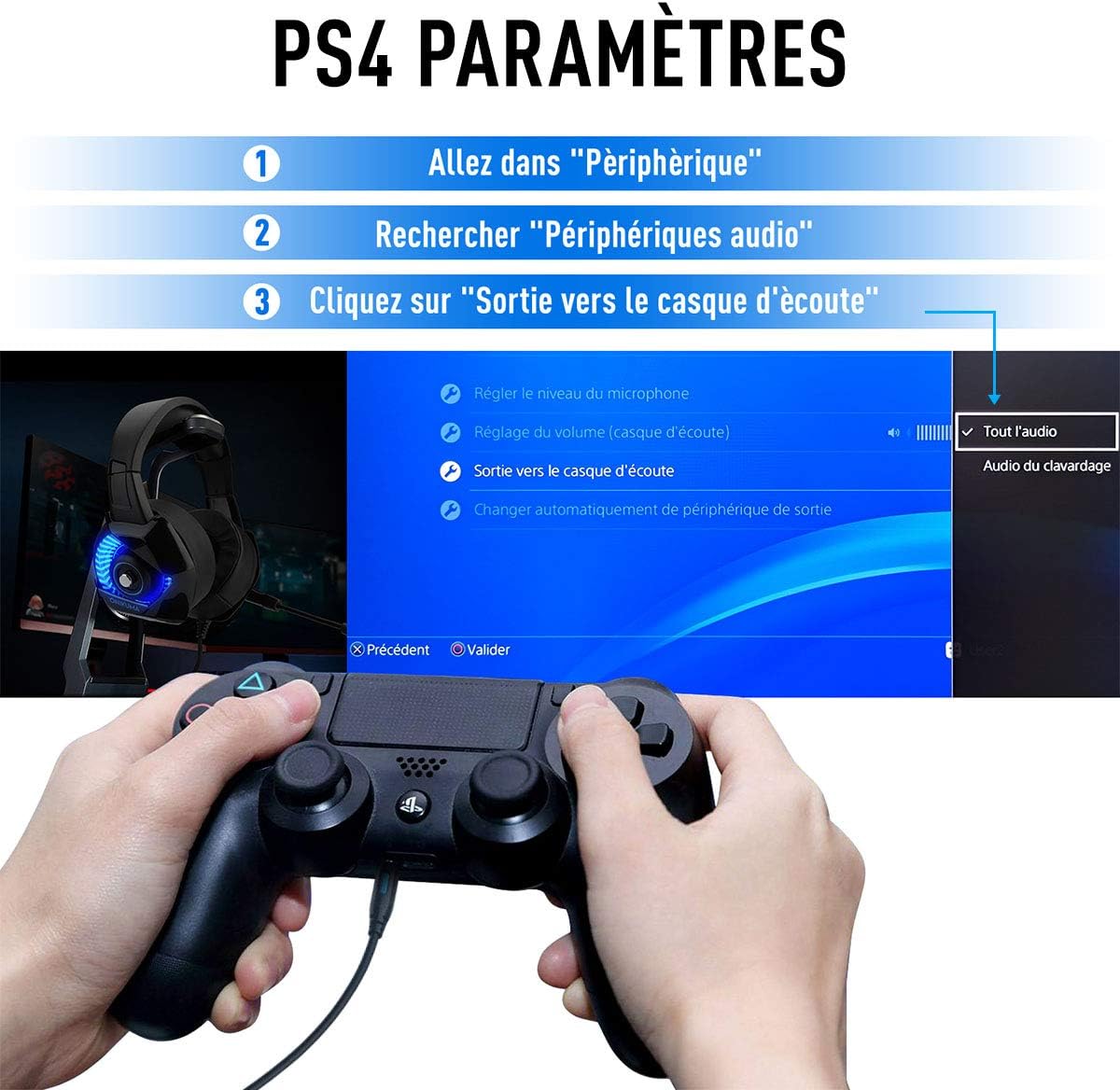
Image 6: A screenshot of the PlayStation 4 audio settings menu, showing the steps to configure the headset for 'All Audio' output.
5. Maintenance
5.1 Cleaning
- Wipe the headset with a soft, dry cloth.
- Do not use harsh chemicals or abrasive cleaners.
- Ensure no liquid enters the earcups or microphone.
5.2 Storage
- Store the headset in a cool, dry place away from direct sunlight.
- Avoid tangling the cable to prevent damage.
6. Troubleshooting
- No Sound:
- Check if the 3.5mm jack is fully inserted into the device.
- Ensure the volume control wheel on the inline unit is turned up.
- Verify device audio settings (e.g., 'Output to Headphones' on PS4).
- Test the headset with another device to rule out device-specific issues.
- Microphone Not Working:
- Ensure the microphone mute switch on the inline unit is in the 'ON' position.
- Check device microphone settings and ensure the headset is selected as the input device.
- For Xbox One, confirm the Microsoft Stereo Headset Adapter (if used) is functioning correctly.
- LED Lights Not On:
- Ensure the USB connector is securely plugged into a powered USB port.
- Try a different USB port or power source.
7. Specifications
| Brand | Onikuma |
| Model Name | ONIKUMA K6 (Item model number: K5) |
| Connectivity Technology | Wired (3.5mm Jack, USB for LED) |
| Headphones Form Factor | Over Ear |
| Noise Control | Active Noise Cancellation (Microphone) |
| Included Components | Ear Cushions, 3.5mm Audio Adapter |
| Product Dimensions | 18 x 9 x 16 cm |
| Item Weight | 622 g |
| Color | Multi |
8. Warranty and Support
The ONIKUMA K6 Gaming Headset comes with a standard manufacturer's warranty. For specific warranty details, please refer to the documentation provided with your purchase or contact your retailer. For technical support or further assistance, please reach out to Onikuma customer service through their official website or your point of purchase.


