
1. Introduction
The SteelSeries Arctis 7 is a lossless wireless gaming headset designed to provide an immersive audio experience with exceptional clarity and comfort. Featuring DTS Headphone:X v2.0 surround sound, a ClearCast microphone, and a 24-hour battery life, the Arctis 7 is engineered for extended gaming sessions across multiple platforms.
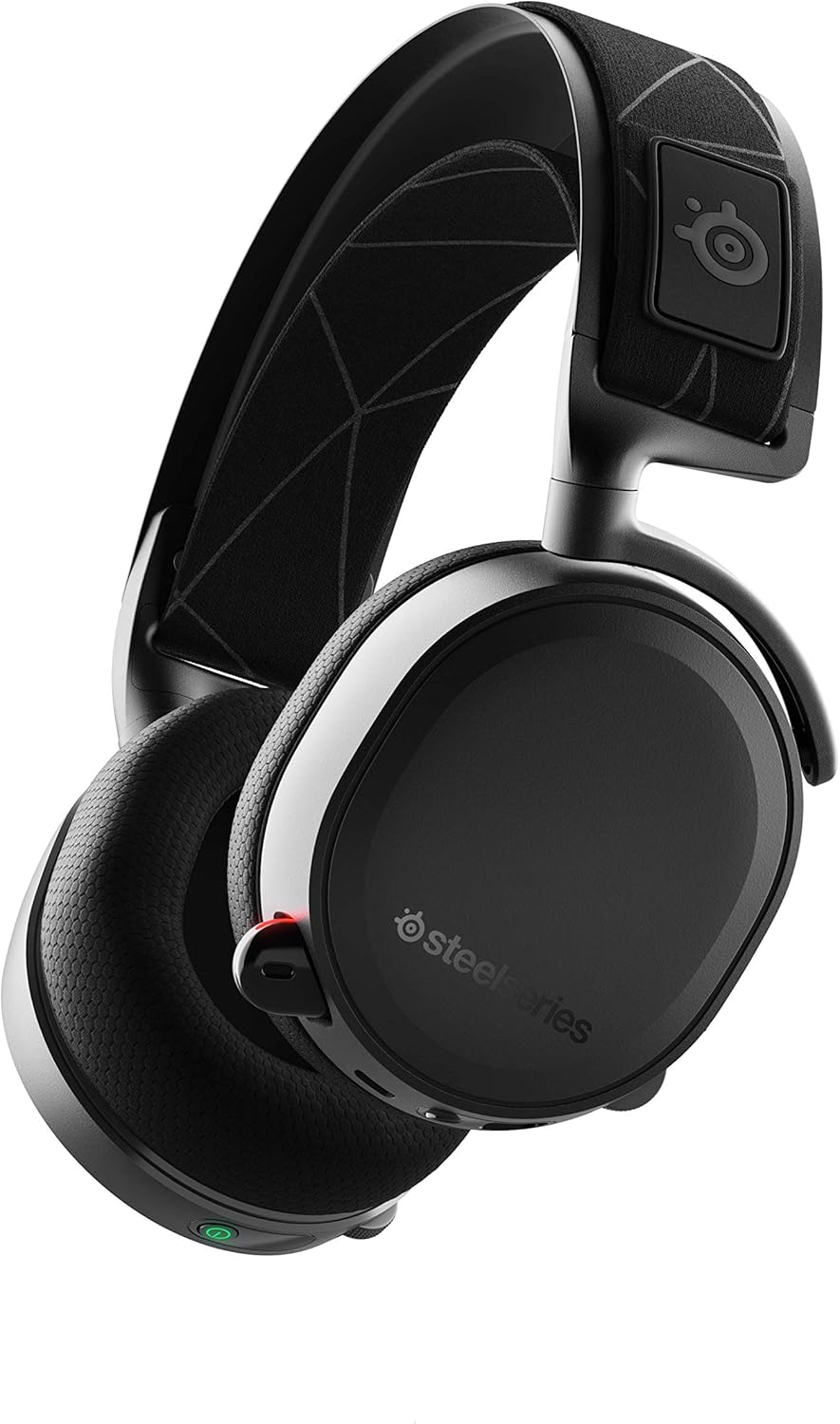
Figure 1: SteelSeries Arctis 7 Wireless Gaming Headset, showcasing its sleek black design and comfortable earcups.
2. What's in the Box
Verify that all components are present in the packaging:
- Arctis 7 Headset
- Wireless Transmitter
- 4-pole 3.5mm cable
- Micro-USB Charging Cable
- Product Information Guide

Figure 2: Front view of the Arctis 7 product packaging, indicating the headset and its key features.

Figure 3: Rear view of the Arctis 7 product packaging, detailing included cables and connection setup diagrams.
3. Setup
3.1 Charging the Headset
Before first use, fully charge your Arctis 7 headset using the included Micro-USB Charging Cable. Connect the Micro-USB end to the headset and the USB-A end to a powered USB port (e.g., computer, wall adapter). The charging indicator light will provide status.
3.2 Connecting to Devices
The Arctis 7 offers versatile connectivity options:
PC (Wireless)
- Connect the Wireless Transmitter to an available USB port on your PC.
- Power on the Arctis 7 headset. It should automatically pair with the transmitter.
- Ensure the Arctis 7 is selected as the default audio output and input device in your PC's sound settings.
- For full features and customization, download and install the SteelSeries Engine 3 software from the official SteelSeries website.

Figure 4: The compact wireless transmitter for the Arctis 7 headset, providing a stable 2.4GHz connection.
PlayStation (Wireless)
- Connect the Wireless Transmitter to an available USB port on your PlayStation console.
- Power on the Arctis 7 headset. It will automatically connect.
- Navigate to the PlayStation's settings to ensure the Arctis 7 is selected for audio output and input.

Figure 5: The Arctis 7 headset positioned next to a PlayStation 4 console, illustrating its compatibility.
Nintendo Switch (Wireless/Wired)
- Docked Mode (Wireless): Connect the Wireless Transmitter to a USB port on the Nintendo Switch dock. Power on the headset.
- Tablet Mode (Wired): Use the included 3.5mm cable to connect the headset directly to the Nintendo Switch's headphone jack.
Mobile Devices (Wired)
Use the included 3.5mm analog cable to connect the headset to any mobile device with a compatible 3.5mm audio jack.
4. Operating Instructions
4.1 Audio Features
- Lossless Wireless Audio: The 2.4GHz connection provides high-fidelity audio with ultra-low latency and minimal interference.
- DTS Headphone:X v2.0 Surround Sound: Experience immersive 360-degree precision audio (PC only). This feature enhances spatial awareness in games.
- S1 Speaker Drivers: Engineered to produce ultra-low distortion audio, allowing you to hear every detail.
4.2 ClearCast Microphone
The Discord-certified ClearCast microphone delivers studio-quality voice clarity and effective background noise cancellation. The microphone is retractable for convenience when not in use.

Figure 6: A user demonstrating the retractable ClearCast microphone of the Arctis 7 headset during use.
4.3 On-Ear Controls
- Game/Chat Audio Balance Dial: Located on the earcup, this dial allows you to adjust the balance between game audio and chat audio on the fly.
- Volume Control: Adjust overall headset volume.
- Microphone Mute Button: Quickly mute or unmute your microphone. A red LED on the mic indicates when it is muted.

Figure 7: A detailed diagram highlighting key features of the Arctis 7 headset, including the retractable mic, S1 Hi-Fi drivers, 24-hour battery, and ChatMix Dial.
4.4 Battery Life
The Arctis 7 provides up to 24 hours of continuous battery life on a single charge, suitable for extended gaming sessions.
5. Maintenance
To ensure the longevity and optimal performance of your SteelSeries Arctis 7 headset, follow these maintenance guidelines:
- Cleaning: Gently wipe the earcups and headband with a soft, dry cloth. For stubborn dirt, a slightly damp cloth can be used, but ensure no moisture enters the speaker grilles or ports. Avoid harsh chemicals or abrasive materials.
- Storage: When not in use, store the headset in a clean, dry place away from extreme temperatures, direct sunlight, and excessive humidity. Using a headset stand can help maintain its shape and prevent cable damage.
- Cable Care: Avoid sharp bends or kinks in the charging and audio cables. Always grasp the plug, not the cable, when disconnecting.
- Battery Care: For optimal battery health, avoid completely draining the battery frequently. Charge the headset regularly, especially if it will be stored for an extended period.
6. Troubleshooting
If you encounter issues with your Arctis 7 headset, refer to the following common solutions:
6.1 No Audio / Disconnections
- Check Power: Ensure the headset is powered on and has sufficient battery charge.
- Verify Connection: For wireless use, ensure the Wireless Transmitter is securely plugged into a powered USB port and the headset is within range (up to 40ft / 12m).
- Default Device: On PC/PlayStation, confirm that the Arctis 7 is selected as the default audio output and input device in your system's sound settings.
- Re-pair: If connection issues persist, try re-pairing the headset with the transmitter. Refer to the Product Information Guide for specific re-pairing instructions.
- Interference: Move away from other 2.4GHz devices (e.g., Wi-Fi routers, cordless phones) that might cause interference.
6.2 Microphone Issues
- Check Mute: Ensure the microphone mute button on the headset is not activated (red LED on mic indicates mute).
- Microphone Position: Ensure the microphone is fully extended and positioned correctly near your mouth.
- Input Device: Verify that the Arctis 7 microphone is selected as the default input device in your system's sound settings and in any communication applications (e.g., Discord, TeamSpeak).
- Software Settings: If using SteelSeries Engine 3, check microphone settings and levels within the software.
6.3 Sound Quality Issues
- Volume Levels: Adjust the headset's volume dial and check system volume levels.
- Game/Chat Mix: Use the ChatMix dial to adjust the balance between game and chat audio.
- Software EQ: If sound is distorted or unbalanced, adjust equalizer settings within the SteelSeries Engine 3 software.
- DTS Headphone:X: Ensure DTS Headphone:X v2.0 is enabled and configured correctly in SteelSeries Engine 3 for PC surround sound.
7. Specifications
| Feature | Detail |
|---|---|
| Model Name | Arctis 7 |
| Model Number | 61505 |
| Connectivity Technology | Wireless (2.4GHz) |
| Wireless Range | 12m / 40ft |
| Headphone Frequency Response | 20-20000 Hz |
| Headphone Sensitivity | 98 dB |
| Headphone Impedance | 32 Ohm |
| Microphone Type | Retractable ClearCast |
| Battery Life | Up to 24 Hours |
| Compatible Devices | PC, PlayStation 4, Nintendo Switch, Mobile (wired) |
| Material | Neodymium, Stainless Steel, Fabric |
| Item Weight | 12.5 ounces (approx. 354g) |
| Product Dimensions (LxWxH) | 7.76 x 6.89 x 3.58 inches |
8. Warranty and Support
SteelSeries products are designed for durability and performance. For detailed warranty information, please refer to the official SteelSeries website or the Product Information Guide included with your headset.
For further assistance, technical support, or to download the latest SteelSeries Engine software, visit the official SteelSeries support page.
You can also refer to the official User Guide PDF for more in-depth information: Download User Guide (PDF)


