1. Introduction and Overview
The Optoma X343 is a professional XGA DLP projector designed for clear and vibrant presentations in various environments, including meeting rooms, classrooms, and home use. It features 3,600 lumens of brightness and a 22,000:1 contrast ratio, ensuring sharp text and graphics even in well-lit conditions. The projector includes an integrated 10-watt speaker for audio playback and offers a long lamp life of up to 15,000 hours.
Key features include:
- Picture Quality: XGA resolution (1024x768) and 22,000:1 contrast ratio for vibrant and sharp images.
- High Brightness: 3,600 lumens for clear projection in various lighting conditions.
- Connectivity Options: Multiple input options including HDMI, VGA, and composite.
- Long Lamp Life: Up to 15,000 hours, reducing maintenance needs.
- Easy Installation: Vertical keystone correction and 1.1x zoom for flexible placement.
- Integrated Speaker: A 10-watt speaker provides room-filling audio.
- Portable Size: Weighing less than 7 pounds, it is easy to transport.
- Throw Distance: Projects a 120-inch image from approximately 18 feet away.
2. What's in the Box
Upon unpacking your Optoma X343 projector, please ensure all the following items are present:
- X343 Projector
- Power Cord
- Remote Control
- Batteries for Remote Control
If any items are missing or damaged, please contact your retailer or Optoma customer support immediately.
3. Product Components

Figure 3.1: Front view of the Optoma X343 Projector, showcasing the lens and ventilation grilles.

Figure 3.2: Top view of the Optoma X343 Projector, highlighting the focus and zoom rings, and the control panel buttons.

Figure 3.3: Side view of the Optoma X343 Projector with dimensions (9.6 x 12.4 x 3.9 inches) indicated.
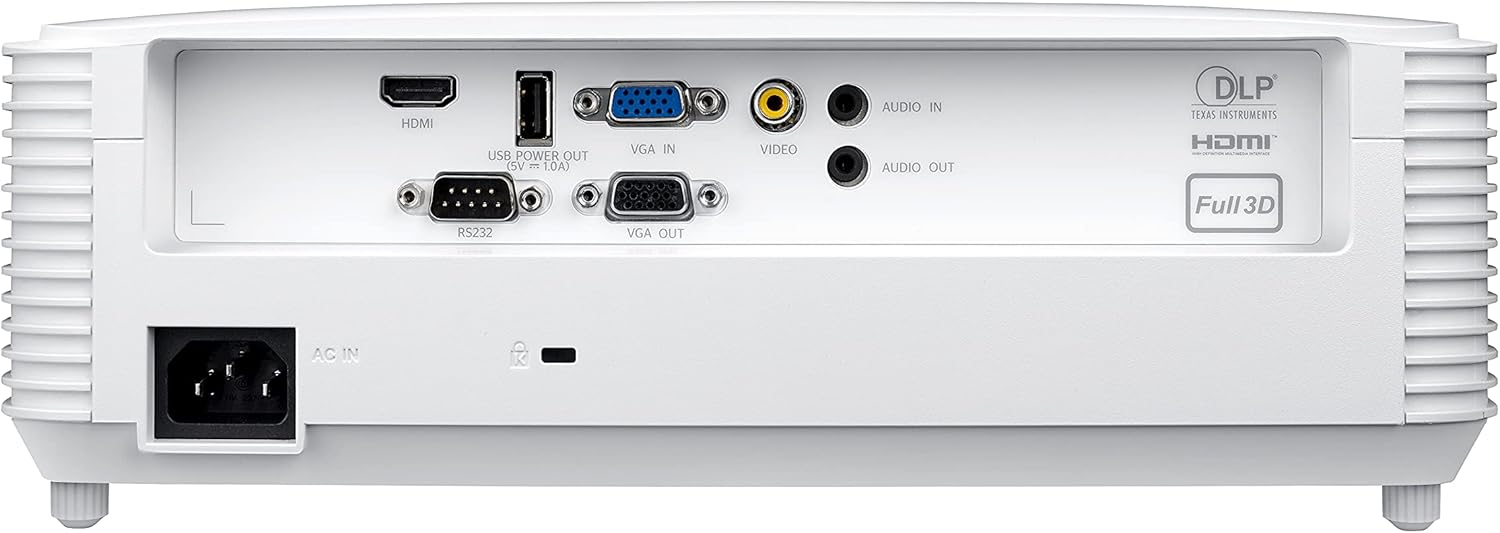
Figure 3.4: Rear panel of the Optoma X343 Projector, showing various input and output ports including HDMI, VGA, USB, and audio connections.
4. Setup Guide
4.1 Placement
Position the projector on a stable, flat surface or mount it securely. Ensure adequate ventilation around the projector to prevent overheating. For a 120-inch image, the projector should be approximately 18 feet from the screen. The 1.1x zoom and vertical keystone correction features allow for minor adjustments to image size and shape.
4.2 Power Connection
- Connect the power cord to the 'AC IN' port on the rear of the projector.
- Plug the other end of the power cord into a grounded electrical outlet.
4.3 Connecting to a Source Device
The X343 offers multiple connectivity options:
- HDMI: For high-definition digital video and audio. Connect an HDMI cable from your source device (e.g., laptop, Blu-ray player) to the HDMI port on the projector.
- VGA: For analog video. Connect a VGA cable from your computer to the 'VGA IN' port. If audio is required, connect a separate audio cable to the 'AUDIO IN' port.
- Composite Video: For standard definition analog video. Connect a composite video cable (yellow RCA) to the 'VIDEO' port.
- USB Power Out (5V=1.0A): This port can be used to power external devices such as HDMI dongles.
5. Operating Instructions
5.1 Powering On/Off
- To Power On: Press the power button on the projector's control panel or the remote control. The power indicator light will turn blue.
- To Power Off: Press the power button again. A confirmation message may appear. Press the power button a second time to confirm shutdown. The power indicator light will turn red.
5.2 Image Adjustment
- Focus: Rotate the focus ring around the lens until the image is sharp and clear.
- Zoom: Rotate the zoom ring around the lens to adjust the image size.
- Keystone Correction: Use the 'Keystone' function in the projector menu or dedicated buttons on the remote to correct trapezoidal image distortion.
5.3 Source Selection
Press the 'Source' button on the remote control or projector panel to cycle through available input sources (HDMI, VGA, Video). Select the input corresponding to your connected device.
6. Maintenance
6.1 Lamp Life
The Optoma X343 lamp has a life expectancy of up to 15,000 hours. When the lamp approaches its end of life, a warning message may appear on the screen. Refer to the full user manual for lamp replacement procedures.
6.2 Cleaning
- Lens: Use a soft, lint-free cloth specifically designed for optical lenses. Avoid abrasive cleaners.
- Casing: Wipe the projector casing with a soft, dry cloth. Do not use harsh chemicals or solvents.
- Air Vents: Ensure air vents are clear of dust and obstructions to maintain proper airflow and prevent overheating.
7. Troubleshooting
This section addresses common issues you might encounter with your Optoma X343 projector.
7.1 No Image on Screen
- Ensure the projector is powered on and the power indicator is blue.
- Verify that the video cable (HDMI, VGA) is securely connected to both the projector and the source device.
- Check that the correct input source is selected on the projector.
- Confirm the source device is powered on and outputting a signal.
7.2 No Sound
- If using HDMI, ensure the source device's audio output is set to HDMI.
- If using VGA or composite, ensure a separate audio cable is connected to the 'AUDIO IN' port.
- Check the volume settings on both the projector and the source device.
7.3 Projector Overheating
- Ensure all ventilation grilles are clear and unobstructed.
- Operate the projector in a well-ventilated area.
- If the issue persists, power off the projector, allow it to cool, and then restart. If overheating continues, contact support.
8. Specifications
| Specification | Value |
|---|---|
| Model Number | X343 |
| Display Technology | DLP |
| Native Resolution | XGA (1024 x 768) |
| Brightness | 3600 Lumens |
| Contrast Ratio | 22,000:1 |
| Lamp Life | Up to 15,000 hours |
| Throw Ratio | 1.94 – 2.15:1 |
| Zoom | 1.1x Manual |
| Keystone Correction | Vertical |
| Integrated Speaker | 10-watt |
| Connectivity | HDMI, VGA In, VGA Out, Composite Video, Audio In, Audio Out, RS232, USB Power (5V=1.0A) |
| Item Weight | 6.7 pounds |
| Product Dimensions | 9.6 x 12.4 x 3.9 inches |
9. Official Product Video
Video 9.1: Optoma Home Projection Technology. This video provides an overview of Optoma's projection capabilities, showcasing various applications and features of their projectors, including home cinema, gaming, and sports viewing.
10. Warranty and Support
For detailed warranty information, technical support, or service inquiries, please refer to the official Optoma website or contact Optoma customer service directly. Keep your purchase receipt and product serial number handy for any support requests.
You can find additional resources and contact information on the Optoma Store on Amazon.


