
1. Product Overview
The DriverGenius U2AUDIO7-1 is a versatile 7.1-channel USB external sound card and audio adapter designed to upgrade the sound capabilities of your desktop or notebook PC. It transforms your computer into a home theater-compatible sound system, offering support for 2.1, 5.1, and 7.1 channel audio applications, as well as S/PDIF digital audio input and output.
This robust external device connects via a single USB 2.0 connection, providing impressive audio functionality without requiring you to open your computer case for installation. It is an ideal solution for adding 7.1 audio support to systems without internal expansion options or for replacing/upgrading existing integrated audio.

Image: The DriverGenius U2AUDIO7-1 external sound card, showcasing its compact design and various ports.
2. Package Contents
- DriverGenius U2AUDIO7-1 7.1-Channel USB External Sound Card
- USB Cable (Type-A to Type-B)
- User Manual (this document)
3. Product Features
- External 7.1 USB Sound Card: Connects your PC to a 7.1 home theater audio receiver for immersive sound.
- 7.1 USB Audio Adapter: Supports 7.1 / 5.1 / 2.1 channel audio via 3.5mm stereo jacks for desktop PCs. (Note: 3.5mm audio cables are not included in the package.)
- S/PDIF Sound Card: Features S/PDIF input for audio mixer applications and S/PDIF output for connecting to a digital audio decoder.
- OS Compatibility: Compatible with Windows 11, macOS, and Ubuntu operating systems.
- Reliable Support: Backed by DriverGenius's 2-year after-sales service and technical support.
4. System Requirements
- Available USB 2.0 port or higher
- Operating System: Windows 11, macOS, or Ubuntu
- Audio output devices (e.g., headphones, speakers)
- Audio input devices (e.g., microphone)
5. Setup Guide
Follow these steps to set up your DriverGenius U2AUDIO7-1 external sound card:
- Connect to Computer: Use the provided USB cable to connect the sound card to an available USB port on your desktop or notebook PC. The device is plug-and-play for most operating systems, but driver installation may be required for full functionality.
- Driver Installation: For optimal performance, especially on Windows systems, it is recommended to install the latest drivers. You can find the official download link in the manual provided with the product or on the DriverGenius support website.
- Connect Audio Output Devices:
- Headphones: Plug your headphones into the port labeled "HEADPHONES out".
- Speakers (2.1/5.1/7.1 Surround): Connect your speaker system to the corresponding 3.5mm output jacks: "FRONT", "SURROUND", "CENTER/BASS", and "BACK". Refer to your speaker system's manual for correct channel assignment.
- Connect Audio Input Devices:
- Microphone: Plug your 3.5mm TRS microphone into the "MONO" or "STEREO" microphone input jacks. Note: This adapter does not provide 48V phantom power and is not compatible with XLR microphones requiring it.
- Line-In: Connect external audio sources (e.g., MP3 players, smartphones) to the "LINE-IN" port using a 3.5mm audio cable.
- Connect S/PDIF Devices (Optional):
- S/PDIF IN: Connect a digital audio source (e.g., CD/DVD player) to the S/PDIF input port.
- S/PDIF OUT: Connect to a digital audio receiver or decoder via the S/PDIF output port.

Image: The U2AUDIO7-1 connected to a laptop via USB, with headphones plugged in.

Image: A detailed diagram illustrating the headphone, line-in, and multi-channel speaker output ports (Front, Surround, Center/Bass, Back) on the sound card.
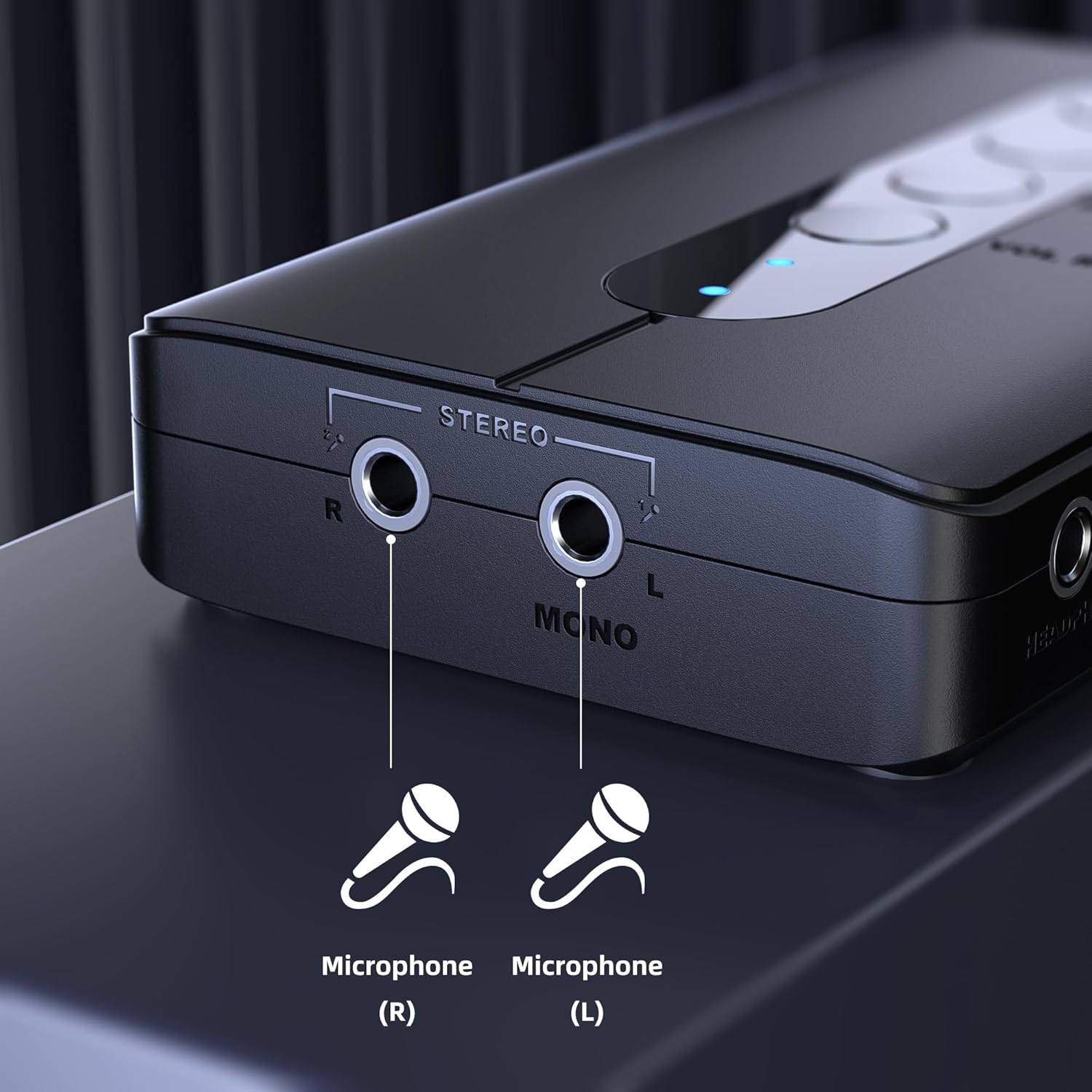
Image: A close-up view of the stereo and mono microphone input jacks on the sound card.

Image: A diagram showing the S/PDIF In, S/PDIF Out, and USB In ports, illustrating connections to a CD/DVD/MD player and a PC/Mac.
6. Operating Instructions
Once the sound card is connected and drivers are installed, you can begin using it.
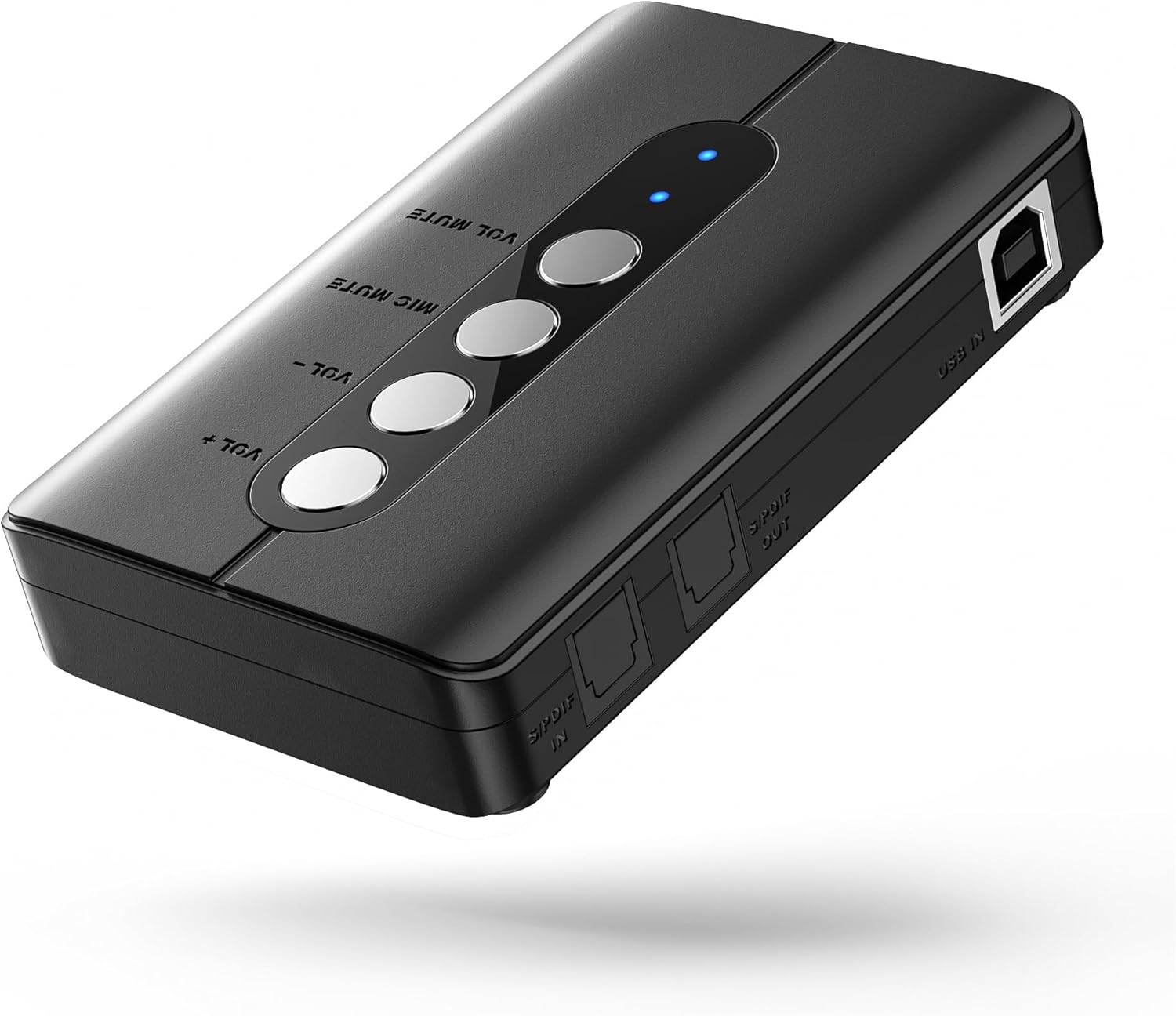
Image: Top view of the sound card showing the volume up, volume down, microphone mute, and volume mute buttons.
- Volume Control:
- Press the VOL+ button to increase the output volume.
- Press the VOL- button to decrease the output volume.
- Mute Functions:
- Press the VOL MUTE button to mute or unmute the audio output.
- Press the MIC MUTE button to mute or unmute the microphone input.
- Channel Configuration: To utilize 2.1, 5.1, or 7.1 surround sound, you may need to configure the speaker setup in your operating system's sound settings. Navigate to your sound control panel and select the DriverGenius U2AUDIO7-1 as your default audio device, then configure the speaker channels accordingly.
- S/PDIF Usage: When using S/PDIF input or output, ensure your connected devices are properly configured for digital audio transmission. The S/PDIF output acts as a pass-through for connecting to a decoder.
7. Maintenance
To ensure the longevity and optimal performance of your DriverGenius U2AUDIO7-1 sound card, follow these maintenance guidelines:
- Keep the device clean by wiping it with a soft, dry cloth. Avoid using liquid cleaners or solvents.
- Store the device in a cool, dry place away from direct sunlight and extreme temperatures.
- Avoid dropping or subjecting the device to strong impacts.
- Do not attempt to disassemble or repair the device yourself. This may void your warranty.
8. Troubleshooting
If you encounter issues with your DriverGenius U2AUDIO7-1, refer to the following troubleshooting tips:
| Problem | Possible Solution |
|---|---|
| No sound output |
|
| Microphone not working |
|
| 7.1 Surround Sound not working |
|
| Device not recognized by computer |
|
9. Specifications
| Feature | Specification |
|---|---|
| Brand | DriverGenius |
| Model | U2AUDIO7-1 |
| Hardware Interface | USB |
| Audio Output Mode | Digital |
| Platform Compatibility | Desktop, Notebook PC |
| Compatible Devices | Personal Computer, Headphones |
| Speaker Channel Configuration | 7.1 / 5.1 / 2.1 |
| Max Sampling Rate | 48 KHz |
| Signal-to-Noise Ratio (SNR) | 120 dB |
| Product Weight | 200 grams |
| Manufacturer Model Number | 614324322412 |
| UPC | 614324322412, 614324322559 |
10. Warranty and Support
The DriverGenius U2AUDIO7-1 7.1-Channel USB External Sound Card comes with a 2-year limited warranty from the date of purchase. This warranty covers defects in materials and workmanship under normal use.
For technical support, warranty claims, or further assistance, please contact DriverGenius customer service through the official website or your retailer. Please have your product model number (U2AUDIO7-1) and proof of purchase ready when contacting support.