
Introduction
The Amazon Echo Dot (3rd Generation) is a compact smart speaker designed to integrate Alexa into any room of your home. This device allows you to control music, set timers, manage smart home devices, get information, make announcements, and more, all using voice commands.

Image: The Echo Dot (3rd Gen) on a table, illustrating its functions including music playback, timers, smart home control, information retrieval, intercom, and news updates.
Setup
- Power On: Plug the Echo Dot into a power outlet using the included power adapter. The light ring on the device will turn blue, then orange, indicating it is ready for setup.
- Download the Alexa App: On your smartphone or tablet, download the Amazon Alexa app from your device's app store (iOS or Android).
- Connect to Wi-Fi: Open the Alexa app and follow the on-screen instructions to connect your Echo Dot to your Wi-Fi network. You will need your Wi-Fi network name and password.
- Register Your Device: The app will guide you through registering the device to your Amazon account.
- Personalize Settings: Customize settings such as your location, preferred music services, and smart home devices.
For detailed setup instructions, refer to the Alexa app's help section.
Operating the Echo Dot
The Echo Dot is primarily controlled by voice commands using the wake word "Alexa."
Voice Commands
- Music Playback: Say, "Alexa, play [song/artist/genre] on [music service]."
- Information: Ask, "Alexa, what's the weather?" or "Alexa, what's the news?"
- Timers & Alarms: Say, "Alexa, set a timer for 10 minutes" or "Alexa, set an alarm for 7 AM."
- Smart Home Control: If connected to compatible devices, say, "Alexa, turn on the lights" or "Alexa, set the thermostat to 72 degrees."
- Communication: Use "Alexa, call [contact name]" or "Alexa, announce dinner's ready."
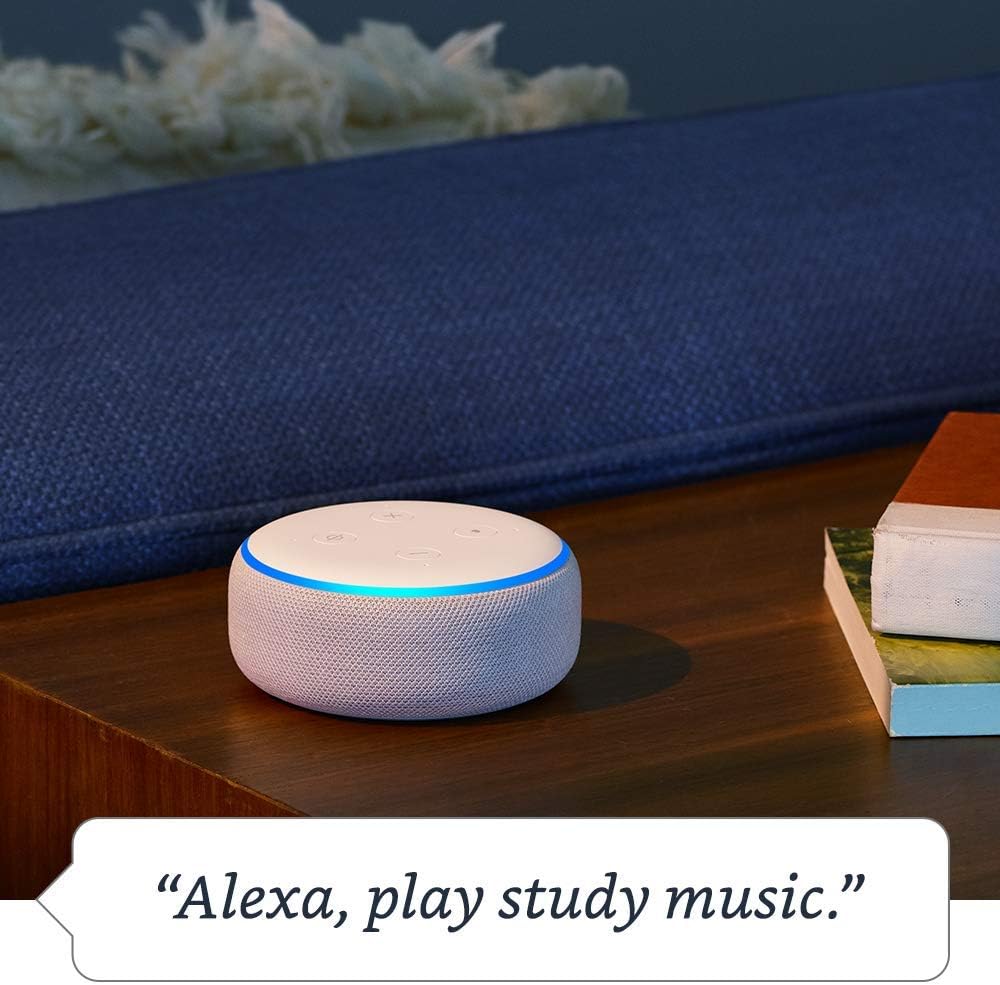
Image: The Echo Dot (3rd Gen) with its light ring illuminated, indicating it is playing music after the command "Alexa, play study music."

Image: The Echo Dot (3rd Gen) on a bedside table, with a lamp illuminated, demonstrating smart home control via the command "Alexa, turn on the light."

Image: The Echo Dot (3rd Gen) on a side table in a living room, demonstrating its ability to control smart home devices like a lamp.

Image: A person in a kitchen, with an Echo Dot (3rd Gen) in the background, illustrating the use of the device for making household announcements like "Alexa, announce dinner's ready."
Privacy Controls
The Echo Dot is designed with multiple layers of privacy protection.
- Microphone Off Button: Press the microphone off button on the top of the device to electronically disconnect the microphones. The light ring will turn red when the microphones are off.
- Voice History: You can view, listen to, and delete your voice recordings in the Alexa app.
- Privacy Settings: Manage other privacy settings within the Alexa app.

Image: A close-up of the Echo Dot (3rd Gen) showing the top controls, with an icon indicating the microphone is off and a red light ring, emphasizing the mic off button.
Maintenance
- Cleaning: Use a soft, dry, lint-free cloth to clean the exterior of the device. Do not use abrasive cleaners or sprays.
- Placement: Place the Echo Dot on a stable surface, away from sources of heat, direct sunlight, and liquids. Ensure proper ventilation.
- Software Updates: The device automatically receives software updates over Wi-Fi. Ensure it remains connected to the internet for optimal performance and security.
Troubleshooting
- Device not responding:
- Ensure the device is plugged in and the light ring is illuminated. Check if the microphone is turned off (red light ring). Try saying "Alexa" more clearly or from a closer distance. Restart the device by unplugging it for a few seconds and plugging it back in.
- No Wi-Fi connection:
- Check your router and internet connection. Ensure the Echo Dot is within range of your Wi-Fi router. Use the Alexa app to reconfigure Wi-Fi settings if necessary.
- Poor audio quality:
- Adjust the volume using voice commands or the volume buttons on the device. Ensure the device is not obstructed. If connected to external speakers via Bluetooth or AUX, check those connections.
- Alexa not understanding commands:
- Speak clearly and naturally. Avoid background noise. Review your voice history in the Alexa app to see how Alexa interpreted your commands and adjust your phrasing if needed.
Specifications
| Feature | Detail |
|---|---|
| Size | 3.9” x 3.9” x 1.7” (99 mm x 99 mm x 43 mm) |
| Weight | 10.6 oz. (300 grams) |
| Wi-Fi Connectivity | Dual-band Wi-Fi supports 802.11 a/b/g/n/ac (2.4 and 5 GHz) networks. Does not support ad-hoc (peer-to-peer) Wi-Fi networks. |
| Bluetooth Connectivity | A2DP support for audio streaming (mobile device to Echo Dot or Echo Dot to Bluetooth speaker). AVRCP for voice control of connected mobile devices. Bluetooth speakers requiring PIN codes are not supported. |
| Smart Home Device Compatibility | WiFi, Bluetooth Low Energy Mesh, and Matter |
| Accessibility Features | Adaptive Listening, Preferred Speaking Rate, Request Sound, Kindle Read Aloud, Notify When Nearby. Configurable via Alexa App. |
| Amazon Sidewalk | Shared network for compatible devices, enhancing connectivity. Can be turned off. |
Warranty and Support
For information regarding your device's warranty, please refer to the documentation included with your purchase or visit the official Amazon support website. Technical support and additional resources are available through the Alexa app and Amazon's customer service channels.
Online Support: amazon.com/devicesupport


