
Verkstar B07FYZ31DF
Verkstar Bluetooth Wireless Karaoke Microphone Instruction Manual
Model: B07FYZ31DF
1. Introduction
Thank you for purchasing the Verkstar Bluetooth Wireless Karaoke Microphone. This device combines a karaoke microphone, a high-quality Bluetooth speaker, and a recording microphone into one portable unit. It features colorful LED lights that synchronize with music, supports multiple connection methods, and offers a long battery life for extended use. This manual provides detailed instructions to help you get the most out of your new microphone.

Image 1.1: Verkstar Bluetooth Wireless Karaoke Microphone (Black)
2. Package Contents
Please check that all items listed below are included in your package:
- Verkstar Karaoke Microphone x 1
- Instruction Manual (Japanese) x 1
- USB Charging Cable x 1
- AUX Cable x 1
3. Product Overview and Controls
Familiarize yourself with the various parts and controls of your microphone:
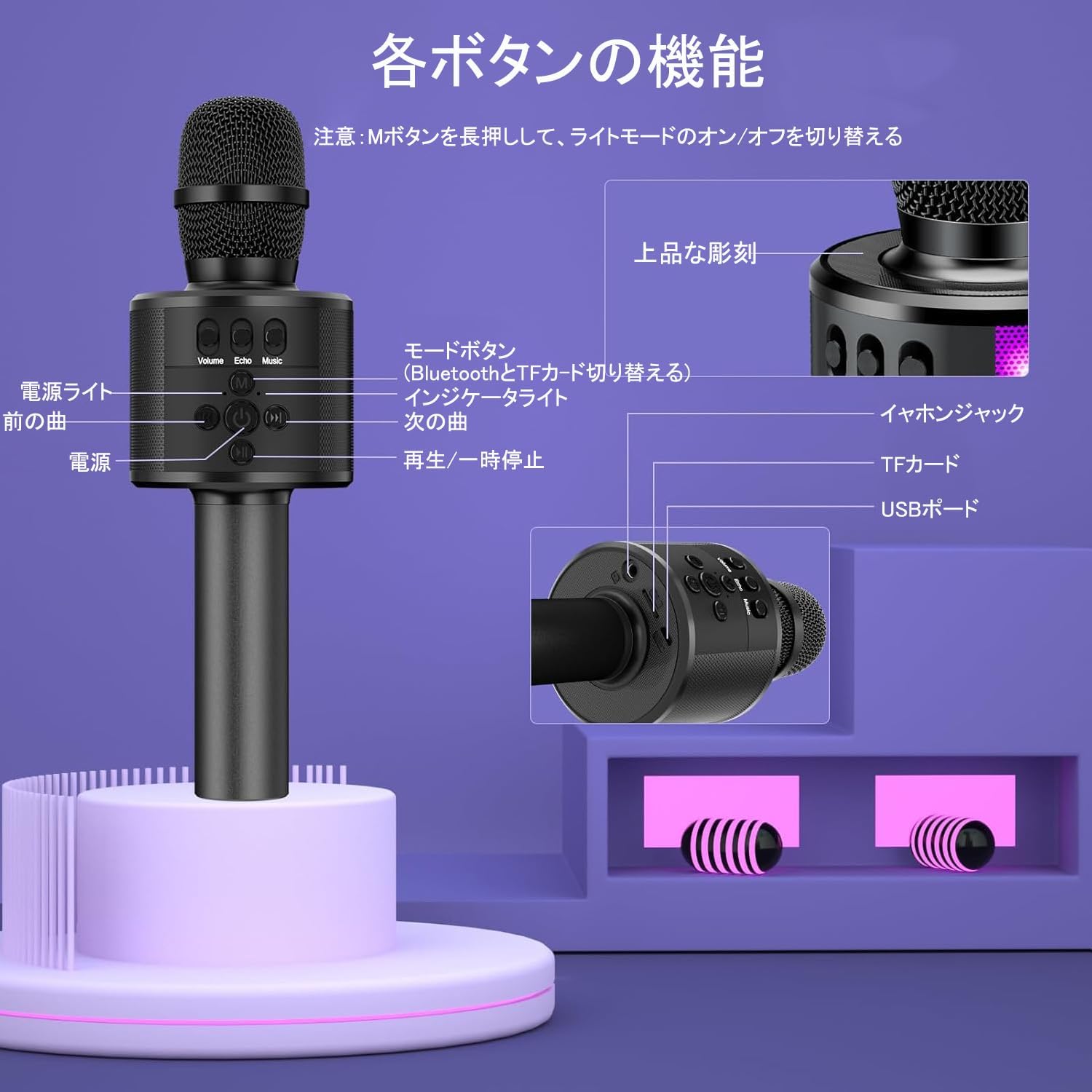
Image 3.1: Microphone Controls and Ports
Control Functions:
- Power Button: Long press to power on/off. Short press for mode switching.
- Power Light: Indicates power status.
- Previous Song Button: Skips to the previous track.
- Next Song Button: Skips to the next track.
- Play/Pause Button: Plays or pauses audio playback.
- Mode Button (M): Long press to switch between Bluetooth and TF card modes. Long press to turn LED lights on/off.
- Indicator Light: Flashes during pairing, solid when connected.
- Volume Control: Adjusts microphone volume.
- Echo Control: Adjusts echo effect level.
- Music Volume Control: Adjusts background music volume.
- Earphone Jack: For private listening with headphones.
- TF Card Slot: Insert a TF card for music playback.
- USB Port: For charging the microphone.
4. Setup
4.1 Charging the Microphone
Before first use, fully charge the microphone. Connect the included USB charging cable to the microphone's USB port and to a compatible USB power source (e.g., computer, USB wall adapter). The indicator light will show charging status and turn off when fully charged. A full charge takes approximately 2 hours.
4.2 Power On/Off
To power on the microphone, long press the Power Button for approximately 2 seconds. The indicator light will illuminate. To power off, long press the Power Button again.
4.3 Bluetooth Pairing
The microphone features an auto-connect function. After initial pairing, it will automatically connect to the last paired device.
- On your smartphone or tablet, open the Settings menu and turn on Bluetooth.
- Long press the microphone's Power Button for about 2 seconds to turn it on. The indicator light will flash, indicating it is in pairing mode.
- On your device's Bluetooth list, select "Q78".
- Once "Connected" is displayed on your device, the Bluetooth connection is complete.

Image 4.1: Bluetooth Connection Guide
5. Operating Modes
The microphone supports various music playback and connection modes:
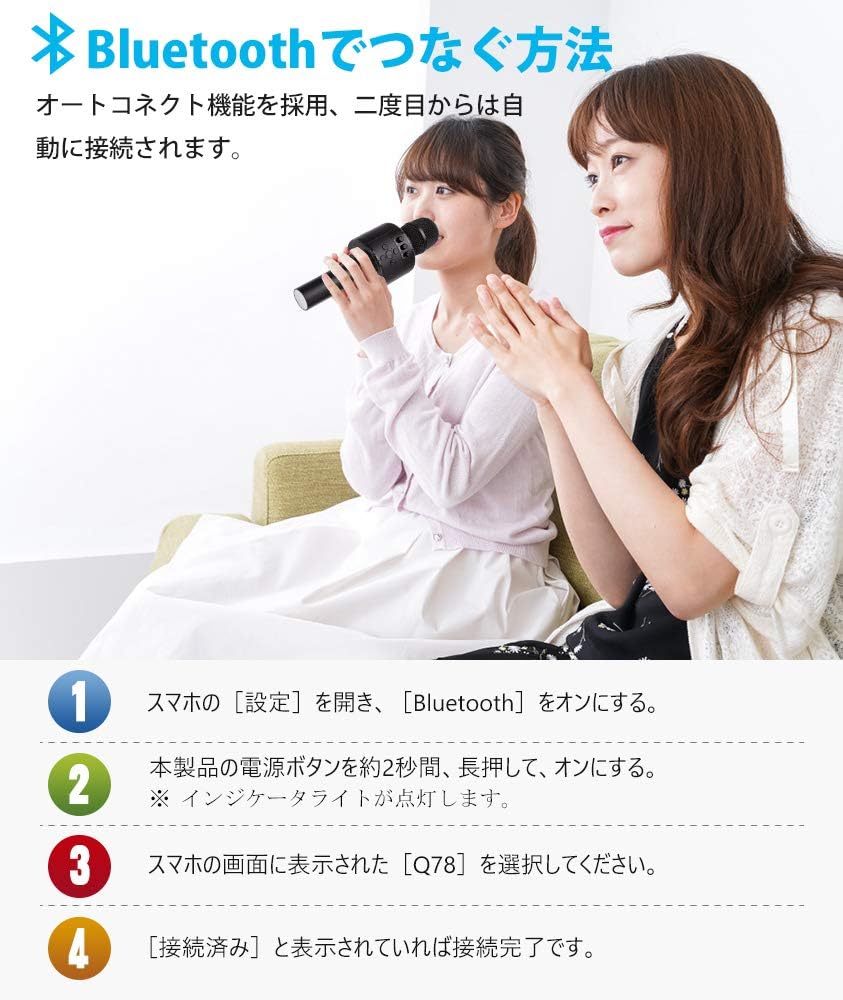
Image 5.1: Multiple Music Playback Modes
5.1 Bluetooth Mode
After successful Bluetooth pairing (refer to Section 4.3), you can play music from your smartphone, tablet, or PC wirelessly through the microphone's speaker. Use the microphone's controls (Previous/Next Song, Play/Pause) or your connected device to manage playback.
5.2 Wired Connection (AUX Cable)
Connect the included AUX cable from your device's audio output to the microphone's earphone jack. This allows for a stable wired connection for audio playback and karaoke.
5.3 TF Card Playback
Insert a TF (MicroSD) card (not included) into the TF card slot. The microphone supports TF cards up to 32GB and plays MP3 audio files. The microphone will automatically switch to TF card mode. Use the Previous/Next Song and Play/Pause buttons to control playback.
5.4 AUX Mode (External Audio Input)
If you wish to use the microphone as a speaker for an external audio source that does not support Bluetooth, connect an AUX audio cable (sold separately) from the external device's audio output to the microphone's earphone jack.
6. Recording Function
The microphone supports recording your singing through a connected smartphone application.
- Connect the microphone to your smartphone using the included AUX audio cable.
- Download and open a karaoke application on your smartphone.
- Follow the instructions within the karaoke app to begin recording your performance.
- After recording, you can play back your recorded track through the app.
Note: The microphone itself does not have internal recording storage. Recording is performed and saved on your connected smartphone or device.

Image 6.1: Recording with a Smartphone App
7. LED Light Features
The microphone is equipped with a music sensor that makes the colorful LED lights flash in sync with the rhythm of the music. The lights will flash faster as the volume increases, creating a dynamic visual experience.
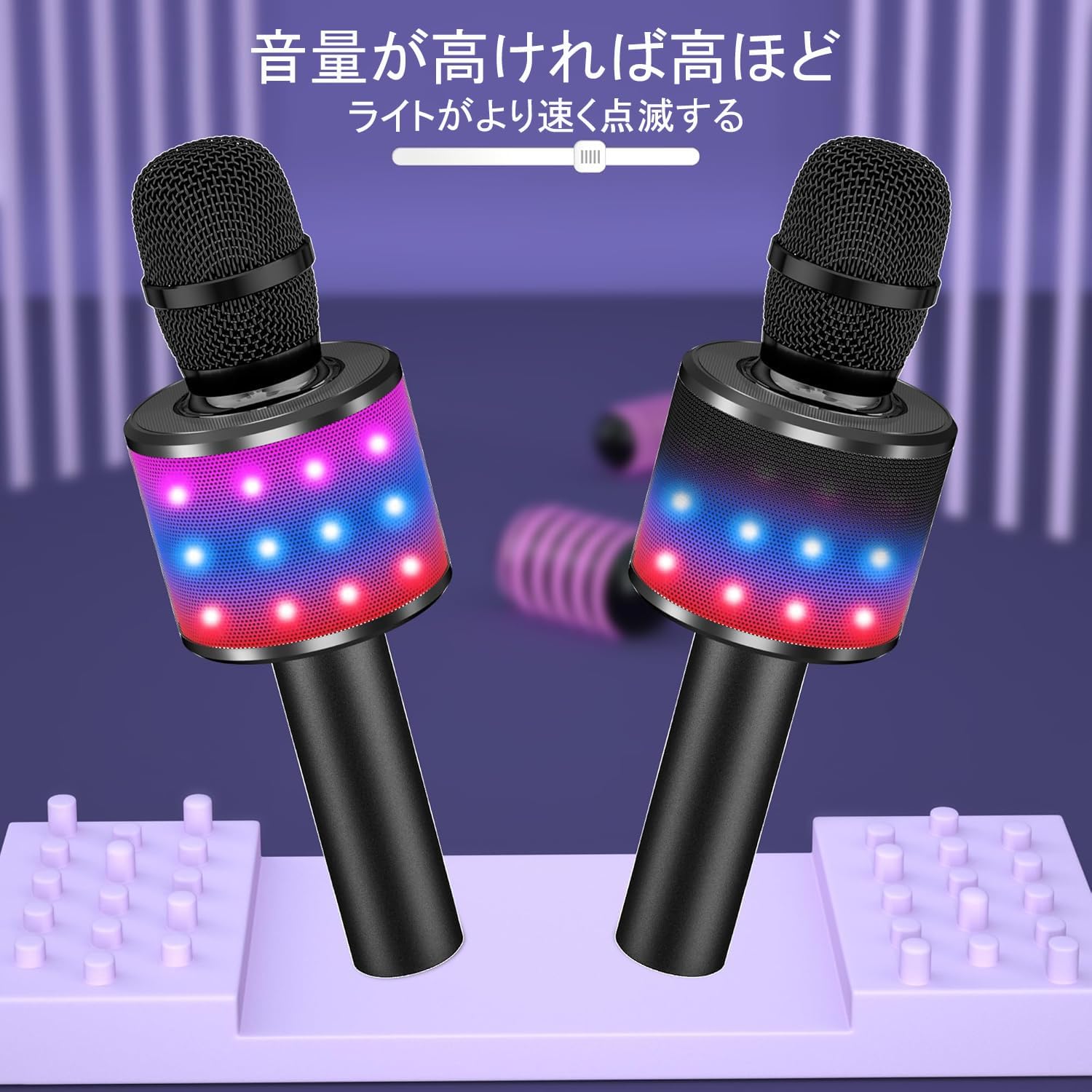
Image 7.1: LED Lights Reacting to Music
To turn the LED lights on or off, long press the Mode Button (M).
8. Maintenance
To ensure the longevity and optimal performance of your microphone, please follow these maintenance guidelines:
- Cleaning: Wipe the microphone with a soft, dry cloth. Do not use abrasive cleaners or solvents.
- Storage: Store the microphone in a cool, dry place away from direct sunlight and extreme temperatures.
- Water Exposure: Avoid exposing the microphone to water or excessive moisture. This device is not waterproof.
- Handling: Handle the microphone with care to prevent drops or impacts that could damage internal components.
9. Troubleshooting
If you encounter issues with your microphone, please refer to the following common problems and solutions:
| Problem | Possible Cause | Solution |
|---|---|---|
| Microphone does not power on. | Low battery. | Charge the microphone for at least 2 hours. |
| Cannot connect via Bluetooth. | Bluetooth is off on device; microphone not in pairing mode; incorrect device selected. | Ensure Bluetooth is enabled on your device. Long press the microphone's power button to enter pairing mode (flashing indicator light). Select "Q78" from your device's Bluetooth list. |
| No sound from microphone. | Microphone volume too low; echo/music volume too low; incorrect mode. | Adjust the microphone, echo, and music volume controls. Ensure the correct operating mode (Bluetooth, TF card, or wired) is selected. |
| LED lights are not working. | Lights are turned off. | Long press the 'M' button to toggle the LED lights on. |
| TF card not playing. | Unsupported file format; TF card not inserted correctly; TF card capacity too large. | Ensure files are in MP3 format. Reinsert the TF card. Use a TF card with a maximum capacity of 32GB. |
10. Specifications
| Feature | Detail |
|---|---|
| Brand | Verkstar |
| Model Number | B07FYZ31DF |
| Microphone Type | Handheld |
| Power Source | Battery Powered |
| Battery Type | 2 Lithium Polymer Batteries (included) |
| Battery Capacity | 2600mAh |
| Charging Time | Approx. 2 hours |
| Operating Time | Up to 8 hours |
| Connectivity Technology | Bluetooth, 3.5mm Jack |
| Frequency Response | 100Hz-10KHz |
| Special Features | Recording Function, LED Lights |
| Compatible Devices | Smartphone, Tablet, PC |
| Polar Pattern | Omnidirectional |
| Color | Black |
| Product Weight | 425 grams |
| Product Dimensions | 25.4 x 8.7 x 8.3 cm |
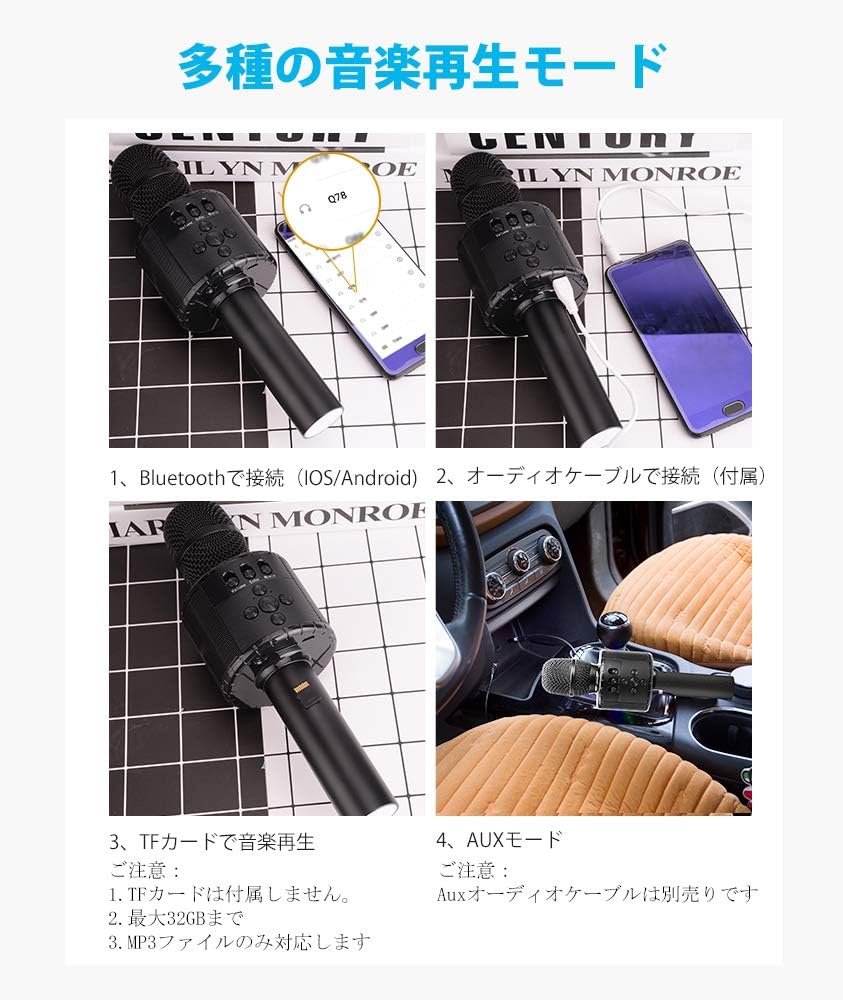
Image 10.1: Battery Life and Capacity
11. Warranty and Support
11.1 Warranty Information
This product comes with a 12-month warranty from the date of purchase. Please retain your proof of purchase for warranty claims. The warranty covers manufacturing defects and malfunctions under normal use.
11.2 Customer Support
For any questions, concerns, or technical assistance, please contact our customer support team. We offer 24-hour customer support to assist you. Refer to the contact information provided with your purchase or on the official Verkstar website.
Related Documents - B07FYZ31DF
 |
DUTRIEUX Bluetooth Karaoke Machine User Manual: Function Buttons and Operation User manual for the DUTRIEUX Bluetooth Karaoke Machine, detailing the function buttons on the speaker and microphone, including playback controls, lighting effects, and microphone settings for optimal use. |
 |
TeKKiWear Karaoke Microphone AT0010 - K3 User Manual and Specifications User manual and specifications for the TeKKiWear AT0010 - K3 karaoke microphone, detailing its features, operation, connectivity, and troubleshooting for an enhanced singing experience. |
 |
iHome iSF-36 Bluetooth Digital Karaoke System with Party Lights - User Manual User manual for the iHome iSF-36 Bluetooth Digital Karaoke system. Learn how to use USB mode, Bluetooth mode, record audio, control bass and echo, and troubleshoot common issues. Features party lights and voice control. |
 |
The Singing Machine SMG-903 Professional Recording Karaoke System Instruction Manual User manual for The Singing Machine SMG-903, a professional recording karaoke system. This guide covers setup, connections, CD/CD+G playback, USB/SD card operations, karaoke functions, and troubleshooting. |
 |
Takstar H1 All-in-one Karaoke Microphone User Manual User manual for the Takstar H1 All-in-one Karaoke Microphone, detailing features, operation, specifications, troubleshooting, and safety guidelines for wireless karaoke, music listening, and recording. |
 |
ZealSound P300 Live Mixer and Microphone User Manual Comprehensive user manual for the ZealSound P300 Live Mixer and Broadcasting Recording Microphone, detailing product introduction, features, specifications, connections, key functions, troubleshooting, and usage instructions for streaming, recording, and live performances. |
Ask a question about this manual
Ask about setup, troubleshooting, compatibility, parts, safety, or missing instructions. Manuals+ will review the question and use this page’s manual context to help answer it.