
1. Introduction
Thank you for choosing the TENMOS M2 Wireless Gaming Mouse. This manual provides essential information for the proper setup, operation, and maintenance of your new device. Please read it thoroughly before use to ensure optimal performance and longevity.

The TENMOS M2 Wireless Gaming Mouse features an ergonomic design and vibrant LED lighting.
Product Overview Video
This video provides a general overview of the TENMOS M2 LED Wireless Gaming Mouse, showcasing its design and features.
2. What's in the Box
Please check the package contents to ensure all items are present:
- 1 x Wireless Mouse
- 1 x USB Receiver
- 1 x USB Charging Cable
- 1 x User Manual
3. Product Features
- Rechargeable Wireless Mouse: Built-in rechargeable battery. The package includes a charging cable. The mouse can be used while charging.
- Silent Click: Left and right buttons feature super silent clicks to minimize disturbance.
- Cool and Soft LED Light: 7 different colors change randomly during use, providing ambient lighting. The LED light can be turned off via a bottom switch.
- Stable & Accurate Tracking: Advanced 2.4G wireless technology offers a working distance of up to 10m with stable transmission.
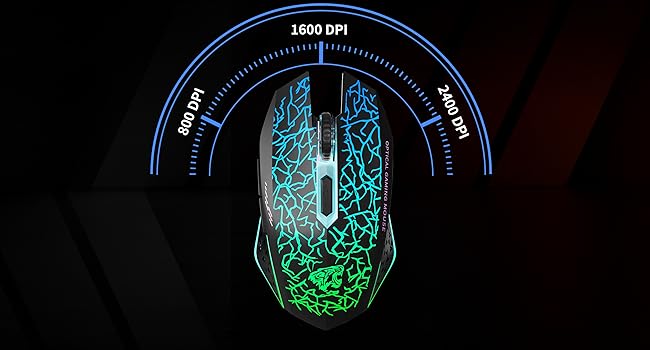
- 3 Adjustable DPI Levels: Easily switch between 800, 1600, and 2400 CPI for high precision tracking.
- Maximum Comfort Design: Ergonomic shape and skin-friendly materials ensure comfortable long-term use without fatigue.

The ergonomic design of the mouse ensures maximum comfort during extended use.

Overview of the mouse's size and practical button placement.
4. Setup Guide
- Locate the USB Receiver: The USB receiver is stored in a compartment at the bottom of the mouse. Gently slide open the compartment to retrieve it.
- Insert the USB Receiver: Plug the USB receiver into an available USB port on your computer (laptop or PC).
- Turn On the Mouse: Flip the power switch located on the bottom of the mouse to the "ON" position.
- Automatic Connection: The mouse should automatically connect to your computer. No additional drivers are typically required for Windows XP/Vista/7/8/10/11 or Mac OS.

The USB receiver is conveniently stored in the mouse's base for portability.
How to Connect Video
This video demonstrates the simple steps to connect your TENMOS M2 Wireless Mouse to a computer.
5. Operating Instructions
Once connected, the TENMOS M2 mouse operates like a standard optical mouse. Move the mouse to control the cursor on your screen. Use the left and right buttons for clicking and the scroll wheel for navigation.
DPI Adjustment
The mouse features a DPI button, usually located near the scroll wheel, allowing you to cycle through three adjustable DPI settings: 800, 1600, and 2400 CPI. Press this button to change the cursor speed and sensitivity to suit your preference for different tasks or games.

Adjust DPI settings for precise control and responsiveness.
LED Light Control
The 7-color LED light feature can be toggled on or off using the dedicated switch located on the bottom of the mouse. This allows you to conserve battery life or customize your setup's aesthetic.
The LED lights provide a dynamic visual experience.
Usage Video
This video demonstrates the TENMOS M2 Wireless Mouse in use with a laptop, highlighting its features.
6. Charging the Mouse
The TENMOS M2 mouse features a built-in rechargeable battery. To charge the mouse:
- Connect the provided USB charging cable to the charging port on the front of the mouse.
- Plug the other end of the USB charging cable into a USB power source (e.g., computer USB port, USB wall adapter).
- The mouse can be used while it is charging.
- For first-time use, please charge the mouse for approximately 2 hours.
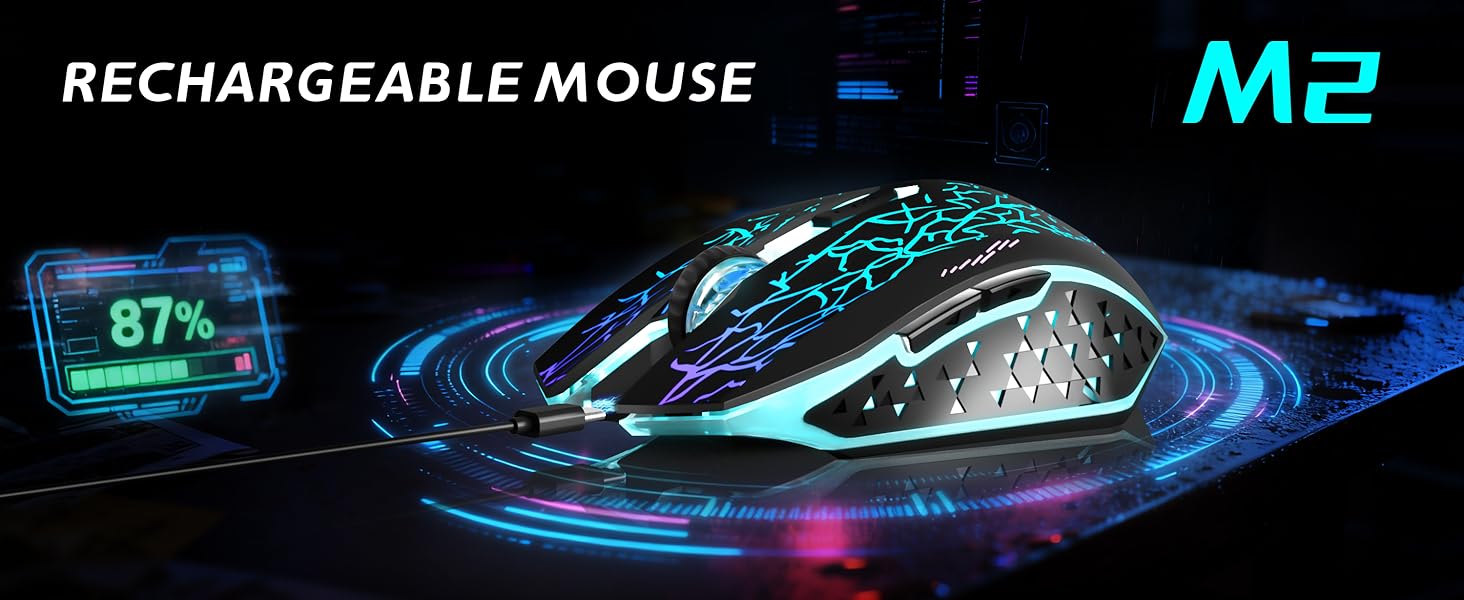
The mouse is easily rechargeable via the included USB cable.
7. Maintenance
To ensure the longevity and optimal performance of your TENMOS M2 Wireless Gaming Mouse, follow these maintenance guidelines:
- Cleaning: Use a soft, dry cloth to wipe the surface of the mouse. For stubborn dirt, slightly dampen the cloth with water or a mild cleaning solution. Avoid harsh chemicals.
- Storage: When not in use, store the mouse in a cool, dry place away from direct sunlight and extreme temperatures.
- Avoid Drops: Protect the mouse from drops and impacts, which can damage internal components.
- USB Receiver: When traveling, store the USB receiver in its designated compartment at the bottom of the mouse to prevent loss.
8. Troubleshooting
If you encounter any issues with your TENMOS M2 Wireless Gaming Mouse, please refer to the following common solutions:
| Problem | Solution |
|---|---|
| Mouse not responding | Ensure the mouse is turned ON. Check if the USB receiver is securely plugged into the computer. Try plugging the receiver into a different USB port. Ensure the mouse battery is charged. |
| LED lights not working | Check the LED light switch on the bottom of the mouse and ensure it is in the 'ON' position. |
| Cursor movement is erratic or slow | Change the DPI setting using the DPI button. Ensure the mouse is used on a clean, flat surface. Check for any obstructions on the optical sensor. |
| Charging issues | Ensure the charging cable is properly connected to both the mouse and the power source. Try a different USB port or charging adapter. |
| Connection drops frequently | Ensure the mouse is within the 10m operating range of the USB receiver. Avoid using the mouse near strong electromagnetic interference sources. |
9. Specifications
| Feature | Detail |
|---|---|
| Brand | TENMOS |
| Model Name/Number | M2001 |
| Color | Black |
| Connectivity Technology | USB (2.4G Wireless) |
| Movement Detection Technology | Optical |
| DPI Settings | 800 / 1600 / 2400 CPI |
| Special Features | Ergonomic Design, LED Lights, Rechargeable, Silent Click, Wireless |
| Button Quantity | 6 Buttons |
| Hand Orientation | Right |
| Compatible Devices | Laptop, Personal Computer |
| Operating System | Windows Vista, Windows XP, Mac OS (and newer versions) |
| Wireless Range | Up to 10 meters |
| Power Source | Battery Powered (Rechargeable) |
| Item Weight | 150 Grams |
| Item Dimensions (L x W) | 5.1"L x 2.8"W |
| Material | Plastic |
10. Warranty and Support
For warranty information and customer support, please refer to the documentation included with your purchase or contact TENMOS customer service directly. Keep your purchase receipt as proof of purchase.