
1. Introduction
This manual provides essential information for setting up, operating, maintaining, and troubleshooting your Lenovo ThinkPad A485 Series Laptop. Designed for business users, the ThinkPad A485 offers optimized performance, security, and portability. It features an AMD Ryzen 3 PRO 2300U quad-core processor, 4GB of DDR4 RAM, and a 500GB 7200 rpm hard drive. This guide will help you maximize your laptop's capabilities.
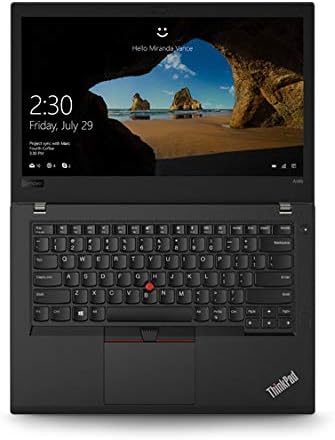
Image: The Lenovo ThinkPad A485 laptop shown open, displaying the keyboard, touchpad, and a screen with a login prompt. The ThinkPad logo is visible on the palm rest.
2. What's in the Box
Carefully unpack your new Lenovo ThinkPad A485 laptop. The package should contain the following items:
- Lenovo ThinkPad A485 Series Laptop
- AC Adapter
If any items are missing or damaged, please contact your retailer or Lenovo support immediately.
3. Setup
3.1 Initial Power On and Charging
- Connect the AC adapter to the laptop's power input port and then to a power outlet.
- Open the laptop lid.
- Press the power button, typically located above the keyboard, to turn on the laptop.
- Follow the on-screen instructions to complete the initial setup of Windows 10 Pro. This includes setting up your user account, network connection, and basic preferences.
3.2 Connecting Peripherals
Your ThinkPad A485 is equipped with various ports for connecting external devices:
- USB 3.1 Gen 1 Type-C Ports (x2): For connecting modern USB-C devices, external displays, or charging.
- USB 3.1 Gen 1 Type-A Port (x1): For standard USB devices like mice, keyboards, or external drives.
- USB 3.1 Gen 2 Type-A Port (x1): Offers faster data transfer speeds for compatible USB-A devices.
- HDMI Port: For connecting to external monitors or projectors.
- Ethernet Port: For wired network connections.
- Audio Jack: For headphones or external speakers.

Image: The left side of the Lenovo ThinkPad A485 laptop, displaying two USB-C ports, one USB-A port, and a ventilation grill.

Image: The right side of the Lenovo ThinkPad A485 laptop, showing a USB-A port, HDMI port, Ethernet port, and an SD card reader slot.
4. Operating Instructions
4.1 Power On/Off and Sleep Mode
- Power On: Press the power button.
- Shut Down: Click the Windows Start button, then Power > Shut down.
- Restart: Click the Windows Start button, then Power > Restart.
- Sleep: Close the laptop lid or click the Windows Start button, then Power > Sleep.
4.2 Keyboard and Touchpad
The ThinkPad A485 features a full-sized keyboard and a precision touchpad. The red TrackPoint in the center of the keyboard provides an alternative navigation method.
- Touchpad: Use multi-touch gestures for scrolling, zooming, and other functions. Refer to Windows settings for customization.
- TrackPoint: Use the TrackPoint to move the cursor and the associated buttons below the spacebar for left, right, and middle clicks.
4.3 Connecting to Wi-Fi
- Click the network icon in the system tray (bottom-right corner of the screen).
- Select your desired Wi-Fi network from the list.
- Click 'Connect' and enter the network security key if prompted.
4.4 Fingerprint Reader
Your laptop includes a fingerprint reader for enhanced security and quick login. To set it up:
- Go to Windows Settings > Accounts > Sign-in options.
- Under 'Windows Hello Fingerprint', click 'Set up' and follow the on-screen instructions to register your fingerprints.
5. Maintenance
5.1 Cleaning the Laptop
- Use a soft, lint-free cloth slightly dampened with water or a screen cleaner to clean the display.
- For the keyboard and chassis, use a soft cloth. Avoid harsh chemicals or abrasive materials.
- Periodically clean the ventilation grilles to ensure proper airflow and prevent overheating.
5.2 Battery Care
- To prolong battery life, avoid fully discharging the battery frequently.
- Store the laptop in a cool, dry place if not used for extended periods.
- The average battery life is approximately 5 hours, but this can vary based on usage.
5.3 Software Updates
Regularly update your operating system and drivers to ensure optimal performance and security. Windows Update can be accessed via Settings > Update & Security > Windows Update.
6. Troubleshooting
6.1 Common Issues and Solutions
- Laptop does not power on: Ensure the AC adapter is securely connected and the power outlet is functional. Try holding the power button for 10-15 seconds to perform a hard reset.
- Slow performance: Close unnecessary applications, check for background processes, ensure sufficient free space on the hard drive, and run a system scan for malware.
- Wi-Fi connection issues: Restart your router and laptop. Check if other devices can connect to the network. Update Wi-Fi drivers if necessary.
- Fingerprint reader not working: Ensure your fingers are clean and dry. Re-register your fingerprints in Windows settings if the issue persists.
- Screen issues (no display, flickering): Connect an external monitor to check if the issue is with the laptop's display or graphics card. Restart the laptop.
6.2 Contacting Support
If you encounter issues that cannot be resolved using the troubleshooting steps above, please visit the official Lenovo support website or contact their customer service for further assistance. Have your laptop's model number (20MU000QUS) and serial number ready.
7. Specifications
Below are the key technical specifications for the Lenovo ThinkPad A485 Series Laptop (Model 20MU000QUS):
| Feature | Specification |
|---|---|
| Processor | AMD Ryzen 3 PRO 2300U (2.0 GHz) |
| RAM | 4 GB DDR4 (2400 MHz) |
| Storage | 500 GB HDD (7200 RPM, Serial ATA) |
| Graphics | AMD Radeon Vega 6 (Integrated) |
| Display | 14 Inches (1366 x 768 pixels, Max Resolution: 1920x1080) |
| Operating System | Windows 10 Pro |
| Wireless Connectivity | 802.11g |
| Ports | 2x USB 3.1 Gen 1 Type-C, 1x USB 3.1 Gen 1 Type-A, 1x USB 3.1 Gen 2 Type-A, HDMI, Ethernet, Audio Jack |
| Special Features | Fingerprint Reader |
| Battery Life | Approximately 5 hours (1 Lithium Ion battery included) |
| Weight | 3.64 pounds |
| Dimensions (LxWxH) | 18.5 x 11.87 x 3 inches |
8. Warranty and Support
Your Lenovo ThinkPad A485 laptop comes with a standard manufacturer's warranty. For detailed information regarding warranty terms, coverage, and how to make a claim, please refer to the warranty card included with your product or visit the official Lenovo support website.
For technical support, driver downloads, and service information, please visit the Lenovo Support website. You will need your product's model number (20MU000QUS) and serial number to access specific support resources.


