
1. Product Overview
The Mesqool MQL-CR1008 is a digital alarm clock designed for bedrooms, featuring a large 7.5-inch LED display, a 7-color night light, and convenient USB and Type-C charging ports. It offers adjustable brightness, alarm volume, and time format options for personalized use.
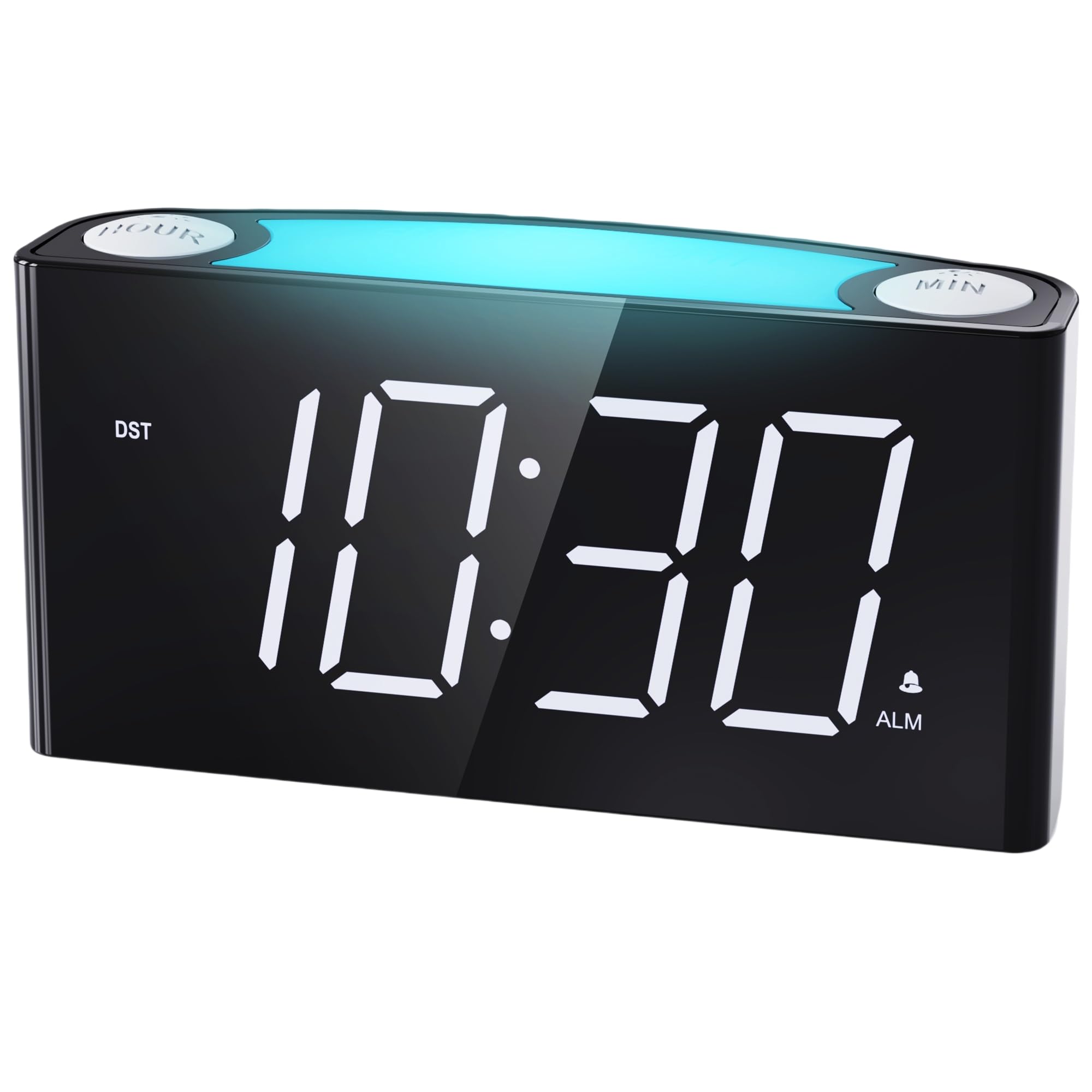
Figure 1: Front view of the Mesqool MQL-CR1008 Digital Alarm Clock.
2. Setup
2.1 Unboxing and Initial Power-On
Carefully remove the alarm clock and accessories from the packaging. The package typically includes the alarm clock unit, a power adapter, and this instruction manual.
Video 1: Unboxing the Mesqool Digital Alarm Clock, showing the contents and initial handling.
2.2 Power Connection
- Connect the provided DC power adapter to the DC IN port on the back of the alarm clock.
- Plug the adapter into a standard wall power outlet. The display will illuminate.
2.3 Battery Backup Installation
For backup functionality during power outages, install 2 AAA batteries (not included) into the battery compartment on the back of the unit. These batteries will retain time and alarm settings but will not power the display or USB charging ports.

Figure 2: Rear view of the alarm clock, highlighting the battery compartment and various control buttons.
3. Operating Instructions
3.1 Setting the Time
- Press the SET TIME button on the back of the clock. The hour digits will flash.
- Use the HOUR button (top left) to adjust the hour.
- Press SET TIME again. The minute digits will flash.
- Use the MIN button (top right) to adjust the minutes.
- Press SET TIME one more time to confirm and exit time setting mode.
3.2 12/24 Hour Time Format
Slide the TIME FORMAT switch on the back of the clock to select either 12-hour or 24-hour display.

Figure 3: The alarm clock displaying time in both 12-hour and 24-hour formats.
3.3 Setting the Alarm
- Press the SET ALARM button on the back. The alarm hour digits will flash.
- Use the HOUR button to adjust the alarm hour.
- Press SET ALARM again. The alarm minute digits will flash.
- Use the MIN button to adjust the alarm minutes.
- Press SET ALARM one more time to confirm.
- To activate or deactivate the alarm, use the ALARM ON/OFF switch on the back.
3.4 Snooze and Alarm Pause
- Snooze: When the alarm sounds, press the large SNOOZE/LIGHT button on top to temporarily silence the alarm for 9 minutes.
- Alarm Pause: To turn off the alarm for the current day, press the raised red ALARM PAUSE button on the back. The alarm will reset for the next day.
3.5 Display Brightness (Dimmer)
Adjust the display brightness using the DIMMER slider on the back of the clock. There are 5 levels of brightness, from exceedingly bright to exceedingly dim.

Figure 4: Visual representation of the 5-level brightness dimmer for the clock display.
3.6 Night Light Function
Tap the large SNOOZE/LIGHT button on top to cycle through 7 different night light colors. Tap repeatedly to change colors or turn the night light off.

Figure 5: The night light feature cycling through its 7 available colors.
Video 2: Demonstration of the night light colors and ease of setting the time on the alarm clock.
3.7 USB Charging Ports
The clock is equipped with a Type-C and a standard USB-A charging port on the back. These ports can be used to charge your mobile devices while the clock is plugged into a power outlet.

Figure 6: Close-up of the back panel showing the USB and Type-C charging ports.
4. Maintenance
- Cleaning: Wipe the clock surface with a soft, dry cloth. Avoid using abrasive cleaners or solvents.
- Battery Replacement: Replace the 2 AAA backup batteries annually or as needed to ensure settings are retained during power interruptions.
5. Troubleshooting
- Clock not displaying time: Ensure the power adapter is securely plugged into both the clock and a working wall outlet. If using battery backup, remember it only retains settings, not powers the display.
- Alarm not sounding: Check that the ALARM ON/OFF switch is in the 'ON' position and the alarm volume is not set to 'LOW' or 'OFF'.
- USB charging ports not working: Confirm the clock is powered via the DC adapter. Ensure your device's charging cable is functional and properly connected.
- Display too bright/dim: Adjust the DIMMER slider on the back to your preferred brightness level.
6. Specifications
| Feature | Description |
|---|---|
| Brand | Mesqool |
| Model | MQL-CR1008 |
| Display Type | 7.5" Large LED Display |
| Display Color | White Digits |
| Night Light | 7-Color Options |
| Power Source | Corded Electric |
| Battery Backup | 2 AAA batteries (not included) |
| Charging Ports | 1x USB-A, 1x Type-C |
| Dimensions (L x H x W) | 6.46" x 3.39" x 1.93" |
| Item Weight | 8.1 ounces |
| Material | Acrylonitrile Butadiene Styrene (ABS) |

Figure 7: Product dimensions of the Mesqool MQL-CR1008 Digital Alarm Clock.
7. Warranty and Support
7.1 Warranty Information
The Mesqool MQL-CR1008 Digital Alarm Clock typically comes with a 1-year limited warranty. Extended warranty options may be available through the manufacturer's website. Please refer to the product packaging or manufacturer's website for the most current warranty details.
7.2 Customer Support
For any questions, technical assistance, or support inquiries, please contact Mesqool customer service:
- Email: Support@mesqool.com


