1. Introduction
Thank you for purchasing the iFi xCAN, a high-performance portable dual mono balanced headphone amplifier. The xCAN is engineered to deliver exceptional audio quality from your digital and analog sources, featuring advanced Bluetooth connectivity with AptX and AAC codecs, and versatile wired input/output options. This manual will guide you through the setup, operation, and maintenance of your xCAN to ensure optimal performance and longevity.
2. Product Overview
2.1 Package Contents
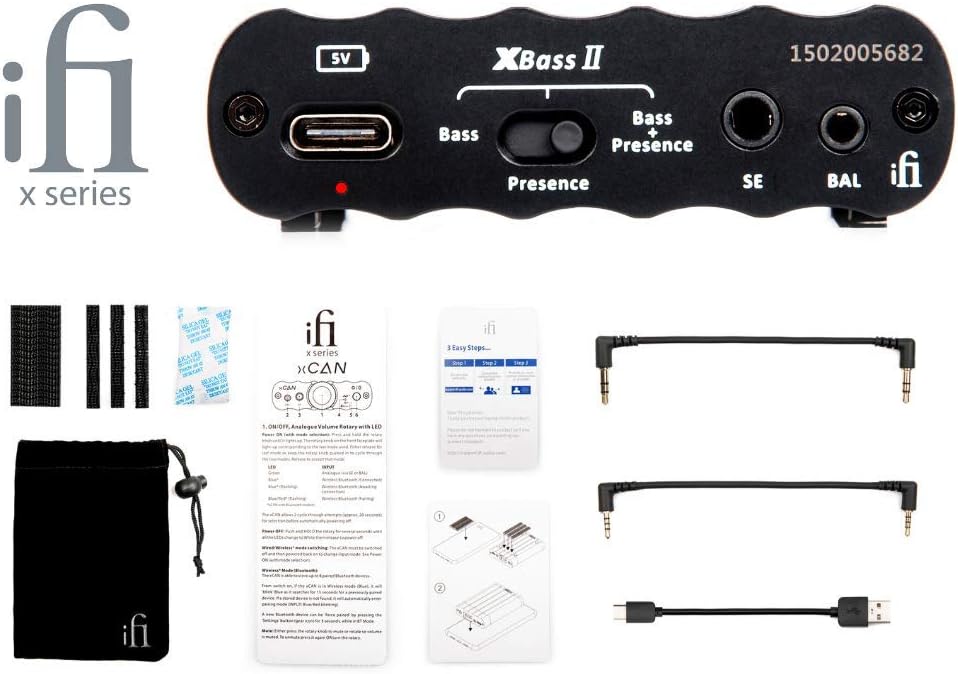
Figure 2.1: The iFi xCAN amplifier shown with its complete set of included accessories, which typically consist of various audio cables, a USB charging cable, and a protective pouch.
Please check that all items are present in your package:
- iFi xCAN Portable Headphone Amplifier
- USB-C to USB-A charging cable
- 3.5mm to 3.5mm audio cable
- 2.5mm to 2.5mm balanced audio cable
- Protective carrying pouch
- User Manual and Quick Start Guide
2.2 Front Panel Controls and Connections

Figure 2.2: The front panel of the iFi xCAN, featuring the central volume knob with integrated LED, 2.5mm balanced output, 3.5mm single-ended output, and buttons for XBass II and 3D+ sound enhancements.
- 2.5mm Balanced Output (BAL): Connect balanced headphones with a 2.5mm TRRS connector.
- 3.5mm Single-Ended Output (SE): Connect single-ended headphones with a 3.5mm TRS connector.
- Volume Control / Power Button: Rotate to adjust volume. Press and hold to power on/off. The LED around the knob indicates status and battery level.
- 3D+ Button: Toggles iFi's 3D+ holographic sound system for a wider soundstage.
- XBass II Button: Toggles iFi's XBass II bass enhancement. Press once for Bass, press again for Bass + Presence, press a third time to turn off.
2.3 Rear Panel Connections

Figure 2.3: The rear panel of the iFi xCAN, displaying the USB-C input for charging and data, a 3.5mm single-ended analog input, and a 2.5mm balanced analog input.
- USB-C Input (5V): For charging the xCAN and for digital audio input from a computer or compatible device.
- 3.5mm Single-Ended Input (SE): For analog audio input from devices with a 3.5mm output.
- 2.5mm Balanced Input (BAL): For analog audio input from devices with a 2.5mm balanced output.
3. Setup
3.1 Charging the xCAN
Before first use, fully charge the xCAN using the supplied USB-C cable connected to a USB power adapter (not included) or a computer's USB port. The LED around the volume knob will indicate charging status.
- Green: Fully charged
- White: Charging (80% - 99%)
- Yellow: Charging (20% - 79%)
- Red: Charging (below 20%)
3.2 Connecting to Audio Sources

Figure 3.1: A visual guide illustrating how to connect the iFi xCAN to different audio sources, including smartphones, laptops, and digital audio players, using both Bluetooth wireless and wired 3.5mm or 2.5mm analog connections.
The xCAN offers both wired and wireless connectivity options:
- Bluetooth: For wireless connection to smartphones, tablets, and computers.
- Wired Analog: Use the 3.5mm or 2.5mm balanced input for direct connection to audio players or other devices.
- Wired Digital (USB-C): Connect to a computer or compatible digital source for high-resolution audio playback.
3.3 Connecting Headphones
Connect your headphones to the appropriate output on the front panel:
- For balanced headphones, use the 2.5mm BAL output.
- For single-ended headphones, use the 3.5mm SE output.
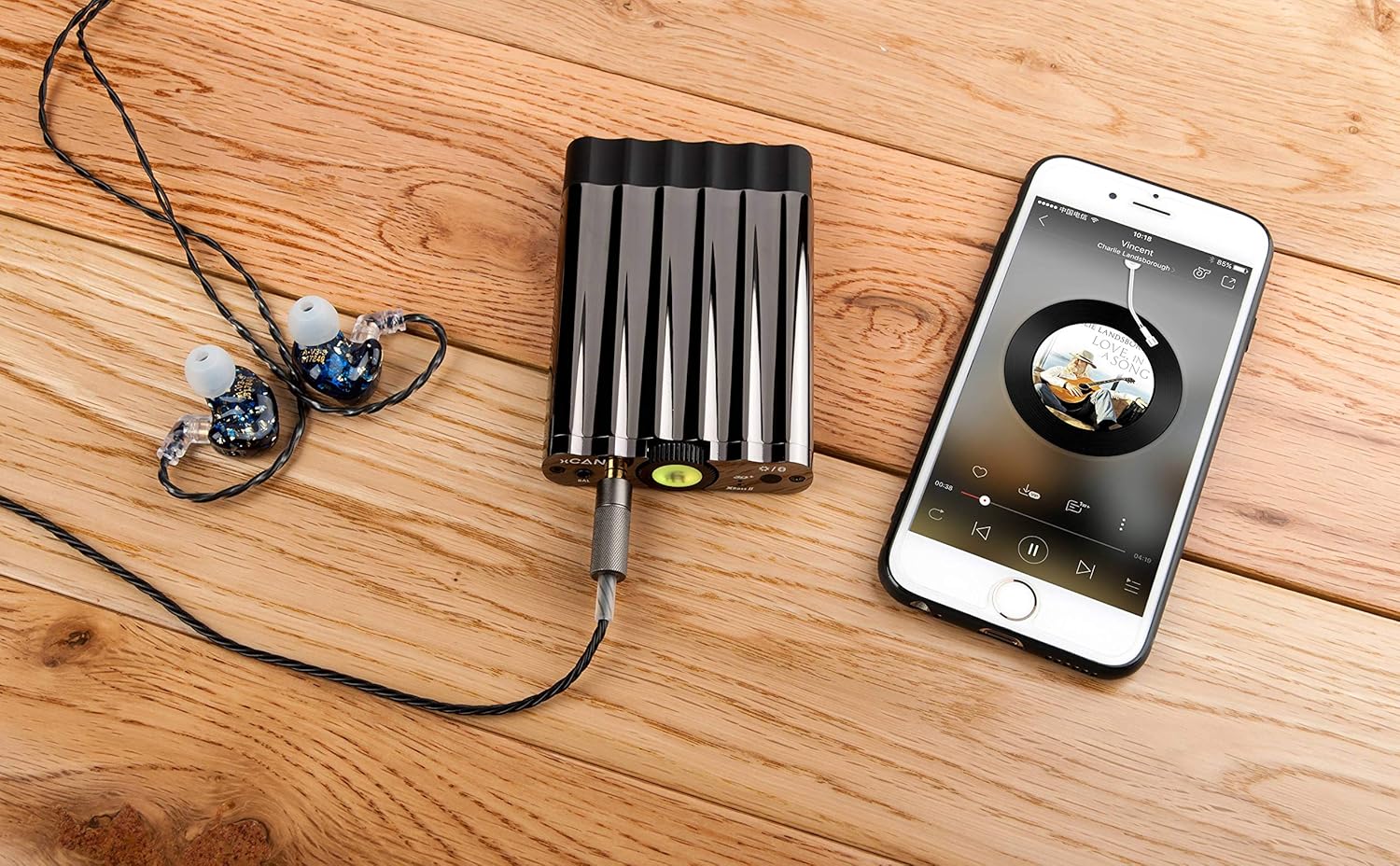
Figure 3.2: The iFi xCAN amplifier connected via cable to a smartphone, with in-ear monitors plugged into the amplifier's output, demonstrating a typical portable audio setup.

Figure 3.3: The iFi xCAN amplifier connected to a digital audio player (DAP) and in-ear monitors, showcasing its use as an external amplifier for high-fidelity portable setups.
4. Operating Instructions
4.1 Power On/Off
To power on the xCAN, press and hold the volume knob for approximately 3 seconds. The LED around the knob will illuminate. To power off, press and hold the volume knob again for 3 seconds.
4.2 Volume Control
Rotate the central knob clockwise to increase volume and counter-clockwise to decrease volume. Start with a low volume level before playing audio to prevent sudden loud sounds.
4.3 Bluetooth Pairing
To enter Bluetooth pairing mode, short press the volume knob twice. The LED will flash blue. On your device (smartphone, tablet, computer), search for "iFi xCAN" in the Bluetooth settings and select it to pair. Once paired, the LED will show a solid blue light.
4.4 XBass II and 3D+ Functions
These functions enhance your listening experience:
- XBass II: Press the XBass II button to cycle through modes:
- Bass: Enhances low frequencies.
- Bass + Presence: Enhances low frequencies and adds vocal presence.
- Off: No enhancement.
- 3D+: Press the 3D+ button to toggle the holographic sound system on or off. This widens the perceived soundstage, making the audio sound more spacious.
4.5 LED Indicators
The LED around the volume knob provides important status information:
| LED Color | Status Indication |
|---|---|
| Green | Battery Full / Fully Charged |
| White | Battery 80% - 99% |
| Yellow | Battery 20% - 79% |
| Red | Battery below 20% / Charging (Red) |
| Flashing Blue | Bluetooth Pairing Mode |
| Solid Blue | Bluetooth Connected |
5. Maintenance
To ensure the longevity and optimal performance of your iFi xCAN, follow these maintenance guidelines:
- Cleaning: Use a soft, dry, lint-free cloth to clean the exterior of the device. Do not use liquid cleaners or aerosols.
- Storage: Store the xCAN in a cool, dry place away from direct sunlight and extreme temperatures. Use the provided protective pouch when transporting.
- Battery Care: For optimal battery life, avoid fully discharging the battery frequently. If storing for an extended period, charge the battery to about 50% before storage.
- Avoid Moisture: Keep the device away from water and high humidity.
- Handle with Care: Avoid dropping or subjecting the device to strong impacts.
6. Troubleshooting
If you encounter any issues with your iFi xCAN, please refer to the following common problems and solutions:
| Problem | Possible Cause / Solution |
|---|---|
| No power / Device won't turn on |
|
| No sound from headphones |
|
| Bluetooth connection issues |
|
| Distorted or poor sound quality |
|
7. Specifications
| Feature | Detail |
|---|---|
| Model Name | xCAN |
| Brand | iFi |
| Connectivity Technology | Wireless (Bluetooth), Wired (USB-C, 3.5mm, 2.5mm) |
| Bluetooth Codecs | AptX, AAC (and others supported by iFi) |
| Headphone Outputs | 2.5mm Balanced, 3.5mm Single-Ended |
| Analog Inputs | 2.5mm Balanced, 3.5mm Single-Ended |
| Digital Input | USB-C |
| Color | Black |
| Included Components | Cables, Protective Pouch |
8. Warranty and Support
The iFi xCAN comes with a standard manufacturer's warranty. Please refer to the warranty card included in your package or visit the official iFi website for detailed warranty terms and conditions.
For technical support, product registration, or further inquiries, please visit the iFi Audio support page or contact their customer service directly.
iFi Audio Official Website: ifi-audio.com


