
Viotek NB24CW
Viotek NB24CW 24-Inch Curved Monitor User Manual
Model: NB24CW
Introduction
This manual provides essential information for the safe and efficient operation of your Viotek NB24CW 24-Inch LED Curved Monitor. Please read this guide thoroughly before using the product and retain it for future reference.
The Viotek NB24CW is a 24-inch curved LED monitor featuring a 1920x1080p Full-HD resolution, 75Hz refresh rate, and FreeSync technology. It includes built-in speakers, VGA and HDMI 1.4 ports, and is VESA mount compatible. Its bezel-less design offers an immersive viewing experience for both work and entertainment.
Safety Information
To ensure safe operation and prevent damage, observe the following precautions:
- Do not expose the monitor to rain, moisture, or extreme temperatures.
- Avoid placing the monitor near heat sources or in direct sunlight.
- Use only the power adapter supplied with the monitor.
- Do not block ventilation openings.
- Clean the screen with a soft, lint-free cloth. Avoid abrasive cleaners.
- If any issues arise, disconnect the power cable and contact customer support.
Package Contents
Verify that all items are present in the package:
- Viotek NB24CW Monitor
- Monitor Stand (Base and Neck)
- Power Adapter
- HDMI Cable
- VESA Adapter (75x75mm)
- User Manual (this document)
Setup
1. Assembling the Stand
- Carefully remove the monitor from its packaging.
- Attach the stand neck to the monitor panel using the provided screws.
- Secure the stand base to the stand neck.
- Place the assembled monitor on a stable, flat surface.
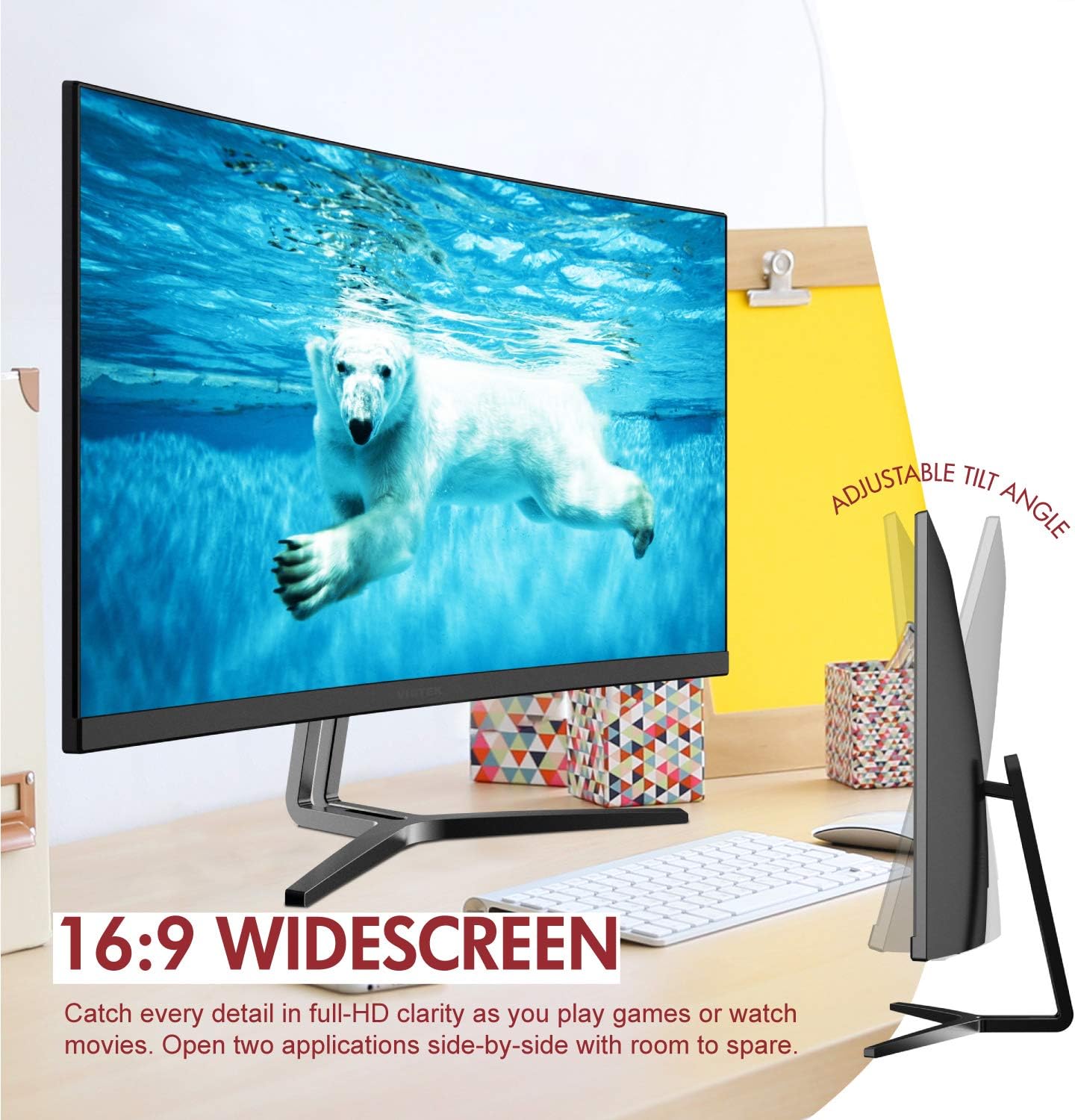
Image: The Viotek NB24CW monitor with its stand, highlighting the 16:9 widescreen aspect ratio and adjustable tilt angle. The monitor is shown displaying a polar bear underwater.
2. Connecting to a Device
The monitor supports HDMI and VGA connections.
- HDMI Connection: Connect one end of the HDMI cable (included) to the HDMI port on your computer or gaming console, and the other end to the HDMI 1.4 port on the monitor.
- VGA Connection: Connect one end of the VGA cable (not included) to the VGA port on your computer, and the other end to the VGA port on the monitor.

Image: A detailed view of the monitor's rear panel, illustrating the HDMI 1.4 and VGA input ports for connecting to various devices.
3. Power Connection
Connect the power adapter to the monitor's power input, then plug the adapter into a power outlet.
4. VESA Mounting (Optional)
The monitor is VESA 75x75mm compatible. Use the included VESA adapter to mount the monitor to a wall or compatible monitor arm.

Image: The back of the Viotek NB24CW monitor, highlighting its VESA mounting capability, integrated speakers, and connectivity options including VGA and HDMI.
Operating Instructions
1. Power On/Off
Press the power button located on the bottom right side of the monitor to turn it on or off.
2. On-Screen Display (OSD) Menu
Use the buttons next to the power button to navigate the OSD menu. This menu allows you to adjust various settings such as brightness, contrast, color temperature, input source, and audio volume.
3. Adjusting Display Settings
- Brightness/Contrast: Adjust these settings for optimal visual comfort.
- Color Settings: Select from preset color modes or customize RGB values.
- Input Source: Manually select between HDMI and VGA inputs if auto-detection fails.
- Low Blue Light: Activate this feature to reduce eye strain during prolonged use.
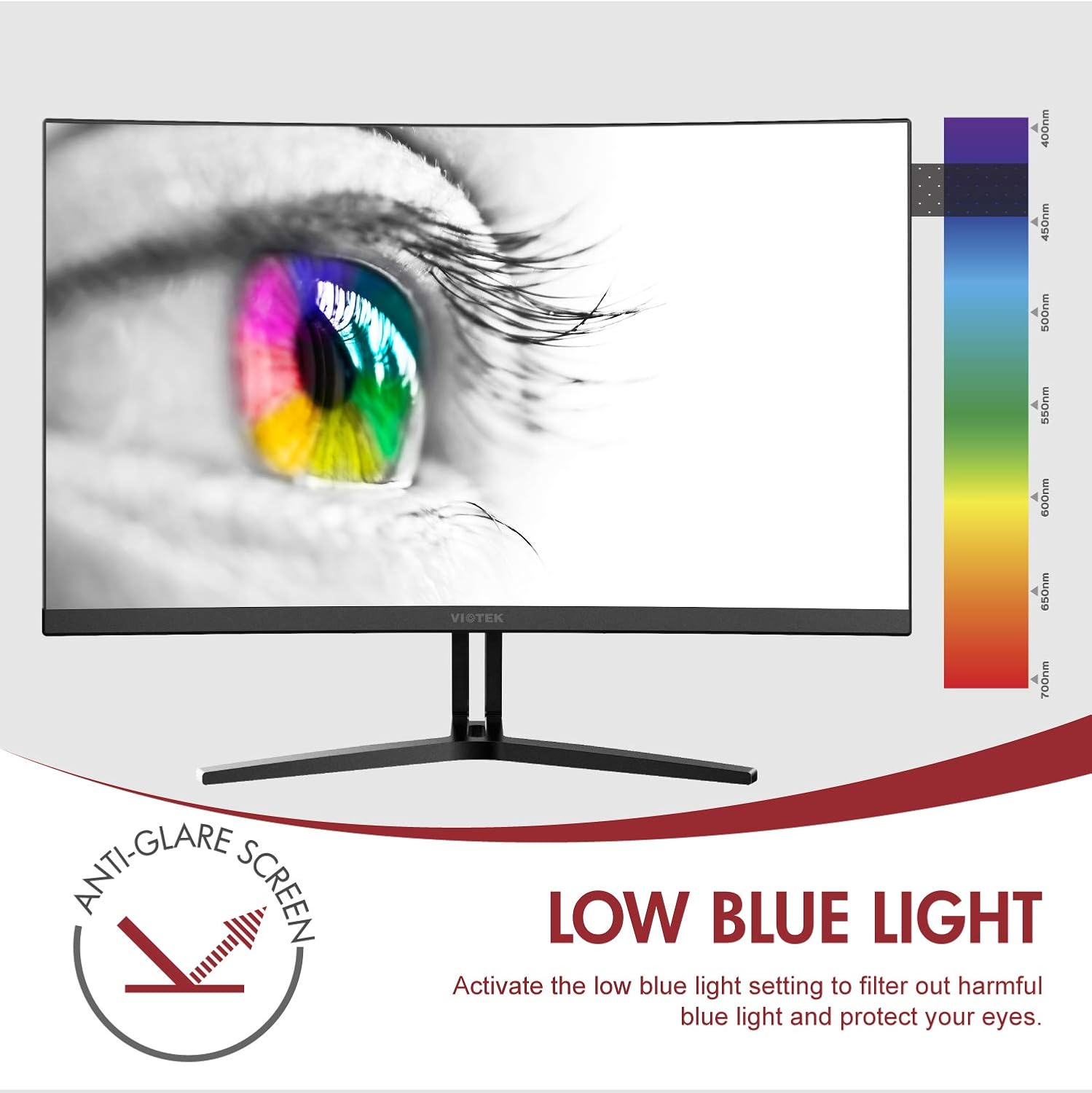
Image: The monitor screen showing an eye with a color spectrum, indicating the Low Blue Light feature designed to protect vision.
4. Gaming Features
The NB24CW monitor includes features optimized for gaming:
- FreeSync: Enable FreeSync in the OSD menu and on your compatible graphics card to eliminate screen tearing and stuttering.
- GamePlus: Access GamePlus features like integrated crosshairs for improved aiming in FPS/RTS games.
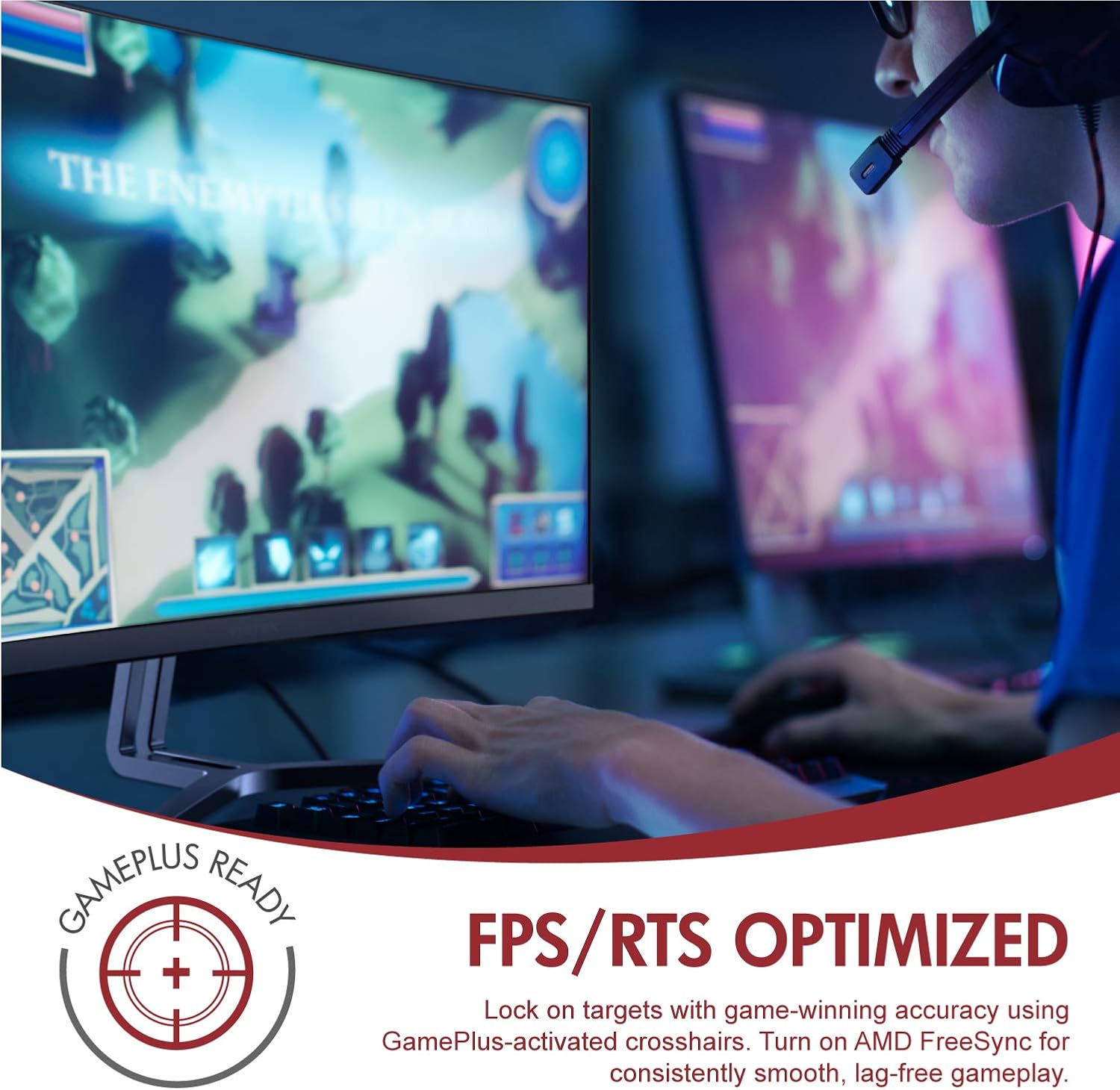
Image: A user engaged in gaming on the Viotek NB24CW monitor, highlighting its FPS/RTS optimized features and GamePlus functionality for enhanced gameplay.
Maintenance
- Cleaning the Screen: Gently wipe the screen with a soft, dry, lint-free cloth. For stubborn marks, lightly dampen the cloth with water or a screen-specific cleaning solution. Do not spray liquid directly onto the screen.
- Cleaning the Casing: Use a soft, dry cloth to clean the monitor's casing. Avoid using harsh chemicals or abrasive materials.
- Storage: If storing the monitor for an extended period, disconnect it from power, pack it in its original packaging, and store in a cool, dry place.
Troubleshooting
| Problem | Possible Cause | Solution |
|---|---|---|
| No image on screen | Power cable disconnected, incorrect input source, video cable loose. | Check power connections, select correct input source via OSD, ensure video cable is securely connected. |
| Image is blurry or distorted | Incorrect resolution, faulty video cable. | Set display resolution to 1920x1080p, try a different HDMI cable. |
| No sound from speakers | Volume too low, audio source not selected, external speakers connected. | Increase volume in OSD and computer settings, ensure audio is routed to monitor, disconnect external speakers if not needed. |
| Screen flickering | Refresh rate mismatch, faulty cable, FreeSync issue. | Ensure refresh rate is set to 75Hz, try a different video cable, disable FreeSync temporarily to diagnose. |
Specifications
| Feature | Detail |
|---|---|
| Model | NB24CW |
| Screen Size | 24 Inches |
| Panel Type | LED Curved |
| Curvature | 1800R |
| Resolution | 1920 x 1080 (Full HD) |
| Aspect Ratio | 16:9 |
| Refresh Rate | 75 Hz |
| Response Time | 5ms |
| Viewing Angle | 178° |
| Contrast Ratio | 1,000,000:1 (Dynamic) |
| Color Support | 16.7 Million Colors, 96% sRGB |
| Connectivity | 1x HDMI 1.4, 1x VGA |
| Audio | Built-in Speakers (2x4Ω/3W) |
| VESA Compatibility | 75x75mm (Adapter Included) |
| Adaptive Sync | FreeSync |
| Tilt Adjustment | -5° to 15° |
| Special Features | Bezel-less design, GamePlus, FPS/RTS modes, Low Blue Light, Anti-glare screen |

Image: The Viotek NB24CW monitor showcasing its key performance specifications: 1080p resolution, 1800R curvature, 75Hz refresh rate, and 5ms response time.
Warranty Information
Your Viotek NB24CW monitor is covered by a 3-Year Manufacturer's Limited Warranty. This warranty covers defects in materials and workmanship under normal use. Additionally, Viotek offers an industry-leading Zero-Tolerance Dead Pixel Policy, ensuring your display is free from dead pixels.
For full warranty terms and conditions, please refer to the official Viotek website or contact customer support.

Image: A visual representation of Viotek's commitment to quality, featuring a "3 Year Warranty" and "Zero Dead Pixel - Parts & Labor" guarantee.
Customer Support
For technical assistance, warranty claims, or general inquiries, please contact our 100% U.S.-based Customer Support Team. They are available 7 days a week via live-chat, email, and social media support.
- Website: www.viotek.com
- Email: Refer to the Viotek website for specific email contact.
- Live Chat: Available on the official Viotek website.
Product Overview Video
Video: An official product overview video for the Viotek NB24CB (similar model to NB24CW) monitor, showcasing its curved display, thin design, connectivity ports, and key features like 75Hz refresh rate, FreeSync, and built-in speakers. This video provides a visual guide to the monitor's design and capabilities.
Related documentsNB24CW


Ask a question about this manual
Ask about setup, troubleshooting, compatibility, parts, safety, or missing instructions. Manuals+ will review the question and use this page’s manual context to help answer it.