
1. Introduction
Thank you for choosing the Petlibro Automatic Pet Feeder. This device is designed to provide consistent and timely meals for your pet, ensuring they are fed according to a set schedule, even when you are away. Please read this manual thoroughly before use to ensure proper operation and maintenance of your feeder.
2. Important Safety Information
Please observe the following safety precautions to prevent injury or damage to the product:
- Read all instructions carefully before operating the feeder.
- Keep the feeder away from children and pets when not in use or during assembly.
- Do not immerse the main unit in water or other liquids.
- Use only dry pet food with a diameter between 5-15mm. Do not use wet, canned, or moist food.
- Ensure the feeder is placed on a stable, level surface.
- Unplug the feeder before cleaning or performing any maintenance.
- Do not attempt to repair or modify the feeder yourself. Contact customer support for assistance.
- Dispose of batteries responsibly according to local regulations.
3. Package Contents
Please check the package contents to ensure all items are present:
- Petlibro Automatic Pet Feeder Main Unit
- Food Bowl
- USB-C Power Adapter and Cable
- Desiccant Bag (pre-installed or separate)
- User Manual
4. Product Overview
Familiarize yourself with the different parts of your Petlibro Automatic Pet Feeder:
- Food Tank: Stores dry pet food.
- Lid: Covers the food tank to keep food fresh.
- Control Panel: Buttons and display for setting schedules and manual feeding.
- Food Outlet: Where food dispenses into the bowl.
- Food Bowl: Detachable bowl for your pet to eat from.
- Power Port (USB-C): Connects to the power adapter.
- Battery Compartment: Holds backup batteries (not included).
5. Setup
Follow these steps to set up your Petlibro Automatic Pet Feeder:
5.1 Assembly
- Unpack: Carefully remove all components from the packaging.
- Install Food Bowl: Place the food bowl securely at the base of the feeder.
- Install Food Tank: Align the food tank with the base and twist to lock it into place.
- Insert Desiccant Bag: If not pre-installed, open the desiccant compartment (usually under the lid) and insert the desiccant bag to keep food fresh. Replace every 15-30 days.

Image: Step-by-step assembly guide for the Petlibro Automatic Pet Feeder. It shows how to twist open the lid, take out the food bowl, put the desiccant bag into its compartment, install the food tank, put the lid back on, and finally install the food bowl.
5.2 Power Supply
The feeder can be powered by a USB-C adapter or backup batteries.
- Primary Power: Connect the USB-C power adapter to the feeder's power port and plug it into a wall outlet.
- Battery Backup (Optional): For power outages, install 3 D-cell batteries (not included) into the battery compartment at the bottom of the feeder. This ensures continuous operation.
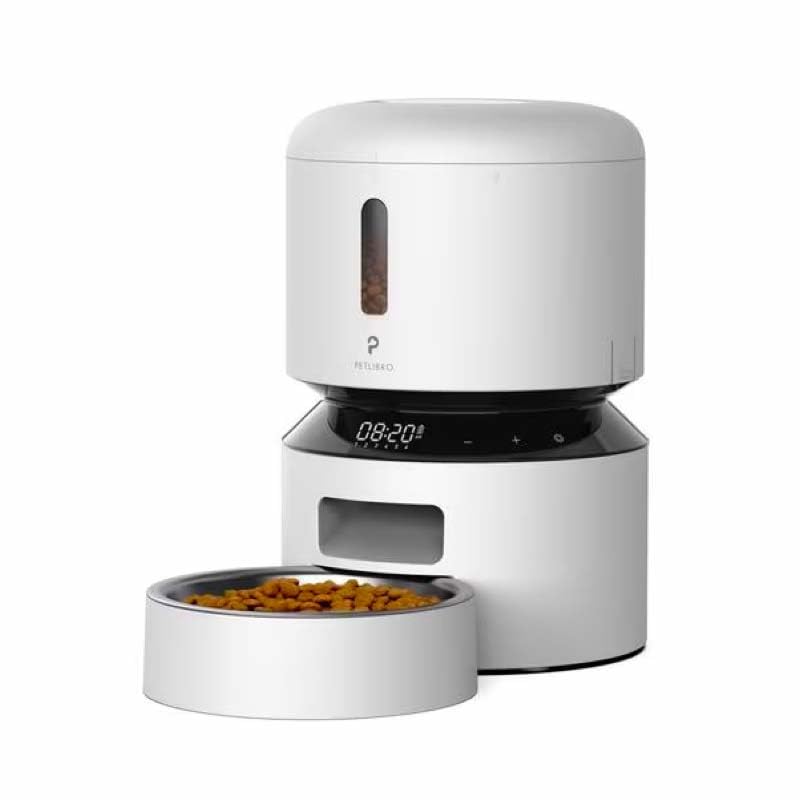
Image: Diagram illustrating the dual power supply system of the Petlibro Automatic Pet Feeder. It shows the USB-C adapter connected for primary power and the battery compartment for backup power. A note indicates that batteries are not included.
6. Operating Instructions
Once assembled and powered, you can begin programming your feeder.
6.1 Filling the Food Tank
- Open the lid of the food tank.
- Pour dry pet food into the tank. Ensure the food is within the recommended size (5-15mm diameter).
- Close the lid securely to maintain freshness.
6.2 Setting Meal Schedules and Portions
The feeder allows you to schedule up to 6 meals per day, with 1 to 50 portions per meal.

Image: A cat eating from the Petlibro Automatic Pet Feeder, illustrating the feeder's function. Text overlays indicate "Portion: 1-50" and "Meals: 1-6", highlighting the customizable feeding schedule.
- Set Current Time: Use the control panel buttons (e.g., "SET", "UP", "DOWN") to set the current time.
- Program Meal Times: Press the "MEAL" button to enter meal programming mode. Select the desired meal number (e.g., Meal 1) and set the feeding time.
- Set Portions: For each programmed meal, set the number of portions (1-50) using the "PORTION" or "UP/DOWN" buttons.
- Repeat for all meals: Program up to 6 meals as needed.
- Save Settings: Ensure all settings are saved according to the feeder's specific interface (usually by pressing "SET" or waiting for auto-save).
6.3 Manual Feeding
To dispense food instantly, press the manual feed button (often labeled "FEED" or a paw icon) on the control panel. Each press typically dispenses one portion.
7. Maintenance and Cleaning
Regular cleaning ensures hygiene and extends the life of your feeder.
- Unplug: Always unplug the feeder from the power outlet before cleaning.
- Disassemble: Remove the food bowl and food tank.
- Clean Components: Wash the food bowl and food tank with mild soap and water. Rinse thoroughly and dry completely before reassembling.
- Wipe Main Unit: Wipe the main unit with a soft, damp cloth. Do not immerse the main unit in water.
- Replace Desiccant: Replace the desiccant bag every 15-30 days to maintain food freshness.
- Reassemble: Ensure all parts are dry before reassembling the feeder.
8. Troubleshooting
If you encounter issues with your feeder, refer to the following common problems and solutions:
| Problem | Possible Cause | Solution |
|---|---|---|
| Feeder not powering on. | No power connection; batteries depleted or incorrectly installed. | Check power adapter connection; replace batteries or ensure correct polarity. |
| Food not dispensing. | Food tank empty; food jammed; dispenser blocked; incorrect schedule settings. | Refill food tank; clear any food jams; check dispenser for blockages; verify meal schedule and portion settings. |
| Food dispenses too much/too little. | Incorrect portion settings. | Adjust portion settings for each meal. |
| Display not working. | Power issue; display malfunction. | Check power supply; if problem persists, contact customer support. |
9. Specifications
| Feature | Detail |
|---|---|
| Product Name | Petlibro Automatic Pet Feeder |
| Model | 3L Automatic Pet Feeder |
| Capacity | 3 Liters |
| Material | Food-grade ABS plastic |
| Power Supply | USB-C adapter (5V/1A); 3 x D-cell batteries (backup, not included) |
| Meals per Day | Up to 6 meals |
| Portions per Meal | 1-50 portions (approx. 5-10g per portion, depending on food density) |
| Recommended Food Size | 5-15mm dry kibble |
| Color | White |
10. Warranty and Support
Your Petlibro Automatic Pet Feeder comes with a standard manufacturer's warranty. For detailed warranty information, please refer to the warranty card included in your package or visit the official Petlibro website.
If you have any questions, require technical support, or need assistance with your product, please contact Petlibro customer service. Contact details can typically be found on the product packaging, the official website, or by searching for "Petlibro customer support" online.


