
havit HV-KB392L
havit Gaming Keyboard Mouse Headset & Mouse Pad Kit User Manual
Model: HV-KB392L | Brand: havit
1. Introduction
Thank you for choosing the havit Gaming Keyboard Mouse Headset & Mouse Pad Kit. This comprehensive kit is designed to enhance your gaming and computing experience with its responsive peripherals and vibrant LED lighting. This manual provides detailed instructions for setting up, operating, maintaining, and troubleshooting your new gaming kit.
Please read this manual thoroughly before using the product to ensure proper functionality and longevity.
2. Package Contents
Upon unboxing, please verify that all the following items are included in your package:
- 1 x havit Gaming Keyboard
- 1 x havit Gaming Mouse
- 1 x havit Gaming Headset with Microphone
- 1 x Gaming Mouse Pad
- 1 x USB Cable (integrated with devices)
- 1 x Headset Audio Splitter Cable (for separate audio/mic jacks)

Image 2.1: Complete havit Gaming Kit components.
This image displays all four main components of the havit gaming kit: the rainbow LED backlit keyboard, the ergonomic gaming mouse, the over-ear headset with an attached microphone, and the large gaming mouse pad. All items are black with colorful LED accents.
3. Key Features
3.1 Gaming Keyboard
- Rainbow LED Backlight: Static rainbow color zones across the keyboard.
- Multimedia Shortcut Keys: Dedicated keys for quick access to common functions (e.g., email, browser).
- FN Key Combinations: Access to 12 multimedia functions (FN+F1~F12) for media control, volume adjustment, and more.
- Durable Design: Built for extended gaming sessions.

Image 3.1: Keyboard layout highlighting multimedia and FN key functions.
This diagram illustrates the havit gaming keyboard, specifically pointing out the three dedicated multimedia shortcut keys at the top left (for email, browser, and calculator) and the twelve FN key combinations (FN+F1 through FN+F12) which control various media playback and system functions.
3.2 Gaming Mouse
- Dynamic RGB Lighting: Features 7 different RGB light modes, including breathing, colorful streaming, rainbow, and waltz modes.
- Ergonomic Design: Comfortable grip for prolonged use.
- Adjustable DPI: Allows for on-the-fly sensitivity adjustments.

Image 3.2: Gaming mouse with various RGB lighting effects.
This image focuses on the havit gaming mouse, illustrating its dynamic RGB lighting capabilities. Icons above the mouse represent seven different lighting modes: Breathing Mode, Colorful Streaming Mode, Rainbow Mode, Floe Light Mode, Waltz Mode, 4-Seasons Mode, and LED Off.
3.3 Gaming Headset
- Over-Ear Design: Provides comfort and passive noise isolation.
- Integrated Microphone: Adjustable microphone for clear communication.
- LED Lighting: Headset features integrated LED lighting.
- Volume Control: Conveniently located volume roller on the earcup.
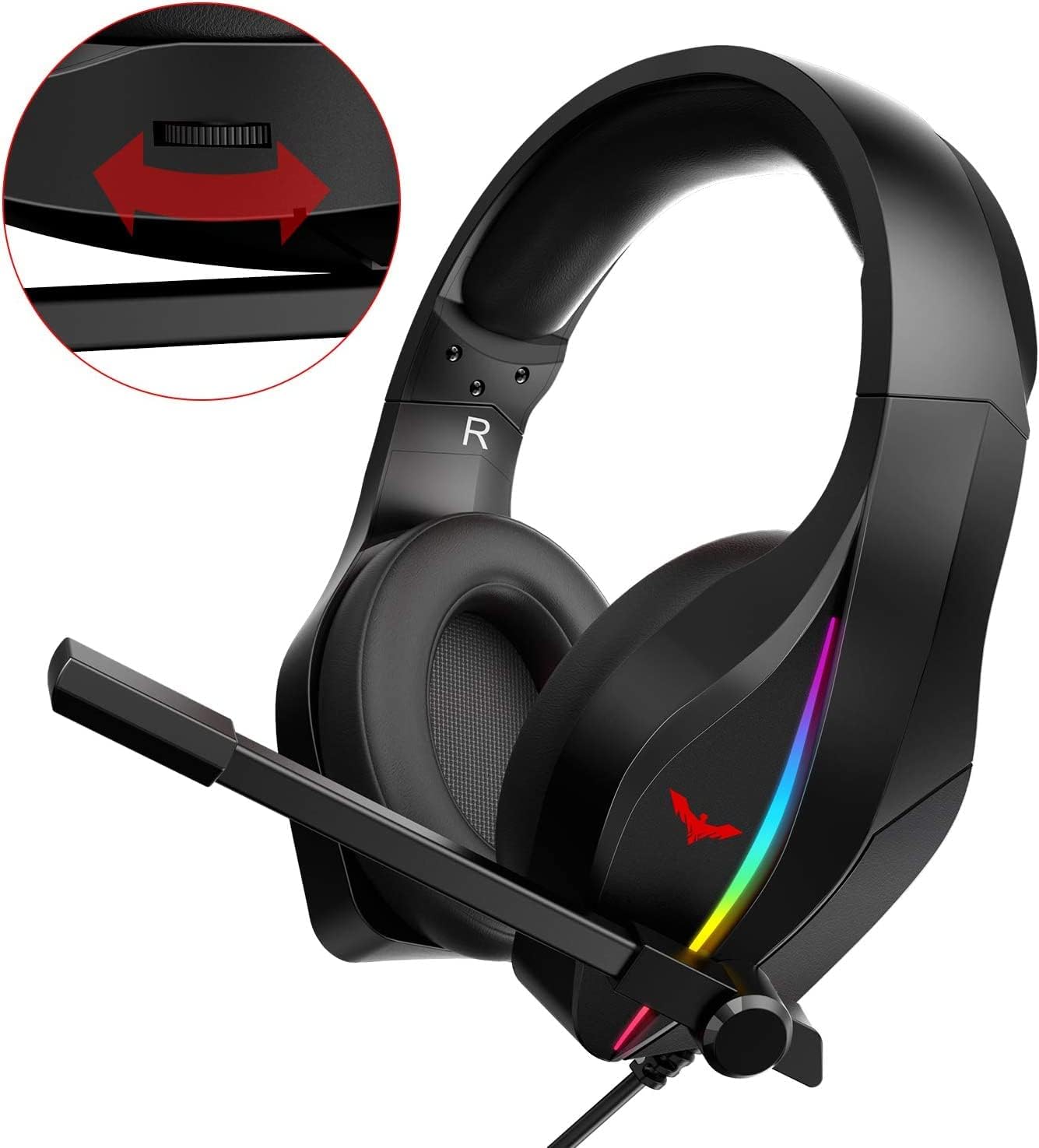
Image 3.3: Gaming headset with volume adjustment feature.
This image shows the havit gaming headset, emphasizing the volume control wheel located on the left earcup. The headset features an over-ear design with soft earcups and an adjustable microphone, along with integrated RGB lighting on the earcups.
3.4 Gaming Mouse Pad
- Water-Resistant Surface: Protects against spills and makes cleaning easier.
- Anti-Slip Base: Ensures the mouse pad stays firmly in place during intense gaming.
- Stitched Edges: Prevents fraying and increases durability.
- Optimized Size: Provides ample space for mouse movement.

Image 3.4: Gaming mouse pad with key features and dimensions.
This image displays the havit gaming mouse pad, highlighting its key features: a water-resistant surface, an anti-slip rubber base, and durable stitched edges. The dimensions are also indicated: Length 350mm (13.78 inches), Width 270mm (10.63 inches), and Height 3mm (0.12 inches).
4. Setup Guide
Follow these steps to set up your havit Gaming Kit:
- Connect the Keyboard: Locate an available USB port on your PC or laptop. Plug the USB connector of the keyboard into the USB port. The keyboard's LED backlighting should illuminate automatically.
- Connect the Mouse: Locate another available USB port on your PC or laptop. Plug the USB connector of the mouse into the USB port. The mouse's RGB lighting should begin cycling through its colors.
- Connect the Headset: The headset has a single 3.5mm audio jack. If your computer has a combined audio/microphone jack, plug the headset directly into it. If your computer has separate audio (green) and microphone (pink) jacks, use the included audio splitter cable. Plug the headset's 3.5mm jack into the splitter, then plug the green and pink plugs of the splitter into the corresponding jacks on your computer. The headset's LED lighting will activate when connected to a powered USB port (if applicable, or via the 3.5mm jack if it provides power).
- Position the Mouse Pad: Place the gaming mouse pad on a flat, stable surface where you intend to use your mouse. Ensure the anti-slip base is in full contact with the surface.
- Driver Installation: For most modern operating systems (Windows 7/8/10, Linux, Vista, XP), the devices are plug-and-play and do not require additional driver installation. Your system should automatically recognize and configure the devices.
5. Operating Instructions
5.1 Keyboard Operation
- Backlight Control: The keyboard features static rainbow LED backlighting. There is typically a dedicated key (often a sun icon or similar) to cycle through brightness levels or turn the backlight on/off. Some models may also feature a 'breathing' mode.
- Multimedia Keys: Use the dedicated multimedia keys (e.g., for email, web browser) located at the top left of the keyboard for quick access to these applications.
- FN Key Combinations: Press and hold the FN key, then press one of the F1-F12 keys to activate specific multimedia functions:
- FN+F1: Media Player
- FN+F2: Volume Down
- FN+F3: Volume Up
- FN+F4: Mute
- FN+F5: Stop
- FN+F6: Previous Track
- FN+F7: Play/Pause
- FN+F8: Next Track
- FN+F9: Email
- FN+F10: Web Browser
- FN+F11: Key Lock (locks keyboard input)
- FN+F12: Calculator
5.2 Mouse Operation
- DPI Adjustment: The mouse typically has a dedicated DPI button (often located behind the scroll wheel) to cycle through different sensitivity levels. Press this button to adjust cursor speed to your preference.
- RGB Lighting: The mouse's RGB lighting cycles through various modes automatically. There is generally no option to select a single static color or turn off the lighting independently of unplugging the mouse.
- Side Buttons: The mouse includes two side buttons (usually on the left side) which often function as 'forward' and 'back' in web browsers or can be programmed for in-game actions.
5.3 Headset Operation
- Volume Control: Adjust the volume using the roller located on the left earcup of the headset.
- Microphone Usage: Position the flexible microphone boom near your mouth for clear voice input. Ensure the microphone is enabled in your computer's sound settings. There is no physical on/off switch for the microphone on the headset itself; control is via software settings.
- LED Lighting: The headset's LED lighting activates when the headset is properly connected and receiving power, typically through the USB connection or the 3.5mm jack if it supports power delivery. To turn off the lights, the headset must be disconnected.
6. Maintenance and Care
Proper maintenance ensures the longevity and optimal performance of your gaming kit:
- Cleaning the Keyboard: Use a soft, dry cloth to wipe down the keyboard surface. For dust between keys, use compressed air. Avoid using harsh chemicals or abrasive materials.
- Cleaning the Mouse: Wipe the mouse surface with a slightly damp, soft cloth. Clean the optical sensor on the underside with a cotton swab if tracking issues occur.
- Cleaning the Headset: Gently wipe the earcups and headband with a soft, dry cloth. Do not immerse the headset in water.
- Cleaning the Mouse Pad: The mouse pad has a water-resistant surface. For minor spills, wipe immediately with a damp cloth. For deeper cleaning, hand wash with mild soap and water, then air dry completely.
- Cable Management: Avoid sharp bends or kinks in the cables to prevent internal wire damage.
- Storage: Store the kit in a cool, dry place away from direct sunlight and extreme temperatures when not in use.
7. Troubleshooting
If you encounter any issues with your havit Gaming Kit, please refer to the following common problems and solutions:
| Problem | Possible Cause | Solution |
|---|---|---|
| Keyboard/Mouse/Headset not recognized or not working. | Loose connection, faulty USB port, driver issue. | Ensure USB cables are firmly plugged in. Try a different USB port. Restart your computer. Check Device Manager for driver status. |
| Keyboard/Mouse/Headset LEDs are not lighting up. | No power, device not recognized, backlight off. | Ensure device is properly connected. For keyboard, press the backlight control key. For headset, ensure it's connected to a powered port. |
| Headset audio is not working or is distorted. | Incorrect audio jack, volume too low, incorrect audio output device. | Check headset connection (use splitter if needed). Adjust headset volume roller. Verify correct audio output device in your OS sound settings. |
| Microphone is not picking up sound. | Incorrect microphone jack, microphone muted, incorrect input device. | Ensure microphone jack (pink) is correctly connected (use splitter if needed). Check OS sound settings to ensure microphone is enabled and set as default input device. Unmute microphone in software. |
| Mouse cursor is erratic or not moving smoothly. | Dirty optical sensor, unsuitable surface, low DPI setting. | Clean the optical sensor on the mouse. Ensure you are using the mouse pad or a smooth, non-reflective surface. Adjust DPI settings. |
8. Product Specifications
Detailed technical specifications for the havit Gaming Kit:
| Feature | Specification |
|---|---|
| Brand | havit |
| Model Number | HV-KB392L |
| Connectivity Technology | USB (Wired) |
| Compatible Devices | Gaming Console, Laptop, Personal Computer, Tablet |
| Hardware Platform | PC |
| Operating System Support | Linux, Windows 10, Windows 2000, Windows 7, Windows 8, Windows Vista, Windows XP |
| Item Weight | Approximately 2 pounds (for the kit) |
| Product Dimensions (LxWxH) | 17.32 x 8.27 x 5.12 inches (overall package/keyboard) |
| Keyboard Description | Gaming, Rainbow LED Backlit |
| Mouse Features | RGB Lighting, Adjustable DPI |
| Headset Features | Over-Ear, Integrated Microphone, Volume Control, LED Lighting |
| Mouse Pad Features | Water-Resistant Surface, Anti-Slip Base, Stitched Edges |

Image 8.1: Dimensions of the havit Gaming Kit components.
This image provides a visual representation of the havit gaming kit components (keyboard, mouse, headset, mouse pad) along with their approximate dimensions: Keyboard: 471 x 215 x 36mm; Mouse: 484.5 x 207.5 x 32mm (likely package dimensions for mouse); Headphone: 166 x 195 x 84mm; Mouse Mat: 350 x 270 x 3mm.
9. Warranty and Support
havit products are manufactured to high-quality standards. For information regarding warranty coverage, technical support, or service inquiries, please refer to the warranty card included with your product or visit the official havit website. Contacting customer support directly is recommended for any issues not resolved by the troubleshooting guide.
Related documentsHV-KB392L


Ask a question about this manual
Ask about setup, troubleshooting, compatibility, parts, safety, or missing instructions. Manuals+ will review the question and use this page’s manual context to help answer it.