1. Introduction
This manual provides detailed instructions for the Cable Matters 10Gbps USB C Multiport Adapter, Model 201063-BLK. This device expands the connectivity of your USB-C or Thunderbolt 3/4/USB4 enabled computer, offering high-speed data transfer through various ports including USB-A, USB-C, MicroSD, UHS-II SD Card Reader, and a SATA 3.0 connection. Please read this manual thoroughly before use to ensure proper operation and to maximize the product's capabilities.
2. Safety Information
- Keep the device away from water, fire, and high temperatures.
- Do not attempt to disassemble or repair the device yourself. Refer to qualified service personnel.
- Use only the provided or recommended power adapter if external power is required.
- Avoid dropping or subjecting the device to strong impacts.
- Ensure proper ventilation around the device during operation.
3. Package Contents
Verify that all items are present in your package:
- Cable Matters 10Gbps USB C Multiport Adapter (Model 201063-BLK)
- Optional AC Power Adapter (if included with your specific model)
- Instruction Manual
4. Product Overview
The Cable Matters 10Gbps USB C Multiport Adapter is designed to expand your device's connectivity. It features multiple ports for various peripherals and storage devices.

Figure 4.1: Front view of the Cable Matters 10Gbps USB C Multiport Adapter.
Port Layout

Figure 4.2: Detailed view of the adapter's ports.
- USB-C 3.1 Gen 2 (10Gbps): For connecting USB-C peripherals.
- USB-A 3.1 Gen 2 (10Gbps): For connecting USB-A peripherals.
- MicroSD Card Reader (UHS-I): For MicroSD, MicroSDHC, and MicroSDXC cards.
- UHS-II SD Card Reader: For SD, SDHC, and SDXC cards, supporting UHS-II speeds for faster transfers.
- SATA 3.0 (2.5" or 3.5" Drive): For connecting SATA SSDs or HDDs.
- DC-IN (12V/2A): For optional external power when connecting power-hungry devices.
5. Setup
Follow these steps to set up your multiport adapter:
- Connect to Host Device: Plug the integrated USB-C cable of the multiport adapter into an available USB-C or Thunderbolt 3/4/USB4 port on your computer.
- Optional Power Connection: If you plan to connect 3.5-inch SATA hard drives or multiple power-hungry devices, connect the optional AC power adapter to the DC-IN port on the multiport adapter and then to a power outlet.
- Driver Installation: The adapter is plug-and-play and typically does not require additional drivers for most operating systems. Your computer should automatically detect and install the necessary drivers.
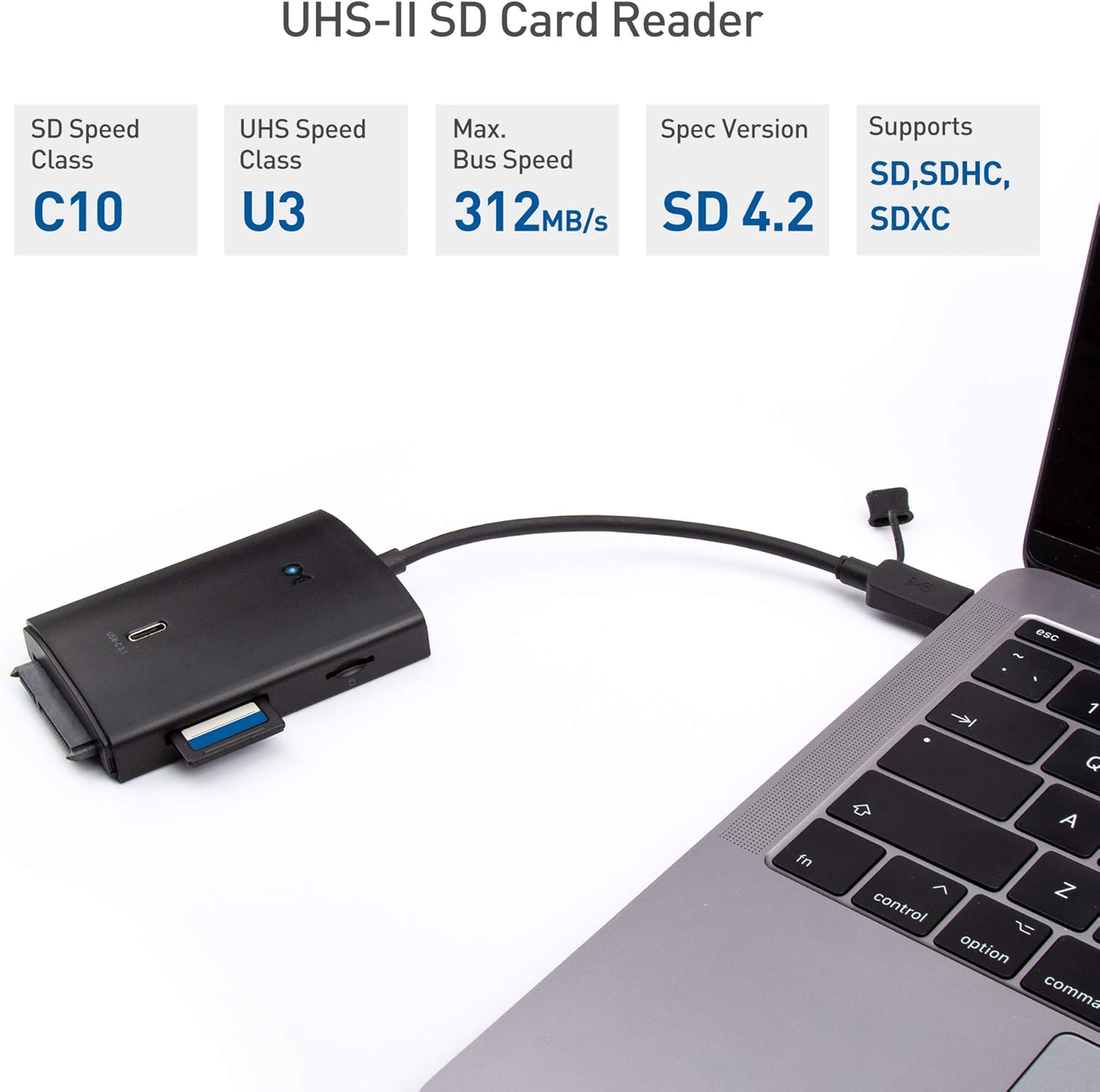
Figure 5.1: Connecting the adapter to a laptop.

Figure 5.2: Optional AC power adapter connection.
6. Operating Instructions
Once connected, you can use the various ports on the adapter:
6.1. USB-A and USB-C Data Ports
- Connect USB-A or USB-C peripherals such as flash drives, external hard drives, keyboards, or mice to the respective 10Gbps ports.
- These ports support USB 3.1 Gen 2 speeds, offering data transfer rates up to 10Gbps.
6.2. SD and MicroSD Card Readers
- Insert your SD or MicroSD card into the corresponding slot. The UHS-II SD card reader provides significantly faster transfer speeds compared to UHS-I readers.
- Ensure the card is inserted correctly to avoid damage.

Figure 6.1: Inserting an SD card.
6.3. SATA 3.0 Port
- Connect a 2.5-inch or 3.5-inch SATA SSD/HDD directly to the SATA 3.0 port.
- For 3.5-inch drives or when connecting multiple devices, ensure the optional AC power adapter is connected to provide sufficient power.
6.4. Data Transfer and Speed
The adapter supports high-speed data transfer. The actual speed achieved will depend on the capabilities of your host device, the connected peripherals, and the quality of cables used.
Video 6.1: Demonstration of the adapter's features, including port overview, connection, and speed tests for USB 3.1 Gen 2 and UHS-II SD card transfers.
7. Maintenance
- Clean the adapter with a soft, dry cloth. Do not use liquid or aerosol cleaners.
- Keep the ports free of dust and debris to ensure optimal connection.
- Store the adapter in a cool, dry place when not in use.
8. Troubleshooting
8.1. Device Not Recognized
- Ensure the adapter's USB-C cable is securely connected to your computer.
- Try connecting the adapter to a different USB-C or Thunderbolt 3/4/USB4 port on your computer.
- Restart your computer.
8.2. Connected Device Disconnecting or Not Functioning
- If connecting power-hungry devices (e.g., 3.5-inch HDDs, multiple external drives), ensure the optional AC power adapter is connected to the multiport adapter and a power outlet.
- Verify that the connected device itself is functioning correctly when connected directly to your computer (if possible).
- Check for any loose connections between the peripheral and the adapter.
8.3. Slow Data Transfer Speeds
- The maximum speed is limited by the slowest component in the connection chain (e.g., your computer's USB port, the connected device, or the cable).
- Ensure your computer's USB-C port supports USB 3.1 Gen 2 (10Gbps) or Thunderbolt 3/4/USB4 for optimal performance.
- Use high-quality cables for connected peripherals.
- For UHS-II SD cards, ensure you are using the dedicated UHS-II slot.
9. Specifications

Figure 9.1: Product dimensions.
| Feature | Detail |
|---|---|
| Model Number | 201063-BLK |
| Product Dimensions | 3.5 x 2.3 x 0.6 inches |
| Item Weight | 8 ounces |
| Brand | Cable Matters |
| Color | Black |
| Hardware Interface | Thunderbolt, USB, USB Type C |
| Compatible Devices | Card Readers, Laptops, Smartphones |
| Total USB Ports | 2 (1x USB-A 10Gbps, 1x USB-C 10Gbps) |
| Card Readers | UHS-II SD, UHS-I MicroSD |
| SATA Port | SATA 3.0 (for 2.5"/3.5" drives) |
| Optional Power Input | DC-IN 12V/2A |
10. Warranty and Support
Cable Matters products are backed by a limited warranty. For specific warranty details, technical support, or to register your product, please visit the official Cable Matters website or contact their customer service. You can also visit the Cable Matters Store for more information.


