
DNP DS620A
DNP DS620A Professional Photo Printer User Manual
Model: DS620A | Brand: DNP
1. Introduction
This manual provides essential information for the safe and efficient operation of your DNP DS620A Dye Sub Professional Photo Printer. Please read this manual thoroughly before using the printer and keep it for future reference.
The DNP DS620A is designed for high-speed, high-quality dye-sublimation photo printing, offering versatile print sizes from 2x6 inches to 6x8 inches. It features optimized energy consumption and media waste, along with advanced status information for efficient operation.
2. Safety Information
Always observe the following safety precautions to prevent injury or damage to the printer.
- Power Supply: Use only the power cable supplied with the printer. Ensure the power outlet matches the printer's voltage requirements.
- Ventilation: Do not block ventilation openings. Ensure adequate space around the printer for proper airflow.
- Placement: Place the printer on a stable, level surface. Avoid locations with excessive dust, humidity, or direct sunlight.
- Handling Media: Handle print media and ribbon cartridges carefully. Avoid touching the print surface of the media.
- Internal Components: Do not attempt to open or service the printer yourself. Refer all servicing to qualified personnel.
- Emergency: In case of smoke, unusual odors, or abnormal operation, immediately disconnect the power cable and contact support.
3. Package Contents
Verify that all items are present in the package:
- DNP DS620A Photo Printer Unit
- Power Cable
- USB Cable (for connection to computer)
- User Manual (this document)
- Media Spacers (for different print sizes)
- Waste Box
- Sample Print Media and Ribbon (may vary by region/package)
4. Setup Guide
4.1 Unpacking and Placement
Carefully remove the printer from its packaging. Place the printer on a sturdy, flat surface with adequate space for ventilation and media loading/unloading.
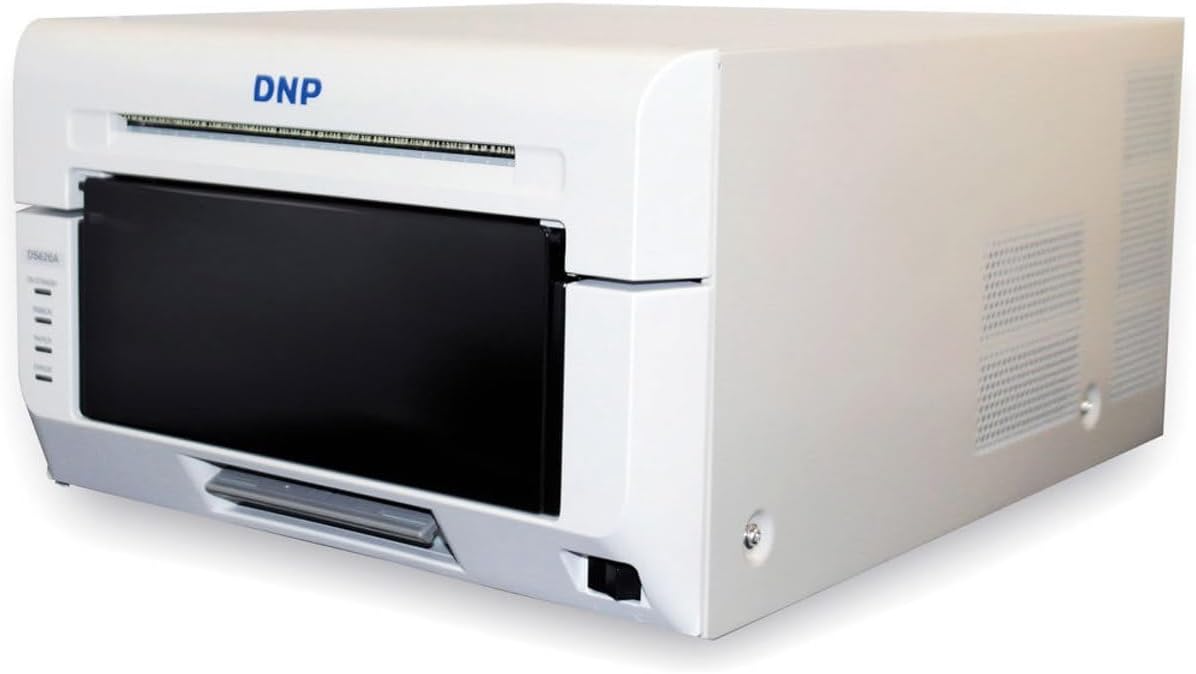
Figure 4.1: Front-right view of the DNP DS620A printer.
4.2 Connecting the Printer
- Connect the power cable to the printer and then to a grounded electrical outlet.
- Connect the USB cable from the printer's USB port to your computer's USB port.
- Power on the printer using the power switch, typically located on the front or side.
4.3 Installing Print Media and Ribbon
The DS620A uses a combination of paper roll and ribbon cartridge for printing. Ensure you use DNP genuine media for optimal performance.
- Open the front cover of the printer.
- Insert the paper roll onto the spindle, ensuring it is correctly oriented.
- Place the ribbon cartridge into its designated slot. Follow the arrows or guides inside the printer for correct alignment.
- Close the front cover securely. The printer will automatically feed the media.

Figure 4.3: Front view of the DNP DS620A, showing the media loading area.
4.4 Driver Installation
Install the latest printer drivers from the official DNP website. Do not use outdated drivers or drivers from unofficial sources. Follow the on-screen instructions during installation.
5. Operating Instructions
5.1 Printing a Photo
- Ensure the printer is powered on and connected to your computer.
- Open the image you wish to print using your preferred photo editing or viewing software.
- Access the print dialog (File > Print).
- Select the DNP DS620A as your printer.
- Adjust print settings such as paper size (e.g., 4x6, 5x7, 6x8), print quality, and finish (glossy or matte) in the printer preferences.
- Click "Print". The printer will process and output the photo.

Figure 5.1: Photo being printed and ejected from the DNP DS620A.
5.2 Understanding Printer Status Indicators
The printer features LED indicators on the front panel to communicate its status:
- POWER: Indicates power status.
- RIBBON: Indicates ribbon status (e.g., low, empty, error).
- PAPER: Indicates paper status (e.g., low, empty, jam).
- ERROR: Illuminates when an error occurs. Refer to the troubleshooting section for details.

Figure 5.2: Status indicators on the DNP DS620A.
6. Maintenance
6.1 Cleaning the Printer
Regular cleaning helps maintain print quality and extends printer life.
- Exterior: Wipe the exterior with a soft, dry, lint-free cloth. Do not use abrasive cleaners or solvents.
- Interior: Periodically clean the interior of the printer, especially the print head area, using a cleaning kit recommended by DNP. Always power off and unplug the printer before cleaning.
- Waste Box: Empty the waste box regularly to prevent paper dust accumulation.
6.2 Replacing Media and Ribbon
When the ribbon or paper runs out, the printer status indicators will alert you. Follow the steps in Section 4.3 to replace them.
7. Troubleshooting
This section addresses common issues you might encounter.
| Problem | Possible Cause | Solution |
|---|---|---|
| Printer not powering on | Power cable disconnected; Power outlet issue | Check power cable connection; Try a different outlet |
| No print output | Incorrect driver; Media/ribbon empty or incorrectly loaded; USB connection issue | Install correct driver; Reload media/ribbon; Check USB cable |
| Poor print quality | Dirty print head; Old or incompatible media; Incorrect print settings | Clean print head; Use genuine DNP media; Adjust print settings (resolution, finish) |
| Paper jam | Incorrect media loading; Obstruction in paper path | Open cover and carefully remove jammed paper; Ensure media is loaded correctly |
| Printer is loud | Normal operation noise; Loose components | Some operational noise is normal for dye-sub printers. If excessive, contact support. |
If the problem persists after attempting these solutions, please contact DNP customer support.
8. Technical Specifications
- Model: DNP DS620A
- Printing Method: Dye-sublimation thermal transfer
- Print Resolution: 300 x 300 dpi
- Print Speed: Approximately 8.3 seconds for 4x6 inch prints
- Print Sizes: 2x6, 3.5x5, 4x6, 5x7, 6x8 inches
- Media Capacity: Up to 400 sheets per roll (4x6 inch)
- Finish Options: Glossy and Matte (selectable via driver)
- Interface: USB
- Dimensions (W x D x H): Approximately 19.75 x 15.75 x 13.25 inches
- Weight: Approximately 29.7 pounds
- Power Consumption: Optimized with standby mode (Less than 0.5W)
9. Warranty and Support
9.1 Warranty Information
The DNP DS620A printer typically comes with an Advance Exchange (AE) Warranty. This warranty provides for a replacement unit to be shipped to you in the event of a covered hardware failure, minimizing downtime. Please refer to your purchase documentation or the official DNP website for specific warranty terms, duration, and registration procedures.

Figure 9.1: DNP DS620A with an indication of its Advance Exchange Warranty.
9.2 Customer Support
For technical assistance, driver downloads, or warranty claims, please visit the official DNP support website or contact their customer service department. Have your printer's serial number and proof of purchase ready when contacting support.
DNP Official Website: www.dnpphoto.com
Related documentsDS620A


Ask a question about this manual
Ask about setup, troubleshooting, compatibility, parts, safety, or missing instructions. Manuals+ will review the question and use this page’s manual context to help answer it.