1. Product Overview
The AMASE AUDIO Android 14 Car Stereo is an advanced in-dash navigation and entertainment system designed for specific Audi A3 and S3 models. It features a 7-inch QLED touchscreen, runs on Android 14, and offers a range of connectivity options including wireless CarPlay, Android Auto, 4G WiFi, and Bluetooth 5.0. This unit integrates seamlessly into your vehicle's dashboard, providing enhanced audio capabilities with a built-in DSP and support for various car functions.

Image 1.1: Front view of the AMASE AUDIO Android 14 Car Stereo, showcasing its 7-inch touchscreen display and physical control buttons.
2. Compatibility
This head unit is compatible with the following Audi models:
- Audi A3 8P (2003-2012)
- Audi A3 8P1 3-door Hatchback (2003-2012)
- Audi S3 8P (2006-2012)
- Audi RS3 Sportback (2011-2012)
Important Remark:
If your car's dashboard has a 1 DIN structure, this head unit is not applicable. Please verify your vehicle's dashboard configuration before installation.
3. Key Features
- Operating System: Real Android 14.0 system with Rockchip Quad-core ARM Cortex-A53@2.0GHz.
- Memory & Storage: 3GB RAM and 32GB ROM.
- Display: 7-inch QLED touchscreen with 1024x600 pixel resolution.
- Wireless Connectivity: Built-in Wireless/Wired CarPlay and Android Auto support.
- Network: Dual-band 4G WiFi (5GHz/2.4GHz) and support for 4G SIM card insertion.
- Bluetooth: Bluetooth 5.0 for wireless music streaming and hands-free calling.
- Audio Processing: Built-in DSP (Digital Sound Processor) for enhanced audio quality.
- Navigation: Integrated Google Maps for GPS navigation.
- Multimedia: Supports 1080p video playback.
- User Interface: Split-screen functionality, multicolor LED buttons, customizable themes and wallpaper.
- Expandability: Support for OBDII and rear camera (rear camera not included).

Image 3.1: Overview of the car stereo's high-standard configuration, highlighting Android 14, CPU, RAM, ROM, Wireless CarPlay, DSP+, WiFi, 4G, Bluetooth, and pre-installed apps like Play Store and Navigation.
4. Package Contents
The product package includes the following components:
- Main Head Unit
- Power Cable
- RCA Cables
- Radio Antenna Connector
- 15A Fuse
- Canbus Decoder
- External Microphone
- USB Adapter Cables (multiple)
- Disassembly Tools (4 keys)
- Radio Antenna Adapter Cable
- GPS Antenna

Image 4.1: All accessories included with the AMASE AUDIO Android 14 Car Stereo, such as power cables, RCA cables, antennas, and installation tools.
5. Installation Guide
Installation of the AMASE AUDIO Android 14 Car Stereo requires careful attention to wiring and proper fitment. It is recommended that installation be performed by a qualified professional.
5.1 Pre-Installation Steps
- Disconnect Battery: Before starting, disconnect the vehicle's negative battery terminal to prevent electrical shorts.
- Remove Existing Head Unit: Use the provided disassembly tools to carefully remove the original car stereo from the dashboard.
- Inspect Dashboard: Ensure your car's dashboard structure is compatible (not 1 DIN).
5.2 Wiring Connections
Refer to the wiring diagrams below for correct connections. Ensure all cables are securely connected to their corresponding ports.
- Power Cable: Connect the main power harness to the vehicle's wiring.
- RCA Cables: For external amplifiers, subwoofers, or video input/output.
- GPS Antenna: Mount the GPS antenna in a location with a clear view of the sky, typically on the dashboard or under the windshield.
- External Microphone: Connect the external microphone for improved call quality and voice commands. Position it near the driver for optimal performance.
- USB Adapter Cables: Connect for USB devices, such as flash drives or charging.
- Radio Antenna: Connect the radio antenna connector and adapter cable.
- Canbus Decoder: Connect the Canbus decoder as per the vehicle's wiring instructions to ensure steering wheel controls and other vehicle data functions correctly.
- Backup Camera (Optional): If installing a backup camera, connect its video input to the designated port on the head unit.

Image 5.1: Detailed wiring diagrams for the 18PIN power supply socket and the 60PIN multi-functional socket, including pin definitions for various connections like audio, video, USB, and antennas.
5.3 Mounting the Head Unit
Once all connections are made, carefully slide the new head unit into the dashboard opening until it clicks into place. Ensure a snug fit. The unit is designed for a direct fit in compatible Audi A3/S3 models.
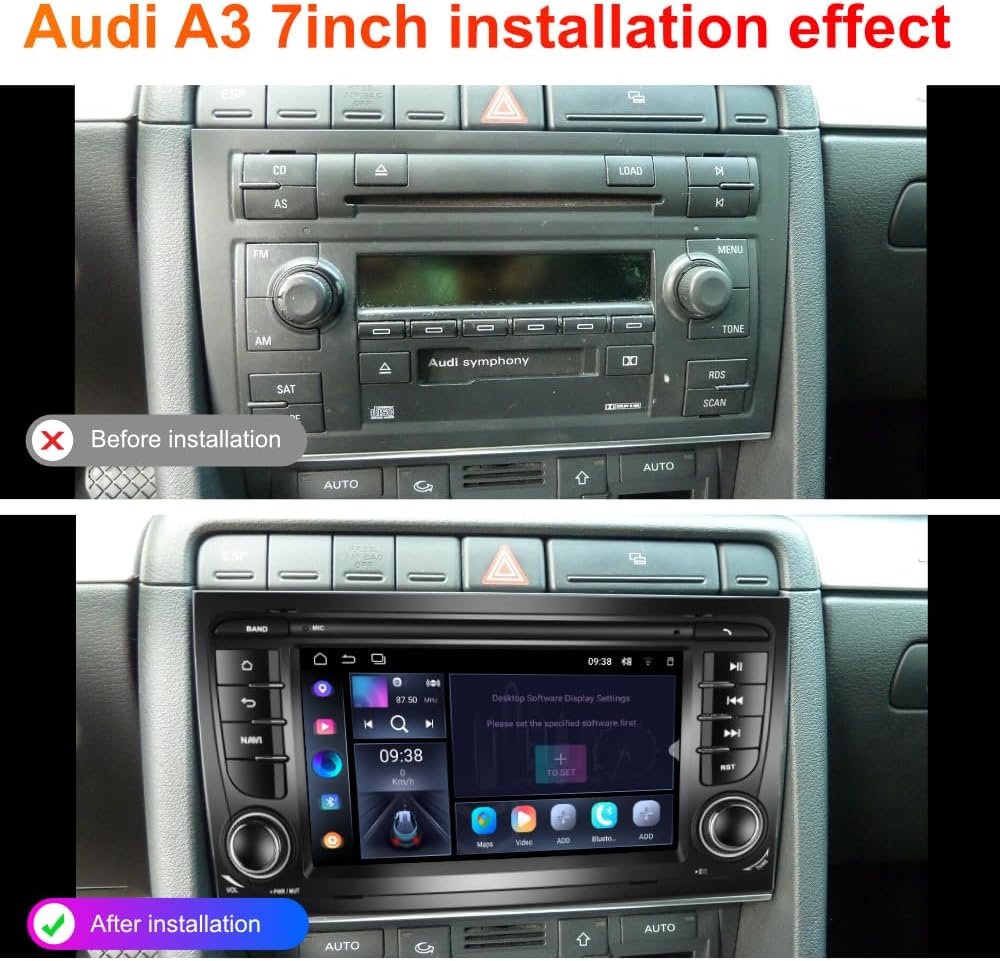
Image 5.2: Comparison showing the original Audi A3 dashboard before installation and the new AMASE AUDIO 7-inch head unit seamlessly integrated after installation.
6. Initial Setup and Configuration
6.1 First Power On
After installation, reconnect the vehicle's battery. The unit should power on automatically with the car's ignition. Follow any on-screen prompts for initial setup, such as language selection and time zone.
6.2 Network Connection (WiFi/4G)
- WiFi: Go to Settings > Network & Internet > Wi-Fi. Select your desired network and enter the password.
- 4G: Insert a compatible 4G SIM card into the designated slot (if available on your model). The unit should automatically detect and connect to the cellular network.
6.3 Bluetooth Pairing
- On the head unit, navigate to the Bluetooth application.
- Enable Bluetooth on your mobile device and make it discoverable.
- On the head unit, search for available devices and select your mobile device.
- Confirm the pairing code on both devices.
6.4 Wireless CarPlay & Android Auto
The unit comes with a built-in CarPlay/Android Auto application (often labeled 'Zlink' or similar). To connect:
- Ensure Bluetooth is enabled and paired between your phone and the head unit.
- Open the CarPlay/Android Auto application on the head unit.
- Follow the on-screen instructions to establish a wireless connection with your iPhone (CarPlay) or Android device (Android Auto).
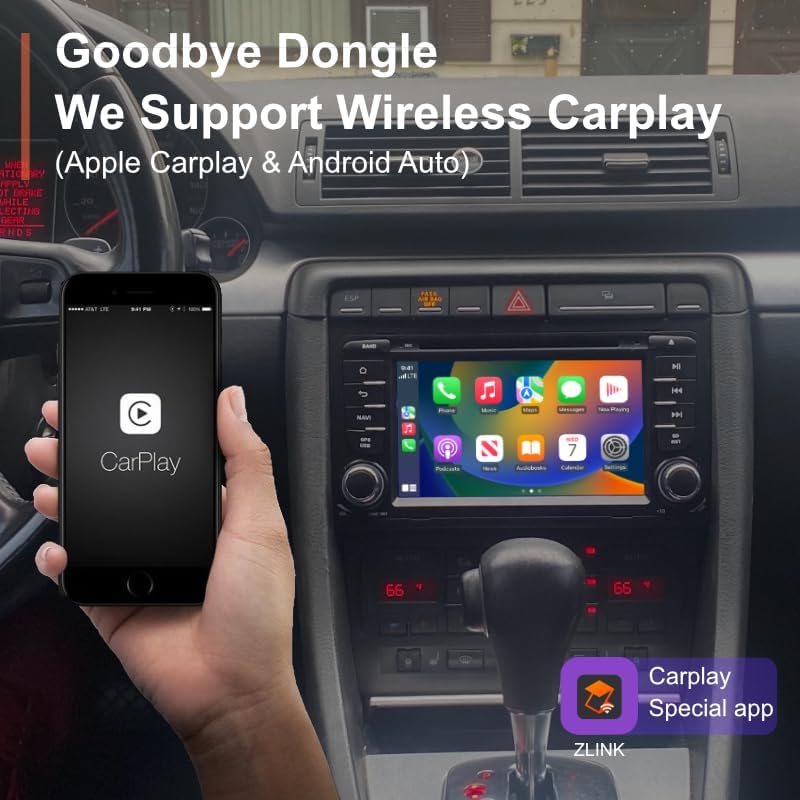
Image 6.1: A smartphone showing the CarPlay interface, indicating a wireless connection to the car stereo, eliminating the need for a physical dongle.
7. Operating Instructions
7.1 User Interface Navigation
The Android 14 interface provides intuitive navigation. Swipe left or right to access different home screens, and tap on app icons to launch them. The system supports various themes and customization options.

Image 7.1: A collage of different system UI screens, demonstrating various app layouts, settings menus, and theme selections available on the car stereo.

Image 7.2: Illustrates customization features such as split-screen multitasking, changing wallpaper, selecting from 6 themes, and adjusting button LED colors.
7.2 Audio Settings (DSP)
The built-in DSP allows for advanced audio customization. Access the DSP settings to adjust equalizer, sound effects, and time correction.
- EQ Adjustment: Utilize the 15-band graphic equalizer or select from 7 preset EQ modes to tailor the sound to your preference.
- Special Effect Adjustment: Configure sound effects such as Equiloudness, Surround system enhancement, Cut Frequency, Dynamic Bass adjustment, and Subwoofer settings.
- Time Correction: Adjust sound delays for each speaker to optimize the sound field within your car.

Image 7.3: Screenshots of the DSP interface, detailing options for 15-band EQ adjustment, special sound effects, and time correction settings for a personalized audio experience.
7.3 GPS Navigation
The unit comes with Google Maps pre-installed. Ensure a strong GPS signal and internet connection for optimal navigation performance. You can download offline maps for use without an internet connection.
7.4 Radio (FM/AM)
Access the Radio application to tune into FM and AM stations. Use the touchscreen to scan for stations, save presets, and adjust settings.
7.5 Multimedia Playback
Play 1080p videos and various audio formats from connected USB devices or internal storage. Use the built-in media player application.
7.6 Split-Screen Functionality
To use split-screen, open an application, then long-press the recent apps button or drag an app to one side of the screen (depending on the specific Android 14 UI implementation) to open another app alongside it.
7.7 Steering Wheel Controls
The unit supports existing steering wheel controls for compatible Audi models. These controls should function automatically after proper Canbus decoder installation, allowing you to manage volume, tracks, and calls without taking your hands off the wheel.
7.8 Backup Camera Input
If a backup camera is connected, the display will automatically switch to the camera feed when the vehicle is put into reverse gear. This feature includes parking assist lines for guidance.
8. System Updates
The AMASE AUDIO Android 14 Car Stereo supports convenient online firmware updates (OTA - Over-The-Air). Regularly checking for and installing updates can enhance system security, fix software issues, and upgrade the Android version.
8.1 Checking for Updates
- Ensure the head unit is connected to a stable internet connection (WiFi or 4G).
- Navigate to Settings > System > System Update.
- Tap 'Check version' or 'Check for updates'.
8.2 Performing Updates
If an update is available, follow the on-screen instructions to download and install it. Do not power off the unit during the update process to avoid system corruption.

Image 8.1: The system update interface, displaying the current software version and an option to check for new updates, indicating support for OTA updates.
9. Maintenance
To ensure the longevity and optimal performance of your car stereo, follow these maintenance guidelines:
- Cleaning the Screen: Use a soft, lint-free cloth to gently wipe the touchscreen. For stubborn smudges, slightly dampen the cloth with water or a screen-safe cleaner. Avoid harsh chemicals or abrasive materials.
- Software Updates: Regularly check for and install system updates as described in Section 8.
- Avoid Extreme Temperatures: Do not expose the unit to extreme heat or cold for extended periods.
- Secure Connections: Periodically check that all cables and connections are secure, especially after any vehicle maintenance.
10. Troubleshooting
This section addresses common issues you might encounter with your AMASE AUDIO Android 14 Car Stereo.
| Problem | Possible Cause | Solution |
|---|---|---|
| Unit does not power on. | Loose power connection, blown fuse, vehicle battery issue. | Check power cable connections. Inspect the 15A fuse. Verify vehicle battery charge. |
| No sound or poor sound quality. | Loose speaker wires, incorrect DSP settings, volume too low. | Check all speaker connections. Adjust volume and DSP settings (EQ, balance, fader). Ensure correct audio output mode. |
| Bluetooth/CarPlay/Android Auto not connecting. | Bluetooth not enabled, incorrect pairing, app issue (Zlink). | Ensure Bluetooth is on and discoverable on both devices. Re-pair the devices. Restart the Zlink app or the head unit. |
| Steering wheel controls not working. | Canbus decoder not connected or configured correctly. | Verify Canbus decoder connection and ensure it is properly recognized by the head unit. Consult a professional if issues persist. |
| Battery drain when car is off. | Unit remaining in standby mode instead of fully powering off. | Check system settings for a 'power off' or 'deep sleep' option. Adjust the setting to ensure the unit fully shuts down with the ignition. |
| Date and time not saving. | Loss of constant power (ACC wire issue) or system bug. | Verify the ACC (Accessory) wire connection. Ensure the unit has a constant power supply to maintain settings. Check for system updates. |
| Touchscreen unresponsive or lagging. | Software glitch, too many apps running, system overload. | Restart the head unit. Close unnecessary background applications. Perform a factory reset if the issue persists (backup data first). |
11. Specifications
| Feature | Specification |
|---|---|
| Operating System | Android 14.0 |
| Processor | Rockchip Quad-core ARM Cortex-A53@2.0GHz |
| RAM | 3GB |
| ROM | 32GB |
| Display Size | 6.98 Inches |
| Resolution | 1024 x 600 QLED |
| Bluetooth Version | 5.0 |
| WiFi | Dual-band (2.4GHz/5GHz) 4G WiFi |
| Special Features | Wireless CarPlay, Android Auto, Built-in DSP+, GPS Navigation, Split Screen, 1080p Video Playback |
| Item Weight | 1.87 pounds |
| Product Dimensions | 9.45 x 6.89 x 4.92 inches |
| Mounting Type | Dashboard Mount |
12. Warranty and Support
The AMASE AUDIO Android 14 Car Stereo comes with a One Year Warranty. This warranty covers free replacement of defected parts, excluding the screen. Damage caused by human error or misuse is not covered under this warranty.
For technical support or warranty claims, please contact AMASE AUDIO customer service through the retailer where the product was purchased or visit the official AMASE AUDIO website for contact information.


