
1. Introduction
The BN-LINK Wireless Remote Control Electrical Outlet Switch provides a convenient way to control your electrical appliances and lights from a distance. This kit includes one remote control and one outlet, designed for ease of use and enhanced accessibility in your home.

Figure 1: BN-LINK Wireless Remote Control Outlet and Remote
2. Key Features
- Ready-to-Go: Each kit contains everything needed to start, including remote batteries. Simply plug and play.
- Strong Signal: RF receivers and transmitters operate through doors and walls without interference. Signal range up to 100 ft in line of sight.
- Flexibility: Option to pair multiple BN-LINK remote outlets to expand your system.
- Simple Convenience: Control appliances (lights, air conditioners, heaters, audio systems, holiday decorations, charging devices) using the remote or directly on the outlet.
- Safe and Reliable: Outlets remain off after a power outage to conserve energy and protect appliances.
3. Product Specifications
| Specification | Value |
|---|---|
| Operation Mode | ON-OFF |
| Current Rating | 10 Amps |
| Operating Voltage | 120 Volts |
| Contact Type | Normally Open |
| Connector Type | Plug In |
| Item Dimensions L x W x H | 3.5 x 2 x 1 inches |
| Circuit Type | 1-way |
| Mounting Type | Plug-In Mount |
| Control Method | Remote |
| Connectivity Protocol | X-10 |
| Color | White |
| Wattage | 1200 watts |
| Item Weight | 4.2 ounces |
| Battery Type (Remote) | 12V Alkaline (1 required) |
The compact design of the outlet ensures that the upper outlet remains accessible when plugged into a standard wall receptacle.
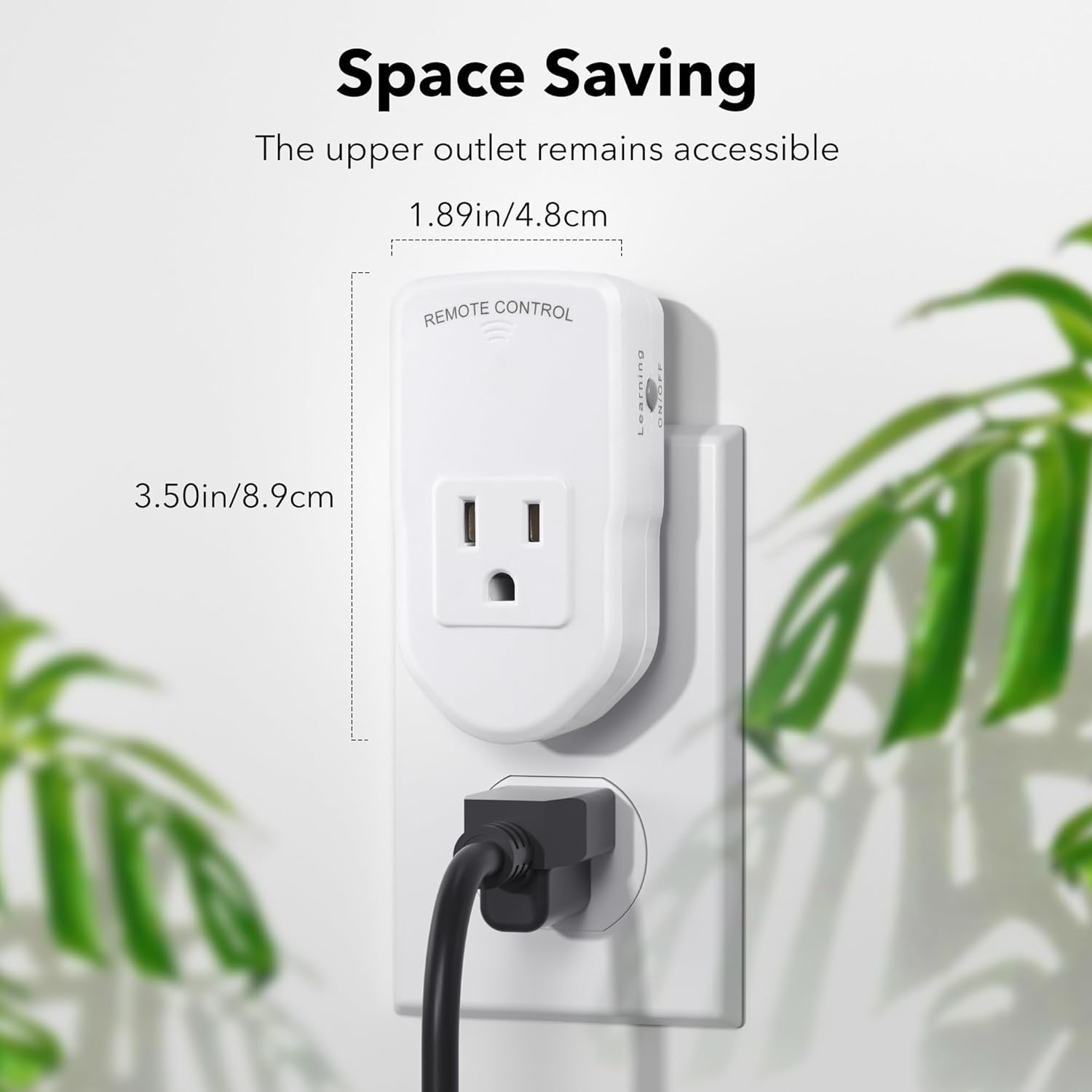
Figure 2: Space-saving design, allowing access to the second outlet.
4. Important Safety Instructions
- Do not exceed the maximum load capacity of 10A, 1200W.
- For indoor use only. Avoid exposure to moisture or extreme temperatures.
- Do not use with shop vacuums or other high-current inductive loads.
- Ensure the device is properly plugged into a grounded outlet.
- Keep out of reach of children.
- Do not disassemble or modify the device.
5. Setup Guide
- Insert Remote Battery: The remote control requires one 12V Alkaline battery (included). Open the battery compartment on the back of the remote and insert the battery, observing polarity.
- Plug in the Outlet: Insert the BN-LINK wireless outlet into a standard 120V wall receptacle.
- Connect Appliance: Plug the appliance or light you wish to control into the BN-LINK wireless outlet.
- Activate Outlet: Press the "ON/OFF" button on the side of the wireless outlet. A blue indicator light will illuminate, signifying it is ready for pairing or operation.
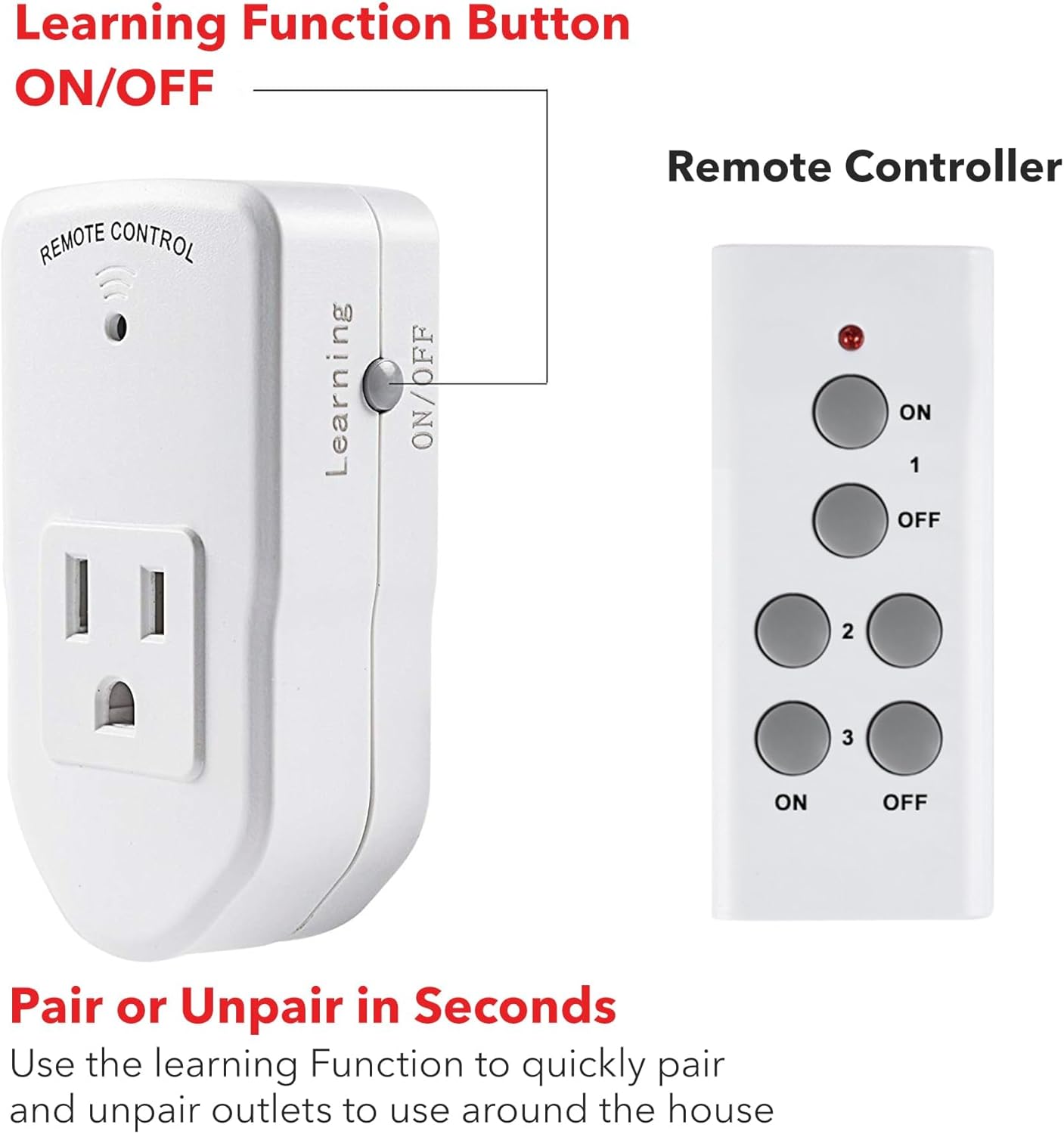
Figure 3: Location of the Learning Function Button and Remote Control.
6. Operating Instructions
6.1 Basic On/Off Control
Once the outlet is plugged in and your appliance is connected, you can control it using the remote control:
- Press the "ON" button on the remote to turn the connected appliance ON.
- Press the "OFF" button on the remote to turn the connected appliance OFF.
The remote offers a strong signal, allowing control from up to 100 feet away, even through walls and doors.
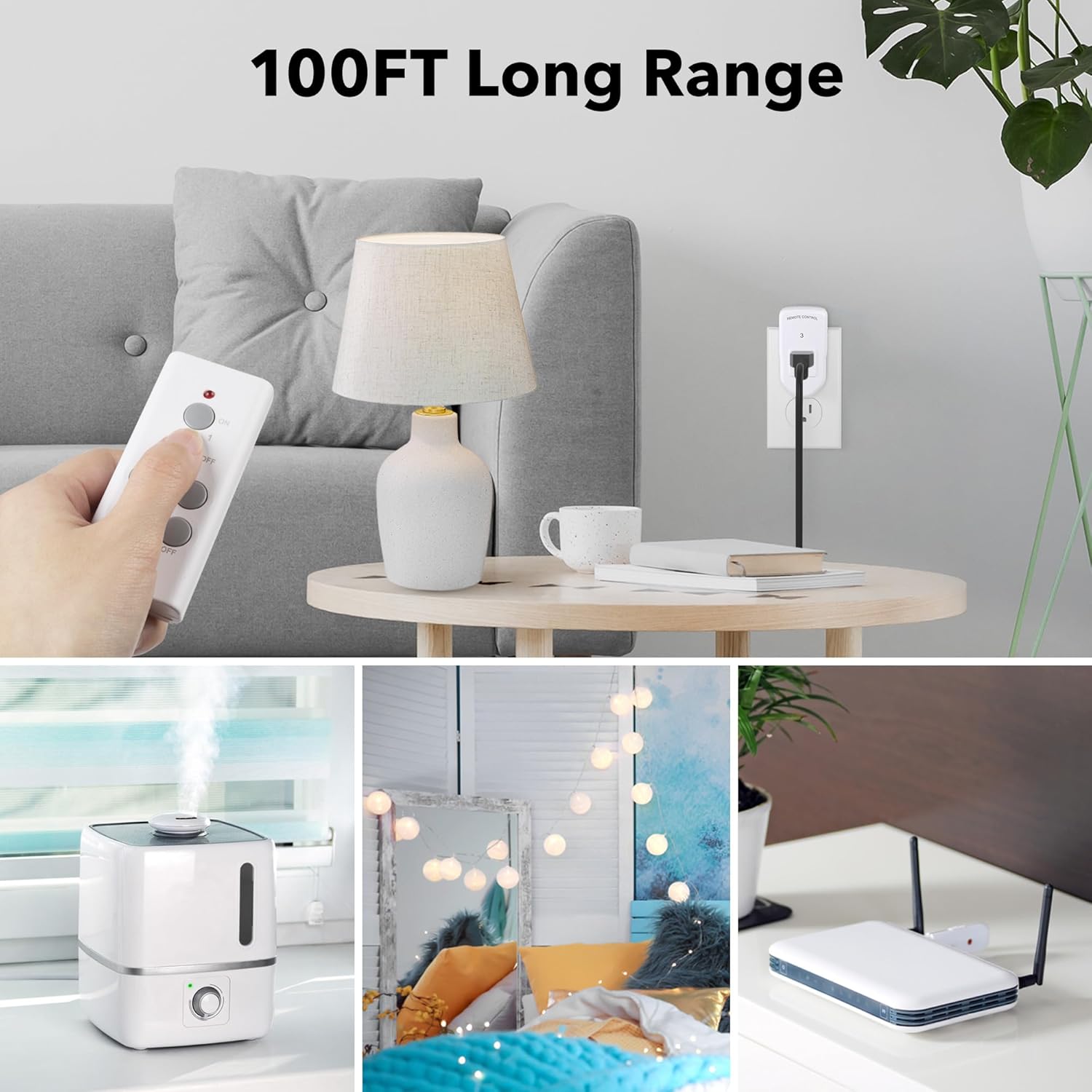
Figure 4: Remote control operating a lamp from a distance, demonstrating 100ft range.
6.2 Pairing and Unpairing Outlets
The BN-LINK system allows for flexible pairing of multiple outlets to a single remote, or multiple remotes to a single outlet.
- To Pair:
- Plug the outlet into a wall socket.
- Press and hold the "Learning" button on the side of the outlet until the blue indicator light flashes slowly.
- While the light is flashing, press the desired "ON" button (1, 2, or 3) on your remote control. The indicator light on the outlet will stop flashing and remain solid, indicating successful pairing.
- To Unpair:
- Press and hold the "Learning" button on the side of the outlet until the blue indicator light flashes rapidly.
- While the light is flashing rapidly, press the corresponding "OFF" button (1, 2, or 3) on your remote control. The indicator light will turn off, indicating successful unpairing.
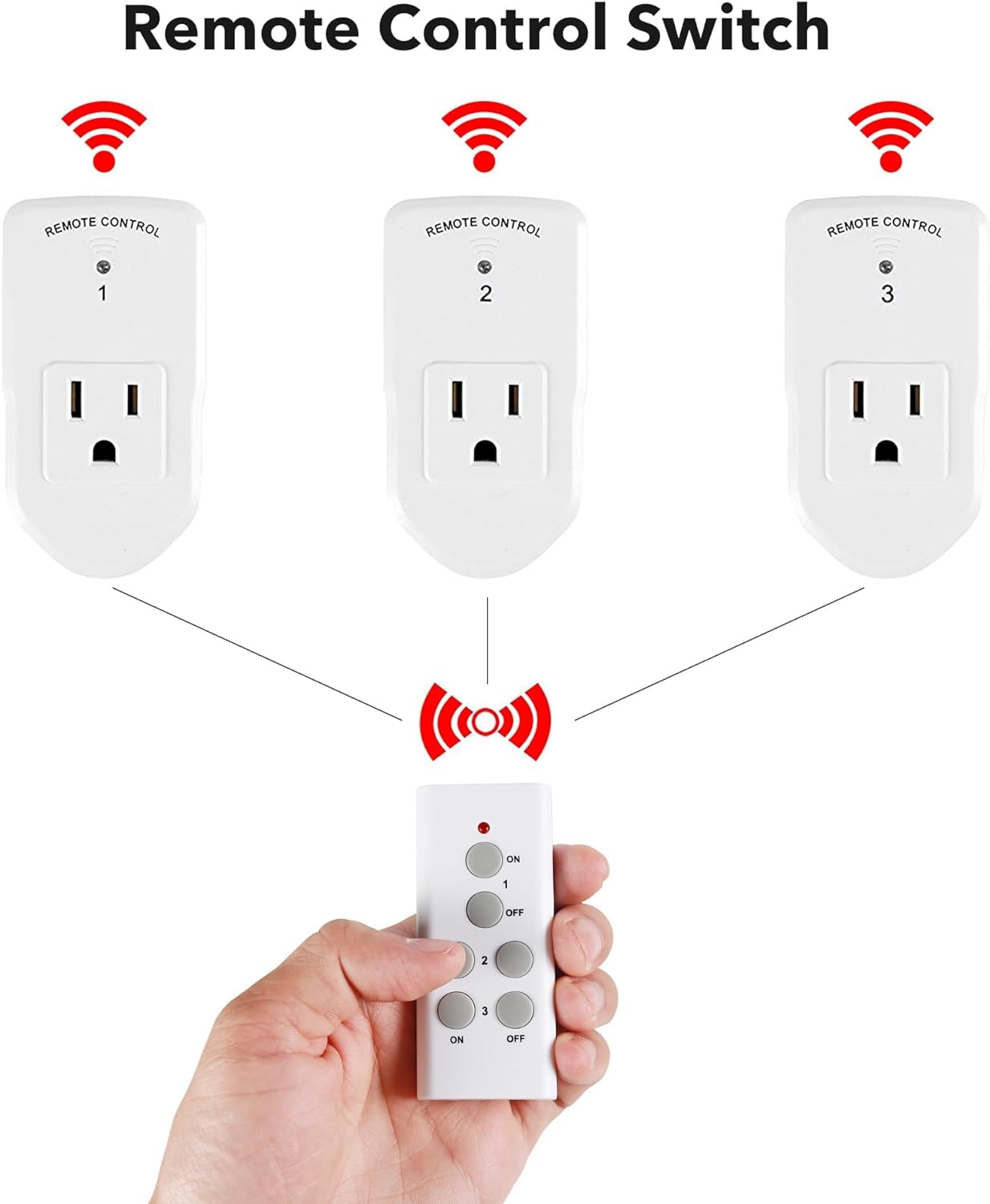
Figure 5: One remote control can manage multiple BN-LINK outlets.
7. Maintenance
7.1 Cleaning
To clean the device, wipe it with a soft, dry cloth. Do not use abrasive cleaners or solvents. Ensure the device is unplugged before cleaning.
7.2 Remote Battery Replacement
If the remote control's range decreases or it stops responding, the battery may need replacement. The remote uses one 12V Alkaline battery. To replace:
- Locate the battery compartment on the back of the remote.
- Slide open the battery cover.
- Remove the old battery and insert a new 12V Alkaline battery, ensuring correct polarity (+/-).
- Close the battery cover securely.
8. Troubleshooting
| Problem | Possible Cause | Solution |
|---|---|---|
| Appliance does not turn ON/OFF with remote. | Remote battery is low or dead. Outlet is not powered. Outlet is not paired with the remote. Appliance is not functioning. | Replace remote battery. Ensure outlet is firmly plugged into a live wall socket. Follow pairing instructions in Section 6.2. Test appliance by plugging it directly into a wall socket. |
| Reduced remote range. | Low remote battery. Obstructions (walls, furniture) between remote and outlet. Interference from other electronic devices. | Replace remote battery. Reduce obstructions or move closer to the outlet. Move the outlet or interfering devices. |
| Outlet indicator light is off. | No power to the outlet. Outlet is faulty. | Check wall socket power. Contact customer support. |
9. Warranty and Customer Support
For any questions, technical assistance, or warranty information, please contact BN-LINK customer support. Refer to the product packaging or the official BN-LINK website for the most up-to-date contact details.
You can also visit the BN-LINK Store on Amazon for more information and products.


