
1. Introduction
Thank you for purchasing the Knup KP-2039 Mini Bluetooth Keyboard with Touchpad and Laser. This compact and versatile device is designed to enhance your control over various smart devices, including mobile phones, PCs, smart TVs, and more. It combines a full QWERTY keyboard, a multi-touch touchpad, and a laser pointer into a single, portable unit, offering convenience for presentations, media control, and general navigation.
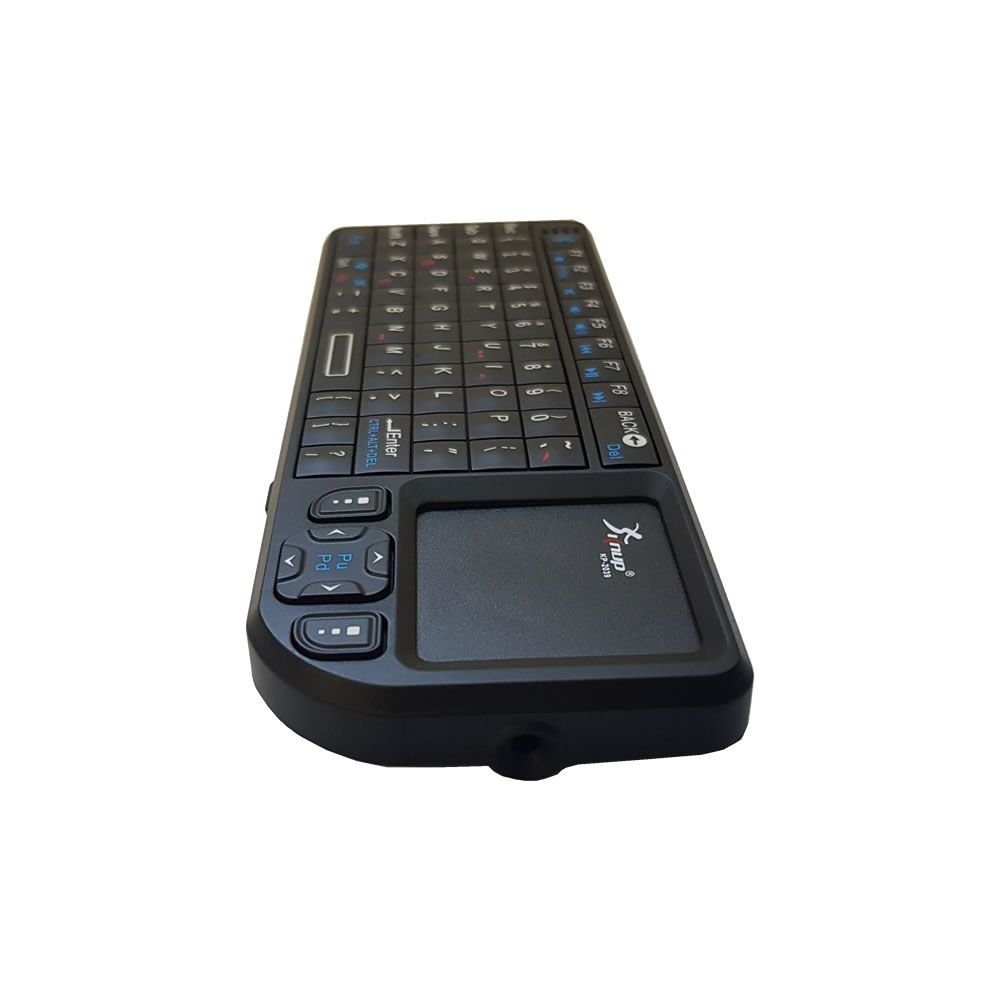
Image: The Knup KP-2039 Mini Bluetooth Keyboard, demonstrating its ergonomic design and integrated laser pointer in use.
2. Setup
2.1 Unboxing and Charging
Upon opening the package, ensure you have the Knup KP-2039 Mini Bluetooth Keyboard and a USB charging cable. Before initial use, fully charge the device. Connect the micro-USB end of the charging cable to the keyboard's charging port and the USB-A end to a compatible USB power source (e.g., computer USB port, USB wall adapter).
2.2 Bluetooth Pairing
Follow these steps to pair your keyboard with a Bluetooth-enabled device:
- Turn on the keyboard by sliding the power switch to the 'ON' position. The indicator light will illuminate.
- Press and hold the Fn key and the Bluetooth icon key (usually F1 or a dedicated Bluetooth button) simultaneously for a few seconds until the Bluetooth indicator light starts blinking, indicating pairing mode.
- On your host device (e.g., smartphone, PC, smart TV), navigate to the Bluetooth settings.
- Scan for available Bluetooth devices. You should see "KP-2039" or a similar name appear in the list.
- Select "KP-2039" to initiate the pairing process. If prompted, enter the displayed pairing code on the keyboard and press Enter.
- Once successfully paired, the Bluetooth indicator light on the keyboard will stop blinking and remain solid or turn off, depending on the model.

Image: Angled view of the Knup KP-2039 keyboard, highlighting the power switch and charging port for setup.
2.3 Laser Pointer Activation
To activate the integrated laser pointer, locate the dedicated laser button (often on the side or top of the keyboard). Press and hold this button to emit the laser beam. Release the button to turn it off. Warning: Do not point the laser beam directly at eyes or reflective surfaces.
3. Operating Instructions
3.1 Keyboard Functions
The keyboard features a full QWERTY layout. Type as you would on a standard keyboard. Many keys have secondary functions accessible by holding the Fn key and pressing the desired key.
- Fn + F1 (PrntScrn): Print Screen function.
- Fn + F2-F4: Volume control (Mute, Volume Down, Volume Up).
- Fn + F5-F7: Media playback control (Previous Track, Play/Pause, Next Track).
- Fn + F8: Backlight control (if applicable, cycles through colors or on/off).
- Ctrl + Alt + Del: Performs the standard Ctrl+Alt+Del command on compatible systems.

Image: Top-down view of the Knup KP-2039 keyboard, illustrating the QWERTY layout and multimedia function keys.
3.2 Touchpad Functions
The integrated touchpad supports various gestures for navigation:
- Single Finger Tap: Left-click.
- Two Finger Tap: Right-click.
- Two Finger Scroll: Drag two fingers up or down to scroll vertically.
- Single Finger Drag: Move the cursor.
3.3 Backlight Control
If your model features a backlight, press Fn + F8 to cycle through backlight colors or to turn the backlight on/off. This feature is useful in low-light environments.
4. Maintenance
- Cleaning: Use a soft, dry cloth to clean the keyboard and touchpad surfaces. For stubborn dirt, slightly dampen the cloth with water or a mild electronic cleaner. Avoid excessive moisture.
- Storage: Store the keyboard in a cool, dry place away from direct sunlight and extreme temperatures.
- Battery Care: To prolong battery life, avoid fully discharging the battery frequently. Charge the device regularly, even if not in constant use.
- Avoid Liquids: Do not expose the keyboard to liquids, as this can cause damage to internal components.
5. Troubleshooting
| Problem | Possible Solution |
|---|---|
| Keyboard does not turn on. | Ensure the battery is charged. Connect the keyboard to a power source using the USB cable. |
| Cannot pair via Bluetooth. |
|
| Keys or touchpad are unresponsive. |
|
| Backlight not working. | Press Fn + F8 to cycle through backlight modes or turn it on. Ensure the battery has sufficient charge. |
| Laser pointer not working. | Ensure the laser button is being pressed and held. Check battery level. |
6. Specifications
- Brand: Knup
- Model: KP-2039
- Connectivity: Bluetooth
- Keyboard Layout: QWERTY
- Special Features: Touchpad, Laser Pointer, Backlit, Multimedia Keys, Portable, Wireless
- Compatibility: Mobile Phones, PCs, Smart TVs, Tablets, etc.
7. Warranty and Support
For warranty information and technical support, please refer to the documentation provided with your purchase or contact your retailer. Keep your proof of purchase for warranty claims.