
Product Overview
The NEC Express5800/GT110i is an entry-level 1-way server designed to provide essential reliability at an accessible price point. It is engineered for stable operation even in environments with temperatures up to 40°C, making it suitable for various business applications.
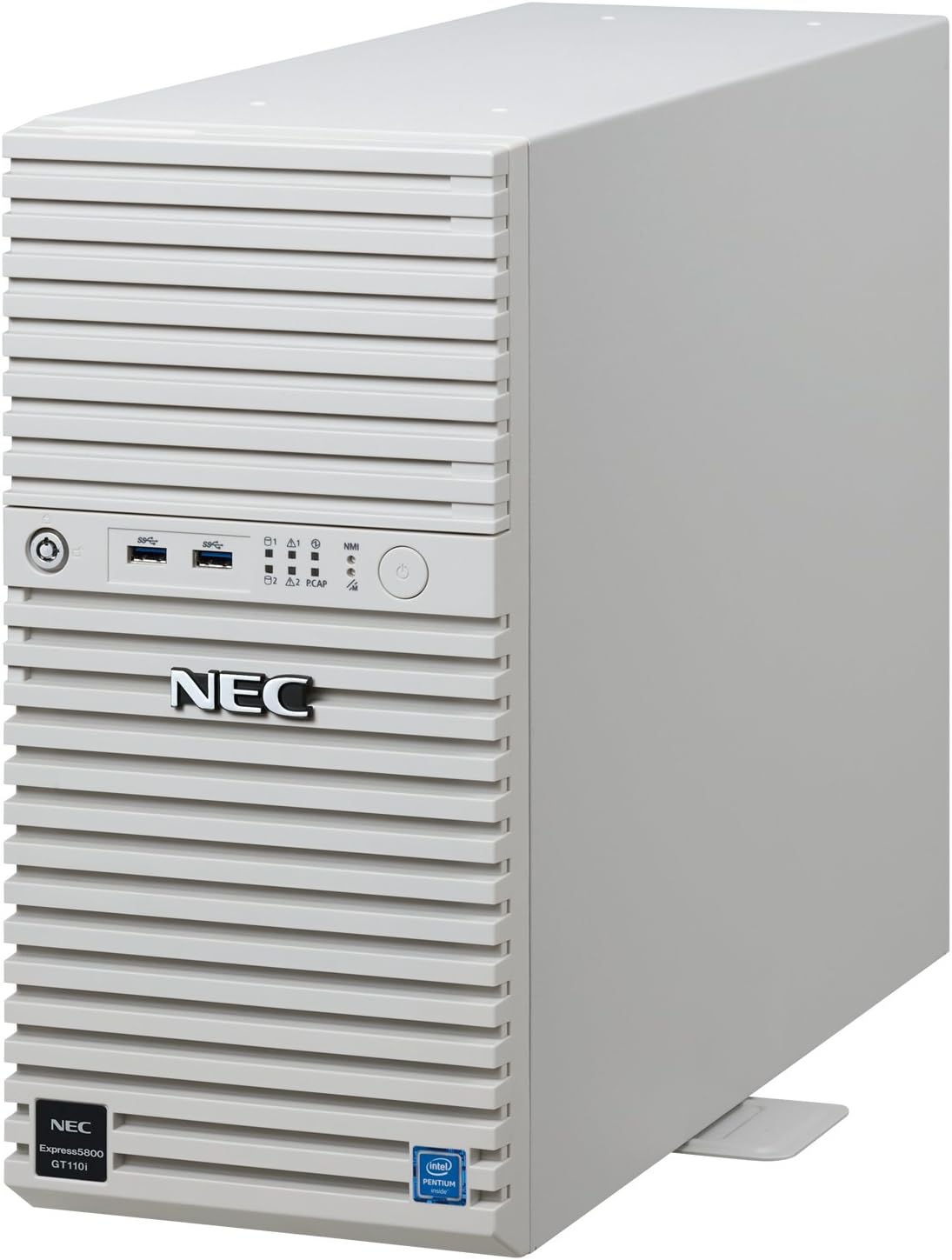
Figure 1: Front and side view of the NEC Express5800/GT110i server, showcasing its compact tower design and ventilation grilles.
Key Features
- Storage: Equipped with two 3.5-inch SATA 500GB (7200rpm) HDDs configured in RAID1, with two additional empty slots available for expansion.
- Network: Features two 1000BASE-T LAN ports for robust network connectivity.
- Operating Environment: Designed for stable operation within a temperature range of 5°C to 40°C.
- Included Peripherals: Standard keyboard and mouse are included.
- Warranty: Comes with a 3-year next-day onsite repair service and a 3-year parts warranty.

Figure 2: The server is designed for stable operation even in high-temperature environments up to 40°C, with an option to extend support up to 48°C without sacrificing processing performance.
Setup Guide
1. Unpacking and Inspection
Carefully remove the server from its packaging. Inspect all components for any signs of damage during transit. Ensure all listed accessories, including the keyboard and mouse, are present.
2. Physical Placement
Place the server on a stable, flat surface in a well-ventilated area. Ensure adequate clearance around the server for proper airflow. Avoid placing it near heat sources or in direct sunlight. The operating environment temperature should be between 5°C and 40°C.
3. Connecting Peripherals
- Connect the included keyboard and mouse to the available USB ports on the server.
- Connect a monitor to the server's video output port (if applicable, though this is an OS-less server, initial setup might require a display).
- Connect network cables to the 1000BASE-T LAN ports.
4. Power Connection
Connect the power cord to the server's power input and then to a grounded electrical outlet. Ensure the power supply is stable and meets the server's power requirements (105 Watts).
5. Initial Boot and OS Installation
Since this is an OS-less model, you will need to install an operating system. Insert your OS installation media (e.g., DVD-ROM) into the optical drive. Power on the server and follow the on-screen prompts to install your desired operating system.
Operating Instructions
Powering On/Off
- To Power On: Press the power button located on the front panel.
- To Power Off: For normal shutdown, use the operating system's shutdown procedure. For a forced shutdown, press and hold the power button for several seconds until the server powers off.
RAID Configuration
The server comes with two 500GB HDDs pre-configured in RAID1 for data redundancy. Refer to your operating system's documentation or the server's BIOS/UEFI settings for advanced RAID management or to configure additional drives in the empty slots.
Network Connectivity
Utilize the two 1000BASE-T LAN ports for network connections. Configure network settings within your operating system as required for your network environment.
Maintenance
Regular Cleaning
Periodically clean the exterior of the server with a soft, dry cloth. Ensure ventilation grilles are free from dust and debris to maintain optimal airflow and prevent overheating.
Software Updates
Regularly update your operating system, drivers, and server firmware to ensure optimal performance, security, and compatibility.
Data Backup
Despite the RAID1 configuration providing data redundancy, regular backups of critical data are highly recommended to protect against data loss from unforeseen events.
Troubleshooting
Server Does Not Power On
- Check if the power cord is securely connected to both the server and the electrical outlet.
- Verify that the electrical outlet is functioning correctly.
- Ensure the power supply unit (PSU) switch (if present) is in the 'On' position.
No Display Output
- Ensure the monitor is properly connected and powered on.
- Check the video cable connection at both the server and the monitor.
- Try connecting to a different video output port if available.
Network Connectivity Issues
- Verify that network cables are securely connected to the LAN ports and the network switch/router.
- Check network adapter settings within your operating system.
- Restart the server and network devices.
For further assistance, please refer to the warranty and support section.
Specifications
| Feature | Detail |
|---|---|
| Brand | NEC |
| Model Name | Express5800 |
| Product Model Number | NP8100-2517YP6Y |
| Product Dimensions (W x D x H) | 17.5 x 46.9 x 36.7 cm |
| Item Weight | 9.8 kg |
| CPU Brand | Intel |
| CPU Type | Pentium |
| CPU Speed | 3.5 GHz |
| Processor Count | 1 |
| RAM Size | 8 GB |
| HDD Capacity | 500 GB (x2, RAID1) |
| HDD Interface | Serial ATA-600 |
| HDD Rotational Speed | 7200 RPM |
| Optical Drive Type | DVD-ROM |
| USB 3.0 Ports | 7 |
| Wattage | 105 Watts |
| Operating Temperature | 5~40°C (up to 48°C with options) |
| Connectivity Technology | LAN (1000BASE-T x2) |
| Included Battery | 1 Lithium Ion Battery (internal) |
Warranty and Support
The NEC Express5800/GT110i server comes with a comprehensive warranty package to ensure peace of mind:
- 3-Year Next-Day Onsite Repair Service: In case of a hardware issue, a technician will be dispatched to your location on the next business day for repair.
- 3-Year Parts Warranty: All hardware components are covered by a 3-year warranty.

Figure 3: Visual representation of the standard 3-year warranty, including next-day onsite repair and parts warranty, supported by approximately 400 service bases nationwide.
For warranty claims or technical support, please contact NEC customer service. Refer to the official NEC website or documentation for contact details and specific terms and conditions.

