
Introduction
This manual provides detailed instructions for the setup, operation, and maintenance of your Zerone BN59-01179A Replacement Remote Control. Please read this manual carefully before using the product to ensure proper functionality and longevity.
Product Overview
The Zerone BN59-01179A is a universal replacement remote control designed for compatible Smart TVs. It offers a compact design and a comprehensive set of buttons for various functions.
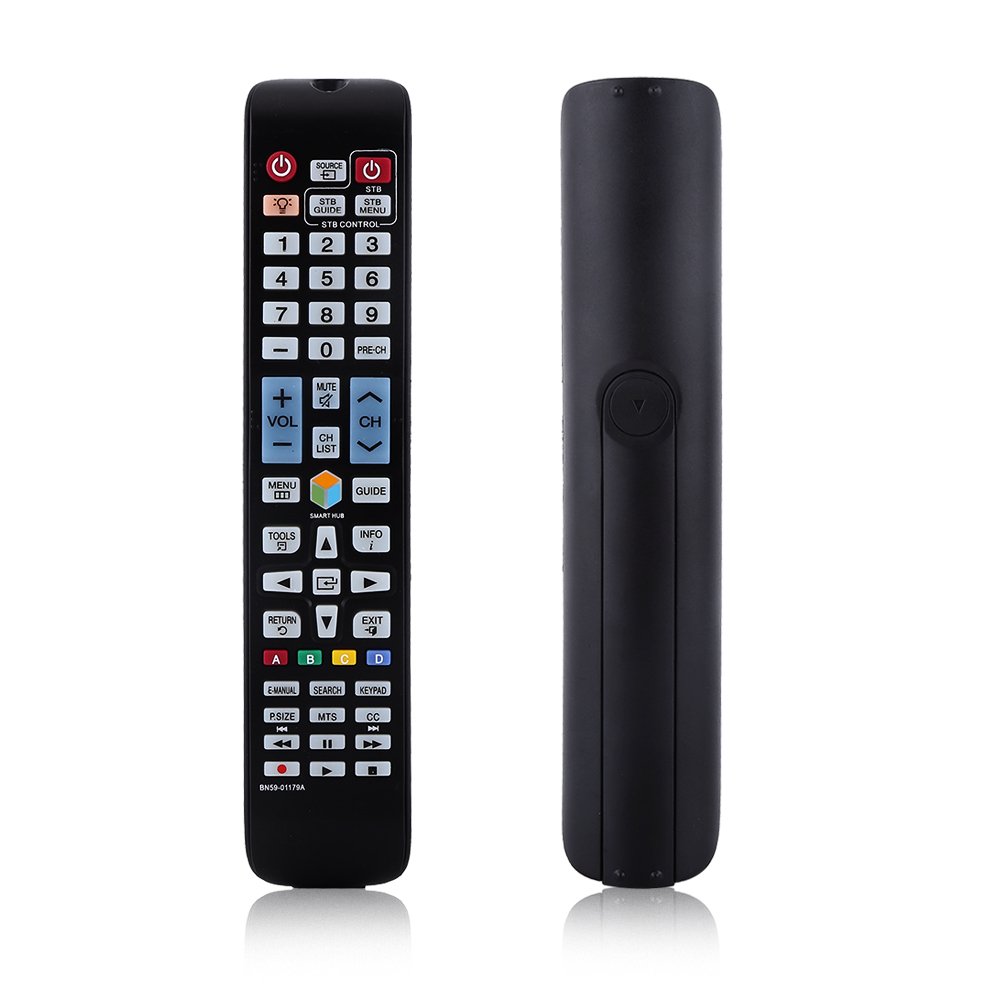
Image: Front view of the Zerone BN59-01179A remote control, showing its full layout and approximate dimensions (23cm length, 4.7cm width, 2cm thickness).
Setup
Battery Installation
- Locate the battery compartment on the back of the remote control.
- Slide the battery cover downwards or press the latch and lift to open.
- Insert two (2) AAA batteries, ensuring the positive (+) and negative (-) terminals align correctly with the markings inside the compartment.
- Replace the battery cover by sliding it back into position until it clicks securely.
Note: Batteries are not included with the remote control. Please use new AAA batteries for optimal performance.

Image: The back of the remote control with the battery cover removed, showing the empty battery compartment ready for two AAA batteries.
Operating Instructions
This remote control is designed for immediate use with compatible TVs without requiring programming. Simply insert batteries and point the remote towards your television.
Key Functions

Image: A hand holding the Zerone remote control, with inset close-ups highlighting the power/source buttons and the navigation/Smart Hub buttons.
- Power (Red Button): Turns the TV on or off.
- Source: Selects input sources (HDMI, AV, etc.).
- STB/DTV: Switches between Set-Top Box and Digital TV modes.
- Number Buttons (0-9): Direct channel selection.
- PRE-CH: Returns to the previous channel.
- Volume (+/-): Adjusts the volume level.
- Mute: Mutes or unmutes the TV sound.
- Channel (CH Up/Down): Changes TV channels sequentially.
- CH LIST: Displays the channel list.
- MENU: Accesses the TV's main menu.
- Smart Hub: Opens the Smart Hub interface for apps and streaming services.
- GUIDE: Displays the electronic program guide.
- INFO: Shows information about the current program.
- TOOLS: Accesses quick settings or contextual options.
- Navigation Buttons (Up/Down/Left/Right/Enter): Navigates through menus and selects options.
- RETURN: Goes back to the previous screen or menu.
- EXIT: Exits the current menu or application.
- Color Buttons (A, B, C, D): Functionality varies by TV model and application.
- E-MANUAL: Accesses the TV's electronic manual.
- SEARCH: Opens the search function.
- KEYPAD: Displays an on-screen keypad.
- P.SIZE: Adjusts picture size/aspect ratio.
- MTS: Multi-channel Television Sound (SAP).
- CC: Closed Captioning.
- Media Control Buttons (Play, Pause, Stop, Rewind, Fast Forward): Controls media playback.
Maintenance
- Cleaning: Use a soft, dry cloth to clean the remote control. Do not use liquid cleaners or abrasive materials.
- Battery Replacement: Replace batteries when the remote's response becomes sluggish or stops working. Always replace both batteries at the same time with new ones.
- Storage: If the remote will not be used for an extended period, remove the batteries to prevent leakage and damage.
- Avoid Exposure: Keep the remote away from direct sunlight, heat sources, and moisture.
Troubleshooting
- Remote not responding:
- Ensure batteries are inserted correctly with the correct polarity.
- Replace old batteries with new AAA batteries.
- Check for any obstructions between the remote and the TV's infrared sensor.
- Ensure the remote is pointed directly at the TV.
- Limited range:
- Replace batteries.
- Ensure there are no strong light sources or electronic devices interfering with the signal.
- Specific buttons not working:
- Clean the remote control, especially around the unresponsive buttons, to remove any dirt or debris.
- If the issue persists after battery replacement and cleaning, the remote may be faulty.
Specifications
| Feature | Description |
|---|---|
| Brand | Zerone |
| Model Name | Zerone32687x9gqs (BN59-01179A compatible) |
| Connectivity Technology | Infrared |
| Compatible Devices | Television (specifically for Samsung BN59-01179A compatible models) |
| Max Number of Supported Devices | 8 (Universal functionality) |
| Button Quantity | 12 (referring to main function groups, actual count is higher) |
| Controller Type | Button Control |
| Maximum Range | 8 Meters |
| Battery Type | AAA |
| Number of Batteries | 2 AAA batteries required (not included) |
| Special Feature | Universal replacement, no programming required |
Warranty and Support
Zerone provides a service guarantee for this product. If you encounter any questions or issues regarding your remote control, please contact the seller or manufacturer for assistance. They will provide follow-up services to address your concerns.
For specific warranty details and support contact information, please refer to your purchase documentation or the retailer's website.