
Hercules AMS-DJC-INPULSE-200
Hercules DJControl Inpulse 200 User Manual
Model: AMS-DJC-INPULSE-200
Brand: Hercules
Introduction
This manual provides comprehensive instructions for the setup, operation, and maintenance of your Hercules DJControl Inpulse 200. Designed for beginners, this DJ controller helps you learn to mix with its unique features and integrated tutorials.
The DJControl Inpulse 200 offers 2 tracks, 8 pads, and a built-in sound card, making it an ideal tool for aspiring DJs to develop their skills.
Package Contents
Before you begin, please ensure all items listed below are present in the package:
- Hercules DJControl Inpulse 200 Controller
- Braided USB cable
- Quick start guide
- DJUCED software (download required)
Setup
Follow these steps to set up your DJControl Inpulse 200:
- Software Installation: Download and install the DJUCED software from the official Hercules website. Ensure your operating system meets the minimum requirements (Windows 7, 8, 10, 11 / macOS 10.11 & higher).
- Connect to Computer: Use the provided braided USB cable to connect the DJControl Inpulse 200 to an available USB port on your computer. The controller is powered via USB.
- Audio Output: Connect your headphones to the 3.5mm headphone jack on the controller for monitoring. For main audio output, connect your speakers to your computer's audio output or directly to the controller if it has dedicated outputs (refer to DJUCED software settings for audio routing).
- Launch DJUCED: Once connected, launch the DJUCED software. The software should automatically detect the DJControl Inpulse 200.
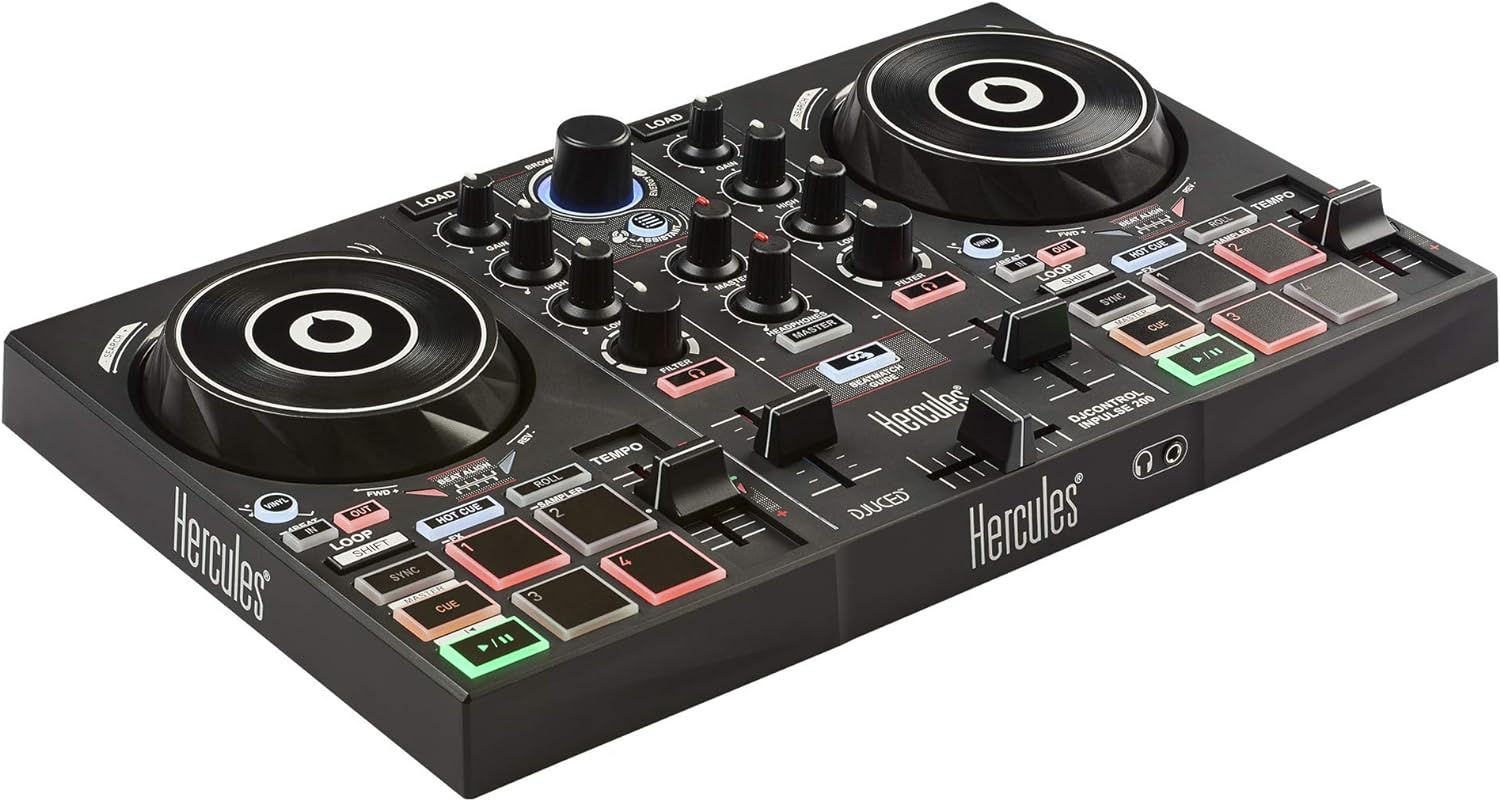
Figure 1: Angled view of the Hercules DJControl Inpulse 200, showing its compact design and various controls.
Key Features
The Hercules DJControl Inpulse 200 is equipped with several features designed to assist new DJs:
- Tempo and Beat Align Guides: Integrated light guides on the controller assist in manually aligning tracks.
- Intelligent Music Assistant (IMA): Suggests suitable tracks from your library to mix with the current song.
- Energy Function: Helps manage the energy level of your mix, guiding you to choose tracks that match the mood.
- 8 Performance Pads: Each deck features 4 pads with 8 modes (Hot Cue, Roll, FX, Sampler) for creative mixing.
- Touch-Detection Jog Wheels: For scratching and precise track control.
- Built-in Audio Interface: Provides audio output for both master and headphone monitoring.

Figure 2: Detail of the central section, highlighting the Browser knob with its illuminated Energy ring and the Assistant button.

Figure 3: Close-up view of the Master output button and the Beatmatch Guide button, which illuminates to assist with beat matching.
Operating Instructions
Basic Mixing
- Load Tracks: Use the BROWSER knob to navigate your music library in DJUCED. Press the LOAD button (left or right) to load a track onto the corresponding deck.
- Adjust Gain: Use the GAIN knobs for each deck to adjust the input volume of the loaded tracks.
- EQ Control: Adjust the HIGH, MID, and LOW knobs to shape the frequency response of each track.
- Tempo Adjustment: Use the TEMPO faders to adjust the speed (BPM) of each track. The BEAT ALIGN guides will light up to indicate if the track is too fast or too slow relative to the other deck.
- Beat Matching: Manually adjust the jog wheels and tempo faders until the BEAT ALIGN guides are centered, indicating synchronized beats.
- Crossfader: Use the central CROSSFADER to blend between Deck 1 (left) and Deck 2 (right).

Figure 4: Overhead view of the DJControl Inpulse 200, showing the full layout of controls including jog wheels, faders, and pads.

Figure 5: Detailed view of a deck's tempo slider and the associated performance pads, including the Roll and Sampler functions.

Figure 6: Close-up of the Beat Align guide lights and the Hot Cue and Roll buttons, demonstrating visual feedback for beat synchronization.
Performance Pads
The 8 performance pads (4 per deck) offer various creative functions:
- Hot Cue: Set and trigger cue points within your track.
- Roll: Create momentary loop rolls.
- FX: Apply effects to your track.
- Sampler: Trigger pre-loaded samples.
Press the corresponding mode button above the pads to switch between functions.
Intelligent Music Assistant (IMA) and Energy Function
The IMA and Energy functions are designed to help you select and mix tracks seamlessly:
- Assistant: Press the ASSISTANT button to get suggestions for the next track from your library that would mix well with the current one.
- Energy: The ring around the BROWSER knob indicates the energy level of the current track. Use this to guide your track selection and maintain a consistent energy flow in your mix.
Maintenance
To ensure the longevity and optimal performance of your DJControl Inpulse 200, follow these maintenance guidelines:
- Cleaning: Use a soft, dry, lint-free cloth to clean the surface of the controller. Do not use abrasive cleaners, solvents, or waxes.
- Storage: Store the controller in a cool, dry place away from direct sunlight and extreme temperatures.
- Handling: Avoid dropping the controller or subjecting it to strong impacts. Do not place heavy objects on top of it.
- Connectivity: Always disconnect the USB cable by pulling the plug, not the cable itself, to prevent damage to the connector.
Troubleshooting
If you encounter issues with your DJControl Inpulse 200, refer to the following common problems and solutions:
| Problem | Possible Cause | Solution |
|---|---|---|
| Controller not recognized by computer/DJUCED. | USB cable not properly connected, driver issue, or software not updated. |
|
| No sound output. | Incorrect audio settings in DJUCED, volume levels too low, or incorrect speaker/headphone connection. |
|
| Jog wheels or buttons unresponsive. | Software glitch, connection issue, or physical damage. |
|
Specifications
| Feature | Detail |
|---|---|
| Model Name | Hercules DJControl Inpulse 200 |
| Item Model Number | AMS-DJC-INPULSE-200 |
| Dimensions (L x W x H) | 12.59 x 7.66 x 1.77 inches (32 x 19.4 x 4.5 cm) |
| Item Weight | 1.86 pounds (0.84 kg) |
| Connectivity | USB (USB 2.0, USB 3.0 compatible) |
| Audio Interface | Built-in, 2-channel |
| Headphone Output | 3.5mm stereo jack |
| Jog Wheels | Touch-detection |
| Performance Pads | 8 (4 per deck), with Hot Cue, Roll, FX, Sampler modes |
| Supported Software | DJUCED |
| Operating System Compatibility | Windows 7, 8, 10, 11 / macOS 10.11 & higher |
| Material Type | Plastic |
| Color | Black |
Warranty and Support
For warranty information, technical support, and additional resources, please visit the official Hercules support website. You can also find the full user manual in PDF format for more detailed instructions.
Official User Manual (PDF): Download Here
For further assistance, please contact Hercules customer service.
Related documentsAMS-DJC-INPULSE-200


Ask a question about this manual
Ask about setup, troubleshooting, compatibility, parts, safety, or missing instructions. Manuals+ will review the question and use this page’s manual context to help answer it.