
Introduction
This manual provides comprehensive instructions for the safe and effective operation of your Autel Robotics EVO Nano+ drone. Please read this manual thoroughly before operating the aircraft to ensure proper usage and to maximize your flying experience.
The Autel EVO Nano+ is a lightweight, foldable mini-drone designed for capturing high-quality aerial images and videos. It features a 4K RYYB camera, 3-axis gimbal stabilization, and advanced obstacle avoidance capabilities.
Setup
Unboxing
Carefully open the product packaging and remove all components. Verify that all items listed in the package contents are present.
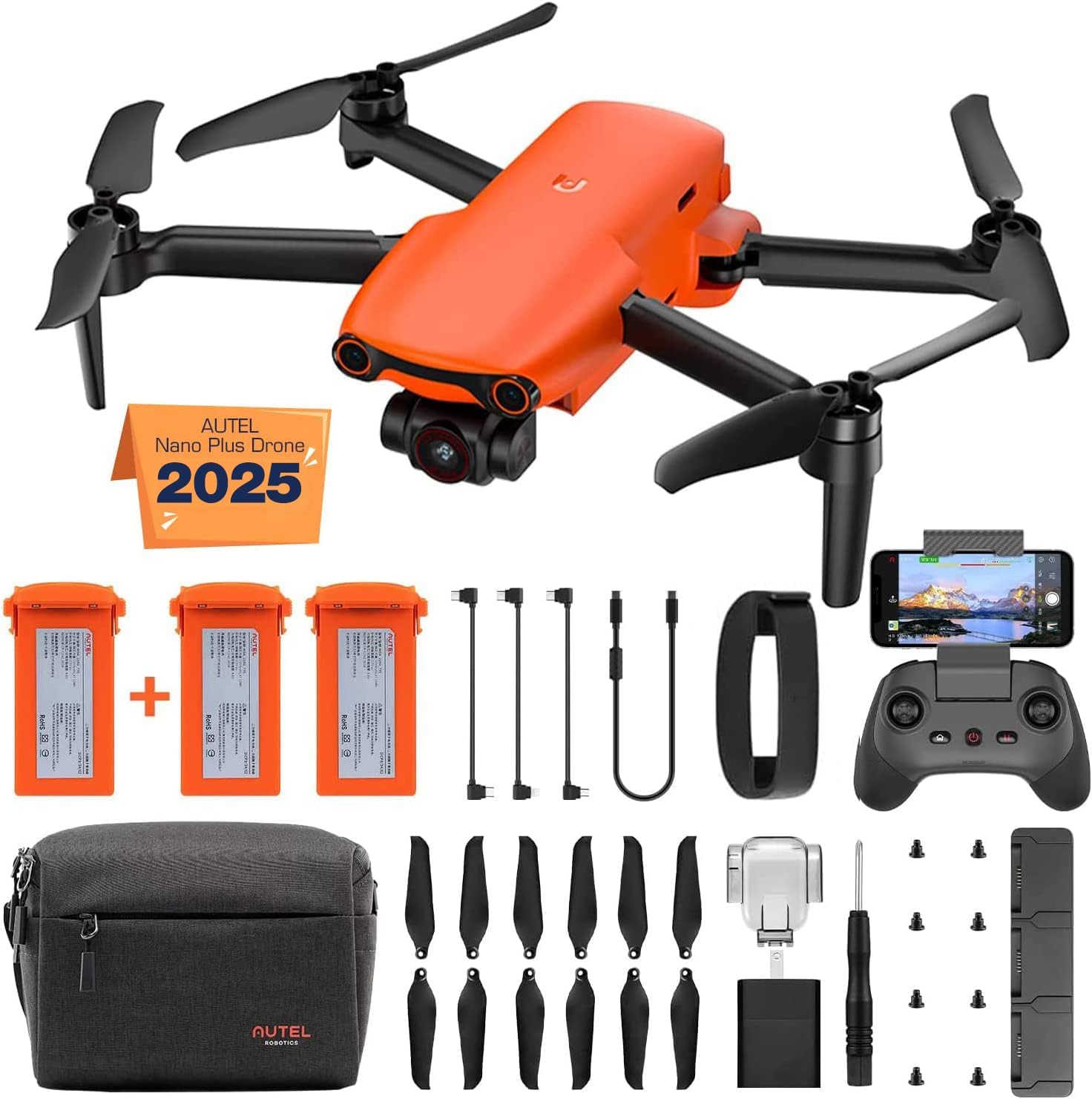
Image: Contents of the Autel Robotics EVO Nano+ Premium Bundle.
The Premium Bundle typically includes the aircraft, remote controller, multiple batteries, a multi-charger, command sticks, charging cables, power adapter, gimbal cover, screwdriver, spare propellers, spare screws, and a shoulder bag.
Video: Unboxing and First Use Guide for the EVO Nano+ Drone.
Preparing the Aircraft
- Remove the gimbal cover and propeller holder from the aircraft.
- Unfold the aircraft's front arms, then the back arms, ensuring they lock into place.
Preparing the Remote Controller
- Mount the command sticks onto the remote controller and screw them in place.
- Pull out the mobile device holder.
- Place your mobile device into the mobile device holder.
- Connect the Type-C end of the cable to the remote controller and the other end to your mobile device.
Downloading the Autel Sky App
The Autel Sky app is essential for operating your drone. You can download it by scanning the QR code on the product packaging or by visiting the official Autel Robotics website. Ensure your mobile device meets the minimum system requirements (iOS 12.0+ / Android 8.0+).
Powering On
- Aircraft: Press and hold the aircraft power button for 3 seconds to turn on the aircraft.
- Remote Controller: Press and hold the remote controller power button for 2 seconds to turn on the controller.
Activation
When connecting the aircraft for the first time, it needs to be activated to obtain warranty service. Open the Autel Sky App and follow the on-screen instructions to activate the aircraft. If you have purchased Autel Robotics Care, please bind it to your aircraft within 48 hours.
Pairing the Aircraft and Remote Controller
The remote controller and aircraft are factory-paired. If you need to re-pair them (e.g., after replacing a component), follow these steps:
- Method 1 (Buttons):
- Remove the gimbal cover from the aircraft.
- Press the aircraft power button for 3 seconds to turn it on. Double-click the aircraft power button; the indicator will flash green quickly, indicating it's ready to pair.
- When the remote controller is off, press the home button and power button at the same time. The remote controller indicator will flash quickly, indicating it's ready to pair.
- If pairing is successful, the green indicator on the aircraft will stay on for 5 seconds, then flash yellow slowly.
- Method 2 (Autel Sky App):
- Remove the aircraft's gimbal cover.
- Open the Autel Sky App, go to the Personal Center, and click "Connect New Aircraft".
- Follow the on-screen instructions. Press and hold the remote controller power button for 2 seconds to turn it on, then click "Next".
- Connect the remote controller and the mobile device.
- Press and hold the aircraft power button for 3 seconds to turn it on. Click "Next".
- Double-click the aircraft power button. The indicator will flash green quickly, indicating the aircraft is pairing.
- After successfully pairing, the green indicator on the aircraft will stay on for 5 seconds, then flash yellow slowly.
Video: How to re-pair the drone and remote controller.
Operating
Flight Modes
The EVO Nano+ offers various intelligent flight modes to enhance your aerial photography and videography.
- SkyPortrait: Take the ultimate selfie with the press of a single button. The Nano+ will raise into the air, snap a photo, and automatically adjust the lens to include everyone. It can also blur the background for a cinematic effect.
- Cinematic Shots (One-Click Vlog): Create dramatic, professional-level shots with automated modes:
- Rocket: The drone ascends vertically while the camera points downwards at the subject.
- Fade Away: The drone flies backward and upward, fading the subject into the background.
- Orbit: The drone circles around a subject at a set radius and altitude.
- Flick: The drone flies away from the subject while rotating, creating a dynamic effect.
- Dynamic Track 2.1: Recruit your Nano+ drone to automatically follow any person, animal, or vehicle. This allows you to focus on your activities while the drone handles the cinematic tracking. The maximum tracking speed is approximately 22 mph.
Video: Overview of the Autel Robotics EVO Nano+ features, including flight modes.
Video: Detailed guide on using Dynamic Track mode.
Camera Features
- 4K HDR Camera: The EVO Nano+ features a 1/1.28-inch (0.8-inch) 50-megapixel sensor capable of capturing impressive 50MP photos and ultra-sharp 4K/30fps video. The PTZ pitch angle can be adjusted from -90° to 0° via the remote controller or Autel Sky App.
- RYYB Color Filter Sensor: This design allows for approximately 40% more light input compared to traditional RGGB arrays, improving low-light performance and reducing noise.
- Dual Autofocus System (PDAF + CDAF): Tracks fast-moving subjects with incredible precision, ensuring sharp focus in various conditions.

Image: Key specifications of the Autel EVO Nano+ drone, highlighting its camera capabilities.

Image: Detailed view of the Super Leica Lens on the EVO Nano+.

Image: Illustration of the RYYB Color Filter Sensor technology.
Obstacle Avoidance
The Nano+ is equipped with a 3-way obstacle avoidance system, featuring 6 computer vision sensors (front, rear, and bottom) for 3D obstacle avoidance. An ultrasonic sensor on the bottom assists with precision hovering. This system enhances flight safety, especially for new drone pilots.

Image: Visual representation of the three-way obstacle avoidance system.
Image Transmission & Download
The Autel EVO Nano+ features the Autel SkyLink image transmission system, providing an ultra-smooth, clear, and reliable image feed up to 6.2 miles (10 km) with 2.7K/30FPS quality. The SuperDownload feature allows wireless transfer of images and videos from the drone to your smartphone at up to 160 Mb/s by simply placing your smartphone nearby.

Image: Autel SkyLink image transmission system in use.
Maintenance
Regular maintenance ensures the longevity and optimal performance of your EVO Nano+ drone.
- Propellers: Inspect propellers for any cracks, bends, or damage before each flight. Replace damaged propellers immediately.
- Gimbal and Camera: Keep the gimbal and camera lens clean. Use a soft, dry cloth to gently wipe the lens. Avoid touching the gimbal motors.
- Batteries: Store batteries in a cool, dry place. Do not overcharge or over-discharge. If storing for extended periods, charge them to approximately 50-60% capacity.
- Aircraft Body: Clean the drone's body with a soft, damp cloth. Avoid using harsh chemicals or solvents.
Troubleshooting
This section addresses common issues you might encounter with your EVO Nano+ drone.
- Drone not powering on: Ensure the battery is fully charged and properly inserted. Press and hold the power button for 3 seconds.
- Remote controller not connecting: Refer to the "Pairing the Aircraft and Remote Controller" section above. Ensure both devices are powered on and within range.
- Poor image transmission: Check for strong Wi-Fi interference in your environment. Ensure the drone and remote controller are within the specified transmission range (up to 6.2 miles).
- Gimbal abnormal: Ensure the gimbal cover is removed before powering on. Check for any obstructions around the gimbal. If the issue persists, contact customer support.
- Obstacle avoidance warnings: The drone's obstacle avoidance system will alert you to nearby obstacles. Always maintain visual line of sight and be prepared to take manual control.
Specifications
| Feature | Detail |
|---|---|
| Brand | Autel |
| Model Name | EVO Nano+ |
| Item Weight | 249 Grams (8.8 ounces) |
| Video Capture Resolution | 4K |
| Effective Still Resolution | 50 MP |
| Battery Life | Up to 28 minutes |
| Maximum Range | 4.3 Miles (10 km transmission) |
| Obstacle Avoidance | 3-Way (Front, Rear, Bottom) |
| Autofocus System | PDAF + CDAF |
| Color Filter Array | RYYB |
Storage
To store your aircraft, ensure it is powered off. Fold the aircraft's back arms first, then the front arms. Attach the propeller holder and mount the gimbal cover to protect the camera and propellers during transport or storage. Place the aircraft and remote controller securely in the provided shoulder bag.

Image: Folded EVO Nano+ drone ready for storage.
Warranty and Support
For warranty information, please refer to the official Autel Robotics website or the warranty card included in your product packaging. For any questions or assistance, you may contact Autel customer support at AutelStoreOnline@outlook.com.
Additional resources, including the full User Manual in PDF format, can be found at: User Manual (PDF)