
Introduction
The BENFEI 2-in-1 USB-C/USB 3.0 to SATA III Adapter provides a convenient solution for connecting a 2.5-inch SATA Solid State Drive (SSD) or Hard Disk Drive (HDD) to your computer via USB-C or USB 3.0. This adapter allows you to quickly access, backup, create disk images, recover data, and transfer content from your 2.5-inch SATA drives without needing an external enclosure.
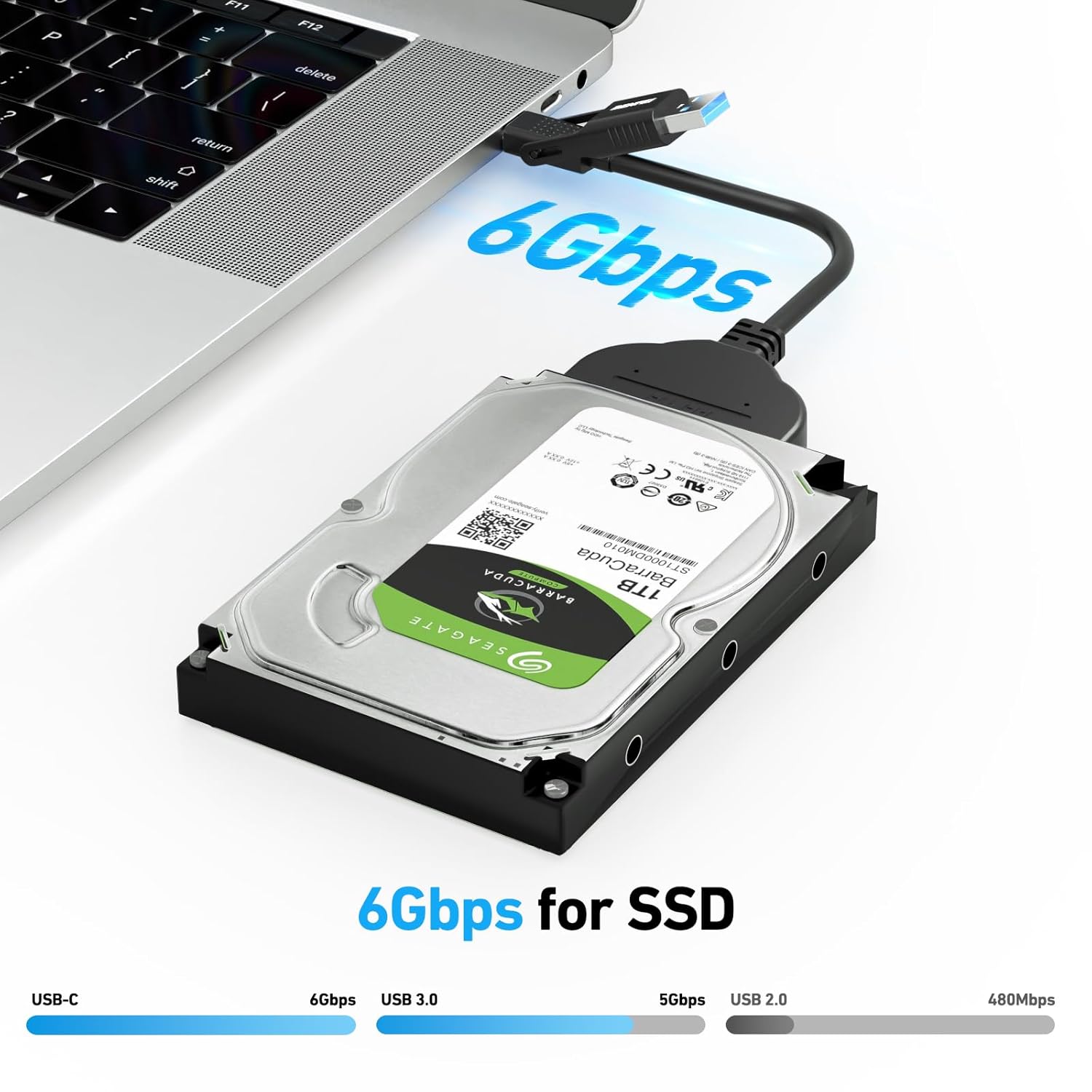
It supports SuperSpeed USB 3.0, offering data transfer rates up to 5 Gbps, and up to 6 Gbps for SSDs. The UASP (USB Attached SCSI Protocol) function further enhances performance, providing up to 70% faster read speeds and 40% faster write speeds compared to traditional USB 3.0 when used with a UASP-enabled host controller and operating system.
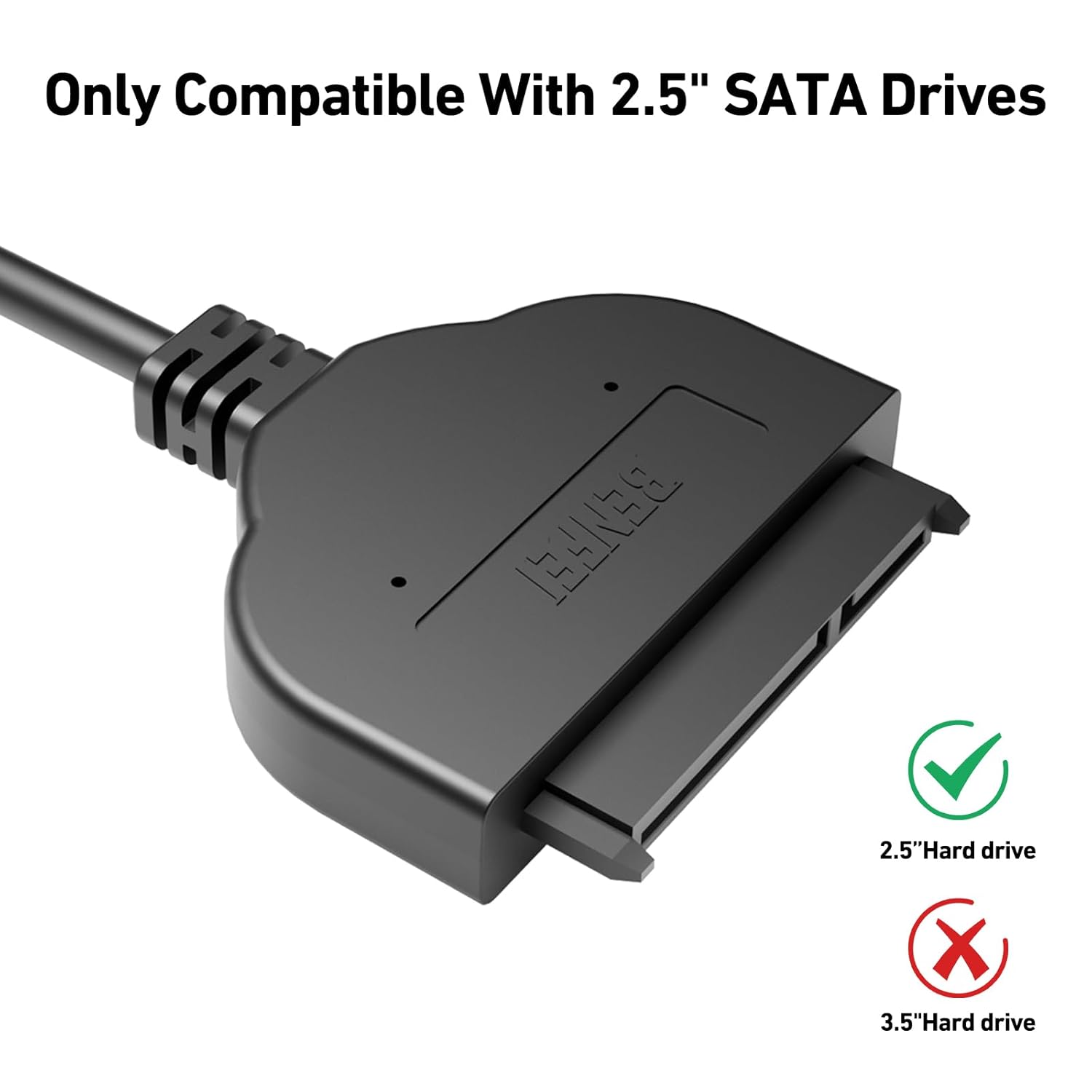
Important: This cable is compatible ONLY with 2.5-inch SATA drives. It does NOT support 3.5-inch, 5.25-inch, or M.2 drives.
Setup Instructions
- Prepare your 2.5-inch SATA Drive: Ensure your 2.5-inch SATA HDD or SSD is ready for connection. No external power adapter is required for 2.5-inch drives as the USB port provides sufficient power.
- Connect the SATA Adapter: Align the SATA connector of the BENFEI adapter with the SATA data and power ports on your 2.5-inch HDD or SSD. Gently push until it is firmly seated.
- Connect to your Computer: Plug the USB-A (USB 3.0) or USB-C connector of the adapter into an available USB port on your laptop, desktop PC, or compatible device. For optimal performance, use a USB 3.0 or USB-C port.
- System Recognition: Your operating system (Windows, macOS, Chrome OS, Linux) should automatically detect the connected drive. The adapter is plug-and-play and typically does not require additional drivers.
Operating Instructions
Once the drive is successfully connected and recognized by your computer, it will appear as an external storage device. You can now perform various operations:
- Data Transfer: Drag and drop files between your computer and the connected SATA drive.
- Backup: Use your operating system's backup tools or third-party software to create backups of your data.
- Disk Imaging: Create or restore disk images for system recovery or migration.
- Data Recovery: Access data from old or non-bootable drives (if the drive itself is functional).
For new drives, you may need to initialize and format them through your operating system's Disk Management (Windows) or Disk Utility (macOS) before they can be used.

Maintenance
- Cleaning: Keep the adapter clean and free from dust. Use a soft, dry cloth to wipe the surface. Avoid liquid cleaners.
- Storage: When not in use, store the adapter in a cool, dry place away from direct sunlight and extreme temperatures.
- Handling: Avoid excessive bending, twisting, or pulling of the cable, which can damage internal wires. Do not drop the adapter or subject it to strong impacts.
- Connection: Always ensure connectors are properly aligned before pushing them in to prevent damage to the ports on the adapter or your drive.
Troubleshooting
Drive Not Detected
- Check Connections: Ensure the SATA connector is firmly attached to the 2.5-inch drive and the USB connector is securely plugged into your computer's USB port.
- Verify Drive Type: Confirm that you are using a 2.5-inch SATA HDD or SSD. This adapter is not compatible with 3.5-inch drives or M.2 drives.
- Try Different USB Port: Connect the adapter to a different USB port on your computer. Sometimes, a specific port might be faulty or have power issues.
- Try Different Computer: Test the adapter and drive on another computer to rule out issues with your primary system.
- Check Disk Management/Utility: In Windows, open 'Disk Management'. In macOS, open 'Disk Utility'. See if the drive is listed there, even if it doesn't appear in 'My Computer' or 'Finder'. If it's listed but unallocated, you may need to initialize and format it.
- Drive Health: If the drive is old or previously used, it might be faulty. Test the drive directly in a computer if possible.
Slow Transfer Speeds
- Use USB 3.0/USB-C Port: Ensure the adapter is connected to a USB 3.0 (blue port) or USB-C port on your computer for optimal speeds. Connecting to a USB 2.0 port will result in slower transfer rates.
- UASP Support: For maximum speeds (up to 6Gbps for SSDs), ensure your computer's USB host controller and operating system support UASP.
- Drive Performance: The actual transfer speed is also limited by the speed of your 2.5-inch HDD or SSD. Older or slower drives will not achieve maximum speeds.
- Other USB Devices: Disconnect other high-bandwidth USB devices to ensure sufficient bandwidth for the SATA adapter.
Specifications
| Brand | BENFEI |
| Model Name | USB to 2.5 SSD/HDD |
| Connector Type | USB 3.0, USB-C |
| Cable Type | USB |
| Compatible Devices | 2.5 inch HDD and SSD (3.5"/5.25" and M.2 drives NOT supported) |
| Data Transfer Rate | Up to 6 Gigabits Per Second (for SSD), up to 5 Gbps (USB 3.0) |
| Special Feature | Portable, Plug-and-Play, UASP Function |
| Connector Gender | Male-to-Female |
| Maximum Voltage | 5 Volts (DC) |
| Specification Met | CE, USB-IF |
| Item Weight | 27.22 g |


Warranty Information
The BENFEI 2-in-1 USB-C/USB 3.0 to SATA III Adapter comes with an exclusive BENFEI Unconditional 18-month Warranty. This warranty ensures long-term satisfaction with your purchase, covering any manufacturing defects or performance issues under normal use.
Customer Support
For any questions, technical assistance, or warranty claims, please contact BENFEI customer service. Our friendly and easy-to-reach customer service team is available to help solve your problems timely.
Please refer to the product packaging or the official BENFEI website for the most current contact information.