
Callstel OON1988
Callstel Hands-Free System: User Manual
Model: OON1988
1. Introduction
Thank you for choosing the Callstel Hands-Free System. This device is designed to provide safe and convenient communication while driving, allowing you to make and receive calls without taking your hands off the steering wheel. Featuring Bluetooth 5 technology, support for Siri and Google Assistant, and automatic on/off functionality, this system ensures a crystal-clear audio experience with its HD microphone and Digital Signal Processing (DSP) for echo and noise cancellation.
2. Safety Information
Please read the following safety guidelines carefully before using the device:
- Avoid exposing the device to extreme temperatures.
- Handle the battery with care. Do not attempt to disassemble or replace the battery yourself.
- Ensure the device does not interfere with other electronic systems in your vehicle.
- Always prioritize safe driving. Do not operate the device in a way that distracts you from the road.
3. Package Contents
Verify that all items are present in the package:
- Callstel Hands-Free Car Kit
- Sun Visor Clip
- Micro-USB Charging Cable
- 12-Volt Car USB Power Adapter
- User Manual (German, please refer to this translated version for English instructions)
4. Product Overview
Familiarize yourself with the components and features of your Callstel Hands-Free System:
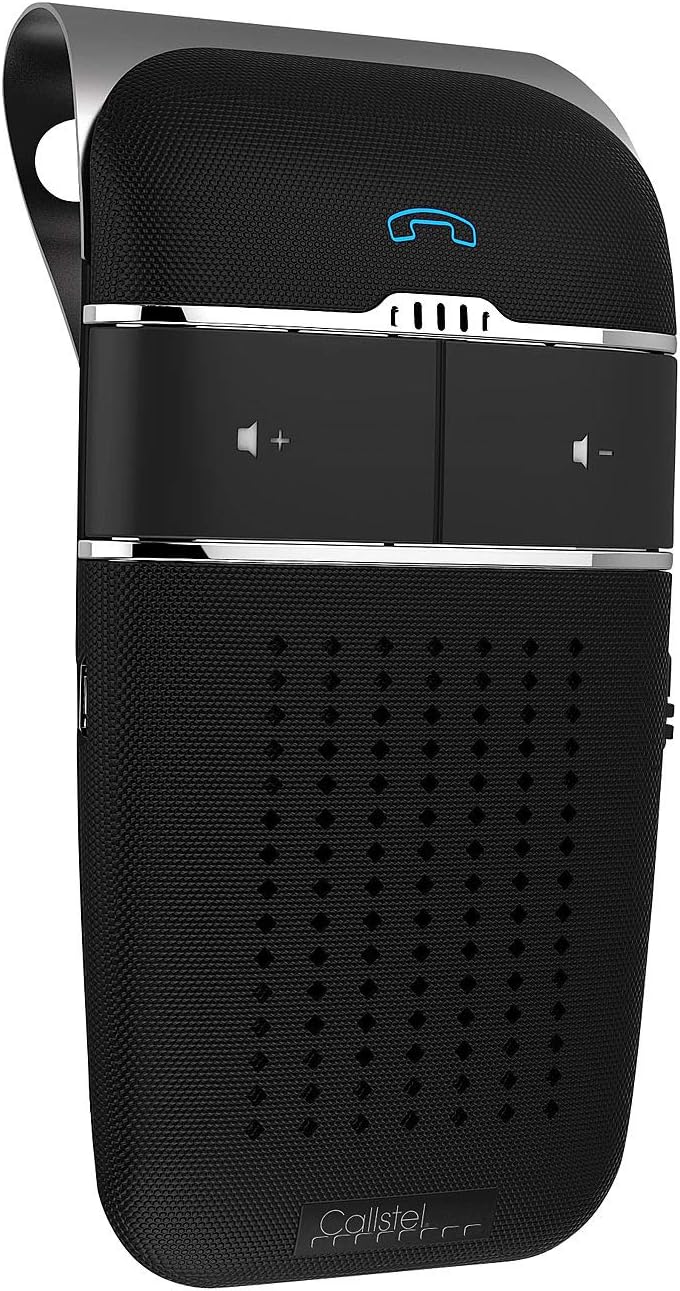
Figure 4.1: Front view of the Callstel Hands-Free System, showing the main call button and volume controls.

Figure 4.2: Key features highlighted: Bluetooth 5, Siri & Google compatibility, DSP noise reduction, Auto-Connect, Multipoint, 8 hours talk time, 700 hours standby, Aluminum casing, Micro-USB charging, and Li-Ion battery.
Controls and Indicators:
- Call Button: Multifunction button for answering/ending calls, redialing, and activating voice assistants.
- Volume Up (+) Button: Increases call volume and media playback volume.
- Volume Down (-) Button: Decreases call volume and media playback volume.
- On/Off Switch: Located on the side of the device for manual power control.
- Micro-USB Port: For charging the device.
- LED Indicator: Displays charging status and connection status.
- HD Microphone: For clear voice pickup.
- Speaker: For audio output.
5. Setup
5.1 Charging the Device
Before first use, fully charge the hands-free system. Connect the supplied Micro-USB charging cable to the device's Micro-USB port and the other end to the 12-volt car USB power adapter or any standard USB charger (not included). The LED indicator will show charging status.
- Charging time: Approximately 2.5 hours.
- Battery life: Up to 8 hours talk time, up to 29 days standby.
5.2 Installation in Vehicle
The Callstel Hands-Free System is designed for easy installation on your car's sun visor.
- Attach the sun visor clip to the back of the hands-free system.
- Securely clip the device onto your car's sun visor, ensuring it does not obstruct your view or interfere with the sun visor's operation.

Figure 5.1: The hands-free system easily clips onto the car's sun visor for optimal positioning.
5.3 Bluetooth Pairing
Pair your mobile device with the Callstel Hands-Free System:
- Ensure the hands-free system is charged and powered on. If it's the first time, it will automatically enter pairing mode. The LED indicator will flash.
- On your mobile phone, enable Bluetooth and search for available devices.
- Select "Callstel BFX-450.pt" (or similar name) from the list of found devices.
- If prompted for a password, enter "0000" (four zeros).
- Once successfully paired, the LED indicator will stop flashing and remain solid blue (or similar, refer to device specific LED behavior). A voice prompt may confirm the connection.
Multipoint Support: The device can connect to two Bluetooth devices simultaneously. To connect a second device, repeat the pairing process. The system stores up to 8 previously paired devices and will automatically reconnect to them when in range.

Figure 5.2: The Auto-Connect feature automatically pairs with your phone when you enter the car.
6. Operating Instructions
6.1 Power On/Off
- Automatic On: The device features a motion sensor. It will automatically power on when you enter the car and detect movement (e.g., opening the car door).
- Automatic Off: The device will automatically power off after 3 minutes without a Bluetooth connection and no detected movement.
- Manual On/Off: Use the dedicated On/Off switch on the side of the device to manually power it on or off.
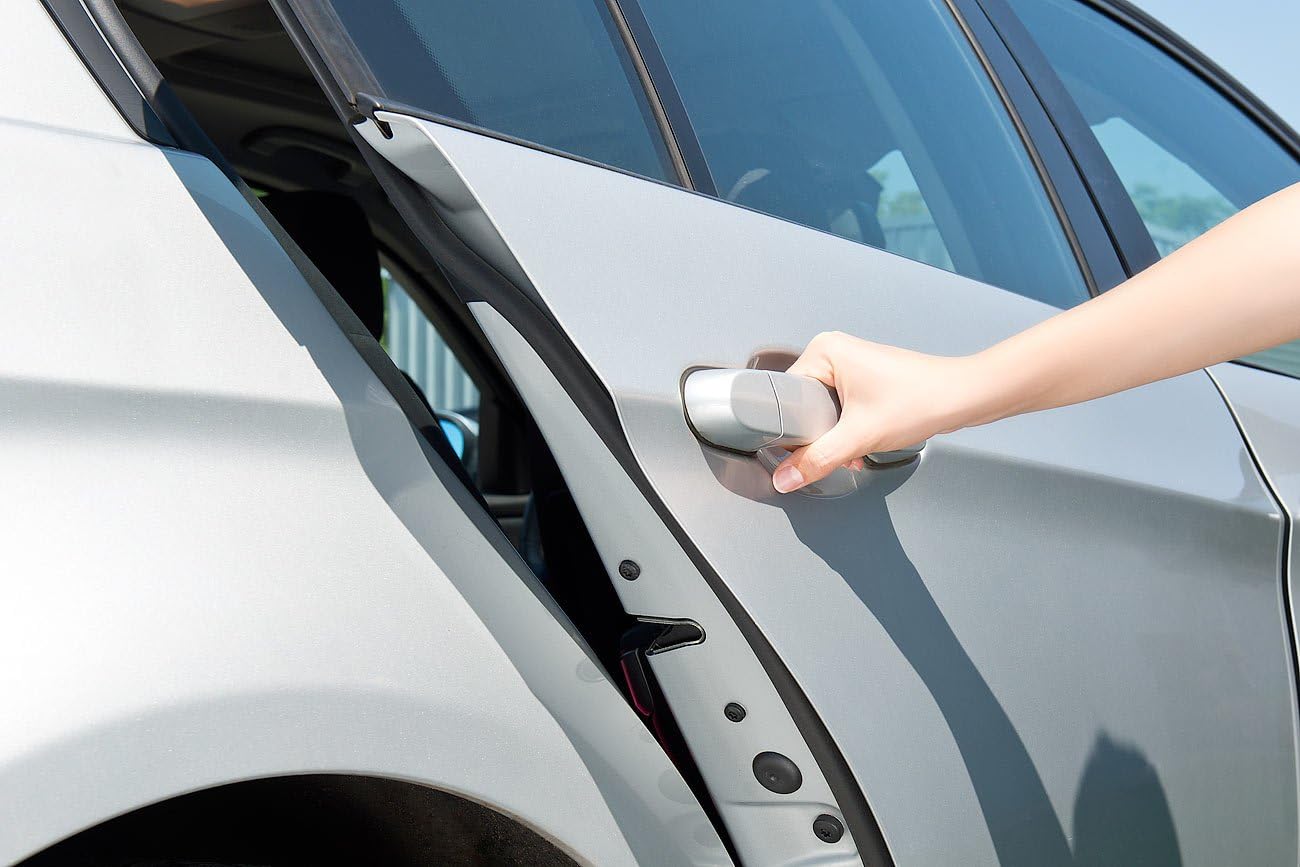
Figure 6.1: The device automatically powers on when you open the car door and enter the vehicle.
6.2 Making and Receiving Calls
- Answering a Call: When an incoming call rings, press the Call Button once. The device can also announce the incoming caller's number (in German or French, depending on settings).
- Ending a Call: During a call, press the Call Button once.
- Rejecting a Call: Press and hold the Call Button for 2 seconds, or use voice command to reject.
- Redialing Last Number: In standby mode, double-press the Call Button.
- Transferring Call to Phone: During a call, press and hold the Call Button for 2 seconds to transfer the audio to your phone. Repeat to transfer back to the hands-free system.
6.3 Volume Control
- Press the Volume Up (+) Button to increase the call or media playback volume.
- Press the Volume Down (-) Button to decrease the call or media playback volume.
6.4 Voice Assistant (Siri / Google Assistant)
Access your smartphone's voice assistant directly through the hands-free system:
- Press and hold the Call Button for approximately 2 seconds. Your phone's voice assistant (Siri for iOS, Google Assistant for Android) will activate.
- You can then issue voice commands, such as "Call [Contact Name]" or "Navigate to [Address]".
6.5 Music and Navigation Playback
The device supports A2DP profile, allowing you to stream music or navigation announcements from your smartphone through its speaker.
- Ensure your phone is connected via Bluetooth.
- Start music playback or navigation on your phone. The audio will be routed to the hands-free system.
- Use the volume buttons on the hands-free system or your phone to adjust the playback volume.
7. Maintenance
- Clean the device with a soft, dry cloth. Do not use abrasive cleaners or solvents.
- Keep the device away from excessive moisture and extreme temperatures.
- Store the device in a cool, dry place when not in use for extended periods.
8. Troubleshooting
| Problem | Possible Cause | Solution |
|---|---|---|
| Device does not power on. | Battery is depleted. | Charge the device fully. |
| Cannot pair with phone. | Bluetooth is off on phone; device not in pairing mode; too many stored devices. | Ensure Bluetooth is enabled on your phone. Power cycle the hands-free system to enter pairing mode. Clear old Bluetooth connections on your phone if necessary. |
| Poor sound quality / Echo. | Volume too high; device placement. | Adjust volume. Ensure the device is not too close to other sound sources or reflective surfaces. DSP should minimize echo. |
| Automatic on/off not working. | Device is manually switched off; no movement detected. | Ensure the manual switch is in the ON position. Ensure there is sufficient movement when entering the car. |
9. Specifications
| Feature | Detail |
|---|---|
| Model Number | OON1988 (BFX-450.pt) |
| Connectivity Technology | Bluetooth 5 |
| Bluetooth Profiles Supported | A2DP, AVRCP, HFP |
| Range | Up to 10 meters (33 feet) |
| Multipoint Support | Simultaneous connection with 2 Bluetooth devices (stores up to 8 devices) |
| Voice Assistant Compatibility | Siri, Google Assistant |
| Microphone | HD Microphone with Echo and Noise Cancellation (DSP) |
| Battery | Integrated Li-Ion battery, 600 mAh |
| Talk Time | Up to 8 hours |
| Standby Time | Up to 29 days (700 hours) |
| Charging Time | Approx. 2.5 hours via Micro-USB |
| Automatic On/Off | Via motion sensor (powers on upon entry, off after 3 min without connection/movement) |
| Dimensions (L x W x H) | 11.5 x 4.5 x 11.5 cm (4.5 x 1.8 x 4.5 inches) |
| Weight | 95 g (0.21 lbs) |
10. Warranty and Support
Callstel products are designed for reliability and performance. For warranty information and technical support, please refer to the documentation included with your purchase or visit the official Callstel website. Keep your proof of purchase for warranty claims.
For further assistance, you may contact the retailer or manufacturer directly.
Ask a question about this manual
Ask about setup, troubleshooting, compatibility, parts, safety, or missing instructions. Manuals+ will review the question and use this page’s manual context to help answer it.