1. Introduction
This manual provides detailed instructions for the Verbatim Store 'n' Go Secure Portable Hard Drive, Model 53403. It covers product features, setup, operation, maintenance, and troubleshooting to ensure optimal performance and data security. Please read this manual thoroughly before using the device.
2. Safety Information
- Do not expose the device to extreme temperatures, direct sunlight, or high humidity.
- Avoid dropping or subjecting the device to strong impacts.
- Do not attempt to disassemble or modify the device. This will void the warranty.
- Keep the device away from liquids and corrosive materials.
- Ensure proper ventilation when in use to prevent overheating.
3. Package Contents
Verify that all items are present in the package:
- Verbatim Store 'n' Go Secure Portable Hard Drive (2TB)
- USB-C to USB-A Cable
- USB-A to USB-C Adapter
- Nero Backup Software (on drive, Windows compatible only)
- Quick Start Guide
4. Product Overview
The Verbatim Store 'n' Go Secure Portable Hard Drive offers secure data storage with 256-bit AES hardware encryption and an integrated keypad for password access. It features a robust design and high-speed USB 3.1 Gen 1 connectivity.
4.1 Key Features
- Hardware Encryption: 256-bit AES hardware encryption for robust data security.
- Integrated Keypad: Numeric keypad for secure password entry.
- High-Speed Connectivity: USB 3.1 Gen 1 interface for fast data transfer (up to 5 Gbps).
- Universal Compatibility: Includes USB-C to USB-A cable and USB-A to USB-C adapter for broad device compatibility.
- LED Indicators: Visual feedback for power, drive activity, and encryption status.
- Durable Design: Combined aluminum and plastic housing.
4.2 Device Components

The device features a numeric keypad on its top surface for entering your security PIN. LED indicators are located near the keypad to show the drive's status.

The USB-C port on the side of the drive is used for connecting to your computer and for power. The drive is bus-powered, meaning it draws power directly from the USB connection.
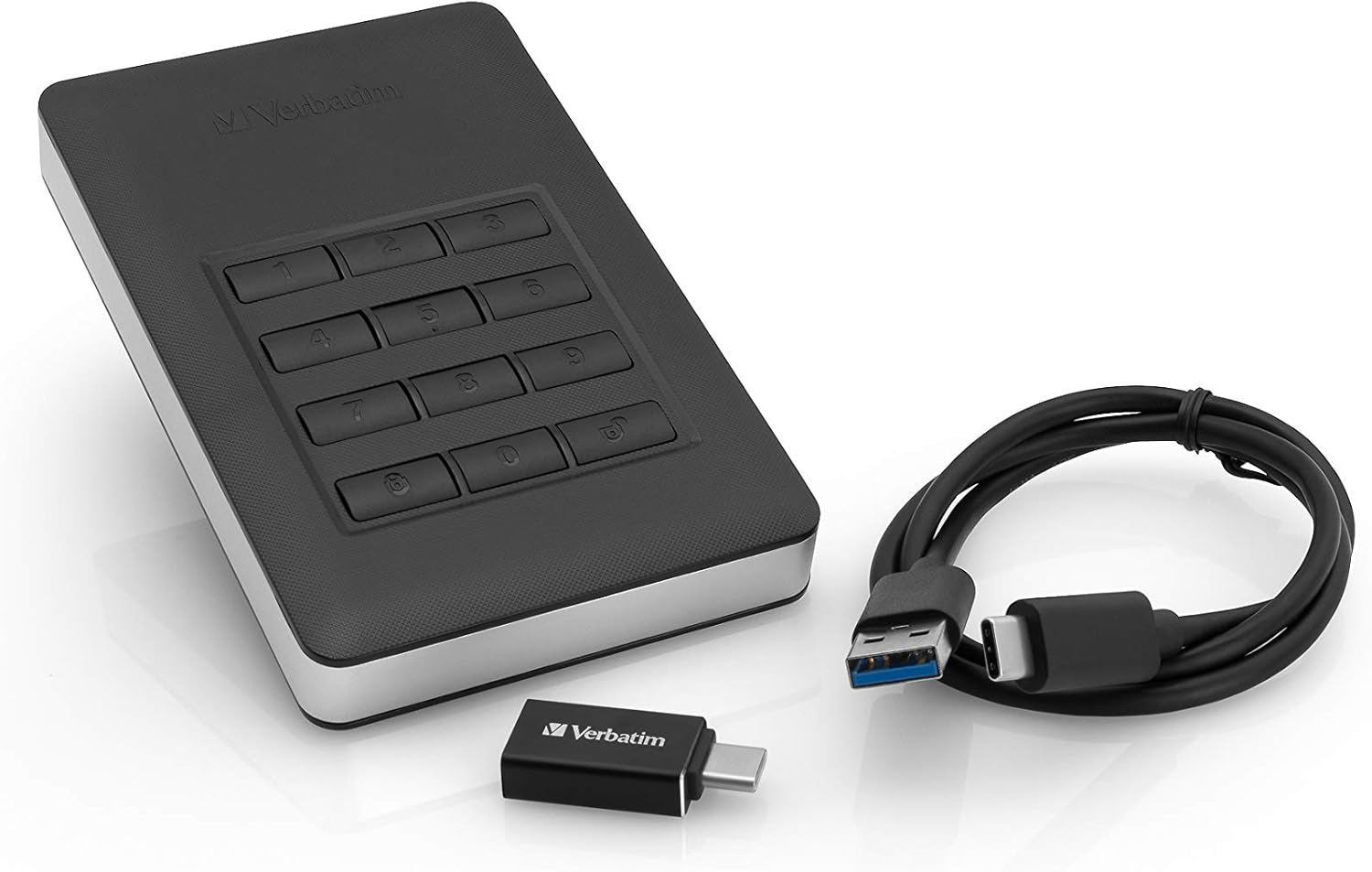
The included cables and adapter ensure compatibility with various devices, from older USB-A ports to newer USB-C ports.
5. Setup
5.1 Initial Connection
- Connect the appropriate USB cable (USB-C to USB-A or USB-C to USB-C using the adapter) to the drive's USB-C port.
- Connect the other end of the cable to an available USB port on your computer.
- The drive's LEDs will illuminate, indicating it is receiving power. Your computer will detect new hardware, but the drive will not be accessible until unlocked.
5.2 Setting Your PIN (First Use)
Upon first connection, you must set up your administrator PIN. This PIN will be required to unlock the drive.
- Press and hold the KEY button for 3 seconds. The green and red LEDs will flash alternately.
- Enter your desired PIN (4 to 12 digits).
- Press the KEY button again to confirm.
- Re-enter the same PIN to verify.
- Press the KEY button one last time. The green LED will flash briefly, indicating successful PIN setup.
Important: Remember your PIN. There is no backdoor or recovery method if you forget it, and your data will become permanently inaccessible.
5.3 Formatting the Drive (Optional)
The drive comes pre-formatted. If you need to reformat it for specific operating system requirements or to resolve issues, follow your operating system's disk management instructions. Be aware that formatting will erase all data on the drive.
5.4 Nero Backup Software Installation (Windows Only)
The drive includes Nero Backup Software. This software is compatible with Windows operating systems only. To install:
- Unlock the drive as described in Section 6.1.
- Navigate to the drive in 'My Computer' or 'This PC'.
- Locate and run the Nero Backup installer file.
- Follow the on-screen instructions to complete the installation.
6. Operating the Device
6.1 Unlocking the Drive
To access your data, the drive must be unlocked after connecting it to your computer.
- Connect the drive to your computer. The red LED will be solid.
- Enter your administrator PIN on the keypad.
- Press the KEY button.
- If the PIN is correct, the green LED will illuminate, and the drive will become accessible on your computer.

6.2 Locking the Drive
To secure your data when not in use or before disconnecting:
- Press and hold the KEY button for 3 seconds.
- The green LED will turn off, and the red LED will illuminate, indicating the drive is locked.
- Alternatively, the drive will automatically lock after a period of inactivity (default is 30 minutes, configurable via software).
6.3 Changing the Administrator PIN
- Unlock the drive (Section 6.1).
- Press and hold the KEY button for 3 seconds. The green and red LEDs will flash alternately.
- Enter your current administrator PIN.
- Press the KEY button.
- Enter your new PIN (4 to 12 digits).
- Press the KEY button to confirm.
- Re-enter the new PIN to verify.
- Press the KEY button one last time. The green LED will flash briefly, confirming the PIN change.
6.4 Data Transfer
Once the drive is unlocked and recognized by your computer, you can transfer files by dragging and dropping them into the drive's folder, or by using copy/paste functions, similar to any other external storage device.
7. Maintenance
7.1 Cleaning
Use a soft, dry, lint-free cloth to clean the exterior of the drive. Do not use liquid cleaners or abrasive materials.
7.2 Proper Disconnection
Always safely eject the drive from your operating system before physically disconnecting it. This prevents data corruption. After ejecting, the drive will automatically lock.
7.3 Firmware Updates
Periodically check the Verbatim support website for any available firmware updates for your device. Firmware updates can improve performance, add features, or fix bugs.
8. Troubleshooting
- Drive not recognized by computer:
Ensure the USB cable is securely connected to both the drive and the computer. Try a different USB port or cable. Make sure the drive is unlocked using your PIN. - Forgot PIN:
If you forget your PIN, there is no recovery method. The drive and all data on it will become permanently inaccessible. Verbatim cannot assist in PIN recovery. - Slow data transfer speeds:
Ensure you are connected to a USB 3.0 or 3.1 port for optimal performance. Older USB 2.0 ports will result in slower speeds. Close other applications that might be using system resources. - LED indicators not working:
Verify the drive is properly connected and receiving power. If the issue persists, contact Verbatim support. - Nero Backup Software not installing/working:
Ensure your operating system is Windows. The software is not compatible with macOS. Check for any error messages during installation.
9. Specifications
| Feature | Detail |
|---|---|
| Model Number | 53403 |
| Digital Storage Capacity | 2 TB |
| Interface | USB 3.1 Gen 1 (compatible with USB 3.0 & 2.0) |
| Hardware Encryption | AES 256-bit |
| Dimensions (L x W x H) | 123.5mm x 76mm x 11mm (4.86 x 2.99 x 0.43 inches) |
| Item Weight | Approx. 283 Grams (6.7 ounces) |
| Operating Temperature | 5°C to 50°C (41°F to 122°F) |
| Storage Temperature | -40°C to 70°C (-40°F to 158°F) |
| Operating Humidity | 5% to 90%, Non-condensing |
| System Requirements | Windows 10, 8, 7; Mac OS X 10.4 or later |
| Power | Bus powered via USB cable |
| Case Material | Plastic and Aluminum |
10. Warranty Information
Verbatim products are designed for reliability and performance. This product is covered by a limited warranty. For specific warranty terms and conditions, please refer to the warranty card included with your product or visit the official Verbatim website.
11. Support
If you encounter any issues or have questions not covered in this manual, please visit the Verbatim support website for FAQs, drivers, and contact information.
Verbatim Support Website: www.verbatim.com/support


