
1. Introduction
The Huawei E8372h-155 LTE Wingle is a versatile, high-speed mobile broadband device designed to provide internet access on the go. It functions as both a USB modem and a Wi-Fi hotspot, allowing multiple devices to connect to a 4G/3G/2G network. This manual provides essential information on setting up, operating, maintaining, and troubleshooting your E8372h-155 Wingle.

Figure 1: Front view of the Huawei E8372h-155 LTE Wingle, a compact white USB modem with indicator lights and the Huawei logo.
2. Safety Information
To ensure safe and proper operation of your Huawei E8372h-155 LTE Wingle, please observe the following safety precautions:
- Read all instructions carefully before using the device.
- Do not expose the device to extreme temperatures, direct sunlight, or high humidity.
- Avoid dropping, hitting, or bending the device.
- Do not attempt to disassemble, modify, or repair the device yourself. Refer all servicing to qualified personnel.
- Use only approved accessories and power sources (e.g., USB ports, car chargers, power banks) that meet the device's power requirements (5V 1A).
- Keep the device away from water and other liquids.
- Dispose of the device and its components in accordance with local regulations.
3. Package Contents
Verify that all items are present in your product package:
- 1 x Huawei E8372h-155 USB Modem
- 1 x Quick Start Guide
- 1 x Safety Information document
- 1 x Warranty Card
4. Setup
4.1. Inserting the SIM Card
The Huawei E8372h-155 Wingle uses a standard-sized SIM card. Ensure your SIM card is activated and has a data plan.
- Carefully remove the back cover of the Wingle.
- Locate the SIM card slot.
- Insert the standard SIM card into the slot with the gold contacts facing down and the notched corner aligned correctly, until it clicks into place.
- Replace the back cover.
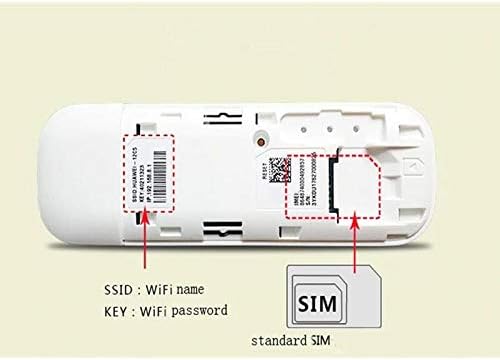
Figure 2: Internal view showing SIM card slot and default Wi-Fi credentials.

Figure 3: Huawei E8372h-155 Wingle with a standard SIM card.
4.2. Connecting to a Power Source
The E8372h-155 Wingle can be powered by various USB sources:
- Laptop/PC USB Port: Plug the Wingle directly into an available USB port on your computer.
- USB Wall Charger: Connect the Wingle to a standard USB wall adapter (5V 1A recommended).
- Car Charger: Use a USB car charger to power the Wingle in your vehicle.
- Power Bank: Connect to a portable power bank for mobile use.

Figure 4: Powering the Wingle via laptop, wall charger, or car charger.
4.3. Initial Setup and Accessing Management Page
Once powered on, the Wingle will automatically install necessary drivers on a Windows PC. It is generally plug-and-play.
- Connect the Wingle to a USB port on your computer.
- Your computer should automatically detect the device and install drivers. A web browser may automatically open to the Huawei management page.
- If the page does not open automatically, open your web browser and navigate to the default IP address (usually printed inside the Wingle, e.g., 192.168.8.1).
- Log in using the default username and password (also typically printed inside the Wingle). It is recommended to change the default password for security.
5. Operating the Device
5.1. Wi-Fi Connectivity and Sharing
The E8372h-155 Wingle can create a Wi-Fi hotspot, allowing multiple devices to connect wirelessly.
- The device supports up to 10 Wi-Fi users simultaneously.
- The default Wi-Fi network name (SSID) and password (KEY) are printed inside the Wingle.
- To connect, search for the Wi-Fi network on your device (smartphone, tablet, laptop, smart TV) and enter the password.
5.2. High-Speed Data Access
The Wingle supports LTE CAT4, providing high-speed data transfer rates.
- Enjoy download speeds of up to 150 Mbps, depending on network conditions and service provider.
5.3. Huawei HiLink App
Manage your E8372h-155 Wingle conveniently using the Huawei HiLink app on your smartphone.
- Download the Huawei HiLink app from your device's app store.
- The app allows you to monitor signal strength, battery usage (if connected to a power bank), connected devices, and manage Wi-Fi settings.

Figure 5: Key features of the Huawei E8372h-155 Wingle.
6. Maintenance
Proper maintenance helps extend the lifespan of your device:
- Keep the device clean and free from dust. Use a soft, dry cloth for cleaning.
- Store the device in a cool, dry place when not in use.
- Avoid blocking the ventilation holes (if any) to prevent overheating.
- Do not use harsh chemicals or abrasive cleaners.
7. Troubleshooting
If you encounter issues with your Huawei E8372h-155 Wingle, try the following troubleshooting steps:
| Problem | Possible Solution |
|---|---|
| No internet connection |
|
| Slow internet speed |
|
| Device not recognized by PC |
|
| Cannot access management page |
|
8. Specifications
Key technical specifications for the Huawei E8372h-155 LTE Wingle:
| Feature | Detail |
|---|---|
| Model Number | E8372H-155 |
| Dimensions (L x W x H) | 9 x 3 x 1 cm |
| Weight | 65 grams |
| Wireless Standard | 802.11n |
| Frequency Band | 2.4 GHz (Dual Band) |
| Connectivity Technology | USB, Wi-Fi |
| Compatible Devices | Smart TV, PC, Laptop, Smartphone |
| Recommended Uses | Home, Small Office, Travel |
9. Warranty and Support
Your Huawei E8372h-155 LTE Wingle typically comes with a 1-year manufacturer's warranty. Please refer to the included Warranty Card for specific terms and conditions.
For further assistance, technical support, or warranty claims, please visit the official Huawei support website or contact their customer service. Keep your purchase receipt and warranty card as proof of purchase.


