
Product Overview
The Sennheiser SDW 5016 is a premium single-sided wireless DECT headset engineered to meet the demands of evolving modern workplaces. It provides a comprehensive communication solution with multi-device connectivity, allowing users to manage calls from a desk phone, softphone/PC, and mobile phone seamlessly. Designed for superior sound quality, enhanced productivity, and robust security, the SDW 5016 ensures crystal-clear conversations and flexible working.
Key Features
- Multi-device Connectivity: Connects to Softphone/PC, desk phone, and mobile phone, optimized for major UC brands and Skype for Business.
- Enhanced Clarity: Features Super wideband sound and a dual-microphone ultra noise-canceling system for crisp, natural sound.
- Total Flexibility: Offers three wearing styles (headband, ear hook, neckband) for personalized comfort.
- Fluid Conferencing: Connect up to 4 wireless Sennheiser headsets or wired headsets to a single SDW 5016 base station for easy conference calls.
- Advanced Security: Incorporates 128-bit authentication and DECT security certification to keep conversations confidential.
- Higher Productivity: Smart headset motion sensor and base station controls, along with busy light synchronization, streamline call management.
- IT Management: Compatible with HeadSetup™ Pro Manager for centralized asset, update, and configuration management.
- Extended Range: Enjoy freedom of movement with a wireless range of up to 590 feet (line of sight).
- All-day Use: Designed for maximum comfort with extra soft leatherette ear pads and generous talk time.
What's in the Box
- Base station
- Headset
- Headband
- Wearing style adapter with pre-mounted earhook, earbud (M) and cheek spacer
- Ear hook stabilizer
- Neckband
- Extra earbuds (S, L)
- BTD 800 USB dongle
- USB cable
- Power supply
- Audio phone cable
- Printed quick guides (headset and base station)
- Printed safety guide
- Printed compliance sheet
Setup Guide
1. Connecting the Base Station
Connect the power supply to the base station and plug it into a power outlet. Connect the USB cable from the base station to your PC/laptop. For desk phone connectivity, use the provided audio phone cable to connect the base station to your desk phone.

Figure 1: Headset on Base Station, ready for connection.
2. Pairing the Headset
The headset is typically pre-paired with the base station. If re-pairing is needed, follow the instructions in the quick guide. Place the headset on the base station to ensure it charges and establishes a connection.
3. Mobile Device Connectivity
To connect mobile devices or Sennheiser Bluetooth headsets, insert the BTD 800 USB dongle into the USB port on the side of the base station. This allows for triple connectivity, managing calls from your mobile phone through the headset.

Figure 2: USB dongle inserted into the base station for mobile connectivity.
4. Initial Charge
Before first use, fully charge the headset by placing it on the base station. The charging indicator on the base will show the charging status.
Operating Instructions
1. Wearing Styles
The SDW 5016 offers three flexible wearing styles to suit your preference and comfort:
- Headband: Provides a secure and comfortable fit for extended use.
- Ear Hook: Lightweight and discreet, ideal for users who prefer an on-ear fit without a headband.
- Neckband: Offers an alternative for those who prefer not to wear anything over their head or on their ear directly.
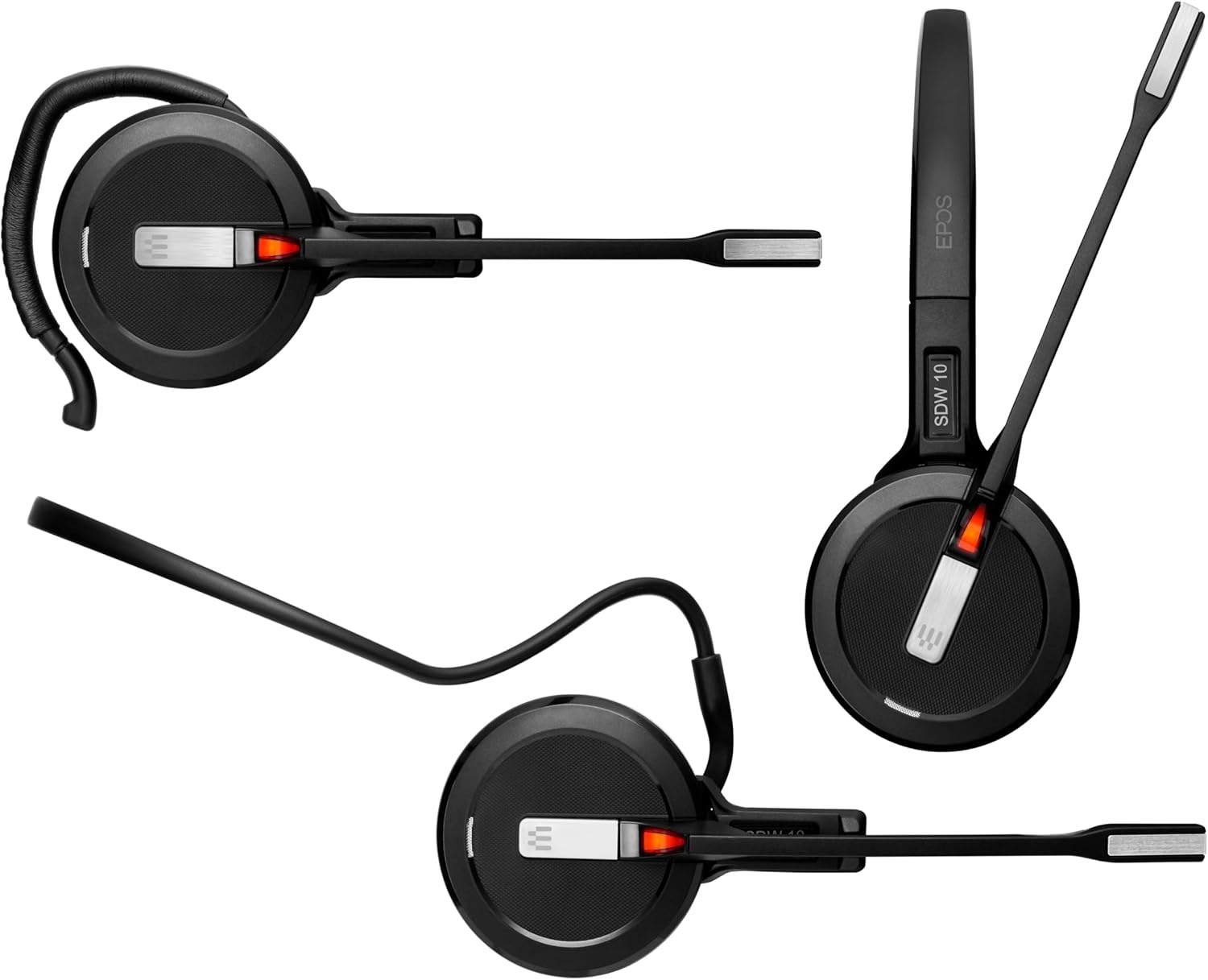
Figure 3: Various wearing styles for the SDW 5016 headset.
2. Call Management
Manage all your calls directly from the headset or the base station. The intuitive controls allow you to answer/end calls, adjust volume, and mute the microphone. The headset features a smart motion sensor that can automatically answer calls when picked up or pause audio when placed down.

Figure 4: Base station controls for easy call management.
3. Audio Quality and Noise Cancellation
The SDW 5016 delivers superior audio with its Super wideband sound and a two-microphone noise-canceling system. This technology effectively reduces background noise, ensuring your voice is heard clearly. The Own-Voice-Detector further enhances clarity by optimizing your voice transmission.

Figure 5: Dual microphone system for superior noise cancellation.
4. Busy Light and Presence Status
The headset features a busy light that synchronizes with Skype for Business and other UC platforms. This indicator helps to prevent interruptions during calls and conferences, signaling your availability to colleagues.
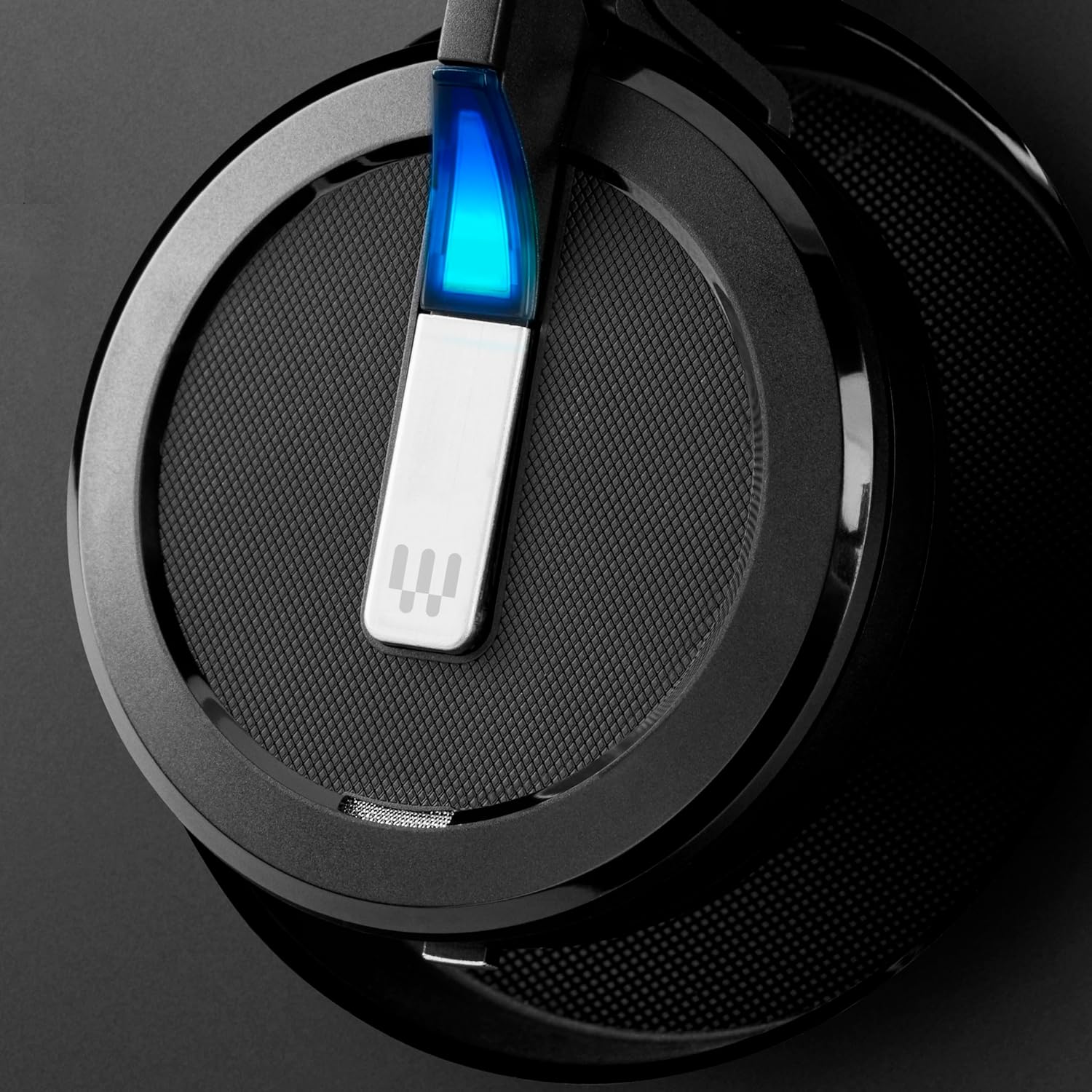
Figure 6: Headset busy light for presence status synchronization.
5. Product Video Overview
Watch this official video for a comprehensive overview of the Sennheiser SDW 5000 series features and benefits:
Video 1: Sennheiser Enterprise Solution - An overview of the SDW 5000 series, highlighting its features for modern business communication.
Maintenance
- Cleaning: Regularly wipe the headset and base station with a soft, dry cloth. Avoid using harsh chemicals or abrasive materials.
- Ear Pads: The leatherette ear pads can be gently cleaned with a damp cloth. Replace them if they show signs of wear for optimal comfort and hygiene.
- Battery Care: The headset contains a Lithium Ion battery. For best battery life, avoid extreme temperatures and store the headset fully charged if not used for extended periods.
- Firmware Updates: Periodically check for firmware updates via the HeadSetup™ Pro Manager software to ensure optimal performance and access to new features.
Troubleshooting
| Problem | Possible Cause | Solution |
|---|---|---|
| No audio from headset | Headset not paired or out of range; incorrect audio output settings on PC/phone. | Ensure headset is paired and within range. Check audio settings on your device and select the SDW 5016 as the output. |
| Microphone not working | Microphone muted; incorrect input settings on PC/phone. | Unmute the microphone on the headset or base. Verify microphone input settings on your device. |
| Poor sound quality | Interference; low battery; headset not positioned correctly. | Move away from potential interference sources. Charge the headset. Adjust the microphone boom closer to your mouth. |
| Headset not charging | Headset not properly seated on base; power supply issue. | Ensure the headset is correctly placed on the charging contacts. Check power supply connection to the base and wall outlet. |
| Cannot connect to mobile phone via Bluetooth | BTD 800 USB dongle not inserted or not in pairing mode; mobile device Bluetooth off. | Ensure the BTD 800 USB dongle is inserted and its indicator light is active. Put the dongle into pairing mode if necessary. Enable Bluetooth on your mobile device and search for the headset. |
Specifications
| Feature | Detail |
|---|---|
| Model Name | IMPACT SDW 5016 |
| Connectivity Technology | Wireless, Bluetooth, USB, DECT |
| Wireless Communication Technology | Bluetooth, DECT |
| Headphones Jack | USB |
| Recommended Uses | Calling |
| Compatible Devices | PC, Desk Phone, Mobile Phone |
| Frequency Range | 20 Hz - 20,000 Hz |
| Noise Control | Active Noise Cancellation |
| Earpiece Shape | On-ear |
| Material | Plastic |
| Item Weight | 1.74 pounds |
| Product Dimensions | 6.77 x 6.77 x 4.8 inches |
| Batteries | 1 Lithium Ion battery required (included) |
Warranty and Support
The Sennheiser SDW 5016 comes with a 2-year warranty on all headsets, including batteries, providing peace of mind regarding the quality and durability of your device.
For IT administrators, the HeadSetup™ Pro Manager is a cloud-based tool that allows centralized management of all Sennheiser audio devices. It helps manage assets, deploy updates, and configure settings from a single location, ensuring efficient operation and maintenance across your organization.
For further assistance, please refer to the official EPOS support website or contact their customer service.


