
1. Introduction
The AKASO V1-US Dash Cam is designed to provide reliable video recording for your vehicle, enhancing safety and providing evidence in case of incidents. This manual will guide you through the setup, operation, and maintenance of your dash cam.
2. What's in the Box
Please check the package contents to ensure all items are present:
- AKASO V1-US Dash Cam
- Quick Reference Guide
- Car Charger
- USB Cable
- Adhesive Mounts
- Pry Tool

Image: Package contents of the AKASO V1-US Dash Cam.
3. Product Features
- WiFi with App: The AKASO V1-US dash cam features built-in WiFi, allowing connection to your smartphone via a dedicated app. This enables live viewing, configuration adjustments, video download, and sharing to social platforms. The app also synchronizes the phone's time, eliminating manual time setting.

Image: Dash Cam displaying WiFi and GPS functionality with app integration.
- GPS Track: Integrated GPS accurately records driving tracks, including speed, longitude, latitude, and location data for every journey. Review driving routes and tracks on Google Maps through the phone app or the AKASO player on a computer.

Image: GPS tracking data displayed on a map via the AKASO player.
- Super Night Vision: Equipped with a SONY SENSOR, the dash cam captures Full HD 1296P images, offering improved imaging performance in both daytime and nighttime conditions. Wide Dynamic Range (WDR) automatically balances light and dark areas in the video.

Image: Dash Cam screen showing enhanced night vision recording.
- G-Sensor and Parking Monitor: Loop recording is standard. The built-in G-sensor locks recording clips to ensure data integrity during collisions. Parking mode activates the dash camera to record for 30 seconds if an impact is detected while parked, then turns off.
- Other Features: The AKASO V1-US dash cam includes a 16GB microSD Card, supporting up to 128GB (Class 10 or above). It features a 170-degree wide viewing angle to cover multiple traffic lanes. Its discreet design allows for unobtrusive placement in your vehicle.
4. Setup Instructions
4.1 Inserting the MicroSD Card
Before first use, insert a Class 10 or higher MicroSD card (up to 128GB) into the card slot on the dash cam. Ensure the card is inserted correctly until it clicks into place.
4.2 Mounting the Dash Cam
Choose a suitable location on your windshield that does not obstruct your view. Clean the area thoroughly. Attach the adhesive mount to the dash cam, then firmly press the mount onto the chosen area of the windshield. Adjust the camera angle as needed.
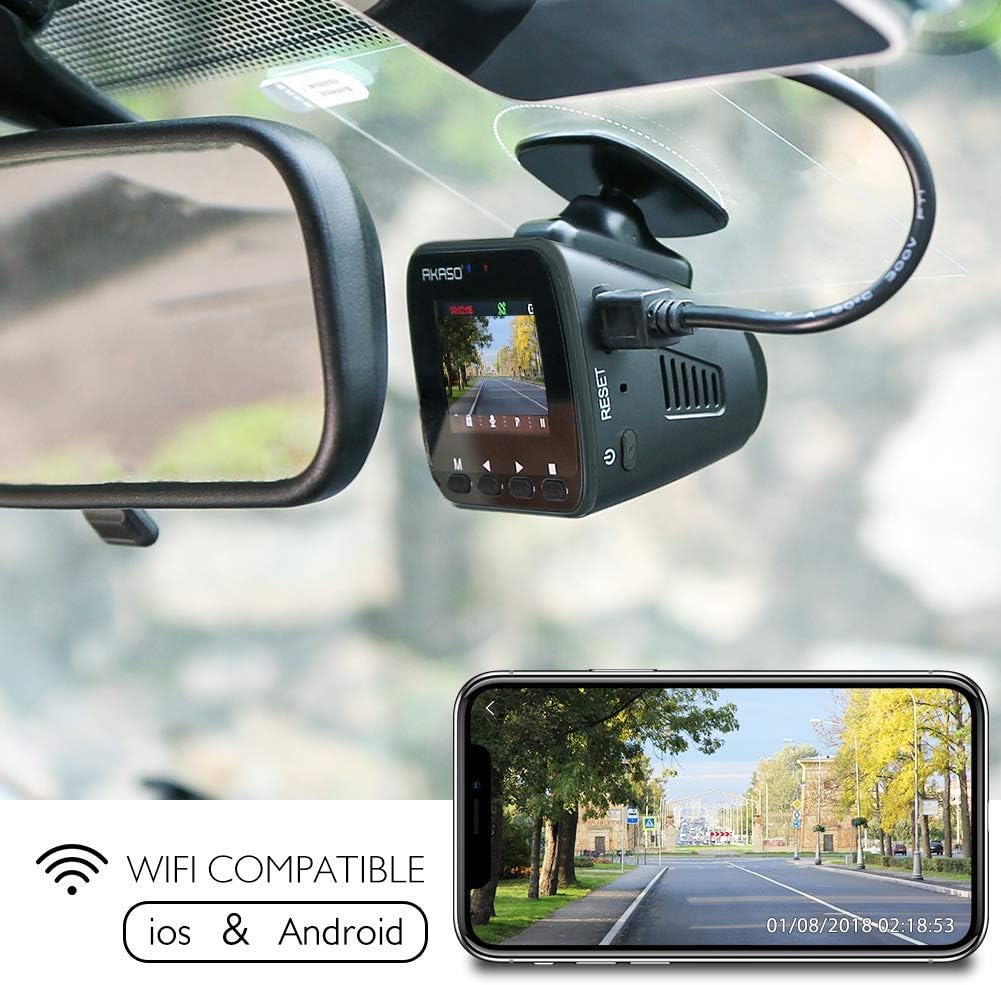
Image: Dash Cam mounted on a car windshield.
4.3 Connecting Power
Connect the car charger to your vehicle's cigarette lighter socket and the other end to the dash cam's USB power port. The dash cam will automatically power on and begin recording when the vehicle starts.

Image: Diagram illustrating the USB power port and other components of the dash cam.
4.4 Initial Settings
Upon first power-on, you may need to set the date, time, and preferred language. Use the buttons on the dash cam to navigate the menu and confirm your selections.
4.5 Connecting to the Phone App (WiFi)
Download the official AKASO Dash Cam app from your smartphone's app store. Enable WiFi on your dash cam and connect your phone to the dash cam's WiFi network. Follow the in-app instructions to pair your device and access features like live view and video management.
Video: Official video demonstrating the process of connecting the AKASO V1-US Dash Cam to a mobile device via WiFi.
5. Operating Instructions
5.1 Power On/Off
The dash cam automatically powers on and begins recording when connected to a power source and the vehicle ignition is turned on. It powers off automatically when the ignition is turned off.
5.2 Recording Modes
- Loop Recording: The dash cam continuously records video in segments. When the memory card is full, the oldest unlocked video files are overwritten by new recordings. You can typically set segment lengths (e.g., 1, 3, or 5 minutes) in the settings.
- G-Sensor: In the event of a sudden impact or collision, the built-in G-sensor detects the event and automatically locks the current video segment, preventing it from being overwritten by loop recording.
- Parking Monitor: When enabled, this feature allows the dash cam to detect impacts while the vehicle is parked and the engine is off. If an impact is detected, the camera will automatically power on, record for a short duration (e.g., 30 seconds), and then power off again.
Image: Dash Cam screen illustrating loop recording functionality.
5.3 Accessing Footage
Recorded videos can be accessed in several ways:
- Via Phone App: Connect your smartphone to the dash cam's WiFi. Use the app to browse, download, and manage recorded videos directly on your phone.
- Via Computer: Remove the MicroSD card from the dash cam and insert it into a computer's card reader. You can then view and transfer video files. For GPS data, use the dedicated AKASO player software.
Video: Official product video showcasing the key features and general operation of the AKASO V1-US Dash Cam, including WiFi connectivity, GPS, and video quality.
6. Maintenance
- Regular Formatting: It is recommended to format the MicroSD card regularly (e.g., once a month) to ensure optimal performance and prevent data corruption. This can usually be done through the dash cam's settings menu.
- Cleaning: Keep the camera lens and screen clean using a soft, dry cloth. Avoid using abrasive cleaners or solvents.
- Temperature: Avoid exposing the dash cam to extreme temperatures for extended periods, as this can affect battery life and performance.
7. Troubleshooting
- Dash Cam Not Powering On: Ensure the car charger is properly connected and the vehicle's cigarette lighter socket is functioning. Check the USB cable for damage.
- Recording Issues: Verify that a MicroSD card is inserted and is Class 10 or higher. Format the card if issues persist. Check if the card is full or corrupted.
- WiFi Connection Problems: Ensure WiFi is enabled on the dash cam and your phone. Try restarting both devices. Confirm you are connecting to the correct WiFi network broadcast by the dash cam.
- GPS Not Working: Ensure the dash cam has a clear view of the sky for GPS signal acquisition. It may take a few minutes for the GPS to lock on.
- Video Playback Lag: This can be due to a slow MicroSD card. Use a high-speed Class 10 or U3 card.
8. Specifications
| Feature | Specification |
|---|---|
| Brand | AKASO |
| Model Name | V1-US |
| Connectivity Technology | Wi-Fi |
| Special Feature | Built-In GPS, Built-In WiFi |
| Video Capture Resolution | 1296p (higher than 1080p) |
| Included Components | Dash Cam |
| Mounting Type | Adhesive Mount |
| Field Of View | 170 Degrees |
| Control Method | App |
| Screen Size | 1.5 Inches |
| Flash Memory Type | MicroSD |
| Are Batteries Included | Yes |
| Display Type | LCD |
| Battery Cell Type | Lithium Polymer |
| Frame Rate | 30 FPS |
| Flash Memory Supported Size Maximum | 128 GB |
| Item Weight | 2.08 ounces |
9. Warranty and Support
The AKASO V1-US Dash Cam comes with a warranty that covers manufacturing defects. For specific warranty details, please refer to the documentation included with your product or contact AKASO customer support.
For technical assistance, troubleshooting, or further inquiries, please visit the official AKASO website or contact their customer service team.

