
Phisung E05
Contents
Phisung 10-inch Smart Car Rearview Mirror DVR
Model: E05 User Manual
1. Introduction
Thank you for choosing the Phisung 10-inch Smart Car Rearview Mirror DVR. This device integrates a high-definition touch screen, dual-lens recording, 4G connectivity, GPS navigation, and advanced driver-assistance systems (ADAS) into a single rearview mirror unit. Designed to enhance your driving safety and convenience, it offers features such as real-time monitoring, Bluetooth hands-free calling, and multimedia playback.
This manual provides detailed instructions for the installation, operation, and maintenance of your Phisung E05 DVR. Please read it thoroughly before using the device to ensure proper functionality and to avoid damage.

Figure 1.1: Phisung E05 DVR highlighting its core capabilities including Android OS, ADAS, streaming video, dual camera support, and GPS navigation.
2. Safety Information
- Do not attempt to disassemble or modify the device. Unauthorized modifications can lead to malfunction, electric shock, or fire.
- Ensure the device is securely mounted and does not obstruct the driver's view or interfere with vehicle safety features (e.g., airbags).
- Use only the provided power adapter and cables. Using incompatible accessories may damage the device or cause a fire.
- Avoid exposing the device to extreme temperatures, direct sunlight for prolonged periods, or excessive moisture.
- Do not operate the device or adjust settings while driving. Always pull over to a safe location before interacting with the DVR.
- Keep the lens clean to ensure clear recording quality.
3. Package Contents
Please check the package contents upon unboxing. If any items are missing or damaged, contact your retailer.
- 1 x Phisung Car DVR (Main Unit)
- 1 x GPS Antenna
- 1 x Rear Camera
- 1 x 5.7m Rear Camera Cable
- 1 x Car Charger
- 2 x Straps (for mounting)
- 1 x User Manual (this document)
- 1 x 16GB Memory Card (pre-installed or separate)
4. Product Overview
The Phisung E05 DVR features a 10-inch HD touch screen integrated into a rearview mirror design. It operates on Android 5.1 OS, providing a familiar interface for various applications.

Figure 4.1: Front view of the Phisung E05 DVR main unit.
4.1. Key Components
- Front Camera Lens: Records forward-facing video.
- 10-inch Touch Screen: Main interface for operation and display.
- Power Button: Turns the device on/off, and can turn off the screen background light to function as a regular rearview mirror.
- Micro SD/TF Card Slot: For memory card insertion (supports up to 128GB).
- SIM Card Slot: For 4G connectivity.
- USB 2.0 Port: For power input and data transfer.
- GPS Antenna Port: Connects to the external GPS antenna.
- Rear Camera Input: Connects the rear camera cable.
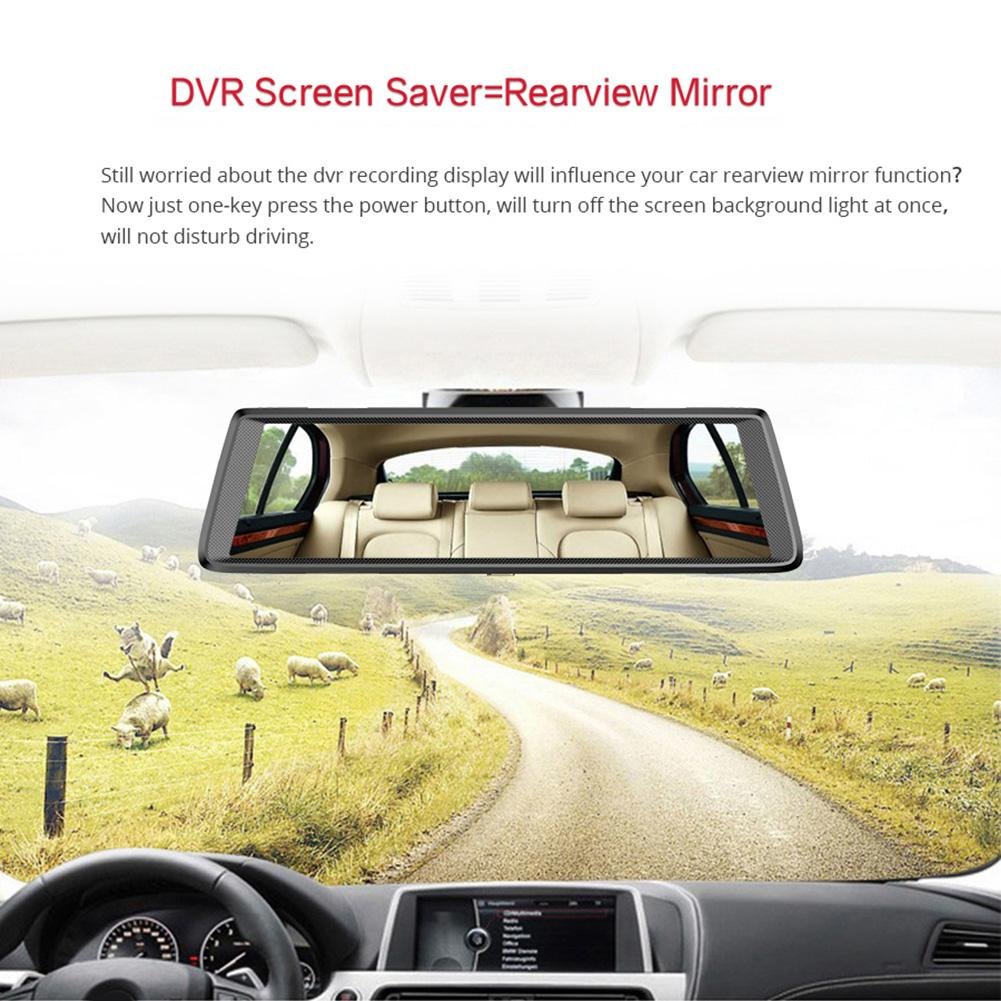
Figure 4.2: The DVR can function as a standard rearview mirror when the screen is off.

Figure 4.3: The 10-inch touch screen interface showing various applications.
5. Setup
5.1. Memory Card and SIM Card Installation
- Ensure the device is powered off.
- Locate the Micro SD/TF card slot and SIM card slot on the device.
- Insert the memory card (up to 128GB, Class 10 or higher recommended) into the TF card slot until it clicks into place.
- Insert a compatible 4G SIM card into the SIM card slot if you intend to use 4G connectivity.
5.2. Mounting the DVR
- Attach the Phisung DVR to your existing rearview mirror using the provided straps. Ensure it is securely fastened and does not wobble.
- Adjust the angle of the DVR so the front camera has a clear view of the road ahead.
5.3. Connecting the Cameras and Power
- Rear Camera Installation: Mount the rear camera at the back of your vehicle, typically above the license plate or inside the rear window. Ensure it has a clear view.
- Connect Rear Camera Cable: Route the 5.7m rear camera cable from the rear camera to the main DVR unit. Plug the cable into the designated rear camera input port on the DVR.
- Connect GPS Antenna: Plug the GPS antenna into its dedicated port on the DVR. Position the antenna in a location with a clear view of the sky, typically on the dashboard.
- Power Connection: Connect the car charger to the USB 2.0 port on the DVR. Plug the other end of the car charger into your vehicle's cigarette lighter socket. The device will typically power on automatically when the vehicle starts.
6. Operating Instructions
6.1. Basic Operations
- Power On/Off: Press and hold the Power button to turn the device on or off. A short press will turn the screen display on/off, allowing it to function as a regular mirror.
- Touch Screen Navigation: Swipe left/right to navigate between home screens. Tap icons to open applications. Use standard Android gestures for navigation (e.g., back button, home button).
- Volume Control: Adjust volume through the system settings or dedicated on-screen controls.
6.2. DVR Functions (Dash Cam)
- Automatic Recording: The DVR starts recording automatically when the vehicle engine is started.
- Loop Recording: Videos are recorded in segments (e.g., 1, 3, or 5 minutes). When the memory card is full, the oldest unlocked files are overwritten.
- G-Sensor (Gravity Sensing): In the event of a sudden impact or collision, the G-sensor will automatically lock the current video file to prevent it from being overwritten.
- Dual Lens Recording: The front and rear cameras record simultaneously, providing comprehensive coverage.
- Reversing Video: When the vehicle is put into reverse gear, the screen will automatically switch to display the rear camera view with parking guidelines (if connected correctly to reverse light power).
6.3. ADAS (Advanced Driver-Assistance Systems)
The Phisung E05 includes ADAS features to enhance driving safety:
- LDWS (Lane Departure Warning System): Alerts you if the vehicle drifts out of its lane without signaling.
- FCWS (Forward Collision Warning System): Warns you if you are approaching a vehicle ahead too quickly, indicating a potential collision risk.
- FVMA (Front Vehicle Moving Alarm): Notifies you when the vehicle in front of you starts moving after a stop (e.g., at a traffic light).
Note: ADAS features are designed as assistance tools and should not replace driver attention and judgment. Calibration may be required for optimal performance.

Figure 6.1: Illustration of ADAS features in action.
6.4. GPS Navigation
The device supports GPS navigation. You can use pre-installed map applications or download others from the Google Play Store (requires internet connection).
- Ensure the external GPS antenna is properly connected and positioned for optimal signal reception.
- Open your preferred navigation app and follow the on-screen instructions to set destinations and receive turn-by-turn directions.

Figure 6.2: GPS Navigation interface on the DVR.
6.5. 4G/WiFi Connectivity
- 4G Internet: Insert a valid 4G SIM card to access mobile data for online navigation, app downloads, and remote monitoring.
- WiFi Hotspot: The device can act as a WiFi hotspot, allowing other devices in your car to connect to its 4G internet connection.
- WiFi Connection: Connect the DVR to an existing WiFi network (e.g., home WiFi) for updates or data transfer.

Figure 6.3: The DVR supports a wide range of connected applications.
6.6. Bluetooth Hands-Free Calling
- Pair your smartphone with the DVR via Bluetooth.
- Once paired, you can make and receive calls directly through the DVR's microphone and speakers, enhancing driving safety.
6.7. Remote Monitoring (Vehicle Assistant)
Utilize the dedicated mobile application (refer to the UserGuide app on the device for download instructions) to remotely monitor your vehicle.
- Live View: Access real-time video streams from the front and rear cameras.
- GPS Track History: Review your vehicle's driving routes and locations.
- Alarm Notifications: Receive alerts on your phone for unusual vibrations or events detected by the DVR.
- One-Key Capture: Remotely capture photos or short video clips.

Figure 6.4: Remote monitoring features via the mobile application.

Figure 6.5: Remote monitoring allows you to stay connected to your vehicle from anywhere.
7. Maintenance
- Cleaning: Use a soft, dry cloth to clean the screen and camera lenses. Do not use abrasive cleaners or solvents.
- Firmware Updates: Periodically check for firmware updates through the device's settings or the manufacturer's website to ensure optimal performance and new features.
- Memory Card Management: Format the memory card regularly (e.g., once a month) to prevent data corruption and ensure smooth recording. Back up important files before formatting.
- Storage: If storing the device for an extended period, remove it from the vehicle and store it in a cool, dry place away from direct sunlight.
8. Troubleshooting
| Problem | Possible Cause | Solution |
|---|---|---|
| Device does not power on. | No power supply; loose connection; faulty car charger. | Check car charger connection and vehicle's cigarette lighter socket. Try a different power source if available. Ensure vehicle ignition is on. |
| Recording stops or freezes. | Memory card full; slow memory card; corrupted memory card. | Format the memory card. Use a high-speed (Class 10 or U3) memory card. Replace the memory card if corrupted. |
| GPS signal is weak or lost. | GPS antenna not connected; antenna obstructed; poor satellite reception. | Ensure GPS antenna is securely connected and placed in an open area (e.g., dashboard). Avoid metallic obstructions. |
| Rear camera not displaying. | Cable loose; camera faulty; incorrect wiring for reverse trigger. | Check the rear camera cable connection to the DVR. Ensure the camera is properly installed. Verify reverse trigger wire connection if applicable. |
| Touch screen unresponsive. | System crash; temporary software glitch. | Restart the device by pressing and holding the power button. If issue persists, perform a factory reset (note: this will erase all data). |
9. Specifications
| Feature | Specification |
|---|---|
| Screen Size | 10-inch HD Touch Screen |
| Operating System | Android 5.1 |
| Processor | Quad-core |
| RAM | 1GB |
| ROM (Internal Storage) | 16GB (approx. 13GB user available) |
| External Memory Support | Micro SD/TF card up to 128GB |
| Front Camera Resolution | FHD 1080P (1920x1080) |
| Rear Camera Resolution | FHD 1080P (1920x1080) |
| Video Format | TS (H.264) |
| View Angle | 150-160 degrees |
| Connectivity | 4G (LTE B1/B3, WCDMA B1/B8, GSM B3/B8), WiFi, Bluetooth, GPS |
| Special Features | ADAS (LDWS, FCWS, FVMA), Loop Recording, G-Sensor, Remote Monitoring, Bluetooth Hands-Free, GPS Navigation, WiFi Hotspot |
| Battery | Built-in battery |
10. Warranty and Support
For warranty information and technical support, please refer to the warranty card included in your product package or visit the official Phisung website. Keep your purchase receipt as proof of purchase for warranty claims.
If you encounter any issues not covered in this manual, please contact Phisung customer service or your authorized dealer for assistance.
Documents and downloads
Ask a question about this manual
Ask about setup, troubleshooting, compatibility, parts, safety, or missing instructions. Manuals+ will review the question and use this page’s manual context to help answer it.