
Azdome UKDOME-A305-New
AZDOME Dashcam A305 User Manual
Model: UKDOME-A305-New | Brand: Azdome
Introduction
This manual provides comprehensive instructions for the installation, operation, and maintenance of your AZDOME A305 Dashcam. Please read this manual thoroughly before using the device to ensure proper functionality and safety.
The AZDOME A305 is a high-definition dash camera designed to record your driving journey, offering features such as wide-angle viewing, loop recording, G-sensor for emergency locking, and parking monitoring.
Package Contents
Upon opening the package, please verify that all the following items are included:
- 1 x AZDOME Dashcam A305
- 1 x Dual-Port Car Charger
- 1 x Suction Cup Mount
- 1 x Power Cable (Charging Cable)
- 5 x Cable Buckles
- 1 x Trim Removal Tool
- 1 x 3M Mount (Adhesive Mount)
- 1 x User Manual
- 1 x USB Cable

Image: Overview of the AZDOME A305 Dashcam and its included accessories.
Product Features
The AZDOME A305 Dashcam is equipped with advanced features to enhance your driving safety and recording experience:
- Full-HD 1080P Video: Records clear and detailed video at 30 frames per second.
- Sony Exmor IMX323 Sensor: Ensures high-quality recordings, especially in low-light conditions, providing enhanced detail capture.
- 170-Degree Ultra-Wide-Angle Lens: Captures a broad view of the road, covering multiple lanes and reducing blind spots.
- 2.45-inch IPS Screen: Provides a clear and readable display with wide viewing angles, even in bright sunlight.
- Built-in Wi-Fi: Allows seamless connection to your smartphone via the AZDOME app for live view, video playback, and settings adjustment.
- Loop Recording: Automatically overwrites the oldest unlocked footage when the memory card is full, ensuring continuous recording.
- G-Sensor (Emergency Lock): Detects sudden impacts or collisions and automatically locks the current video footage to prevent it from being overwritten.
- Parking Monitor: Activates recording automatically when motion or impact is detected while the vehicle is parked (requires hardwire kit, not included).
- Motion Detection: Initiates recording when movement is detected in front of the camera.

Image: Key features of the AZDOME A305, including its adjustable lens and core technologies.
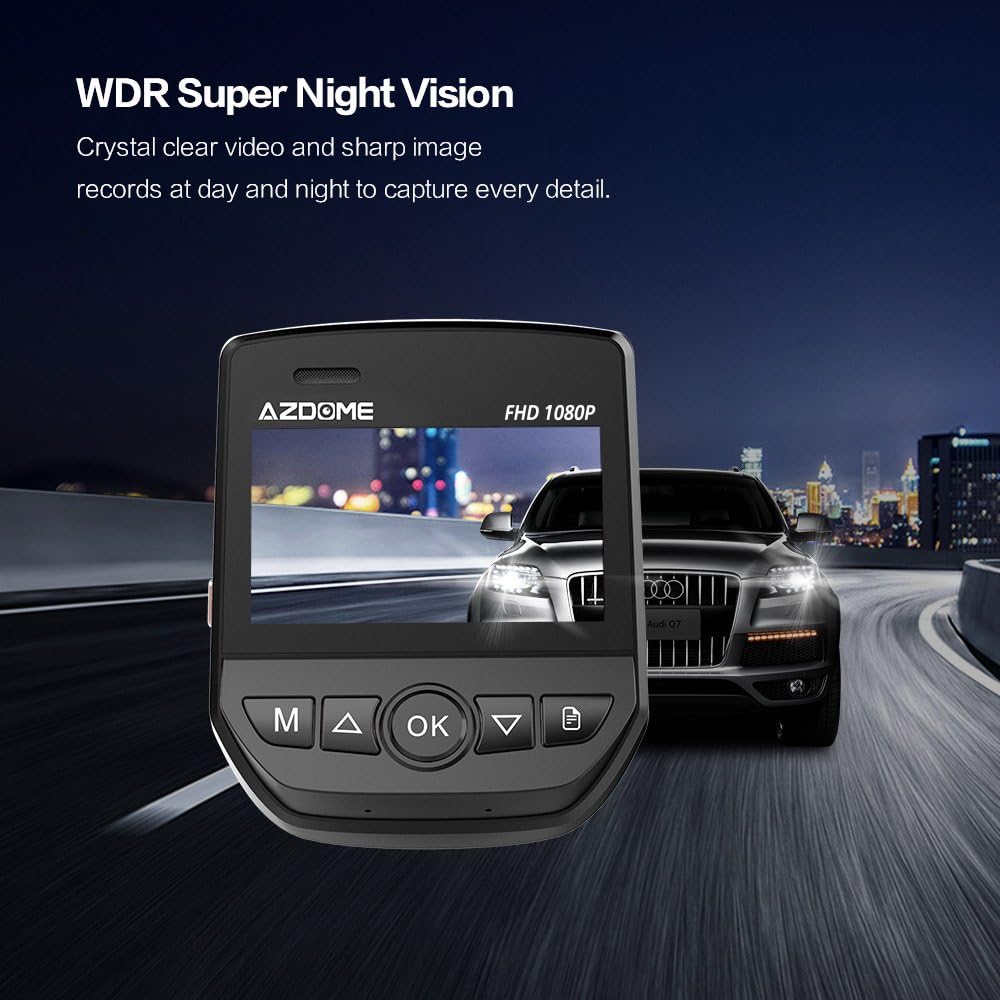
Image: Demonstration of WDR Super Night Vision for clear video recording in low light.

Image: Illustration of the SONY Exmor IMX 323 Sensor and its lens structure for detailed capture.

Image: The 2.45-inch IPS screen offers wide viewing angles for better visibility.
Setup and Installation
1. Inserting the Micro SD Card
A Micro SD card (Class 10+ recommended, up to 64GB max) is required for recording and is not included in the package. Ensure the dashcam is turned off before inserting or removing the SD card to prevent damage.
- Locate the Micro SD card slot on the side of the dashcam.
- Insert the Micro SD card with the gold contacts facing the back of the camera until it clicks into place.
- Once inserted, it is recommended to format the SD card within the dashcam's settings for optimal performance.
2. Mounting the Dashcam
The AZDOME A305 comes with a suction cup mount and a 3M adhesive mount for flexible installation.
- Clean the windshield area where you intend to mount the dashcam. Ensure it is free of dust and grease.
- Attach the chosen mount to the dashcam.
- For the suction cup mount: Press the suction cup firmly against the windshield and flip the lever to secure it.
- For the 3M adhesive mount: Peel off the protective film and firmly press the mount onto the windshield for at least 30 seconds. Allow 24 hours for the adhesive to fully bond before attaching the dashcam.
- Adjust the camera angle to ensure a clear view of the road ahead. The lens can be moved vertically by 26 degrees.
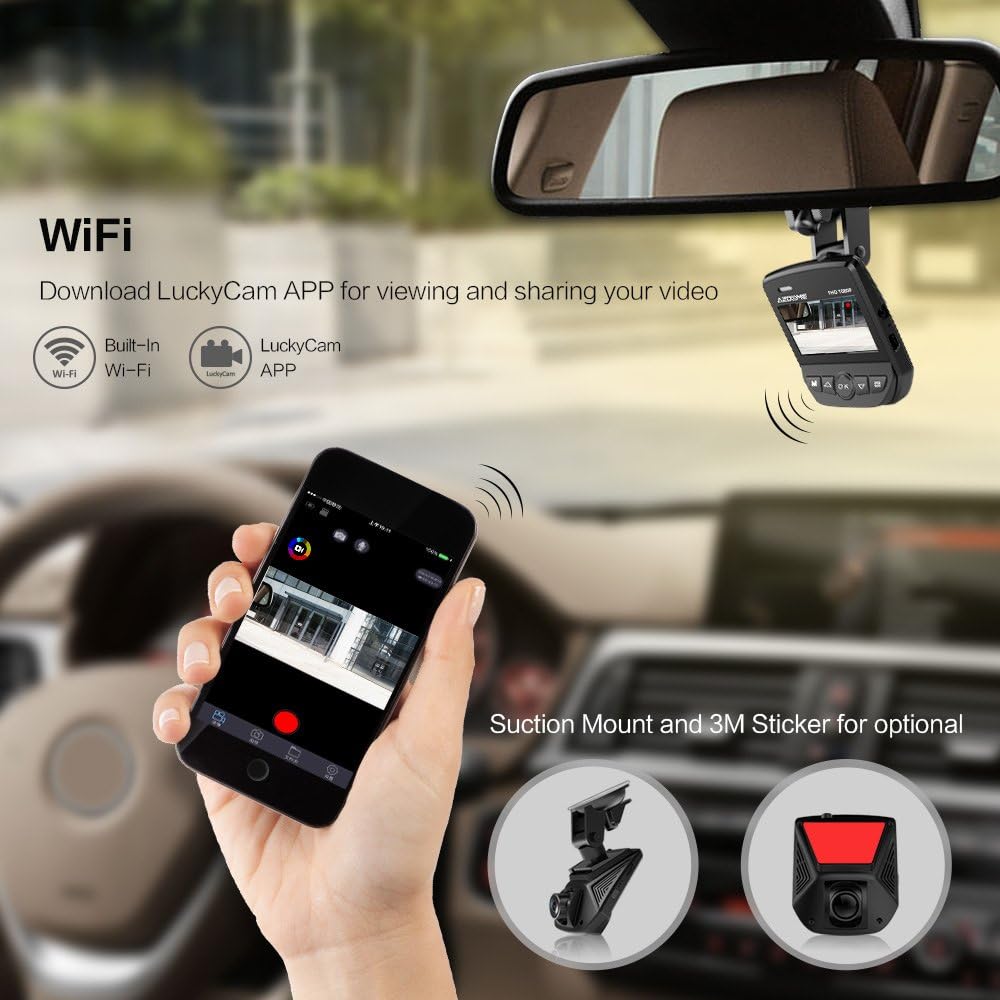
Image: Mounting options for the AZDOME A305 Dashcam.
3. Power Connection
Connect the dashcam to your vehicle's power source using the provided car charger and power cable.
- Plug the small end of the power cable into the dashcam's power port.
- Plug the car charger into your vehicle's cigarette lighter socket.
- Route the power cable neatly along the windshield and dashboard using the included cable buckles to avoid obstructing your view or interfering with driving.
- The dashcam will automatically power on and begin recording when the vehicle's ignition is turned on.
Important Note:
- The included Mini-B USB cable is for power supply only; it does not support data transfer.
- Do not insert or pull out the SD card while the dashcam is operating to prevent damage to the memory card.
Operating Instructions
Basic Operation
- Power On/Off: The dashcam typically powers on automatically with vehicle ignition. To manually power on/off, press and hold the power button.
- Recording: Once powered on and with a valid SD card, the dashcam will automatically start continuous loop recording. A red indicator light or icon on the screen usually indicates recording is active.
- Menu Navigation: Use the physical buttons on the dashcam (e.g., Menu, Up, Down, OK) to navigate through settings and options on the IPS screen.
Loop Recording
Loop recording ensures that your dashcam continuously records without running out of storage space. When the memory card is full, the oldest unlocked video files are automatically overwritten by new recordings.
- You can set the duration of each video segment (e.g., 1, 3, or 5 minutes) in the settings menu.
- Locked videos (triggered by G-Sensor or manual lock) are protected from being overwritten.
G-Sensor (Emergency Lock)
The built-in G-Sensor detects sudden acceleration, braking, or collisions. When an event is detected, the current video segment is automatically locked and saved to a protected folder on the SD card, preventing it from being overwritten by loop recording.
- The sensitivity of the G-Sensor can be adjusted in the settings menu (Low, Medium, High, Off).
- Higher sensitivity means the G-Sensor will trigger more easily.
Parking Monitor
The parking monitor feature provides surveillance when your vehicle is parked. It requires a continuous power supply, typically achieved through a hardwire kit (sold separately) connected to your car battery.
- When enabled and powered, the dashcam will automatically turn on and record for approximately 30 seconds if an external force (impact) is detected.
- These recorded videos are typically locked to prevent overwriting.
- This feature helps provide evidence for incidents like hit-and-runs or vandalism while parked.
Motion Detection
When motion detection is enabled, the dashcam will automatically start recording for a few seconds when it detects movement in its field of view, then pause recording until further motion is detected.
- It is generally recommended to turn off motion detection during daily driving to ensure continuous recording.
- This feature is more suitable for parking surveillance if a hardwire kit is not used, but it will only record when motion is present.
Wi-Fi Connectivity and App Usage
The AZDOME A305 features built-in Wi-Fi, allowing you to connect your smartphone to the dashcam via the "AZDOME" app (or "LuckyCam" as mentioned in some contexts) for convenient control and file management.
- Download the App: Search for "AZDOME" or "LuckyCam" in your smartphone's app store (iOS App Store or Google Play Store) and install it.
- Enable Wi-Fi on Dashcam: Access the dashcam's settings menu and enable the Wi-Fi function. The dashcam screen will display the Wi-Fi network name (SSID) and password.
- Connect Your Phone: On your smartphone, go to Wi-Fi settings, find the dashcam's Wi-Fi network (e.g., "AZDOME_A305_XXXX"), and connect to it using the provided password.
- Open the App: Launch the AZDOME/LuckyCam app on your phone. It should automatically connect to the dashcam.
- App Functions:
- Live View: See a real-time video feed from the dashcam on your phone.
- Playback: Browse and play recorded videos directly on your phone.
- Download: Download video clips or photos from the dashcam to your smartphone's gallery.
- Settings: Adjust various dashcam settings, such as video resolution, loop recording duration, G-sensor sensitivity, and more.
- Photo Capture: Take still photos directly from the app.
Image: Connecting the AZDOME A305 Dashcam to a smartphone via Wi-Fi using the LuckyCam app.
Troubleshooting
If you encounter any issues with your AZDOME A305 Dashcam, please refer to the following common solutions:
- Dashcam not powering on:
- Ensure the car charger is properly plugged into the vehicle's cigarette lighter socket and the dashcam.
- Check if the vehicle's cigarette lighter socket is receiving power (test with another device).
- Verify that the power cable is not damaged.
- Recording stops or "Card Full" error:
- Format the Micro SD card within the dashcam's settings. This resolves most recording issues.
- Ensure you are using a Class 10 or higher Micro SD card. Lower class cards may not be fast enough for continuous recording.
- Check if loop recording is enabled.
- Reduce G-Sensor sensitivity if too many locked files are filling up the card.
- Video footage is blurry or unclear:
- Clean the dashcam lens and the section of the windshield where the camera is mounted.
- Ensure the protective film has been removed from the lens.
- Check if the camera angle is correctly adjusted.
- Wi-Fi connection issues:
- Ensure Wi-Fi is enabled on the dashcam and your smartphone.
- Restart both the dashcam and your smartphone.
- Make sure you are within close proximity to the dashcam for a stable connection.
- Verify you have the correct app ("AZDOME" or "LuckyCam") and that it is updated to the latest version.
- Dashcam freezes or becomes unresponsive:
- Press the reset button (if available, usually a small pinhole) or disconnect the power and reconnect it.
- Try formatting the SD card.
If the problem persists after trying these solutions, please contact AZDOME customer support for further assistance.
Specifications
| Feature | Specification |
|---|---|
| Model Number | UKDOME-A305-New |
| Video Recording Resolution | 1080p (Full HD) |
| Lens Angle | 170 Degrees (Ultra-Wide-Angle) |
| Image Sensor | Sony Exmor IMX323 |
| Display Screen | 2.45-inch IPS Screen |
| Connectivity Technology | USB, Wi-Fi |
| Special Features | G-Sensor, Parking Monitor, Night Vision, Loop Recording, Motion Detection |
| Mounting Type | Suction Cup Mount, 3M Adhesive Mount |
| Storage | Supports Micro SD Card (Class 10+, up to 64GB max) |
| Dimensions (Packaging) | 18.4 x 13.6 x 6.4 cm |
| Weight (Packaging) | 360 Grams |
Warranty and Support
AZDOME provides a one-year warranty for the A305 Dashcam. For warranty claims or technical support, please contact AZDOME customer service through their official website or the retailer where the product was purchased.
Please retain your proof of purchase for warranty validation.
For the latest information and support, visit the official AZDOME website: www.azdome.com
Ask a question about this manual
Ask about setup, troubleshooting, compatibility, parts, safety, or missing instructions. Manuals+ will review the question and use this page’s manual context to help answer it.