
1. Introduction
The Sena SF1 Bluetooth Communication System is designed to provide essential communication features for motorcycle riders. This system facilitates 2-way intercom communication with a passenger, allowing for clear conversations up to 100 meters (110 yards) in open terrain. It also enables seamless connectivity with your mobile device for streaming music, managing phone calls, and receiving turn-by-turn GPS directions. Key features include VOX Phone commands, Audio Overlay, Quick Charging, and microphone mute options, enhancing your riding experience with convenience and safety.
2. Package Contents
The Sena SF1 package includes the following components:
- Sena SF1 Main Unit
- Helmet Clamp Kit
- Speakers
- Wired Boom Microphone
- Wired Microphone
- USB Power & Data Cable (USB-C type)
- Velcro Pads for Speakers
- Velcro Pad for Wired Boom Microphone
- Velcro Pad for Wired Microphone
- Speaker Pads (thick)
- Allen Wrench
Note: The specific component "Sena 843-01297" refers to the main unit or a specific part number within the kit.
3. Product Overview
The Sena SF1 unit features a sleek, low-profile design with intuitive controls for easy operation while riding.

Figure 3.1: Top View of Sena SF1 Main Unit. This image displays the top of the Sena SF1 communication system, highlighting the central control button and the plus (+) and minus (-) buttons for volume and navigation. A blue indicator light is visible at the top center.

Figure 3.2: Angled View of Sena SF1 Main Unit. An angled perspective of the SF1 unit, showing its compact form factor and the arrangement of its primary control buttons. The blue indicator light is also visible.
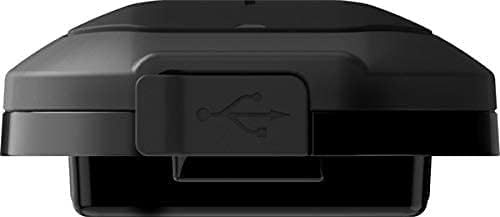
Figure 3.3: Sena SF1 USB Charging Port. This image focuses on the USB charging port, typically located on the side or bottom of the unit, protected by a rubber flap to ensure water resistance.

Figure 3.4: Sena SF1 Side View with Helmet Clamp. A side view of the SF1 unit attached to a helmet clamp, illustrating how the unit integrates with the helmet and the connection points for speakers and microphone cables.
3.1 Controls and Indicators
- Center Button: Multi-functional button for power, pairing, and call management.
- (+) Button: Increases volume, navigates forward through menus or tracks.
- (-) Button: Decreases volume, navigates backward through menus or tracks.
- LED Indicator: Displays device status (power, charging, Bluetooth connection).
4. Installation
Proper installation ensures optimal performance and comfort. The SF1 is designed to fit on almost any helmet.
4.1 Mounting the Main Unit
- Choose a suitable location on the left side of your helmet for the clamp unit.
- Loosen the screws on the helmet clamp and slide it between the outer shell and the inner padding of the helmet. Tighten the screws securely.
- Alternatively, use the adhesive mount if the clamp unit is not suitable for your helmet type. Ensure the surface is clean and dry before applying.
- Slide the SF1 main unit onto the mounted clamp until it clicks into place.
4.2 Installing Speakers and Microphone
- Attach the speakers to the Velcro pads inside the helmet's ear pockets. Use the thick speaker pads if needed for better fit and audio quality.
- Connect the speaker cables to the main unit.
- For full-face helmets, attach the wired microphone to the inside of the chin bar using the Velcro pad. Position it close to your mouth.
- For open-face or modular helmets, attach the wired boom microphone to the inside of the helmet, ensuring it is positioned correctly for clear voice pickup.
- Route all cables neatly under the helmet padding to avoid interference and ensure comfort.
5. Setup
5.1 Powering On/Off
- Power On: Press and hold the Center Button and the (+) Button for 1 second.
- Power Off: Press and hold the Center Button and the (+) Button for 5 seconds.
5.2 Bluetooth Pairing with Mobile Phone
- With the SF1 powered off, press and hold the Center Button for 5 seconds until the LED flashes red and blue alternately, indicating pairing mode.
- On your mobile phone, enable Bluetooth and search for devices.
- Select "Sena SF1" from the list of detected devices.
- If prompted, enter PIN "0000". The LED will turn blue when pairing is successful.
5.3 Intercom Pairing (2-Way)
- Ensure both SF1 units are powered on.
- On one unit, press and hold the Center Button for 5 seconds until the LED flashes red.
- On the second unit, press and hold the Center Button for 5 seconds until the LED flashes red.
- The units will automatically pair and connect. The LED on both units will turn blue.
5.4 Sena Utility App
For advanced configuration and firmware updates, download the Sena Utility App from your smartphone's app store. The app allows you to customize settings, manage speed dial presets, and access a quick guide.
6. Operating Instructions
6.1 Volume Control
- Increase Volume: Tap the (+) Button.
- Decrease Volume: Tap the (-) Button.
6.2 Music Functions
- Play/Pause Music: Press the Center Button for 1 second.
- Next Track: Press the (+) Button for 1 second.
- Previous Track: Press the (-) Button for 1 second.
6.3 Phone Call Functions
- Answer Call: Tap the Center Button.
- End Call: Press the Center Button for 2 seconds.
- Reject Call: Press the Center Button for 2 seconds when a call is incoming.
- Voice Dial (VOX Phone): Press the Center Button for 3 seconds.
- Microphone Mute: Press the (+) Button and (-) Button simultaneously for 1 second during a call.
6.4 Intercom Communication
- Start/End Intercom: Tap the Center Button.
- Audio Overlay: The SF1 supports Audio Overlay, allowing you to listen to music or GPS instructions while engaged in intercom conversation. The audio levels will adjust automatically.
6.5 GPS Navigation
Once paired with your smartphone, turn-by-turn GPS directions from your navigation app will be transmitted directly to your SF1 speakers. Audio Overlay ensures that navigation prompts are heard even during other audio activities.
7. Maintenance
7.1 Charging the Battery
- Connect the SF1 to a USB power source using the provided USB Power & Data Cable.
- The LED indicator will turn red during charging and blue when fully charged.
- A full charge typically takes approximately 1.5 hours.
- The SF1 offers a talk time of up to 13 hours on a full charge.
- The Quick Charging feature allows for faster charging when time is limited.
7.2 Cleaning and Storage
- Wipe the unit with a soft, damp cloth. Do not use harsh chemicals or solvents.
- Ensure the USB port cover is securely closed to maintain water resistance.
- Store the SF1 in a cool, dry place when not in use.
8. Troubleshooting
8.1 Factory Reset
If the SF1 is not functioning correctly, a factory reset may resolve the issue. To perform a factory reset, press and hold the Center Button for 12 seconds until the LED flashes red rapidly. Then, tap the Center Button to confirm. The unit will power off and reset to default settings.
8.2 Common Issues
- No Power: Ensure the battery is charged. Connect to a charger and check the LED indicator.
- No Audio: Check speaker connections. Ensure volume is not at minimum. Re-pair with your device.
- Intercom Disconnection: Ensure both units are within range (100 meters in open terrain) and re-initiate intercom connection.
- Bluetooth Pairing Issues: Ensure the SF1 is in pairing mode (red and blue flashing LED) and your phone's Bluetooth is enabled. Try restarting both devices.
9. Specifications
| Feature | Detail |
|---|---|
| Model Name | SF1 |
| Bluetooth Version | 4.1 |
| Bluetooth Range | Up to 100 meters (110 yards) in open terrain |
| Intercom | 2-Way |
| Talk Time | Up to 13 hours |
| Charging Time | 1.5 hours |
| Noise Control | Advanced Noise Cancellation |
| Water Resistance | Water Resistant |
| Weight | 3.52 ounces (0.1 Kilograms) |
| Dimensions (L x W x H) | 3.94 x 1.57 x 2.36 inches |
| Material | Plastic |
| Control Method | Touch |
| Battery Type | Lithium Polymer (included) |
| Compatible Devices | Electronic devices with Bluetooth capabilities |
10. Warranty and Support
10.1 Warranty Information
Sena products are covered by a limited warranty against manufacturing defects. The EU Spare Part Availability Duration is 2 years. For specific warranty terms and conditions, please refer to the official Sena website or contact customer support. Keep your proof of purchase for warranty claims.
10.2 Customer Support
For technical assistance, troubleshooting, or general inquiries, please visit the official Sena website for support resources, FAQs, and contact information. You can also utilize the Sena Utility App for quick access to support and product information.


