
1. Introduction
This manual provides detailed instructions for the setup, operation, and maintenance of your SUSAY T95Z Plus Android 12.0 TV Box. Please read this manual thoroughly before using the device to ensure proper functionality and to maximize your user experience. This device is designed to transform your television into a smart entertainment hub, offering access to various streaming services, applications, and media playback capabilities.
2. Safety Information
- Use only the provided power adapter. Using unauthorized adapters may damage the device and void the warranty.
- Do not expose the device to water, moisture, or extreme temperatures.
- Avoid placing the device near heat sources or in direct sunlight.
- Ensure proper ventilation around the device to prevent overheating.
- Do not attempt to open or repair the device yourself. Refer all servicing to qualified personnel.
- Keep the device and accessories out of reach of children.
3. Package Contents
Please check the package for the following items:
- SUSAY T95Z Plus Android 12.0 TV Box
- Remote Control
- Power Adapter (DC 5V/2A)
- HDMI Cable
- User Manual
4. Product Overview
The SUSAY T95Z Plus features a hexagonal design with RGB ambient lighting and a front-facing LED display. It comes with a standard remote control for easy navigation.

Image: The SUSAY T95Z Plus Android TV Box, a hexagonal device with RGB lighting and a digital clock display, shown alongside its black remote control.
4.1 Device Ports and Indicators
Familiarize yourself with the various ports and indicators on your TV Box:
- Front Panel: LED Display (shows time, WiFi status, USB connection), USB Port.
- Rear Panel:
- HDMI Output: Connects to your TV or display.
- LAN Port (RJ-45): For wired internet connection (10/100M Ethernet).
- DC 5V/2A Power Input: Connects to the power adapter.
- AV Output: For older televisions (composite video and stereo audio).
- USB Ports: For connecting external storage, keyboards, mice, or other USB devices.
4.2 Remote Control Functions
The included remote control allows you to navigate the Android interface and control media playback. Key buttons typically include:
- Power Button: Turns the device on/off or puts it into standby.
- Directional Pad (D-Pad): For navigation (Up, Down, Left, Right).
- OK Button: Confirms selections.
- Back Button: Returns to the previous screen.
- Home Button: Returns to the main home screen.
- Volume Buttons: Adjusts audio volume.
- Menu/Options Button: Accesses context-sensitive menus.
- App Button: Opens the applications list.
5. Setup Guide
Follow these steps to set up your SUSAY T95Z Plus TV Box:
- Connect to TV: Connect one end of the HDMI cable to the HDMI port on the TV Box and the other end to an available HDMI input on your television. Note the HDMI input number (e.g., HDMI 1, HDMI 2).
- Connect to Power: Plug the DC 5V/2A power adapter into the power input port on the TV Box, then plug the adapter into a wall outlet.
- Connect to Internet (Optional):
- Wired Connection: Connect an Ethernet cable from your router to the LAN port on the TV Box.
- Wireless Connection: The device supports 2.4G/5G Dual WiFi 6. You will configure this after the initial boot.
- Power On: Turn on your television and select the correct HDMI input source using your TV's remote control. The TV Box should automatically power on and display the boot-up screen.
- Initial Setup: Follow the on-screen instructions to complete the initial setup, which may include language selection, network configuration (if using Wi-Fi), and Google account login.
6. Operating Instructions
6.1 Navigating the Interface
Use the directional pad and OK button on the remote control to navigate through the Android 12.0 interface. The Home button will always return you to the main launcher screen.
6.2 Connecting to Wi-Fi
- From the home screen, navigate to Settings.
- Select Network & Internet.
- Turn on Wi-Fi and select your desired network from the list.
- Enter the Wi-Fi password if prompted and select Connect.
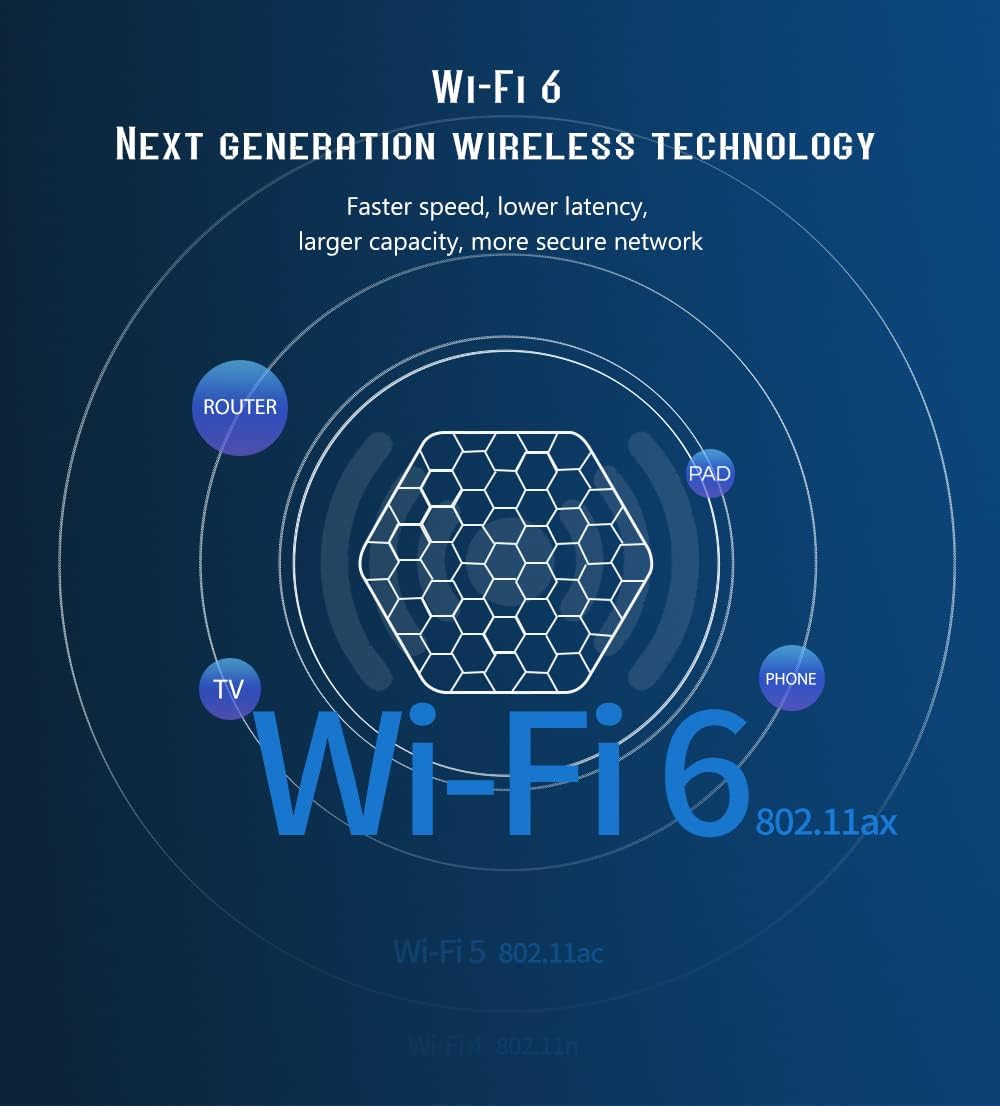
Image: A diagram illustrating Wi-Fi 6 (802.11ax) as the next-generation wireless technology, showing a central hexagonal Wi-Fi 6 icon connecting to a router, TV, pad, and phone, emphasizing faster speed and lower latency.
6.3 Installing Applications
You can install applications from the pre-installed app store (e.g., Google Play Store) or by sideloading APK files.
- From App Store: Open the app store, search for your desired application, and select 'Install'.
- Sideloading: Download the APK file to a USB drive, connect the USB drive to the TV Box, and use a file manager app to locate and install the APK. Ensure 'Unknown Sources' installation is enabled in security settings if required.

Image: A visual representation of the Android 12 operating system, labeled 'Android 12, Code "Snow Cone"', showing a modern, rounded UI design. The TV box is depicted next to a staircase illustrating the progression from Android 5 to Android 12.
6.4 Media Playback (6K/3D/H.265)
The T95Z Plus supports high-definition media playback, including 6K resolution, 3D content, and H.265 decoding.
- 6K Video Decoding: The device can decode 6K video at 30fps (5780*2890 resolution), providing a high-definition and realistic image experience.
- HDR10 Support: Enjoy richer colors, deeper blacks, and brighter images with HDR10 compatibility.
- 3D Playback: Compatible with various 3D video formats for an immersive viewing experience (requires a 3D-compatible TV).

Image: A television screen displaying a vibrant image of a parrot, illustrating the 6K video decoding capability of the TV Box, with text indicating "Powerful video decoding function (5780*2890), higher definition, more realistic image effect."

Image: A split image comparing "Other" (standard) colors on the left with "HDR10 Rich Colors" on the right, demonstrating the enhanced brightness, deeper blacks, and wider color gamut provided by HDR10.
6.5 Bluetooth 5.0 Connectivity
The device features Bluetooth 5.0 for connecting wireless peripherals such as headphones, game controllers, or keyboards.
- Go to Settings > Connected devices > Pair new device.
- Put your Bluetooth device into pairing mode.
- Select your device from the list on the TV Box to pair.

Image: A person sitting on a couch, viewing a large television screen displaying a scenic landscape, with the SUSAY T95Z Plus TV Box and a game controller on a table in front, illustrating a "Cinema Experience" at home.
6.6 RGB Atmosphere Light
The TV Box features an RGB atmosphere light that cycles through red, green, and blue colors, providing a dynamic visual effect.
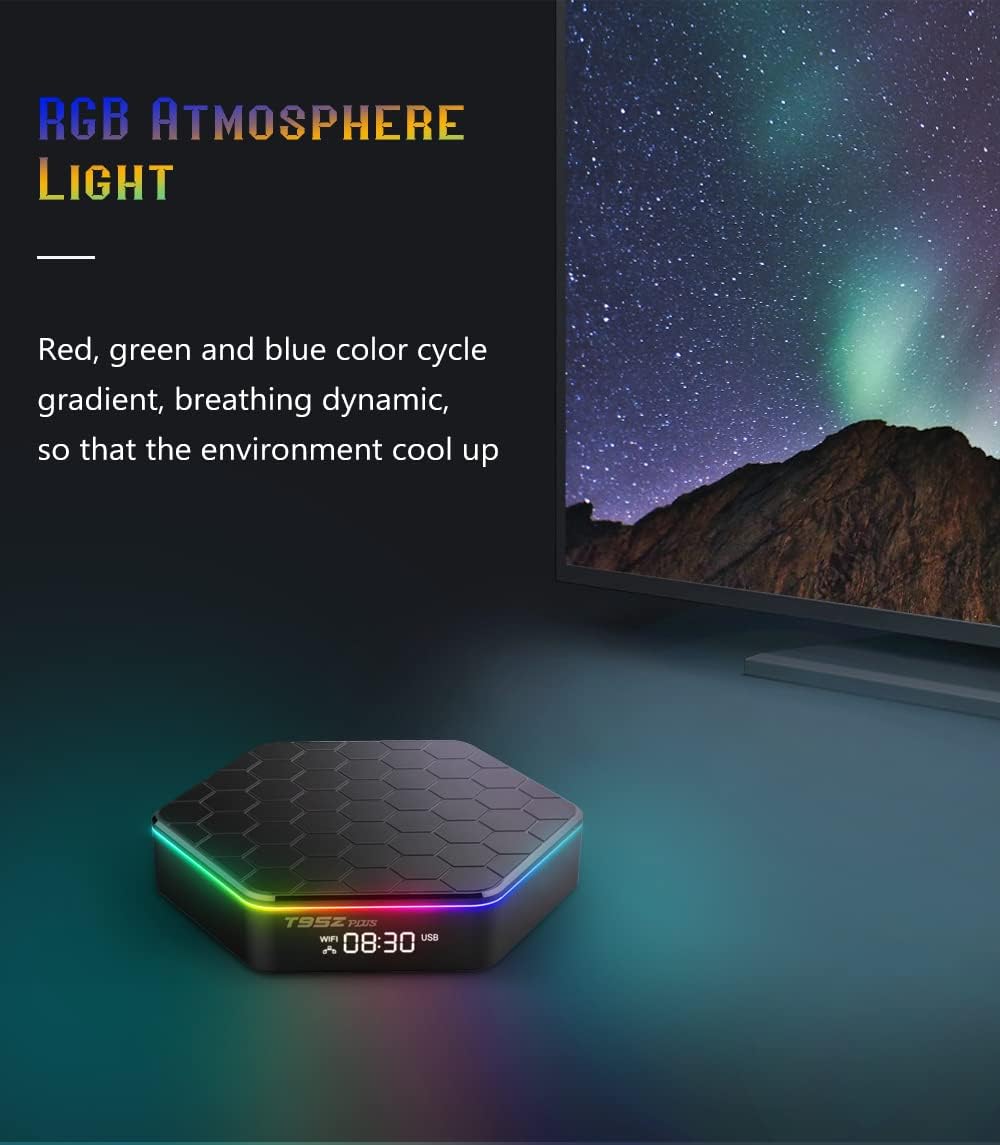
Image: The SUSAY T95Z Plus TV Box displaying its RGB atmosphere light, cycling through colors, placed on a table in a dimly lit room with a television screen showing a starry night sky with aurora borealis.
7. Maintenance
- Cleaning: Use a soft, dry cloth to clean the device. Do not use liquid cleaners or abrasive materials.
- Software Updates: Periodically check for system updates in the Settings menu to ensure optimal performance and access to the latest features.
- Storage Management: Regularly clear cache and uninstall unused applications to free up internal storage (32GB EMMC) and maintain performance.
8. Troubleshooting
| Problem | Possible Solution |
|---|---|
| No power/Device not turning on | Ensure the power adapter is securely connected to the device and a working power outlet. Try a different outlet. |
| No picture on TV | Check HDMI cable connections. Ensure your TV is set to the correct HDMI input source. Try a different HDMI cable or port. |
| Remote control not working | Check and replace batteries in the remote. Ensure there are no obstructions between the remote and the TV Box. |
| Wi-Fi connection issues | Ensure Wi-Fi is enabled in settings. Verify the Wi-Fi password. Restart your router and the TV Box. Move the TV Box closer to the router. |
| Applications freezing or crashing | Close and restart the application. Clear the app's cache in Settings > Apps. Ensure sufficient free storage space. Restart the TV Box. |
| Poor video quality or buffering | Check your internet speed. Use a wired Ethernet connection if possible. Reduce video quality settings in the streaming app. Close other applications consuming bandwidth. |
9. Specifications
The SUSAY T95Z Plus Android 12.0 TV Box features robust hardware for a smooth media experience.

Image: A close-up view of the SUSAY T95Z Plus TV Box, highlighting the Allwinner H618 chipset, with text indicating its strong performance, Quad Core Cortex-A53 CPU, Multi-core G31 OpenGL ES 3.2 GPU, and support for 6K@30fps and 4K@60fps video formats.
| Feature | Detail |
|---|---|
| Operating System | Android 12.0 |
| Chipset | H618 Quad-core Cortex-A53 (1.5GHz) |
| GPU | Mali-G31 MP2 |
| RAM | 4GB DDR3 |
| Internal Storage | 32GB EMMC |
| Wi-Fi | 2.4G + 5G Dual WiFi 6 |
| Bluetooth | 5.0 |
| LAN | Ethernet: 10/100M standard RJ-45 |
| Video Decoding | 6K/3D/H.265 |
| Power Supply | DC 5V/2A |
| Supported Services | Netflix, Hulu, Amazon Prime Video (may require subscriptions) |
| Special Feature | DLNA |
| Dimensions | 5.28 x 5.2 x 3.23 inches (Package) |
| Item Weight | 12 ounces |
10. Warranty and Support
For warranty information and technical support, please refer to the documentation provided with your purchase or contact the retailer/manufacturer directly. Keep your proof of purchase for warranty claims.