
1. Introduction
The NETGEAR Nighthawk X6 AC2200 Tri-Band WiFi Mesh Extender (EX7700) is designed to expand your existing WiFi network coverage and improve wireless performance. Utilizing patented FastLane3 technology, this tri-band extender provides speeds up to 2.2 Gbps, making it suitable for demanding applications such as 4K HD streaming and multi-player gaming. It operates with your current WiFi router or gateway to create a seamless mesh network, ensuring consistent connectivity throughout your home or office.
2. Package Contents
Verify that your package contains the following items:
- Nighthawk X6 AC2200 Tri-Band WiFi Mesh Extender (EX7700)
- Quick start guide
3. Features
The NETGEAR EX7700 offers a range of features to enhance your wireless experience:
3.1 Extended Wireless Coverage

This extender expands your WiFi range by up to 2300 square feet, allowing you to connect up to 45 devices such as laptops, smartphones, speakers, IP cameras, tablets, and IoT devices across a wider area.
3.2 Seamless Smart Roaming

The EX7700 uses your existing network SSID name, enabling devices to automatically switch to the strongest WiFi signal as you move around your home or office without interruption.
3.3 AC2200 WiFi Speed with Tri-Band Technology

Experience up to 2200Mbps performance with tri-band WiFi and patented FastLane3 technology. This ensures high-speed connectivity for demanding activities like 4K HD streaming and multi-player gaming.

FastLane3 technology utilizes a dedicated WiFi link to your router, optimizing bandwidth and providing up to 100% faster speeds compared to dual-band extenders.
3.4 Universal Compatibility
The extender is designed to work with any standard wireless router, gateway, or cable modem that supports WiFi, ensuring broad compatibility with existing home network setups.
3.5 Wired Ethernet Ports
Equipped with two Gigabit Ethernet ports, the EX7700 allows you to connect wired devices such as game consoles, streaming players, or smart TVs directly to the extender for maximum speed and stability.
3.6 Safe & Secure
The device supports WEP and WPA/WPA2 wireless security protocols to help protect your network from unauthorized access.
3.7 Simple Setup
Setup is simplified with a WPS (WiFi Protected Setup) button for quick connection to your router. The NETGEAR WiFi Analyzer app can also assist in finding the optimal location for the extender.
Official video demonstrating the features and benefits of the NETGEAR Nighthawk X6 AC2200 Tri-Band Mesh WiFi Range Extender, including push-button setup, FastLane3 technology, and seamless WiFi coverage.
4. Setup
Follow these steps to set up your NETGEAR EX7700 WiFi Mesh Extender:
- Power On: Plug the extender into an electrical outlet. Wait for the Power LED to light up.
- Connect to Router (WPS Method):
- Press the WPS button on your extender.
- Within two minutes, press the WPS button on your WiFi router or gateway.
- The Extender Link LED should light up, indicating a successful connection.
- Connect to Router (Manual Method): If WPS fails or your router does not have a WPS button, connect to the extender's default WiFi network (e.g., 'NETGEAR_EXT') from a computer or mobile device. Open a web browser and follow the on-screen instructions to configure the extender.
- Optimal Placement: Use the NETGEAR WiFi Analyzer app or observe the Extender Link LED on the device to find the best location for your extender. A solid white or amber light indicates a good connection to the router.
- Connect Devices: Your devices should now automatically connect to the extended network using your existing WiFi network name (SSID) and password. For wired connections, use the Gigabit Ethernet ports.
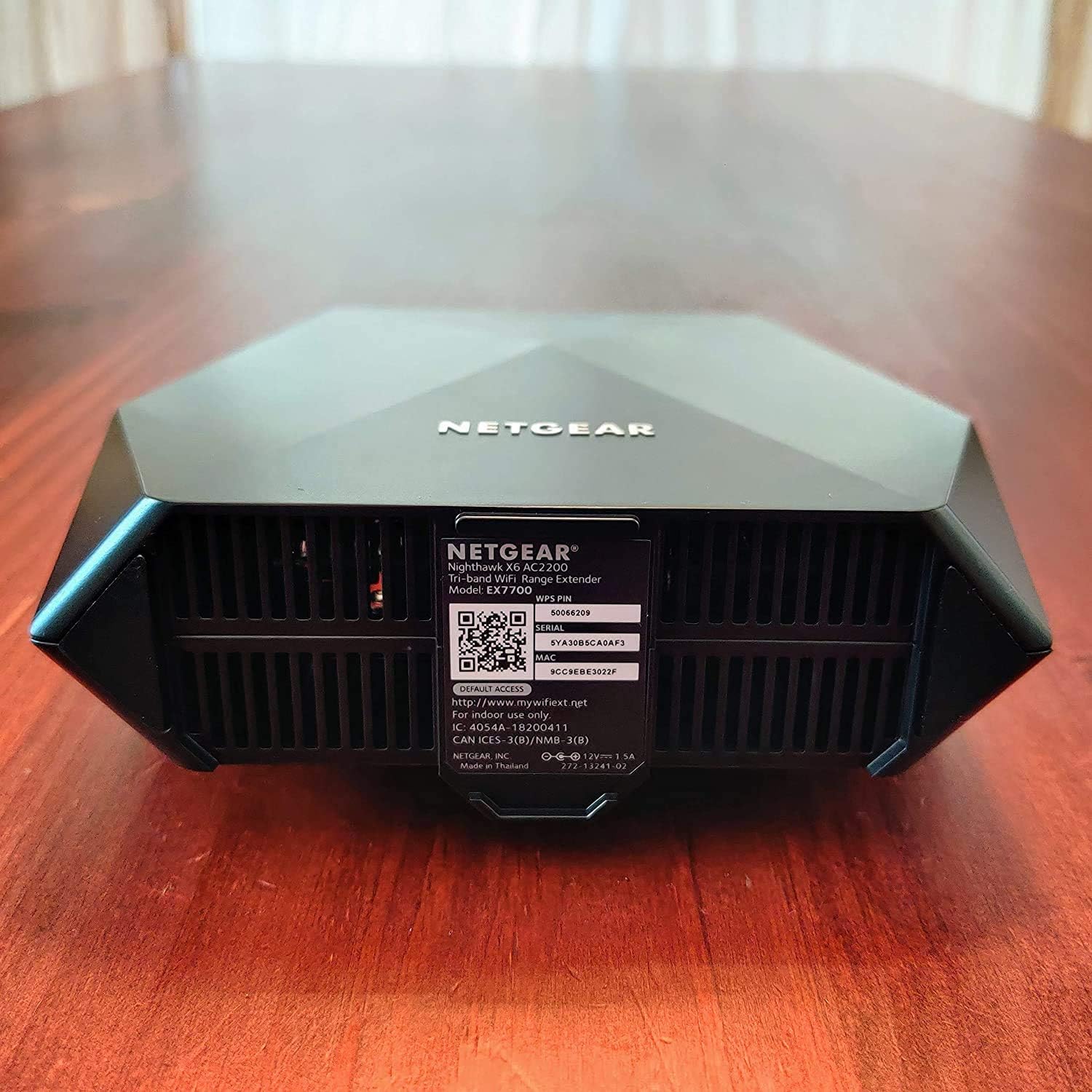
The image above shows the bottom panel of the EX7700, highlighting the WPS button, two Ethernet ports, power button, DC power input, and reset button. The product label includes important information such as the WPS PIN: 50066209, Serial Number: 5YA30B5CA0AF3, and MAC Address: 9CC9EBE3022F. This information may be required during setup or for support.
5. Operation
Once set up, the NETGEAR EX7700 operates automatically to extend your WiFi coverage. Devices connected to your original WiFi network will seamlessly roam to the extender's network when within its range, maintaining a strong and stable connection. The tri-band technology intelligently manages traffic across different frequency bands (2.4 GHz and two 5 GHz bands) to optimize performance for all connected devices.
For wired devices, simply connect an Ethernet cable from the device to one of the Gigabit Ethernet ports on the extender. This provides a direct, high-speed connection for devices that benefit from a stable wired link.
6. Maintenance
To ensure optimal performance and longevity of your NETGEAR EX7700 extender, consider the following maintenance tips:
- Firmware Updates: Regularly check for and install firmware updates from the NETGEAR support website. Updates often include performance improvements, security enhancements, and bug fixes.
- Optimal Placement: Ensure the extender remains in an optimal location, free from obstructions that could interfere with WiFi signals. Avoid placing it near large metal objects, concrete walls, or other electronic devices that emit radio frequency interference.
- Cleaning: Keep the extender clean and free of dust. Use a soft, dry cloth to wipe the exterior. Do not use liquid cleaners or aerosols.
- Ventilation: Ensure the ventilation slots are not blocked to prevent overheating.
- Restart Periodically: Occasionally restarting the extender (unplugging and plugging it back in) can help resolve minor performance issues and refresh its connection.
7. Troubleshooting
If you encounter issues with your NETGEAR EX7700, refer to the following common troubleshooting steps:
- No Internet Connection:
- Check if your main router has an internet connection.
- Verify the extender is properly connected to your router (check the Extender Link LED). If the LED is red or off, try repositioning the extender closer to the router or re-running the setup process.
- Restart both your router and the extender.
- Slow WiFi Speed:
- Ensure the extender is placed optimally, not too far from the router. The Extender Link LED should be solid white or amber.
- Reduce interference by moving the extender away from other electronic devices.
- Check for firmware updates for both the extender and your router.
- Limit the number of devices simultaneously streaming or downloading large files.
- Dropped Connections:
- Ensure the extender is receiving a strong signal from your router.
- Check for conflicting WiFi channels. You might need to adjust the WiFi channel on your main router.
- Verify that your devices are using the correct WiFi password.
- WPS Setup Failure:
- Ensure you press the WPS button on both the extender and router within the two-minute window.
- Try the manual setup method via a web browser.
8. Specifications
| Feature | Detail |
|---|---|
| Brand | NETGEAR |
| Model | EX7700 |
| Wireless Communication Standard | 802.11ac |
| Data Transfer Rate | 2200 Megabits Per Second |
| Frequency Band Class | Tri-Band |
| Color | Black |
| Connector Type | RJ45 |
| Compatible Devices | 2.4 and/or 5GHz 802.11 a/b/g/n/ac wireless router or gateway. Microsoft® Internet Explorer 8.0, Firefox® 20, Safari® 5.1, Google Chrome 25.0 browsers or higher |
| Frequency Bands Supported | 5 GHz |
| Range | 2300 Square Feet |
| Item Weight | 1.17 Pounds |
| Manufacturer | Netgear |
| UPC | 606449136159 |
| Global Trade Identification Number | 00606449136159 |
| Unit Count | 1.0 Count |
9. Warranty and Support
The NETGEAR EX7700 Nighthawk X6 AC2200 Tri-Band WiFi Mesh Extender comes with a 1-year warranty from the manufacturer. For detailed warranty terms and conditions, please refer to the documentation included with your product or visit the official NETGEAR support website.
For technical support, product registration, and access to the latest drivers and firmware, please visit the NETGEAR support portal. You can also find FAQs, community forums, and contact information for customer service on their website.


