
1. Introduction
This manual provides essential information for the safe and efficient use of your General Mobile GM 8 D Smartphone. Please read this manual carefully before using your device to ensure optimal performance and longevity.
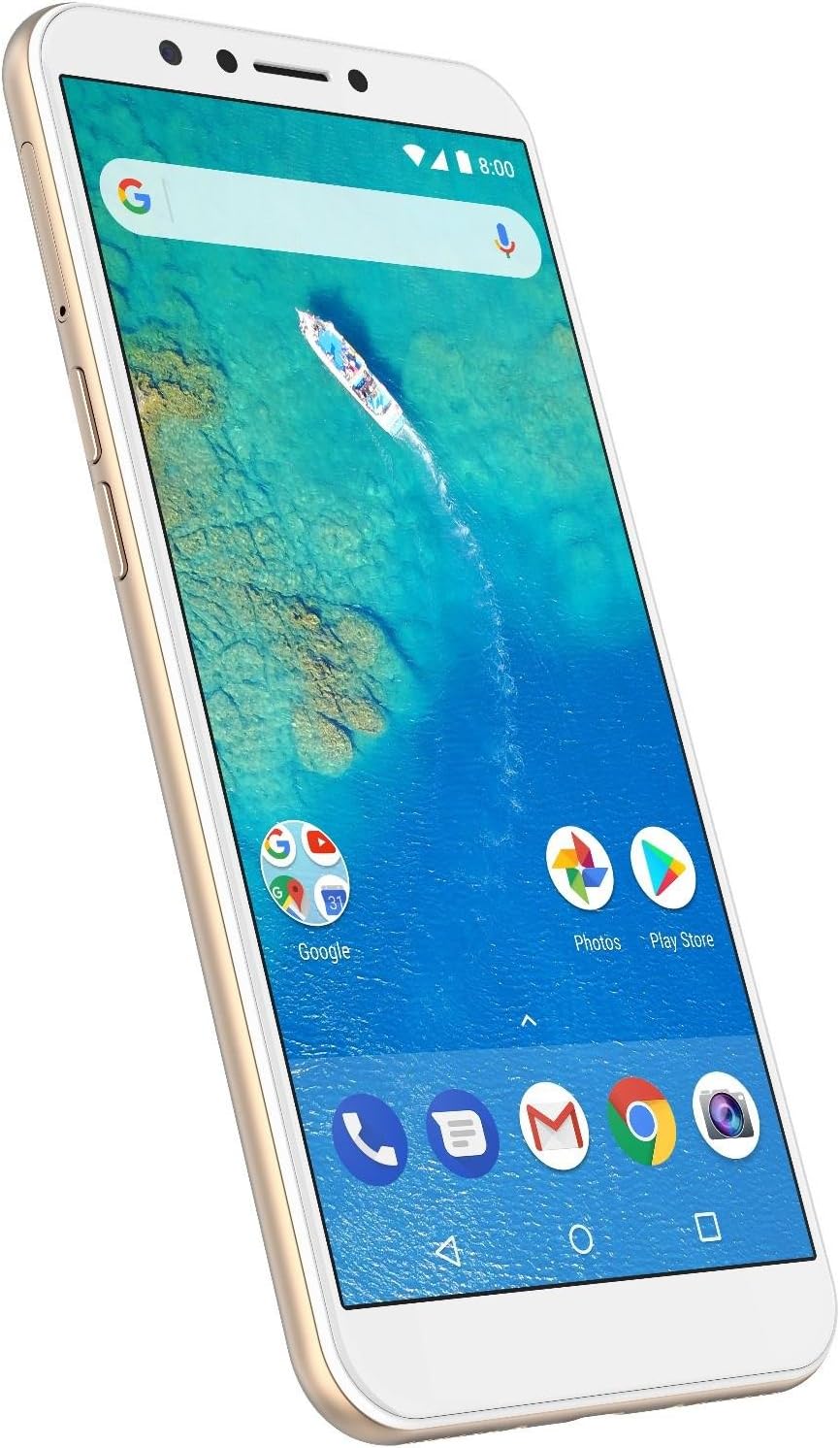
Figure 1: Front view of the General Mobile GM 8 D Smartphone, displaying its 5.7-inch screen and gold-colored frame.
2. Device Overview
Familiarize yourself with the physical components of your smartphone.
2.1. Physical Buttons and Ports

Figure 2: Side view of the GM 8 D, highlighting the power button and volume rocker on the right side.
- Power Button: Press and hold to power on/off or restart. Press briefly to lock/unlock the screen.
- Volume Buttons: Adjust media volume, call volume, or ringtone volume.
- USB Port: For charging and data transfer.
- Headphone Jack: For connecting wired headphones.
2.2. Rear Panel Features
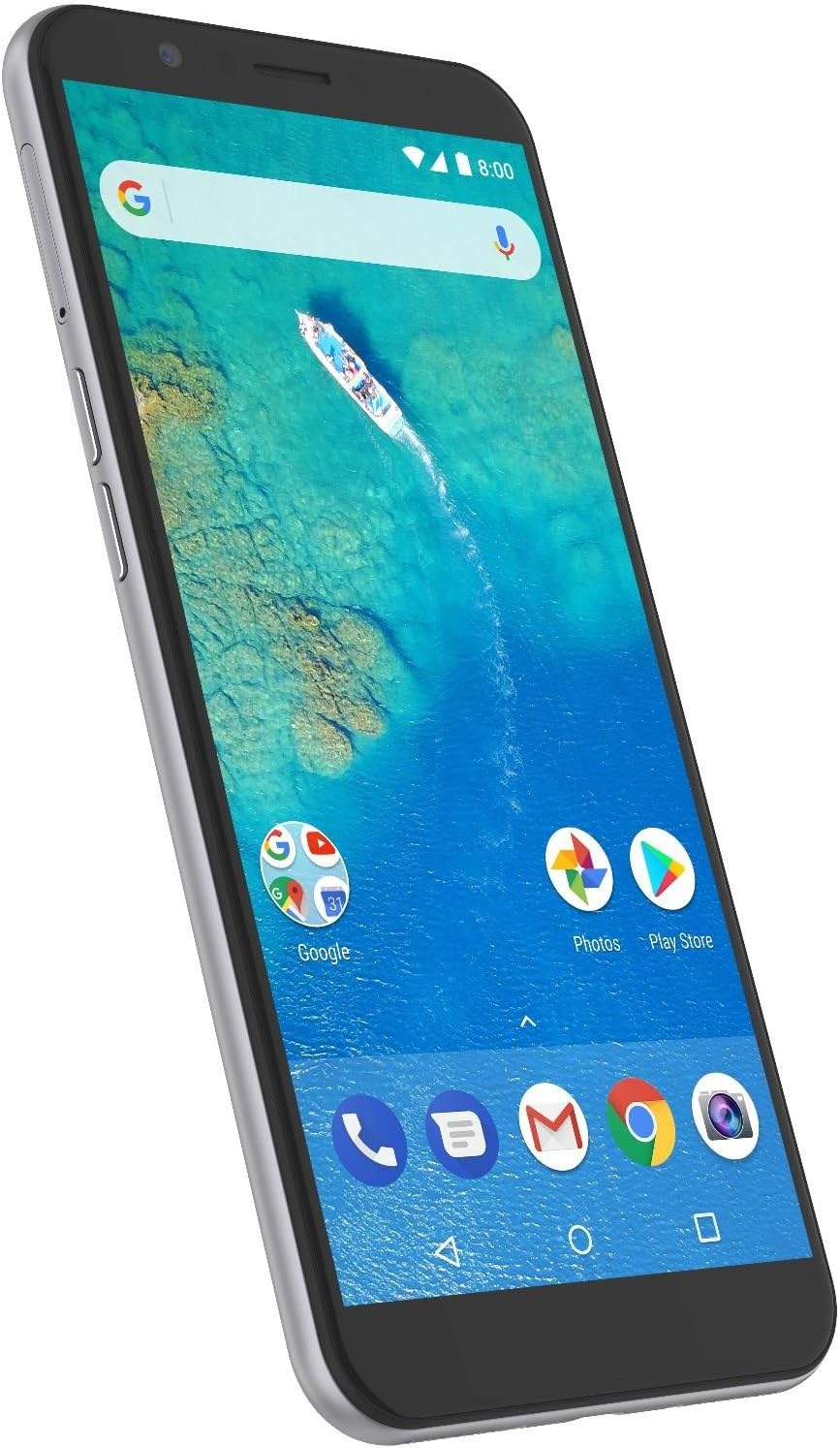
Figure 3: Rear view of the GM 8 D, showing the main camera, LED flash, and circular fingerprint sensor.
- Main Camera: 13 MP camera for high-quality photos and HD video recording.
- LED Flash: Provides illumination for photos in low-light conditions.
- Fingerprint Sensor: For secure and quick unlocking of the device.
3. Setup
3.1. Unboxing and Initial Inspection
Upon opening the package, ensure all components are present:
- General Mobile GM 8 D Smartphone
- USB Charging Cable
- Power Adapter
- SIM Ejector Tool
- Quick Start Guide (if included)
3.2. Inserting SIM and MicroSD Cards
- Locate the SIM card tray on the side of the device.
- Insert the SIM ejector tool into the small hole next to the tray and press gently until the tray pops out.
- Place your Nano-SIM card(s) and/or microSD card into the designated slots on the tray. Ensure correct orientation.
- Carefully push the tray back into the device until it clicks into place.

Figure 4: Side view of the GM 8 D, indicating the location of the SIM card tray.
3.3. Charging the Battery
Before first use, fully charge your smartphone.
- Connect the USB cable to the power adapter.
- Plug the power adapter into a wall outlet.
- Connect the other end of the USB cable to the USB port on your phone.
- The charging indicator will appear on the screen.
3.4. Powering On and Initial Configuration
- Press and hold the Power button until the screen lights up.
- Follow the on-screen instructions to select your language, connect to Wi-Fi, set up your Google account, and configure security settings.
4. Operating Your Smartphone
4.1. Basic Navigation
- Tap: Select an item or open an application.
- Swipe: Move between screens, scroll through lists, or dismiss notifications.
- Pinch-to-Zoom: Enlarge or reduce the view of images and web pages.
- Long Press: Access contextual menus or move icons.
4.2. Making Calls and Sending Messages
- Open the Phone app to dial numbers or select contacts.
- Open the Messages app to compose and send SMS/MMS messages.
4.3. Using the Camera
Your GM 8 D features a 13 MP main camera and a 13 MP front camera.
- Open the Camera app.
- Tap the shutter button to take a photo.
- Switch between front and rear cameras using the camera toggle icon.
- Select modes like HDR for improved dynamic range or switch to video recording for HD video capture.
4.4. Connecting to Networks
- Wi-Fi: Go to Settings > Network & Internet > Wi-Fi to connect to available wireless networks.
- Mobile Data: Ensure your SIM card is active and mobile data is enabled in Settings > Network & Internet > Mobile network.
5. Maintenance
5.1. Cleaning Your Device
Use a soft, lint-free cloth to gently wipe the screen and body of your phone. Avoid harsh chemicals or abrasive materials.
5.2. Software Updates
Regularly check for and install software updates to ensure your device has the latest features and security patches. Go to Settings > System > System update.
5.3. Battery Care
- Avoid extreme temperatures.
- Do not let the battery fully discharge frequently.
- Use only the original charger or certified compatible chargers.
5.4. Storage Management
Periodically review and delete unnecessary files, apps, and media to free up storage space. You can also use a microSD card for additional storage.
6. Troubleshooting
| Problem | Solution |
|---|---|
| Device does not turn on | Ensure the battery is charged. Press and hold the Power button for at least 10 seconds. |
| Apps are crashing or freezing | Clear the app's cache (Settings > Apps > [App Name] > Storage > Clear cache). Restart the device. |
| Cannot connect to Wi-Fi | Restart your router and phone. Forget the network and reconnect. Ensure Wi-Fi is enabled. |
| Poor call quality | Check network signal strength. Move to an area with better reception. Ensure nothing is blocking the microphone or speaker. |
| Fingerprint sensor not working | Ensure your finger is clean and dry. Re-register your fingerprints in Settings > Security & location > Fingerprint. |
6.1. Factory Reset
If issues persist, a factory reset may be necessary. Warning: This will erase all data on your phone. Back up important data before proceeding. Go to Settings > System > Reset options > Erase all data (factory reset).
7. Specifications
| Feature | Detail |
|---|---|
| Brand | GENERAL MOBILE |
| Model | GM 8 D |
| Operating System | Android 4.1 (Note: This version is based on provided product data.) |
| Memory Storage Capacity | 64 GB |
| Screen Size | 5.7 Inches |
| Resolution | 720x1440 (HD+) pixels |
| Main Camera | 13 MP, HDR, HD Video Recording |
| Front Camera | 13 MP |
8. Warranty and Support
For warranty information and technical support, please refer to the official General Mobile website or contact their customer service. Keep your proof of purchase for warranty claims.
Official General Mobile Website: www.generalmobile.com (Note: This is a generic placeholder link as no specific support link was provided.)


