1. Introduction
This manual provides essential information for setting up, operating, and maintaining your AWOW 10.1-inch Windows 10 2-in-1 Tablet PC. This device combines the portability of a tablet with the functionality of a laptop, featuring a detachable keyboard and a multi-touch IPS display. Please read this manual thoroughly to ensure proper usage and to maximize your product experience.
2. What's in the Box
Upon unboxing, please verify that all the following items are included:
- AWOW 10.1-inch 2-in-1 Tablet PC
- Detachable Keyboard
- AC Power Adaptor (5V-2.5A)
- User Manual (English)
3. Product Overview
The AWOW 2-in-1 Tablet PC is designed for versatility and portability. Below are key features and physical components.

Figure 3.1: AWOW 10.1-inch 2-in-1 Tablet PC with detachable keyboard, displaying Windows 10 desktop.

Figure 3.2: Key features of the AWOW 2-in-1 Tablet PC, including Intel Atom processor, Intel HD Graphics, Windows 10 (64bit), Microsoft Office compatibility, IPS Display, G-sensor, Bluetooth 4.0, and 802.11 b/g/n WiFi.
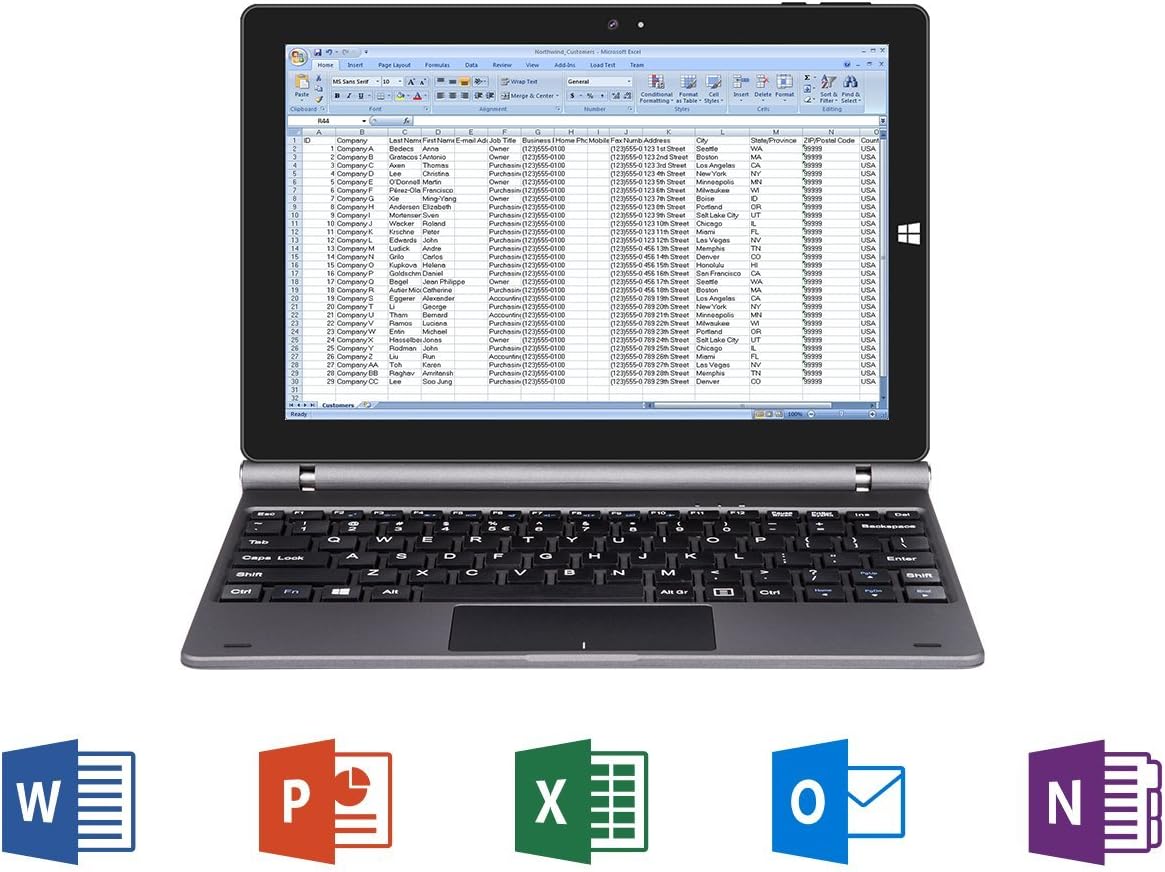
Figure 3.3: Overview of tablet ports and buttons, including power, volume, audio, charging, and connectivity options.

Figure 3.4: Detachable keyboard layout with full QWERTY keys and integrated trackpad.
4. Initial Setup
4.1 Charging the Device
Before first use, ensure the tablet is fully charged. Connect the AC Power Adaptor to the DC power input port on the tablet and plug it into a wall outlet.
4.2 Powering On and Initial Windows Setup
- Press and hold the Power button (located on the side of the tablet) until the screen illuminates.
- Follow the on-screen prompts to complete the Windows 10 initial setup. This includes selecting your region, language, and setting up a user account.
- During Windows activation, if you encounter any issues, please contact AWOW customer service for assistance.
4.3 Attaching the Detachable Keyboard
Align the 5-PIN keyboard interface on the tablet with the corresponding connector on the detachable keyboard. Gently push the tablet down until it securely connects to the keyboard. The magnetic connection will help guide it into place.
5. Operating Instructions
5.1 Switching Between Tablet and Laptop Mode
The device automatically detects when the keyboard is attached or detached, switching between laptop mode (with keyboard) and tablet mode (without keyboard). In tablet mode, the touchscreen interface is optimized for touch input.
5.2 Using the Touchscreen
The 10.1-inch IPS display supports multi-touch gestures. Use your fingers to navigate, tap to select, pinch to zoom, and swipe for scrolling. For optimal viewing, the IPS display offers a 178-degree wide viewing angle.

Figure 5.1: IPS display showcasing vibrant colors and wide viewing angles. Note: Stylus is sold separately.
5.3 Camera Functionality
The tablet is equipped with dual webcams: a 2MP front camera and a 5MP rear camera. These can be used for video conferencing, taking photos, or recording videos.

Figure 5.2: Illustration of the tablet's dual cameras (2MP front, 5MP rear) for video communication.
5.4 Performance Overview
The AWOW 2-in-1 Tablet PC is powered by an Intel Atom X5-Z8350 Quad Core processor, designed for smooth multitasking and HD video streaming. It runs on Windows 10 Home (64-bit).
Video 5.3: A performance test demonstrating the tablet's capabilities, including system responsiveness and internet speed. This video shows the device handling various tasks and displaying system resource usage.
6. Maintenance
6.1 Cleaning
To clean the screen, use a soft, lint-free cloth. For stubborn marks, slightly dampen the cloth with water or a screen-cleaning solution. Avoid harsh chemicals or abrasive materials. For the keyboard and body, use a dry, soft cloth.
6.2 Storage
Store the device in a cool, dry place away from direct sunlight and extreme temperatures. If storing for an extended period, ensure the battery is charged to approximately 50% to prolong its lifespan.
7. Troubleshooting
If you encounter issues with your AWOW Tablet PC, refer to the following common solutions:
- Device Not Powering On: Ensure the device is charged. Connect the AC adapter and try powering on again.
- Slow Performance: Close unnecessary applications. Check for Windows updates and ensure sufficient free storage space.
- Keyboard Not Responding: Ensure the keyboard is securely attached to the tablet's 5-PIN interface. Detach and reattach the keyboard. Restarting the device may also resolve the issue.
- Windows Activation Issues: If you experience problems with Windows activation, please contact AWOW customer service directly for support.
- Wi-Fi Connectivity Problems: Check your router and internet connection. Ensure Wi-Fi is enabled on the tablet and try reconnecting to the network.
8. Specifications
| Feature | Specification |
|---|---|
| Brand | AWOW |
| Model Name | SimpleBook 432 |
| Screen Size | 10.1 Inches |
| Screen Resolution | 1280x800 Pixels |
| Processor | Intel Atom X5-Z8350 (up to 1.92 GHz) |
| RAM | 4GB DDR3 |
| Storage (eMMC) | 32GB SSD |
| Expandable Storage | Micro SD card slot (supports up to 256GB) |
| Operating System | Windows 10 Home (64bit) |
| Graphics Coprocessor | Intel HD Graphics 400 |
| Wireless Type | 802.11ab (Wi-Fi) |
| Bluetooth | Bluetooth 4.0 |
| USB Ports | 2 USB ports (Type not specified, typically USB 2.0) |
| HDMI | Micro HDMI |
| Front Webcam Resolution | 2 MP |
| Rear Webcam Resolution | 5 MP |
| Average Battery Life | 6 Hours |
| Item Weight | 2.45 pounds |
| Product Dimensions (LxWxH) | 9.91 x 6.53 x 0.59 inches |
9. Warranty and Support
9.1 Warranty Information
Your AWOW 2-in-1 Tablet PC comes with a 1-year product warranty. Please retain your proof of purchase for warranty claims.
9.2 Return Policy
A 30-day return policy is available from the date of purchase. Please refer to your retailer's specific return guidelines.
9.3 Customer Service
For any questions, technical support, or warranty inquiries, please contact AWOW customer service. We offer 24-hour customer service to assist you.
This product has been approved and holds CE and FCC certificates.


