
Introduction
This manual provides comprehensive instructions for the setup, operation, maintenance, and troubleshooting of your Lenovo Business Premium V720 14-inch Laptop PC. Please read this manual thoroughly before using your device to ensure proper functionality and to maximize its lifespan.
The Lenovo V720 (14) V Series is designed for business professionals, offering a balance of performance, portability, and security features. It features an Intel i5-7200U processor, 8GB RAM, a 256GB SSD, and NVIDIA GeForce 940MX graphics, all within a lightweight 14-inch form factor.
Package Contents
Before proceeding with setup, verify that all items are present in the package:
- Lenovo Business Premium V720 14-inch Laptop PC
- AC Power Adapter and Power Cord
- Documentation (Quick Start Guide, Warranty Information)
If any items are missing or damaged, contact your retailer or Lenovo support immediately.
Product Overview
Familiarize yourself with the components of your Lenovo V720 laptop.

Figure 1: Angled view of the Lenovo V720 Laptop PC, showcasing its slim design, full HD display, and keyboard. The screen displays a vibrant landscape image.
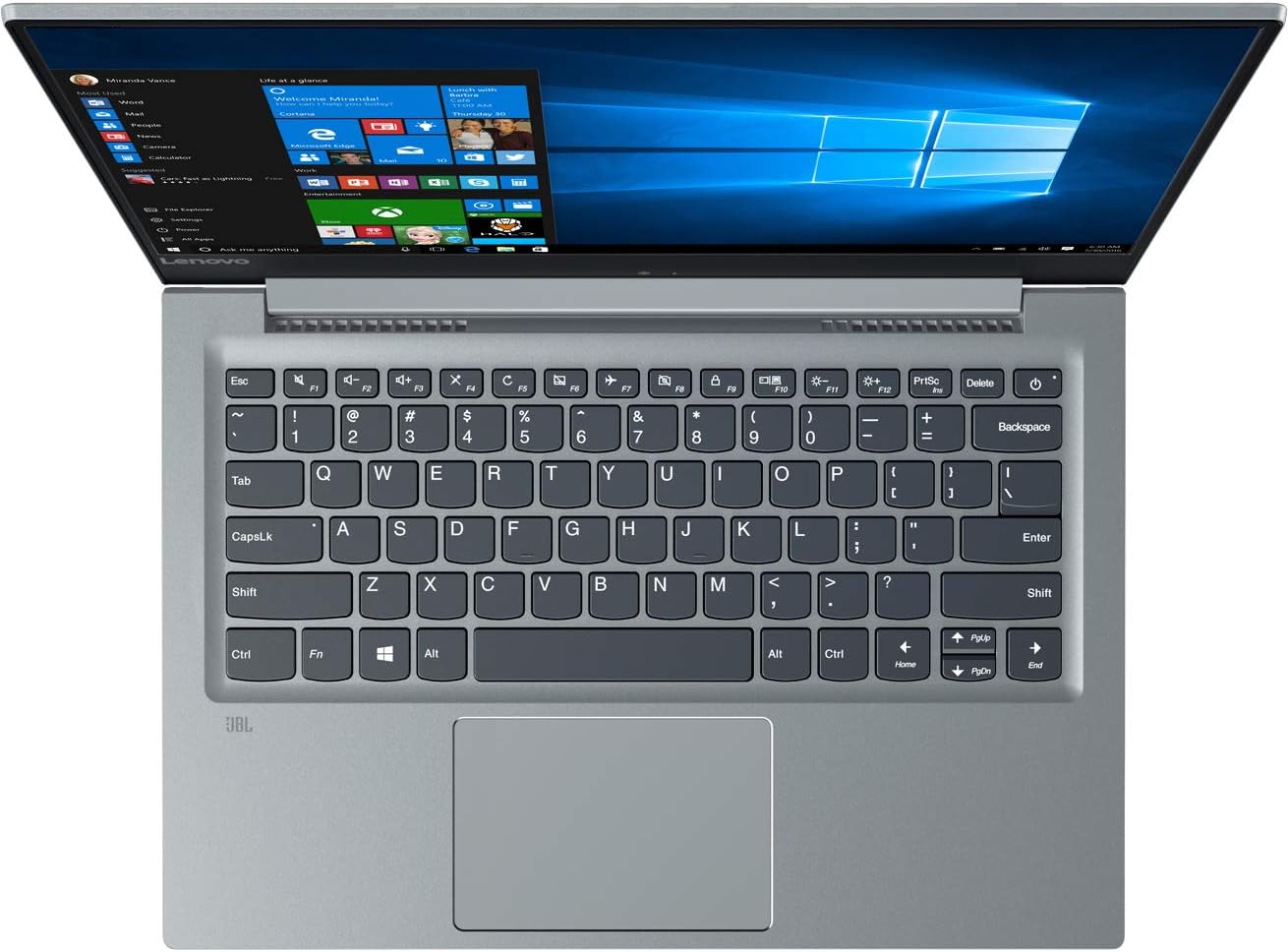
Figure 2: Top-down view of the Lenovo V720 Laptop PC, highlighting the full-sized keyboard, large touchpad, and the 14-inch display running Windows 10 Pro.

Figure 3: Side profile of the Lenovo V720 Laptop PC, illustrating the various connectivity ports including USB Type-C, standard USB, HDMI, and an SD card reader slot.
Components:
- Display: 14-inch Full HD (1920x1080) Anti-Glare Display
- Keyboard: Backlit Keyboard
- Touchpad: Multi-touch Precision Touchpad
- Fingerprint Reader: Integrated for secure login
- Webcam: Integrated HD Webcam
- Speakers: Dolby Audio enhanced speakers
- Ports:
- USB Type-C (with Power Delivery support)
- USB 3.0 ports
- HDMI output
- SD Card Reader
- Audio Jack (Headphone/Microphone combo)
- Power Input
Setup
1. Initial Power-On and Charging:
- Connect the AC power adapter to the laptop's power input port and then to a power outlet.
- Allow the battery to charge for at least 30 minutes before initial use, or until the battery indicator shows sufficient charge.
- Press the power button to turn on the laptop.
2. Windows 10 Pro Setup:
Follow the on-screen prompts to complete the initial Windows 10 Pro setup. This includes:
- Selecting your region and keyboard layout.
- Connecting to a Wi-Fi network (802.11ac supported).
- Accepting the Microsoft License Terms.
- Creating a user account or signing in with a Microsoft account.
- Setting up the Fingerprint Reader for secure login (optional, but recommended).
3. Driver and Software Updates:
After completing the initial setup, it is recommended to check for and install the latest drivers and software updates to ensure optimal performance and security.
- Go to Windows Update settings and check for available updates.
- Visit the official Lenovo support website (support.lenovo.com) for your specific model (Lenovo V720 (14) V Series) to download the latest drivers for graphics (NVIDIA GeForce 940MX), chipset, audio, and other components.
Operating Your Laptop
Power Management:
- Turning On: Press the power button located on the side or top right of the keyboard deck.
- Shutting Down: Click the Start button, then Power, and select "Shut down".
- Sleep Mode: Close the lid or click the Start button, then Power, and select "Sleep".
- Battery Life: The laptop offers approximately 9 hours of battery life under typical usage. To conserve battery, adjust screen brightness, close unused applications, and utilize power-saving modes in Windows settings.
Keyboard and Touchpad:
- Backlit Keyboard: Use the Fn key combined with the appropriate function key (usually F5 or Spacebar) to adjust keyboard backlight brightness.
- Multi-touch Touchpad: Supports various gestures for navigation, including two-finger scrolling, pinch-to-zoom, and three/four-finger swipes for task switching or desktop management. Refer to Windows Touchpad settings for customization.
Connecting External Devices:
- USB Devices: Connect USB peripherals (e.g., mouse, external hard drive) to the available USB 3.0 ports.
- USB Type-C: This port supports data transfer, video output (with compatible adapter), and Power Delivery (PD). You can charge the laptop using a compatible USB-C PD charger.
- HDMI: Connect an external monitor or projector using an HDMI cable for extended or mirrored display.
- Bluetooth: Enable Bluetooth in Windows settings to pair with wireless headphones, speakers, or other Bluetooth-enabled devices.
Fingerprint Reader:
The integrated fingerprint reader allows for quick and secure login using Windows Hello. To set up or manage your fingerprints, go to Windows Settings > Accounts > Sign-in options.
Maintenance
Cleaning:
- Screen: Use a soft, lint-free cloth slightly dampened with water or a screen-cleaning solution. Do not spray liquid directly onto the screen.
- Keyboard and Chassis: Use a soft, dry cloth. For stubborn dirt, a slightly damp cloth with mild soap solution can be used, ensuring no liquid enters openings.
- Ports: Use compressed air to clear dust from ports. Avoid inserting objects into ports.
Software Maintenance:
- Regularly run Windows Update to keep your operating system secure and up-to-date.
- Perform routine antivirus scans.
- Periodically clear temporary files and optimize disk space using Windows built-in tools.
Battery Care:
- Avoid completely discharging the battery frequently.
- Store the laptop in a cool, dry place if not used for extended periods.
- For long-term storage, charge the battery to about 50-60%.
Troubleshooting
| Problem | Possible Cause | Solution |
|---|---|---|
| Laptop does not power on. | No power, discharged battery, faulty power adapter. | Ensure power adapter is securely connected and outlet is functional. Charge battery for at least 30 minutes. Try a different power outlet. |
| Screen is blank or black. | Sleep mode, display settings, hardware issue. | Press any key or move mouse to wake from sleep. Press Fn + F2 (or relevant display toggle key) to cycle display outputs. Restart the laptop. |
| Wi-Fi connection issues. | Wi-Fi disabled, incorrect password, router issue. | Ensure Wi-Fi is enabled in Windows settings. Verify Wi-Fi password. Restart your router and modem. Update Wi-Fi drivers. |
| Fingerprint reader not working. | Dirty sensor, incorrect setup, driver issue. | Clean the sensor with a soft, dry cloth. Re-enroll your fingerprints in Windows Hello settings. Update fingerprint reader drivers. |
| Slow performance. | Too many background applications, low disk space, outdated drivers. | Close unnecessary applications. Free up disk space. Run Windows Update. Update graphics and chipset drivers. |
For issues not covered here, refer to the Lenovo support website or contact customer service.
Specifications
| Feature | Detail |
|---|---|
| Model | Lenovo V720 (14) V Series |
| Processor | Intel Core i5-7200U (2.5GHz) |
| Operating System | Windows 10 Pro |
| Display | 14-inch FHD (1920x1080) Anti-Glare |
| RAM | 8 GB DDR4 SDRAM (2133 MHz) |
| Storage | 256 GB SSD |
| Graphics | NVIDIA GeForce 940MX (Dedicated) |
| Wireless Connectivity | 802.11ac Wi-Fi, Bluetooth |
| Ports | USB Type-C (PD support), USB 3.0, HDMI, SD Card Reader, Audio Jack |
| Battery Life | Up to 9 hours (average) |
| Weight | Approx. 2.99 pounds (1.36 kg) |
| Dimensions (LxWxH) | 12.6 x 8.7 x 0.6 inches |
| Special Features | Fingerprint Reader, Dolby Audio |
Warranty and Support
Your Lenovo Business Premium V720 Laptop PC comes with a standard manufacturer's warranty. Please refer to the warranty documentation included in your product package for specific terms and conditions, including warranty period and coverage details.
For technical support, driver downloads, and additional resources, please visit the official Lenovo support website:
When contacting support, please have your product model number (Lenovo V720 (14) V Series) and serial number ready. The serial number is typically located on a sticker on the bottom of the laptop.