1. Introduction
The DJI Phantom 4 Pro is an advanced quadcopter drone designed for professional aerial photography and videography. It features a high-resolution camera, intelligent flight modes, and enhanced obstacle sensing capabilities to ensure a safe and stable flight experience. This manual provides essential information for setting up, operating, maintaining, and troubleshooting your Phantom 4 Pro drone.

Figure 1: DJI Phantom 4 Pro Quadcopter Drone. This image shows the white drone with four propellers, landing gear, and a camera gimbal mounted underneath.
2. Setup
2.1 Unboxing and Initial Inspection
Carefully remove all components from the packaging. Verify that all items listed in the "What's in the Box" section are present and undamaged. If any components are missing or damaged, contact customer support immediately.
2.2 Battery Charging
Ensure the Intelligent Flight Battery and remote controller battery are fully charged before first use. Use only the official DJI charger provided with the drone. Connect the charger to a power outlet and then to the battery. The charging indicator lights will show the charging status.
2.3 Propeller Installation
Attach the propellers to the corresponding motor mounts. Propellers are color-coded (silver and black) to match the motor caps. Ensure they are securely fastened by pushing down and twisting in the direction indicated on the propeller base until locked.
2.4 Remote Controller Setup
Install your mobile device (smartphone or tablet) into the remote controller's device holder. Connect the mobile device to the remote controller using a USB cable. Power on the remote controller by pressing the power button once, then pressing and holding it for two seconds.
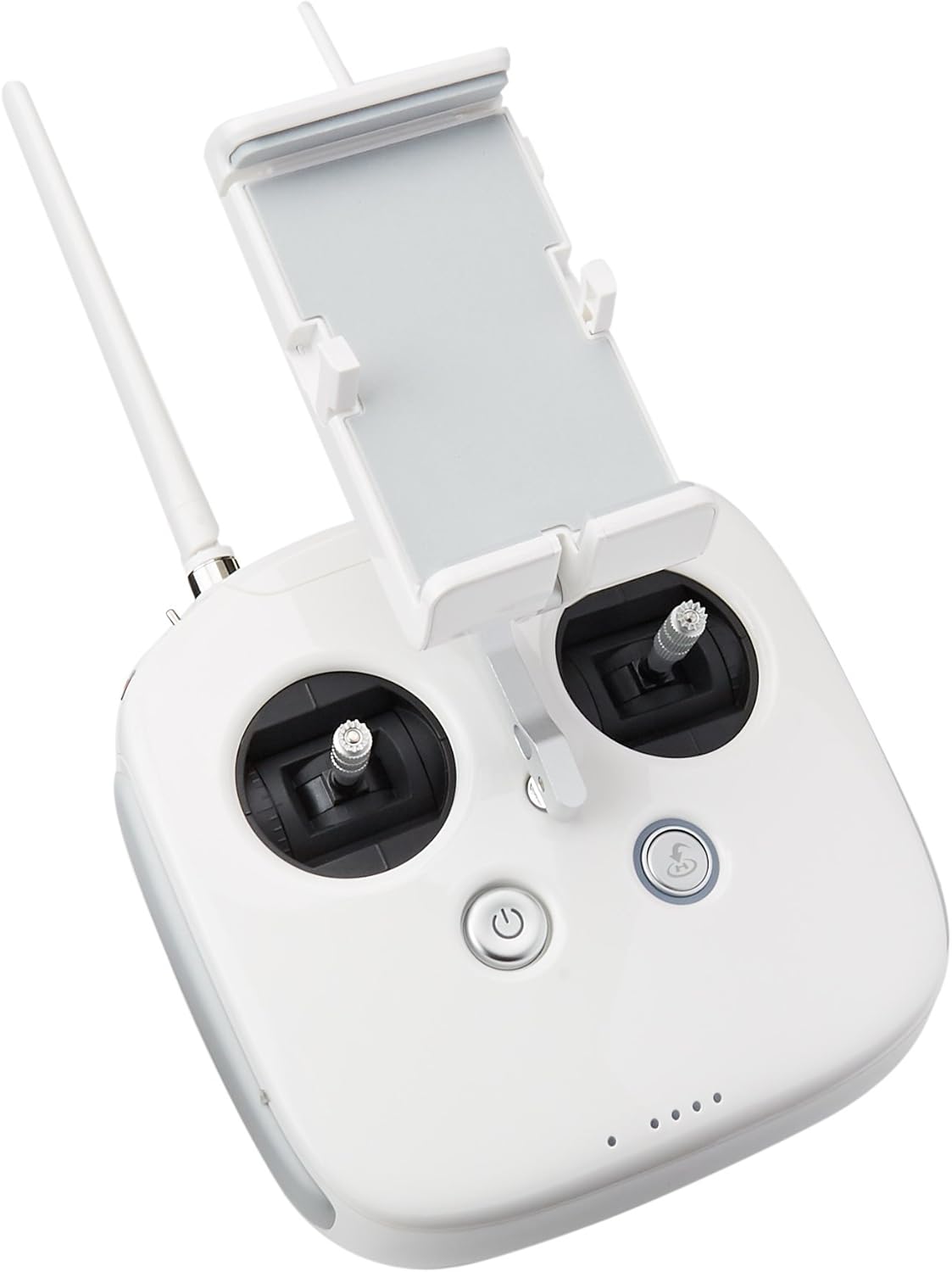
Figure 2: DJI Phantom 4 Pro Remote Controller (Front View). This image displays the front of the white remote controller with joysticks, buttons, and a mobile device holder.

Figure 3: DJI Phantom 4 Pro Remote Controller (Side View). This image shows the side of the white remote controller, highlighting the antennas, USB port, and various switches.
2.5 DJI GO 4 App Installation
Download and install the DJI GO 4 app on your mobile device from the official app store (App Store for iOS or Google Play Store for Android). This app is essential for controlling the drone, accessing intelligent flight modes, and viewing the camera feed.
3. Operating Instructions
3.1 Pre-Flight Checklist
- Ensure batteries are fully charged (drone and remote controller).
- Propellers are correctly installed and secure.
- Gimbal clamp is removed.
- MicroSD card is inserted into the camera.
- GPS signal is strong (at least 7 satellites).
- Compass is calibrated (if prompted by the app).
- Check for any firmware updates in the DJI GO 4 app.
3.2 Taking Off and Landing
To take off, place the drone on a flat, open surface. Power on the drone and remote controller. Open the DJI GO 4 app. Once the system status indicator is green, tap the auto-takeoff icon in the app or perform the Combination Stick Command (CSC) by pushing both sticks to the bottom inner or outer corners. To land, either tap the auto-landing icon or slowly pull down the left stick (Mode 2) until the drone lands and motors stop.
3.3 Intelligent Flight Modes
The Phantom 4 Pro features several intelligent flight modes for enhanced control and cinematic shots:
- ActiveTrack: Follows a subject automatically.
- TapFly: Fly to a designated point on the screen with a tap.
- Draw: Draw a route on the screen for the drone to follow.
- Gesture Mode: Control the drone with hand gestures for selfies.
- Return to Home (RTH): Automatically returns the drone to its recorded home point.
Refer to the DJI GO 4 app for detailed instructions on activating and using each mode.
3.4 Obstacle Sensing System
The Phantom 4 Pro is equipped with a 5-directional obstacle sensing system, providing 4-way obstacle avoidance. This system uses vision sensors and infrared sensors to detect obstacles and either stop or bypass them, enhancing flight safety. Always maintain visual line of sight and do not rely solely on the obstacle sensing system.
4. Maintenance
4.1 Cleaning
Regularly clean the drone body, propellers, and camera lens. Use a soft, dry cloth for the body and a lens cleaning cloth for the camera. Avoid using harsh chemicals or abrasive materials.
4.2 Propeller Inspection and Replacement
Inspect propellers for cracks, bends, or damage before each flight. Damaged propellers can affect flight stability and safety. Replace any damaged propellers immediately with genuine DJI Phantom 4 Pro propellers.
4.3 Battery Care
Store Intelligent Flight Batteries in a cool, dry place. Do not overcharge or over-discharge batteries. If storing for extended periods, discharge batteries to 50-60% capacity. Avoid exposing batteries to extreme temperatures.
4.4 Firmware Updates
Periodically check for firmware updates for the drone and remote controller via the DJI GO 4 app. Keeping firmware updated ensures optimal performance, new features, and improved safety.
5. Troubleshooting
| Problem | Possible Cause | Solution |
|---|---|---|
| Drone does not power on. | Low battery; Battery not inserted correctly. | Charge the Intelligent Flight Battery; Reinsert battery firmly. |
| No GPS signal. | Flying indoors; Obstruction from tall buildings/trees. | Fly in an open outdoor area; Wait for more satellites to connect. |
| Gimbal shaking or abnormal movement. | Gimbal clamp not removed; Gimbal overloaded; Firmware issue. | Remove gimbal clamp; Ensure no foreign objects are on gimbal; Update firmware. |
| App displays "Compass Error". | Magnetic interference; Compass needs calibration. | Move to an area free of magnetic interference; Perform compass calibration as per app instructions. |
For further troubleshooting, consult the DJI GO 4 app's help section or visit the official DJI support website.
6. Specifications
7. Warranty and Support
This product is sold as a renewed item and typically comes with a 1-year warranty. Please refer to the specific warranty terms provided at the time of purchase or contact the seller for details regarding your renewed product's warranty coverage.
For technical support, product inquiries, or warranty claims, please visit the official DJI support website or contact their customer service. You can often find support resources, FAQs, and contact information on the DJI website.
Manufacturer: DJI Europe B.V.
Brand: DJI


