1. Introduction
Thank you for choosing the JENNOV Wireless Outdoor Security Camera System. This manual provides essential information for the proper installation, operation, and maintenance of your security camera system. Please read it thoroughly before use and keep it for future reference.
This system features PIR human detection, two-way audio, voice deterrence, smartphone linkage, remote operation, built-in HDD, and night vision capabilities. It supports up to 10 channels and comes with a monitor for convenient surveillance.
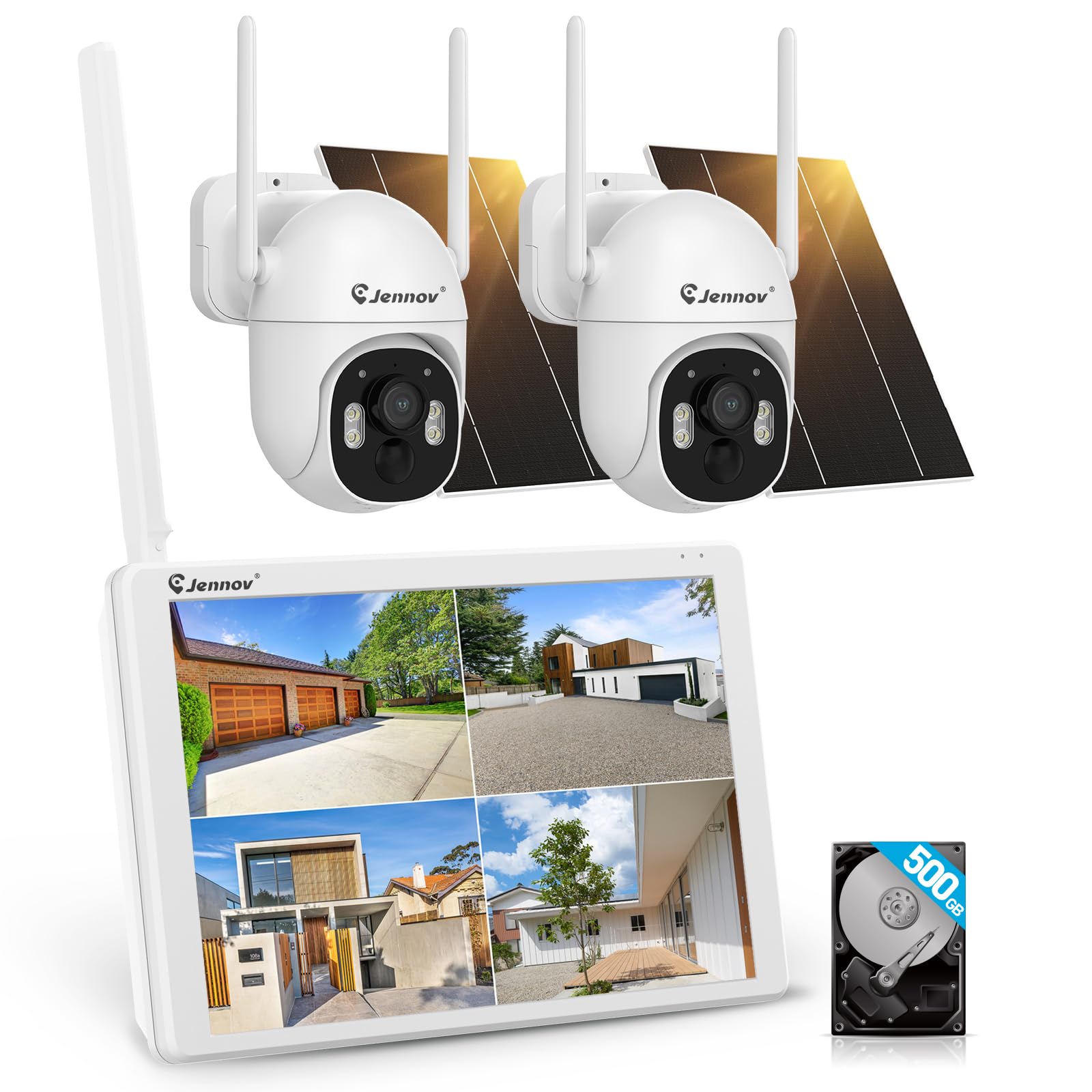
Figure 1: JENNOV Wireless Outdoor Security Camera System
2. Package Contents
Ensure all items are present in the package:
- JENNOV Wireless Outdoor Security Camera (quantity may vary based on set)
- Monitor (if included in the set)
- 12V1A Power Adapter (x1)
- Screw Pack (x1)
- Instruction Manual
3. Setup Instructions
Follow these steps to set up your JENNOV security camera system.
3.1 Camera Installation
The camera is designed for flexible installation, even in environments without Wi-Fi. It can be wall-mounted or ceiling-mounted.
Video 1: Dome Camera Installation Method. This video demonstrates the physical installation process for a dome-style camera, including disassembling the cover, adjusting the lens direction, and securing it to a wall or ceiling.
For dome cameras, remove the outer ring, loosen the screws to adjust the lens direction, fix the base to the wall, tighten the screws, and then reattach the outer ring.
3.2 System Connection (Plug & Play)
The system supports Plug & Play functionality, allowing local monitoring without a Wi-Fi connection. For remote monitoring via smartphone or PC, connect the monitor to a Wi-Fi router using a LAN cable.

Figure 2: Plug & Play setup showing connections to a monitor and router.
3.3 App Setup (Eseecloud)
To enable remote monitoring and access advanced features, download and configure the Eseecloud app on your smartphone or tablet.
Video 2: How to Add a Device with ESEECLOUD App. This video guides you through the process of adding your camera device to the Eseecloud smartphone application.
- Launch the Eseecloud app.
- For new registration, tap 'Register' and enter your email address.
- You will receive a verification code in your mailbox. Enter this code into the app.
- Set a password to complete registration.
- For existing users, enter your username and password to log in.
- Tap 'Add Smart Device' and scan the QR code displayed on the monitor connected to your recorder.
- Follow the on-screen prompts to add the device. Naming the camera and completing the device addition will finalize the setup.
Video 3: How to Set Up with the App. This video demonstrates various settings within the Eseecloud app, including recording modes, motion detection, and privacy settings.
4. Operating Instructions
Your JENNOV security camera system offers a range of features for effective surveillance.
4.1 Recording Modes
The system supports three main recording modes:
- Continuous Recording: Records 24/7.
- Motion Detection Recording: Records only when motion is detected, saving storage space.
- Scheduled Recording: Customize recording times based on your needs.

Figure 3: Illustration of the three recording modes: continuous, motion detection, and scheduled.
4.2 Motion Detection and AI Human Detection
The camera features PIR human detection to minimize false alarms. You can define specific detection areas and adjust sensitivity levels.

Figure 4: AI human detection in action, highlighting a person within the detection zone.

Figure 5: Adjusting the motion detection area and sensitivity settings via the app.
4.3 Night Vision Modes
The camera offers multiple night vision options for clear images in low-light conditions:
- Automatic Night Mode Switching: Automatically switches between day and night vision.
- Color Night Vision: Provides full-color images even at night.
- Infrared Night Vision: Standard black and white night vision.

Figure 6: Comparison of day mode, automatic night mode switching, color night vision, and infrared night vision.
4.4 Two-Way Audio and Voice Deterrence
With a built-in microphone and speaker, the camera supports two-way audio communication. You can also use pre-recorded voice messages for deterrence.

Figure 7: Demonstrates two-way audio communication and voice deterrence feature.
4.5 Remote Monitoring and Family Sharing
Access live footage and recorded videos from anywhere using the Eseecloud app on your smartphone or PC. The system also allows sharing device access with 3-5 family members simultaneously.

Figure 8: Remote monitoring via smartphone and PC, showing multiple users accessing the camera feed.
4.6 Pan/Tilt/Zoom (PTZ) Functionality
The camera features 360° wide-angle shooting with pan (355° horizontally) and tilt (90° vertically) functions, allowing you to cover a wide area without blind spots.

Figure 9: Illustration of the camera's 355° pan and 90° tilt capabilities for comprehensive coverage.
Video 4: About Security Camera Functions. This video provides an overview of various camera functions, including PTZ control and different viewing modes.
5. Maintenance
Regular maintenance ensures optimal performance and longevity of your security camera system.
- Clean the Lens: Gently wipe the camera lens with a soft, dry cloth to remove dust and smudges.
- Check Connections: Periodically inspect all cables and connections for any signs of wear or damage.
- Software Updates: Ensure your camera's firmware and the Eseecloud app are updated to the latest versions for improved security and features.
- Storage Management: Regularly review and manage recorded footage on the built-in HDD to prevent it from filling up.
6. Troubleshooting
If you encounter any issues with your JENNOV security camera system, refer to the following common troubleshooting tips:
- No Power: Check the power adapter and ensure it is securely connected to both the camera and a working power outlet.
- No Video Feed: Verify network connectivity for remote viewing. For local viewing, ensure the monitor is correctly connected to the recorder. Restart the camera and recorder.
- Poor Image Quality: Clean the camera lens. Check for any obstructions in the camera's field of view. Ensure sufficient lighting for optimal night vision performance.
- Motion Detection Not Working: Check the motion detection settings in the Eseecloud app, including sensitivity and detection areas.
- App Connectivity Issues: Ensure your smartphone has a stable internet connection. Restart the app and your smartphone. Verify that the camera system is connected to the internet (if remote access is desired).
If problems persist, please contact JENNOV customer support.
7. Specifications
| Feature | Description |
|---|---|
| Model Name | AJ1-K2-P42BT-V16 |
| Video Capture Resolution | 1440p |
| Color | White |
| Wireless Communication Technology | Wi-Fi |
| Form Factor | Dome |
| Night Vision Range | 30 meters |
| Material | Plastic, Metal |
| Voltage | 12 Volts |
| Water Resistance Level | Waterproof (IP66) |
| Product Dimensions (LxWxH) | 19.5 x 13 x 11 cm |
| Product Weight | 520 g |
| Light Source | Infrared |
| Special Features | IP66 Waterproof for Outdoor Use, Wireless Wi-Fi Security Camera, Remote Monitoring, Long-term Recording, High Image Quality, Motion Detection |
| Indoor/Outdoor Use | Indoor, Outdoor |
| Compatible Devices | Laptop, Smartphone, Tablet |
| Power Source | Corded Electric |
| Connection Protocol | ONVIF, Wi-Fi |
| Controller Type | Mobile App, Recorder |
8. Warranty and Support
Your JENNOV security camera system comes with a 12-month quality warranty from the date of purchase. We also provide lifetime technical support to ensure your peace of mind.
In case of initial defects or natural failures, returns or exchanges are possible within 30 days without requiring an explanation.
For inquiries, technical setup support, or any other assistance, please contact us:
- Phone: 05050509046 (Monday - Friday, 10:00 - 18:00 JST)
- Email: supportjp@jennov.com
- Website: www.jennov.com
Our products comply with Japanese wireless specifications and have obtained the 'Technical Conformity Certification Mark' (Radio Law Technical Conformity Certification Number: R210-123758). The included power adapter has also obtained PSE certification after testing by the TUV authority.


