
1. Introduction
The HUAWEI Y6 (2018) is a feature-rich smartphone designed for communication, entertainment, and productivity. It operates on Android 8.0 (Oreo) and features a 5.7-inch S-IPS LCD display, a 13 MP main camera, and dual SIM capability. This manual will guide you through the device's functions and features.
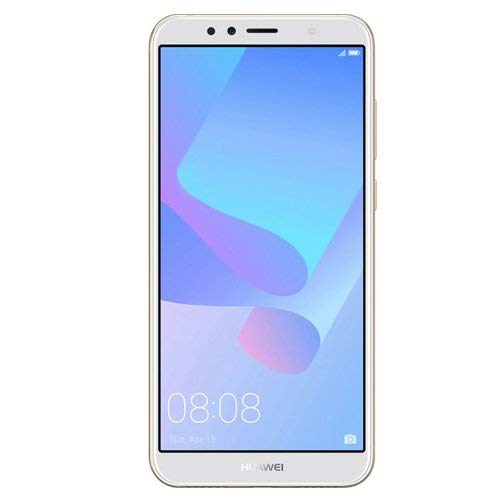
Figure 1.1: HUAWEI Y6 (2018) Smartphone. This image shows the front view of the device, highlighting its 5.7-inch display and sleek design.
2. Package Contents
Please check the contents of your product box. If any items are missing or damaged, contact your retailer.
- HUAWEI Y6 (2018) Smartphone
- Data Cable / 2-pin Charger
- Quick Start Guide (this document)
- SIM Eject Tool (may vary by region)
3. Setup
3.1. Inserting SIM and microSD Cards
The HUAWEI Y6 (2018) supports Dual Nano-SIM cards and a dedicated microSD card slot for expandable storage.
- Locate the SIM card tray on the side of your device.
- Insert the SIM eject tool into the small hole next to the tray and push gently until the tray pops out.
- Place your Nano-SIM card(s) into the designated slots with the gold contacts facing down. If using a microSD card, place it in its dedicated slot.
- Carefully push the tray back into the phone until it is flush with the device's side.
3.2. Initial Power On and Configuration
To power on your device for the first time:
- Press and hold the Power button (located on the right side) until the HUAWEI logo appears.
- Follow the on-screen instructions to select your language, connect to a Wi-Fi network, and set up your Google account.
- Complete the initial setup process, including setting up screen lock and facial recognition if desired.
4. Operating Your Device
4.1. Display and Navigation
Your device features a 5.7-inch S-IPS LCD touchscreen with a resolution of 720 x 1440 pixels. Navigate the interface using touch gestures:
- Tap: Select an item or open an application.
- Swipe: Scroll through screens or lists.
- Pinch: Zoom in or out on photos and web pages.
4.2. Camera Functions
The HUAWEI Y6 (2018) is equipped with a 13 MP rear camera with phase detection autofocus and LED flash, and a 5 MP front camera with LED flash.
- Open the Camera app from the home screen or lock screen.
- Tap the shutter button to take a photo.
- Switch between front and rear cameras using the camera switch icon.
- Explore various modes like Panorama, HDR, and video recording (up to 1080p @ 30fps).
4.3. Connectivity
Your device supports various connectivity options:
- Wi-Fi: Connect to wireless networks for internet access. Go to Settings > Wireless & networks > Wi-Fi.
- Bluetooth: Pair with other Bluetooth devices like headphones or speakers. Go to Settings > Connected devices > Bluetooth.
- GPS: Utilize location services for navigation and mapping.
- USB: Connect to a computer using the Micro-USB port for data transfer or charging.
4.4. Battery Management
The device is powered by a non-removable 3000 mAh Li-Ion battery. To optimize battery life:
- Adjust screen brightness.
- Disable Wi-Fi, Bluetooth, or GPS when not in use.
- Close background applications.
- Use power-saving modes available in Settings > Battery.
4.5. Storage
The HUAWEI Y6 (2018) comes with 16 GB of internal storage, expandable up to 256 GB via a microSD card. Manage your storage in Settings > Storage.
4.6. Facial Recognition
Your device supports facial recognition for unlocking. Set it up in Settings > Security & privacy > Face Unlock.
5. Maintenance
Proper care ensures the longevity of your device:
- Cleaning: Use a soft, lint-free cloth to clean the screen and body. Avoid abrasive materials or harsh chemicals.
- Temperature: Operate the device within recommended temperature ranges (typically 0°C to 35°C). Avoid extreme heat or cold.
- Water Resistance: This device is not water-resistant. Avoid exposure to liquids.
- Software Updates: Regularly check for and install system updates to ensure optimal performance and security. Go to Settings > System > Software update.
6. Troubleshooting
If you encounter issues with your device, try the following solutions:
- Device not turning on: Ensure the battery is charged. Connect the charger and wait a few minutes before attempting to power on again.
- Screen unresponsive: Restart the device by pressing and holding the Power button for about 10 seconds.
- Poor Wi-Fi connection: Ensure you are within range of the Wi-Fi router. Restart the router and your phone. Forget the network and reconnect.
- Battery draining quickly: Review battery usage in Settings > Battery to identify apps consuming excessive power. Reduce screen brightness and disable unnecessary features.
- Apps crashing: Clear the cache and data for the problematic app (Settings > Apps & notifications > App info > [App Name] > Storage > Clear cache/Clear data). If the issue persists, uninstall and reinstall the app.
- Forgot screen lock password/pattern: You may need to perform a factory reset, which will erase all data on your device. Refer to online support for specific instructions.
7. Specifications
| Feature | Specification |
|---|---|
| Brand | HUAWEI |
| Model Name | Y6 (2018) |
| Operating System | Android 8.0 (Oreo) |
| CPU Model | Qualcomm Snapdragon 425 |
| CPU Speed | 1.4 GHz Quad-Core Cortex-A53 |
| RAM Memory | 2 GB |
| Internal Storage | 16 GB |
| Expandable Storage | microSD, up to 256 GB (dedicated slot) |
| Screen Size | 5.7 Inches |
| Screen Resolution | 720 x 1440 pixels (18:9 ratio) |
| Pixel Density | ~282 ppi |
| Display Type | S-IPS LCD Capacitive Touchscreen, 16M Colors |
| Rear Camera | 13 MP, Phase Detection Autofocus, LED Flash |
| Front Camera | 5 MP, LED Flash |
| Video Recording | 1080p @ 30fps |
| SIM Card Slots | Dual SIM (Nano-SIM, dual stand-by) |
| Connectivity | Wi-Fi 802.11 b/g/n, Bluetooth v4.2, GPS (A-GPS, GLONASS), Micro-USB v2.0 |
| Headphone Jack | 3.5 mm |
| Battery Capacity | 3000 mAh Li-Ion (Non-removable) |
| Sensors | Accelerometer, Proximity, Facial Recognition |
| Dimensions | 152.4 x 73 x 7.8 mm (6.00 x 2.87 x 0.31 in) |
| Weight | 150 Grams (5.29 oz) |
| Color | Gold |
8. Warranty and Support
For warranty information and customer support, please refer to the warranty card included in your product package or visit the official HUAWEI website for your region. You can also contact your retailer for assistance.
For further assistance, please visit the HUAWEI Store on Amazon.