Introduction
This user manual provides comprehensive instructions for the assembly, operation, and maintenance of your Amazon Basics Single Computer Monitor Stand. This desk-mounted arm is designed to enhance your workspace ergonomics and free up valuable desk space by securely holding a single computer monitor.
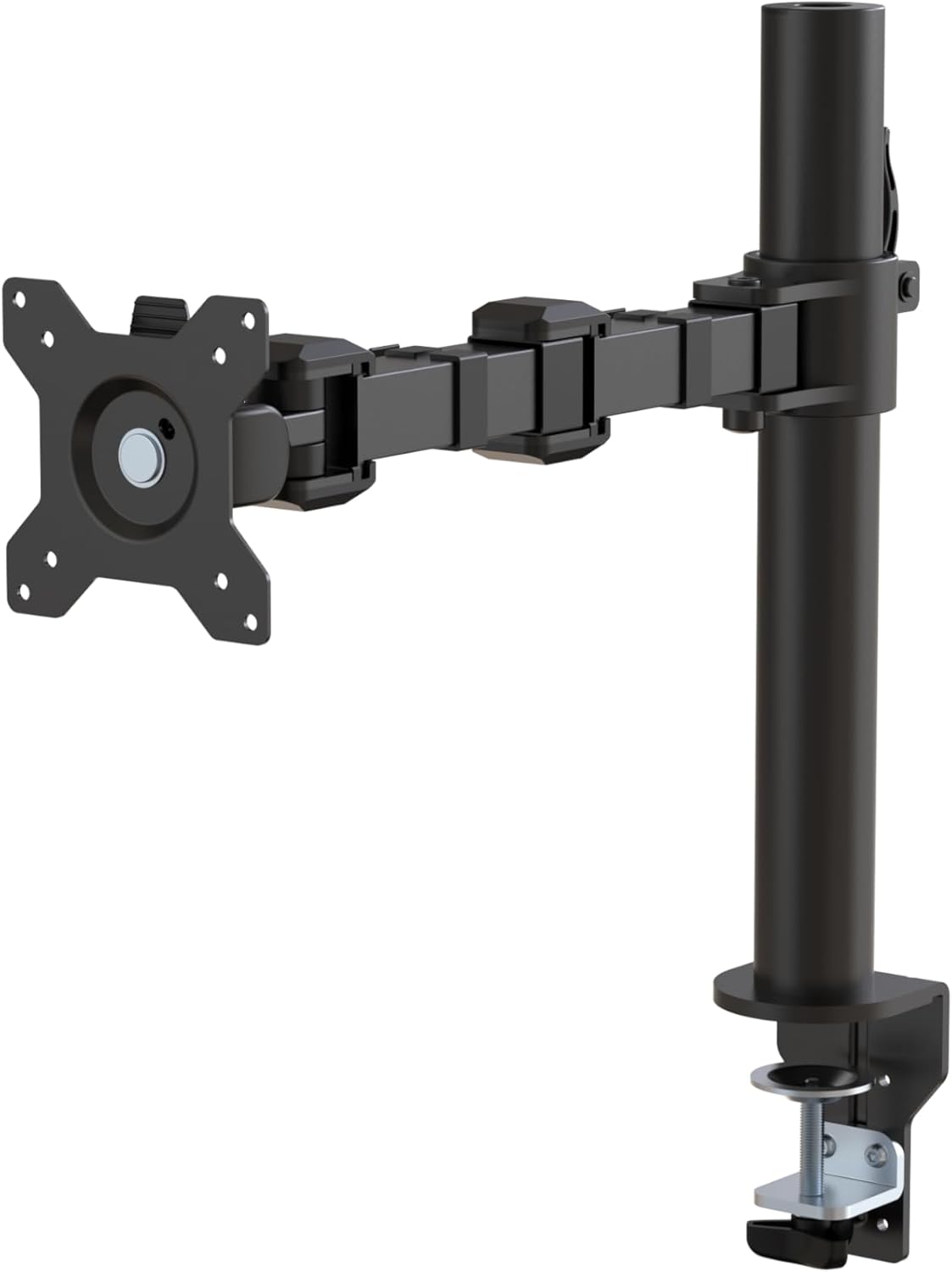
Figure 1: Overview of the Amazon Basics Single Computer Monitor Stand.
Important Safety Information
- Read all instructions carefully before assembly and use.
- Do not exceed the maximum weight capacity of 22 pounds (10 kg).
- Ensure your desk surface is stable and can support the combined weight of the monitor arm and your monitor.
- Verify that the desk thickness is between 0.8 to 3.9 inches (2 cm to 10 cm) for proper clamp installation.
- Use only the provided hardware. If any parts are missing or damaged, contact customer support.
- Keep children and pets away during assembly.
- Periodically check all screws and connections to ensure they remain tight and secure.
Package Contents
Please verify that all components are present before beginning assembly:
- Monitor Arm Assembly (Pre-assembled arm and VESA plate)
- Desk Clamp Base
- Mounting Pole
- Hardware Kit (Screws for VESA mounting, Allen keys)
- Cable Management Clips
- User Manual
Setup Instructions
Step 1: Attach Desk Clamp Base
Position the desk clamp base on your desk edge. Ensure the desk thickness is compatible (0.8 to 3.9 inches). Tighten the clamp screw securely until the base is firmly attached to the desk. Do not overtighten.

Figure 2: Securely attaching the desk clamp base to your desk.
Step 2: Install Mounting Pole
Insert the mounting pole into the hole on the desk clamp base. Secure it by tightening the set screw on the side of the clamp base using the provided Allen key.
Step 3: Attach Monitor Arm to Pole
Slide the monitor arm assembly onto the mounting pole. Adjust the height to your desired position and tighten the height adjustment screw on the arm collar to secure it.
Step 4: Attach VESA Plate to Monitor
The monitor arm features a detachable VESA plate. Remove the VESA plate from the arm by lifting it up. Align the VESA plate with the mounting holes on the back of your monitor (compatible with 100x100mm and 75x75mm VESA patterns). Use the appropriate screws from the hardware kit to secure the plate to your monitor. Ensure the screws are tightened firmly but do not overtighten.

Figure 3: The detachable VESA plate for easy monitor attachment.
Step 5: Mount Monitor to Arm
Carefully slide the monitor (with the attached VESA plate) onto the monitor arm. Ensure it clicks securely into place. You may need to adjust the tension screws on the arm joints to support the monitor's weight and allow for smooth movement.

Figure 4: Monitor securely mounted on the arm, viewed from the front.

Figure 5: Top-down perspective of the monitor mounted, showcasing desk space optimization.
Step 6: Cable Management
Utilize the integrated cable management system to route your monitor cables (power, video, etc.) along the arm and down the pole. This helps maintain a tidy workspace and prevents cable clutter.
Operating Instructions
The monitor arm offers a full range of motion to customize your viewing experience:
- Height Adjustment: The horizontal arm can be adjusted from 7.9 to 14.2 inches high along the pole. Loosen the height adjustment screw on the arm collar, slide the arm to the desired height, and re-tighten.
- Tilt: Adjust the screen tilt from -15 to +85 degrees to reduce glare and optimize viewing angles.
- Swivel: Swivel the monitor left or right up to 180 degrees at various joints for collaborative viewing or screen sharing.
- Rotation: Rotate the monitor 360 degrees to switch between landscape and portrait modes without removing the monitor.

Figure 6: Visual representation of the flexible screen adjustment capabilities: Tilt (-85/+15 degrees), Swivel (±180 degrees), and Rotation (360 degrees).
Ergonomic Positioning
Proper monitor positioning is crucial for ergonomic comfort and reducing strain. Adjust the monitor arm so that the top of your monitor screen is at or slightly below eye level when you are sitting upright. Your eyes should be approximately an arm's length away from the screen. Ensure your wrists are straight and your forearms are parallel to the floor when typing.

Figure 7: Comparison of correct and incorrect sitting postures, highlighting the importance of proper monitor height.
Maintenance
- Cleaning: Wipe the monitor arm with a soft, damp cloth. Avoid abrasive cleaners or solvents that could damage the finish.
- Tightness Check: Periodically check all screws and connections, especially the desk clamp and VESA plate screws, to ensure they are tight and secure. Re-tighten if necessary.
- Lubrication: No lubrication is required for the moving parts.
Troubleshooting
| Problem | Possible Cause | Solution |
|---|---|---|
| Monitor arm sags or does not hold position. | Tension screws are too loose. | Tighten the tension screws on the arm joints using the provided Allen key until the arm holds the monitor's weight. |
| Monitor wobbles on the arm. | VESA plate screws are loose or desk clamp is not secure. | Ensure the VESA plate screws attaching the monitor are tight. Re-tighten the desk clamp screw. |
| Cannot adjust monitor height. | Height adjustment screw is too tight. | Loosen the height adjustment screw on the arm collar, adjust height, then re-tighten. |
Specifications
| Feature | Detail |
|---|---|
| Model Number | DLB111-US290 |
| Product Dimensions | 20 x 18.13 x 4.5 inches |
| Item Weight | 5.59 pounds |
| Material | Alloy Steel |
| Color | Black |
| Mounting Type | Tabletop Clamp Mount |
| Compatible Screen Size | 13 to 30 inches |
| Maximum Weight Capacity | 22 pounds (10 kg) |
| Desk Thickness Compatibility | 0.8 to 3.9 inches |
| VESA Compatibility | 75x75mm, 100x100mm |
| Height Adjustment Range | 7.9 to 14.2 inches (horizontal arm) |
| Tilt Angle | -15 to +85 degrees |
| Rotation | 360 degrees |
Warranty and Support
This product is backed by an Amazon Basics limited 1-year warranty.
For detailed warranty information or technical support, please refer to the official documentation or contact Amazon Basics customer service.
- User Manual (PDF): Download User Manual
- Warranty (PDF): Download Warranty Information


