
Introduction
This manual provides essential information for the safe and efficient operation of your Supersonic Smart SC-3216STV 32-inch HD DLED TV. Please read this manual thoroughly before using the television and retain it for future reference. This television features a 32-inch HD DLED display, built-in ATSC/NTSC tuners, smart functionality with Wi-Fi, and multiple connectivity options.

Image: Front view of the Supersonic SC-3216STV 32-inch Smart TV, displaying a vibrant landscape scene. The TV has a slim black bezel and two V-shaped stand feet.
Safety Information
Observe the following safety precautions to prevent fire, electric shock, or injury:
- Power Source: Connect the TV only to an AC 120V, 60Hz power supply.
- Ventilation: Ensure adequate ventilation. Do not block ventilation openings.
- Water and Moisture: Do not expose the TV to rain or moisture. Do not place objects filled with liquids on the TV.
- Heat: Keep the TV away from heat sources such as radiators, heat registers, stoves, or other heat-producing appliances.
- Cleaning: Unplug the TV from the wall outlet before cleaning. Use a soft, dry cloth.
- Servicing: Do not attempt to service this product yourself. Refer all servicing to qualified service personnel.
- Mounting: When wall-mounting, ensure the mount is compatible with the TV's VESA standards and can support its weight.
What's in the Box
Verify that all components are present:
- Supersonic SC-3216STV 32" Smart HDTV
- Remote Control
- AC Power Cord
- User Manual (this document)
- TV Stand Feet (if not pre-attached)
- Screws for TV Stand Feet (if applicable)
Setup
1. Attaching the TV Stand
If you are not wall-mounting the TV, attach the stand feet as follows:
- Carefully place the TV face-down on a soft, clean surface to prevent screen damage.
- Align each stand foot with the corresponding slots on the bottom of the TV.
- Secure the stand feet using the provided screws. Ensure they are tightened firmly.

Image: Bottom view of the Supersonic SC-3216STV TV, illustrating the design of the stand feet and their attachment points on the underside of the television.
2. Connecting External Devices
The TV offers various ports for connecting external devices. Refer to the image below for port locations.

Image: Rear view of the Supersonic SC-3216STV TV, highlighting the various input and output ports including HDMI, USB, AV IN, and the power input.
- HDMI (x3): Connect Blu-ray players, game consoles, cable/satellite boxes, or other HDMI-enabled devices.
- USB (x2): Connect USB storage devices for media playback.
- AV IN: Connect older devices using composite video and stereo audio cables.
- Optical: For digital audio output to a soundbar or home theater system.
- RJ45 (Ethernet): For a wired internet connection.
- Antenna/Cable: Connect an antenna for over-the-air broadcasts or a cable TV connection.
3. Power Connection
After connecting all desired devices, plug the AC power cord into the TV's power input and then into a standard wall outlet (AC 120V, 60Hz).
4. Initial Power On and Network Setup
Press the power button on the remote control or on the TV. Follow the on-screen instructions for initial setup, which typically includes:
- Language selection.
- Time zone and date settings.
- Scanning for channels (if using an antenna/cable).
- Wi-Fi Setup: Select your Wi-Fi network from the list and enter the password. The TV supports 802.11 b/g/n.
Operating Instructions
1. Remote Control Functions
The included remote control provides full functionality for navigating your TV. Familiarize yourself with its buttons for power, volume, channel, input selection, smart app access, and menu navigation.
2. Smart TV Features and Apps
Your Supersonic Smart TV comes with built-in Wi-Fi, allowing access to various streaming applications. Popular pre-installed apps may include Netflix, YouTube, VUDU, Pandora, and AccuWeather.
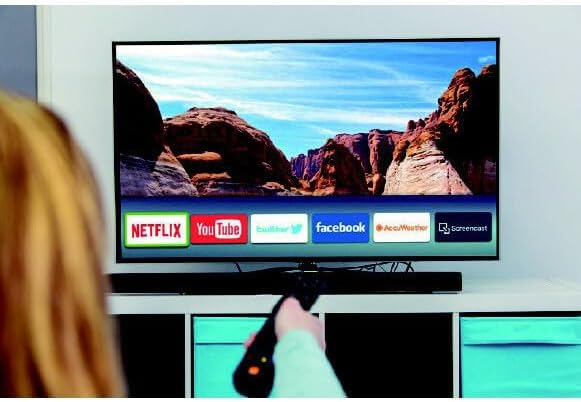
Image: A person using a remote control to navigate the smart TV interface, which displays icons for popular applications like Netflix, YouTube, Facebook, AccuWeather, and ScreenCast.
- Accessing Apps: Use the remote's navigation buttons to select and launch applications from the home screen or app menu.
- Account Login: For most streaming services, you will need to log in with your existing account credentials.
3. Picture and Sound Modes
Customize your viewing experience by selecting different picture and sound modes:
- Picture Modes: Standard, Music, Movie, Sports, User (customizable).
- Sound Modes: Standard, Music, Movie, Sports, User (customizable).
- Access these settings through the TV's main menu.
4. Sleep Timer
The sleep timer allows you to set a specific time after which the TV will automatically turn off. This feature is accessible via the TV's menu or a dedicated button on the remote control.
5. Multi-Language On-Screen Display (OSD)
The TV supports multiple languages for its on-screen menus. You can change the OSD language in the system settings.
6. ATSC & NTSC Tuners
The built-in ATSC and NTSC tuners allow you to receive digital (ATSC) and analog (NTSC) over-the-air broadcasts. Ensure an antenna is connected to the "Antenna/Cable In" port and perform a channel scan in the TV's menu.
Maintenance
- Cleaning the Screen: Gently wipe the screen with a soft, lint-free cloth. For stubborn marks, slightly dampen the cloth with water or a specialized screen cleaner (do not spray directly on the screen).
- Cleaning the Cabinet: Use a soft, dry cloth to wipe the TV cabinet.
- Power Cord: Regularly check the power cord for any damage.
- Ventilation: Keep the ventilation openings clear of dust and debris.
Troubleshooting
| Problem | Possible Solution |
|---|---|
| No power | Check if the power cord is securely plugged into the TV and the wall outlet. Ensure the outlet has power. Try a different outlet. |
| No picture, but sound is present | Ensure the correct input source is selected. Check cable connections to external devices. |
| No sound, but picture is present | Check volume level and mute status. Ensure audio cables are correctly connected. Check TV audio output settings. |
| Remote control not working | Replace batteries. Ensure there are no obstructions between the remote and the TV's IR sensor. |
| Cannot connect to Wi-Fi | Ensure Wi-Fi is enabled on the TV. Verify the Wi-Fi password. Restart your router and the TV. Ensure the TV is within range of the router. |
| Smart apps not loading/working | Check internet connection. Try restarting the TV. Ensure apps are updated (if applicable). |
Specifications
| Feature | Detail |
|---|---|
| Model Number | SC-3216STV |
| Screen Size | 32 Inches |
| Display Technology | DLED (Direct LED) |
| Resolution | 1366 x 768 (HD) |
| Refresh Rate | 60 Hz |
| Aspect Ratio | 16:9 |
| Tuners | ATSC, NTSC |
| Connectivity | 3x HDMI, 2x USB, AV IN, Optical, RJ45 (Ethernet), Wi-Fi (802.11 b/g/n) |
| Special Features | Anti-Glare Coating, Smart TV functionality, Multiple Picture/Sound Modes, Sleep Timer |
| Power Consumption (On-mode) | 56 Watts |
| Power Consumption (Standby) | 0.5 Watts |
| Voltage | 120 Volts |
| Item Weight | 10.18 pounds |
| Product Dimensions (with stand) | 28.82"D x 2.95"W x 17.08"H (approximate, based on provided data) |
Warranty and Support
For warranty information and technical support, please refer to the official Supersonic website or contact their customer service department. Keep your purchase receipt as proof of purchase for warranty claims.
Supersonic Customer Service:
- Visit the Supersonic Store on Amazon for more information.
- Consult the official Supersonic website for the most up-to-date support contact details.


