
1. Introduction
The PNJ R Falcon FHD Drone is a versatile quadcopter designed for both recreational flying and aerial photography. Equipped with a Full HD 1080p camera, it allows users to capture high-quality photos and videos from the air. This drone features intuitive controls, including a remote controller and a dedicated smartphone app, making it accessible for beginners while offering advanced functionalities for experienced pilots. This manual provides essential information for safe operation, setup, maintenance, and troubleshooting.
2. Product Overview
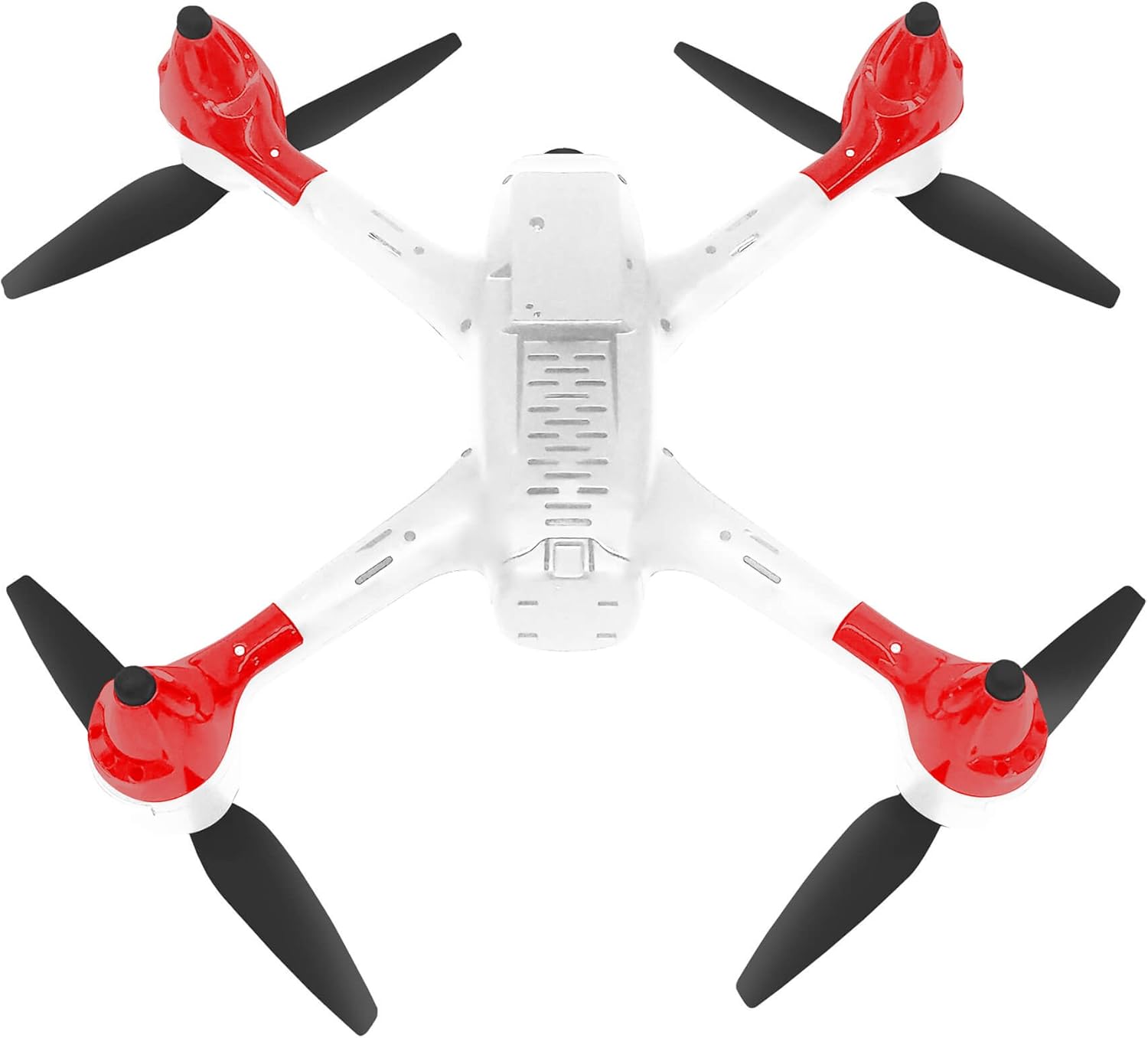
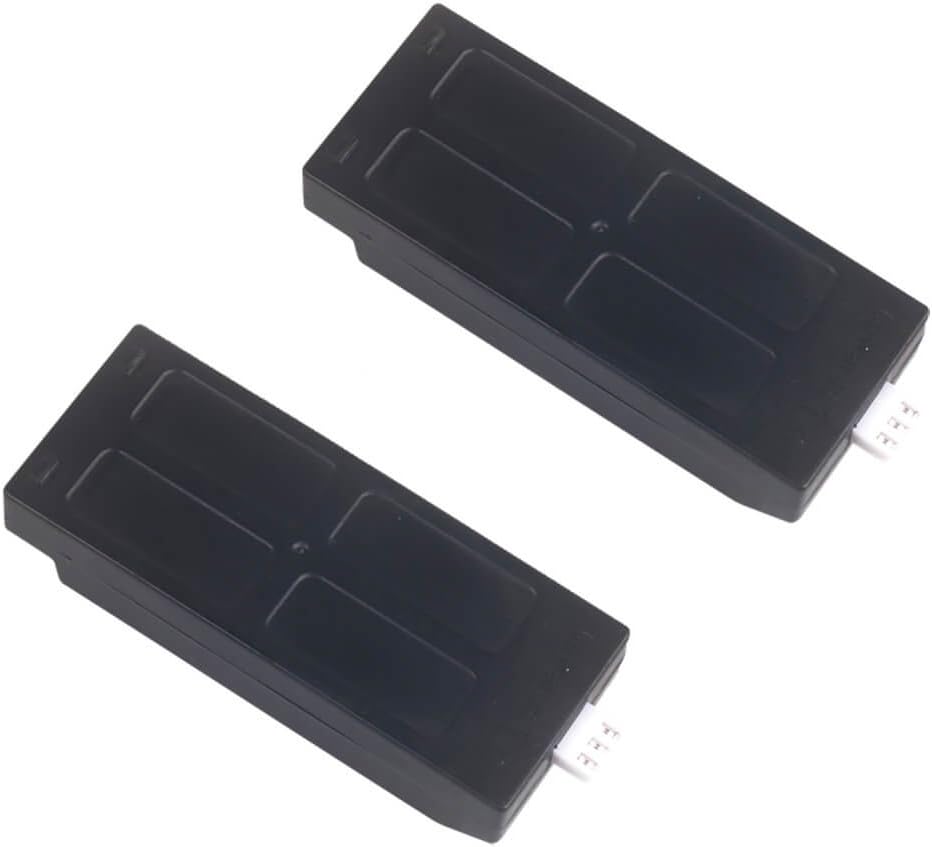
The PNJ R Falcon FHD Drone package includes the drone, a remote controller, and two rechargeable batteries. Key features include a 2MP Full HD 1080p camera with a 160° wide-angle lens, Wi-Fi connectivity for live view, and various flight modes to enhance your flying experience.
2.1 Drone Components


2.2 Remote Controller

2.3 Batteries
3. Setup
3.1 Battery Installation and Charging
- Ensure the drone and remote controller are powered off before handling batteries.
- Locate the battery compartment on the underside of the drone (refer to Figure 3).
- Insert a fully charged battery into the compartment, ensuring it clicks securely into place.
- Close the battery compartment cover.
- To charge the batteries, use the provided charging cable and connect it to a suitable USB power source. The charging indicator will show the charging status. Each battery provides approximately 12 minutes of flight time.
3.2 Remote Controller Setup
- Install 3x AAA batteries (not included) into the remote controller.
- Extend the smartphone holder on the remote controller and securely place your smartphone.
- Power on the remote controller.
3.3 App Installation and Connection
- Download the PNJ ZONE app from the App Store (iOS) or Google Play Store (Android).
- Power on the drone.
- On your smartphone, connect to the drone's Wi-Fi network (usually named PNJ_R_FALCON_XXXX).
- Open the PNJ ZONE app. The app should automatically connect to the drone and display a live video feed.
4. Operating Instructions
4.1 Pre-Flight Checklist
- Ensure drone and controller batteries are fully charged.
- Check propellers for damage and ensure they are securely attached.
- Verify a stable Wi-Fi connection between the drone and your smartphone.
- Choose an open, clear area for flight, away from obstacles, people, and animals.
4.2 Basic Flight Controls
The remote controller (Figure 4) provides precise control over the drone's movements:
- One-Key Take Off/Landing: Press the designated button (often marked with an arrow pointing up/down) for automatic take-off or landing.
- Throttle Stick: Controls altitude (up/down).
- Directional Stick: Controls forward, backward, left, and right movement.
- Speed Button: Adjusts flight speed (e.g., low, medium, high).
4.3 Advanced Flight Features
- Headless Mode (Direction Lock): Activates a mode where the drone's orientation is irrelevant to control inputs. Forward on the stick always moves the drone away from the pilot, regardless of the drone's front direction.
- Alti-Mode (Altitude Hold): The drone maintains a stable altitude automatically, allowing the pilot to focus on directional control.
- Auto Return: Initiates an automatic return to the take-off point. Ensure a clear path for safe return.
- Voice Control: Utilize voice commands via the PNJ ZONE app for certain flight functions.
- Emergency Stop: Immediately cuts power to the motors in an emergency. Use with caution as the drone will drop.
4.4 Camera Operation
- Photo/Video Button: Use the dedicated buttons on the remote controller or within the PNJ ZONE app to capture photos or start/stop video recording.
- Live View: The PNJ ZONE app provides a real-time video feed from the drone's camera to your smartphone.
- Storage: Photos and videos are typically saved to your smartphone or an inserted microSD card (if applicable, check drone specifications).
5. Maintenance
- Cleaning: Regularly clean the drone body and camera lens with a soft, dry cloth. Avoid using harsh chemicals.
- Propeller Inspection: Before each flight, inspect propellers for cracks, bends, or debris. Replace damaged propellers immediately.
- Battery Care: Store batteries in a cool, dry place. Do not overcharge or fully discharge batteries. If storing for extended periods, charge them to about 50-60%.
- Storage: Store the drone and its components in a protective case or original packaging when not in use to prevent damage.
6. Troubleshooting
- Drone does not power on: Ensure the battery is fully charged and correctly inserted. Check for any loose connections.
- Remote controller does not connect: Verify that the remote controller batteries are installed correctly and charged. Ensure the drone is powered on and within range. Re-pair the controller if necessary (refer to pairing instructions in the app or quick start guide).
- No live video feed in app: Confirm your smartphone is connected to the drone's Wi-Fi network. Restart the app and the drone.
- Drone drifts during flight: Perform a calibration of the drone's gyroscopes and accelerometers. Refer to the PNJ ZONE app or quick start guide for calibration steps.
- Short flight time: Ensure batteries are fully charged. Flight time can be affected by aggressive flying, wind conditions, and extreme temperatures.
7. Specifications
| Feature | Detail |
|---|---|
| Model Name | R FALCON FULL HD |
| Manufacturer | Pnj |
| Item Number | DRO-R-FALCON-FHD |
| Dimensions | 22 x 30 x 6 cm |
| Item Weight | 440 grams |
| Material | Plastic, Carbon Fiber |
| Color | White |
| Camera Resolution | 2 MP |
| Video Recording Resolution | 1080p (25fps) |
| Camera Angle | 160° |
| Connectivity Technology | Wi-Fi |
| Control Range (RC) | Up to 100 m |
| Control Range (Smartphone) | Up to 50 m |
| Battery Type | Lithium Polymer |
| Battery Capacity | 850 mAh |
| Flight Time per Battery | Approx. 12 minutes |
| Included Components | Drone, 2x Batteries |
8. Safety Guidelines
- Always operate the drone in open areas, away from people, buildings, and other obstacles.
- Do not fly near airports or restricted airspace. Check local regulations before flying.
- Maintain visual line of sight with the drone at all times.
- Avoid flying in strong winds, rain, or other adverse weather conditions.
- Keep fingers and loose clothing away from propellers when the drone is powered on.
- Do not touch the motors immediately after flight as they may be hot.
- Ensure batteries are handled and charged safely to prevent fire hazards.
- This product is intended for adults.
9. Warranty and Support
Specific warranty information and customer support details are not provided in the product description. Please refer to the product packaging or the manufacturer's official website for warranty terms and contact information for technical support.

