1. Introduction
Thank you for choosing the Geeni Look 1080p Indoor Security Camera. This device provides high-definition video surveillance, two-way audio communication, and smart alerts to help you monitor your home or office from anywhere. This manual will guide you through the setup, operation, and maintenance of your new camera, ensuring you get the most out of its features.

The Geeni Look 1080p Indoor Security Camera, shown alongside a smartphone displaying its live video feed and app interface.
2. Product Overview
The Geeni Look camera is designed for indoor use, offering a comprehensive set of features for home security and monitoring. Key components include the camera lens, microphone, speaker, and a flexible stem for versatile placement.
Key Features:
- Full HD Video Monitoring: Stream 1080p video in real-time.
- Motion Detection Alerts: Receive push notifications when movement is detected.
- Night Vision: Clear visibility in low-light conditions.
- 2-Way Audio: Communicate through the camera using the built-in microphone and speaker.
- Voice Control Compatibility: Works with Amazon Alexa and Google Assistant.
- Flexible Stem & Adhesive Base: Easy installation and adjustable viewing angles.
- Local Storage: Supports MicroSD card up to 128GB (sold separately).

An overview of the Geeni Look camera's key features, including HD live video, two-way audio, night vision, and local storage.

Detailed diagram showing the various components and features of the Geeni Look camera, including its ports and sensors.
3. Setup
Follow these steps to set up your Geeni Look camera and connect it to your Wi-Fi network.
What's in the Box:
- Smart Wi-Fi Security Camera
- Mounting Adhesive
- USB Cable
- Power Adapter
- User Manual (this document)
Installation Steps:
- Download the Geeni App: Search for "Geeni" in the App Store (iOS) or Google Play Store (Android) and download the application.
- Create an Account: Open the Geeni app and follow the on-screen instructions to register a new account or log in if you already have one.
- Power On the Camera: Connect the provided USB cable to the camera's Micro USB input and the power adapter. Plug the adapter into a wall outlet. The camera's indicator light will begin to flash, indicating it's ready for pairing.
- Add Device in App: In the Geeni app, tap the "+" icon in the top right corner to add a new device. Select "Video Camera" or the specific Geeni Look model.
- Connect to Wi-Fi: Follow the in-app instructions to connect your camera to your 2.4GHz Wi-Fi network. Ensure your phone is connected to the same 2.4GHz network during setup. The app may prompt you to scan a QR code displayed on your phone with the camera lens.
- Position the Camera: Use the flexible stem and adhesive base to mount or place the camera in your desired location. Adjust the angle for optimal viewing.

The Geeni Look camera can be easily mounted on a wall or placed on a flat surface, with its flexible stem allowing for angle adjustments.

A visual guide to the simple setup process: download the app, power on the device, and connect via the app.
4. Operating the Camera
Once your Geeni Look camera is set up, you can access and control its features through the Geeni app.
Live View:
Open the Geeni app and select your camera from the device list to view the live feed. You can monitor your space in real-time from anywhere.

View live video of your home directly from your smartphone, anytime, anywhere.
Two-Way Audio:
Use the two-way audio feature to listen to what's happening near the camera and speak through its built-in speaker. This is useful for communicating with family members or pets.
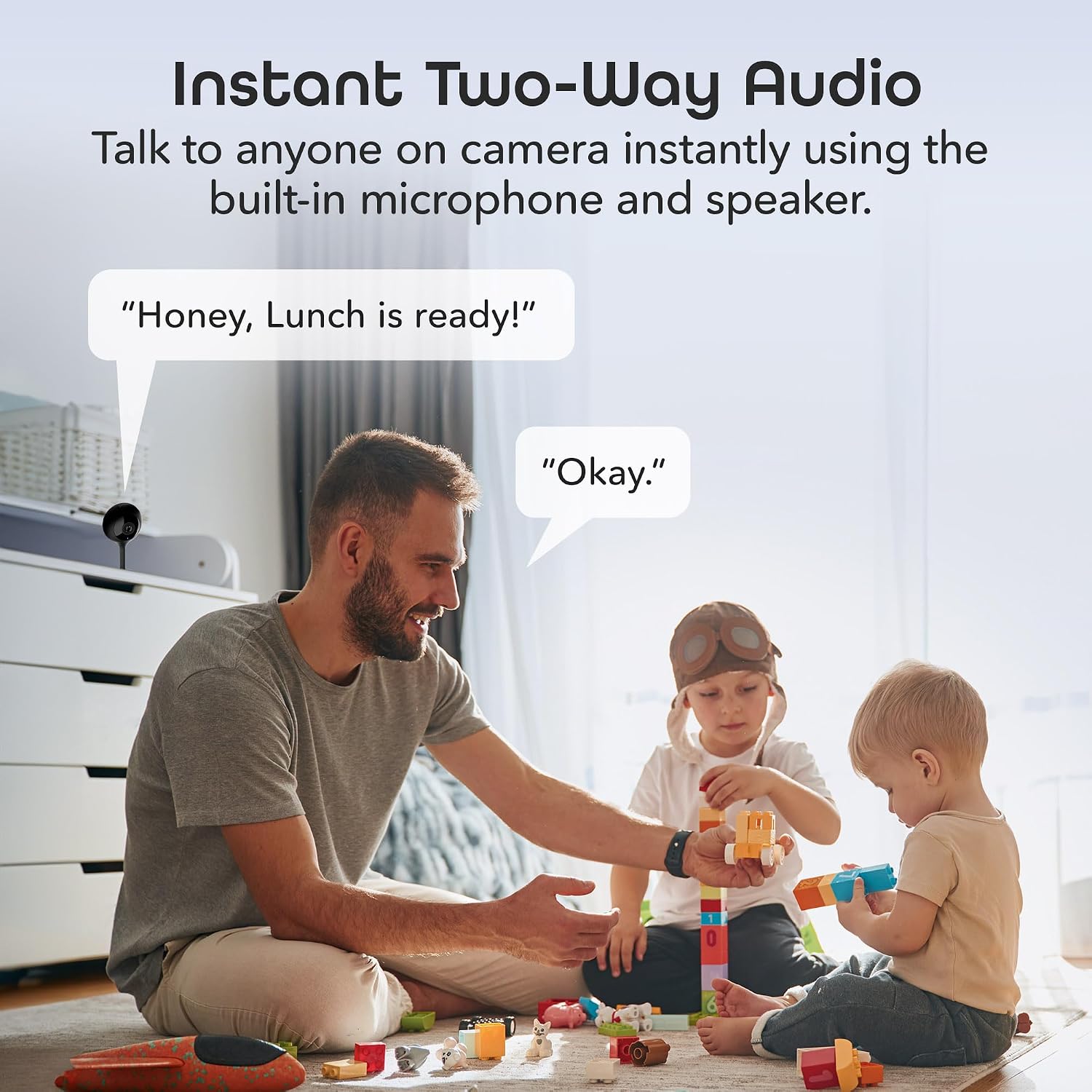
Engage in instant two-way audio communication with anyone on camera using the integrated microphone and speaker.
Motion Detection Alerts:
Enable motion detection in the app settings to receive real-time push notifications on your smartphone whenever movement is detected by the camera. You can adjust sensitivity settings to minimize false alerts.

Receive real-time notifications on your phone when the camera detects movement.
Night Vision:
The camera automatically switches to night vision mode in low-light conditions, providing clear black-and-white footage. Ensure no obstructions are blocking the camera's view for optimal night vision performance.
Voice Control:
Integrate your Geeni Look camera with Amazon Alexa or Google Assistant for hands-free control. Once linked, you can use voice commands to view the camera feed on compatible smart displays.

Control your camera using voice commands through compatible Amazon Alexa and Google Assistant devices.
Storage Options:
The Geeni Look camera supports local storage via a MicroSD card (up to 128GB, sold separately) for continuous recording or event-triggered recordings. Optional cloud storage plans are also available through the Geeni app for secure off-site backup.

Manage your recordings with flexible storage options, including MicroSD card and optional cloud services.
Multi-Device Viewing:
You can stream live footage from your Geeni Look camera on multiple devices simultaneously, including smartphones, tablets, and desktop computers.

View live footage from your camera on various devices, including smartphones, tablets, and computers.
5. Maintenance
Proper care and maintenance will ensure the longevity and optimal performance of your Geeni Look camera.
Cleaning:
- Gently wipe the camera lens and body with a soft, dry, lint-free cloth.
- Do not use liquid cleaners, aerosols, or abrasive solvents, as they may damage the camera.
Placement:
- Avoid placing the camera in direct sunlight or near heat sources.
- Ensure the camera is placed within range of your Wi-Fi router for a stable connection.
- Keep the camera away from moisture and extreme temperatures.
6. Troubleshooting
If you encounter issues with your Geeni Look camera, refer to the following common problems and solutions.
Camera Not Connecting to Wi-Fi:
- Ensure your Wi-Fi network is 2.4GHz. The camera does not support 5GHz networks.
- Check your Wi-Fi password for accuracy.
- Move the camera closer to your Wi-Fi router to improve signal strength.
- Restart your Wi-Fi router and the camera.
- If using a QR code for setup, ensure the camera lens is clean and the QR code is well-lit and clearly displayed on your phone screen.
Night Vision Not Activating/Switching:
- Ensure there are no obstructions directly in front of the camera lens that might interfere with the infrared sensors.
- Check if the camera is in a dimly lit area that might confuse its light sensor.
Poor Video Quality:
- Check your internet connection speed. A stable and fast connection is required for 1080p streaming.
- Ensure the camera lens is clean.
- Reduce the video quality setting in the Geeni app if your internet speed is inconsistent.
Two-Way Audio Issues:
- Ensure your phone's microphone and speaker permissions are enabled for the Geeni app.
- Check the volume levels on both your phone and within the app.
- Avoid placing the camera in noisy environments that might interfere with audio clarity.
For further assistance, please refer to the Geeni app's help section or visit the official Geeni support website.
7. Specifications
| Feature | Detail |
|---|---|
| Model Name | LOOK 1080p HD |
| Video Capture Resolution | 1080p |
| Indoor/Outdoor Usage | Indoor |
| Connectivity Technology | Wireless (Wi-Fi) |
| Wireless Communication Technology | Wi-Fi (2.4GHz only) |
| Power Source | AC |
| Controller Type | Amazon Alexa, Android, Google Assistant, iOS |
| Special Feature | 2-Way Audio, Night Vision, Motion Detection |
| Field Of View | 120 Degrees |
| Storage | MicroSD card (up to 128GB), Cloud Storage (optional) |
| Dimensions (L x W x H) | 2.25 x 2.25 x 4.5 inches |
| Item Weight | 1.76 ounces |
| Material | Acrylonitrile Butadiene Styrene (ABS) |
8. Warranty and Support
Geeni products are designed for reliability and performance. Your Geeni Look 1080p Indoor Security Camera comes with a 1-year warranty from the date of purchase, covering manufacturing defects.
Customer Support:
For technical support, troubleshooting, or warranty claims, please visit the official Geeni support website or contact their customer service. You can also find additional resources and FAQs within the Geeni mobile application.
Online Resources:
- Geeni Support Website: Visit Geeni Store on Amazon
- Digital User Manual (PDF): Download PDF Manual