
1. Introduction
The Canon PowerShot G5 X is a compact digital camera featuring a 1.0-inch, 20.2 Megapixel High-Sensitivity CMOS sensor and a built-in 2.36 million dot electronic viewfinder. This camera is designed for advanced photographers seeking high-quality stills and video with comprehensive control. It includes Wi-Fi and NFC capabilities for easy sharing and remote operation.
Key features include:
- 1.0-inch, 20.2 Megapixel High-Sensitivity CMOS sensor.
- Canon DIGIC 6 Image Processor for enhanced image quality and fast operation.
- Built-in 2.36 million dot electronic viewfinder.
- Multi-angle capacitive 3.0-inch touch panel LCD with 1.04 million dots.
- Full HD 1080p video recording at 60p/30p/24p.
- Integrated Wi-Fi and NFC for wireless connectivity.
2. What's in the Box
Verify that all items are present before initial use:
- Canon PowerShot G5 X Camera Body
- Battery Pack
- Battery Charger
- Neck Strap

Figure 2.1: Included items with the Canon PowerShot G5 X camera.
3. Initial Setup
3.1 Charging the Battery
- Insert the battery into the battery charger.
- Plug the charger into a power outlet. The charging indicator light will illuminate.
- Once charging is complete, the indicator light will change or turn off. Remove the battery.
3.2 Inserting the Battery and Memory Card
- Open the battery/card compartment cover on the bottom of the camera.
- Insert the charged battery into the compartment, ensuring correct orientation.
- Insert a compatible SD, SDHC, or SDXC memory card into the card slot until it clicks into place.
- Close the compartment cover securely.
3.3 Powering On the Camera
Press the ON/OFF button located on the top of the camera to power it on. The lens will extend, and the LCD screen will activate.

Figure 3.1: Front view of the Canon PowerShot G5 X.
4. Operating the Camera
4.1 Basic Shooting Modes
The mode dial on the top of the camera allows selection of various shooting modes:
- Auto Mode: For automatic settings.
- P (Program AE): Camera sets aperture and shutter speed, but allows other adjustments.
- Av (Aperture Priority AE): You set the aperture, camera sets shutter speed.
- Tv (Shutter Priority AE): You set the shutter speed, camera sets aperture.
- M (Manual): You control both aperture and shutter speed.
- Custom Modes (C1/C2): Save and recall your preferred settings.
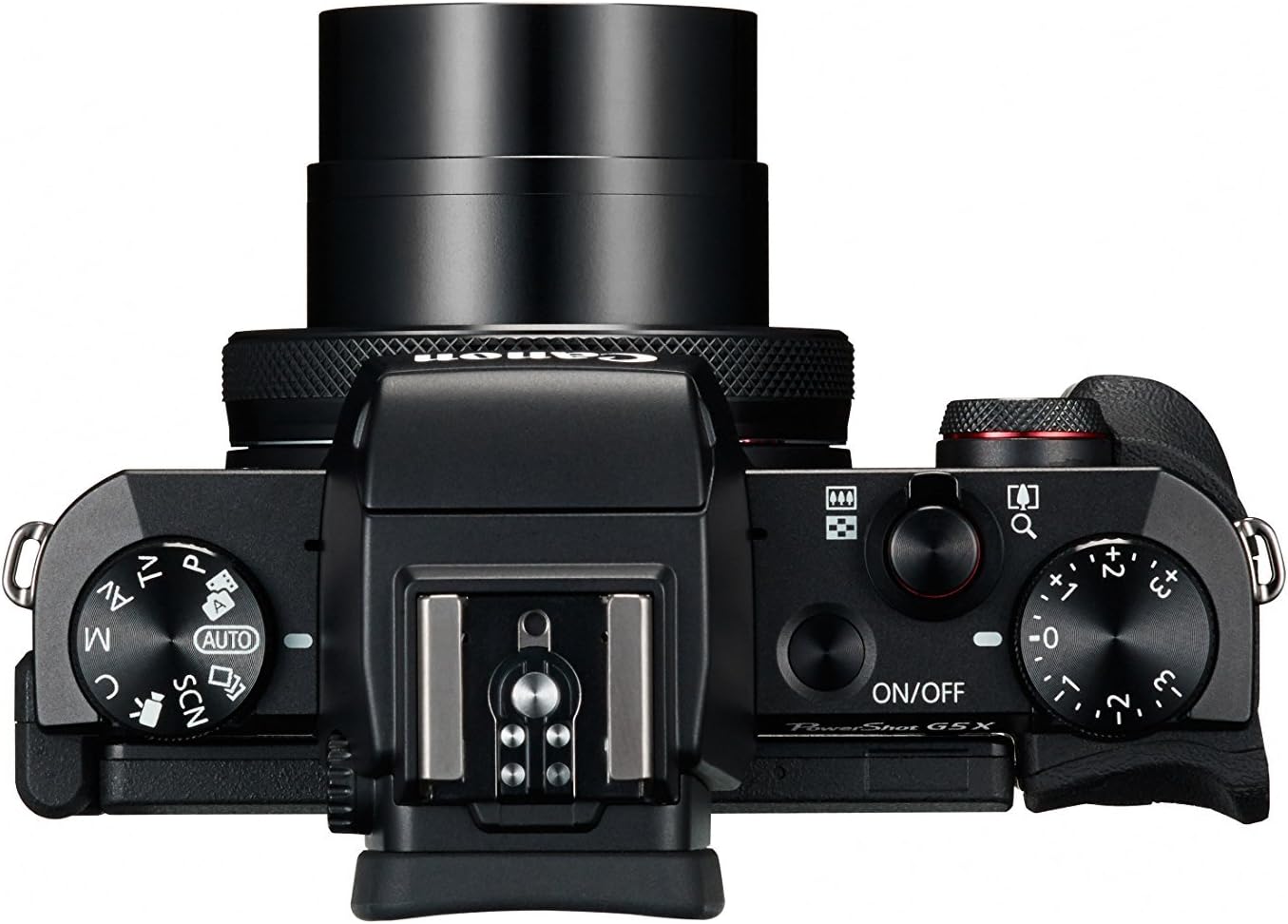
Figure 4.1: Top controls of the Canon PowerShot G5 X.
4.2 Using the Viewfinder and LCD Screen
The camera features both an electronic viewfinder (EVF) and a multi-angle touch panel LCD. You can switch between them or use the EVF for composing shots in bright conditions. The LCD screen can be articulated for various shooting angles and touch operations.

Figure 4.2: Canon PowerShot G5 X with articulated LCD screen.

Figure 4.3: Rear view of the Canon PowerShot G5 X.
4.3 Recording Videos
To record video, set the mode dial to the movie mode icon. Press the dedicated movie button to start and stop recording. The camera supports 1080p Full HD video at various frame rates (60p/30p/24p).
4.4 Wi-Fi and NFC Connectivity
The camera's built-in Wi-Fi and NFC functions allow for wireless transfer of images and videos to compatible smart devices or computers. Refer to the camera's menu for detailed instructions on setting up these connections.
5. Maintenance and Care
5.1 Cleaning the Camera
- Lens: Use a lens brush or blower to remove dust, then gently wipe with a microfiber lens cloth. Avoid touching the lens surface directly.
- LCD Screen: Wipe gently with a soft, dry cloth. For stubborn smudges, use a screen cleaner specifically designed for electronics.
- Camera Body: Wipe with a soft, dry cloth. Do not use organic solvents or strong cleaning agents.
5.2 Storage
When not in use, store the camera in a cool, dry place away from direct sunlight and extreme temperatures. Remove the battery if the camera will not be used for an extended period.
6. Troubleshooting
This section addresses common issues you might encounter with your Canon PowerShot G5 X camera.
| Problem | Possible Cause / Solution |
|---|---|
| Camera does not power on. | Battery is depleted. Charge the battery. Ensure battery is inserted correctly. |
| Images are blurry. | Lens is dirty. Clean the lens. Shutter speed is too slow. Increase shutter speed or use image stabilization. Camera shake. Hold the camera steady or use a tripod. |
| Cannot connect to Wi-Fi/NFC. | Ensure Wi-Fi/NFC is enabled in camera settings. Check device compatibility and network settings. Refer to the camera's connectivity guide in the menu. |
| Memory card error. | Memory card is full. Delete unnecessary files or replace card. Card is corrupted. Format the card (this will erase all data). Card is incompatible. Use a supported SD, SDHC, or SDXC card. |
| Flash does not fire. | Flash is set to OFF. Change flash mode to Auto or On. Subject is too far. Check flash range. |
7. Specifications
| Feature | Detail |
|---|---|
| Sensor Type | 1.0-inch High-Sensitivity CMOS |
| Effective Still Resolution | 20.2 MP |
| Image Processor | DIGIC 6 |
| Optical Zoom | 4.2x |
| Lens Aperture | f/1.8-2.8 |
| Focal Length (35mm equivalent) | 24-100mm |
| Image Stabilization | Digital |
| Viewfinder | Built-in Electronic Viewfinder (2.36 million dots) |
| LCD Screen | 3.0-inch Multi-angle Capacitive Touch Panel (1.04 million dots) |
| Video Resolution | 1080p Full HD (60p/30p/24p) |
| Connectivity | Wi-Fi, NFC, HDMI, USB |
| Storage Media | SD, SDHC, SDXC Memory Cards |
| Item Weight | 1.8 Pounds |
| Model Number | 0510C001 |
| UPC | 748926548632 |
8. Warranty and Support
8.1 Warranty Information
This Canon PowerShot G5 X camera comes with a 90-day limited warranty from the date of purchase. This warranty covers manufacturing defects under normal use. Please retain your proof of purchase for warranty claims.
8.2 Customer Support
For technical assistance, service, or further inquiries, please refer to the official Canon support website or contact their customer service department. Contact information can typically be found on the manufacturer's website.


