Introduction
Thank you for purchasing the ROCAM 11.5" Large Display Digital Calendar Clock. This versatile clock is designed to provide clear time, date, day of week, and temperature information, along with multiple alarm functions and convenient USB charging ports. Please read this manual carefully to ensure proper setup and operation of your new clock.

Image: Front view of the ROCAM Digital Wall Clock, displaying time, date, day, and temperature in blue LED digits.
Package Contents
Please verify that all items are present in the package:
- ROCAM 11.5" Digital Wall Clock (Blue Font)
- AC Power Adapter
- USB Charging Cable
- User Manual
- CR2032 Battery (pre-installed for backup)

Image: The ROCAM Digital Wall Clock and its accessories laid out, including the clock unit, power adapter, USB cable, and instruction manual.
Setup
- Unpack: Carefully remove the clock and all accessories from the packaging.
- Battery Backup: The clock comes with a pre-installed CR2032 battery for backup. Ensure you remove any plastic pull-tab from the battery compartment before first use to activate the backup function. This battery preserves time and settings during power outages.
- Power Connection: Connect the AC power adapter to the clock's power input port and then plug the adapter into a standard electrical outlet. The clock display will illuminate.
- Placement:
- Desktop Placement: Attach the included stand bracket to the back of the clock for stable desktop use.
- Wall Mounting: Utilize the wall hanging hole on the back of the clock to mount it securely on a wall using appropriate hardware (not included).

Image: The ROCAM Digital Wall Clock displayed on a wall, illustrating its 11.5-inch screen size and overall dimensions for wall mounting.

Image: Rear view of the clock highlighting the stand bracket for desktop use, the wall hanging hole for mounting, and the two USB charging ports.
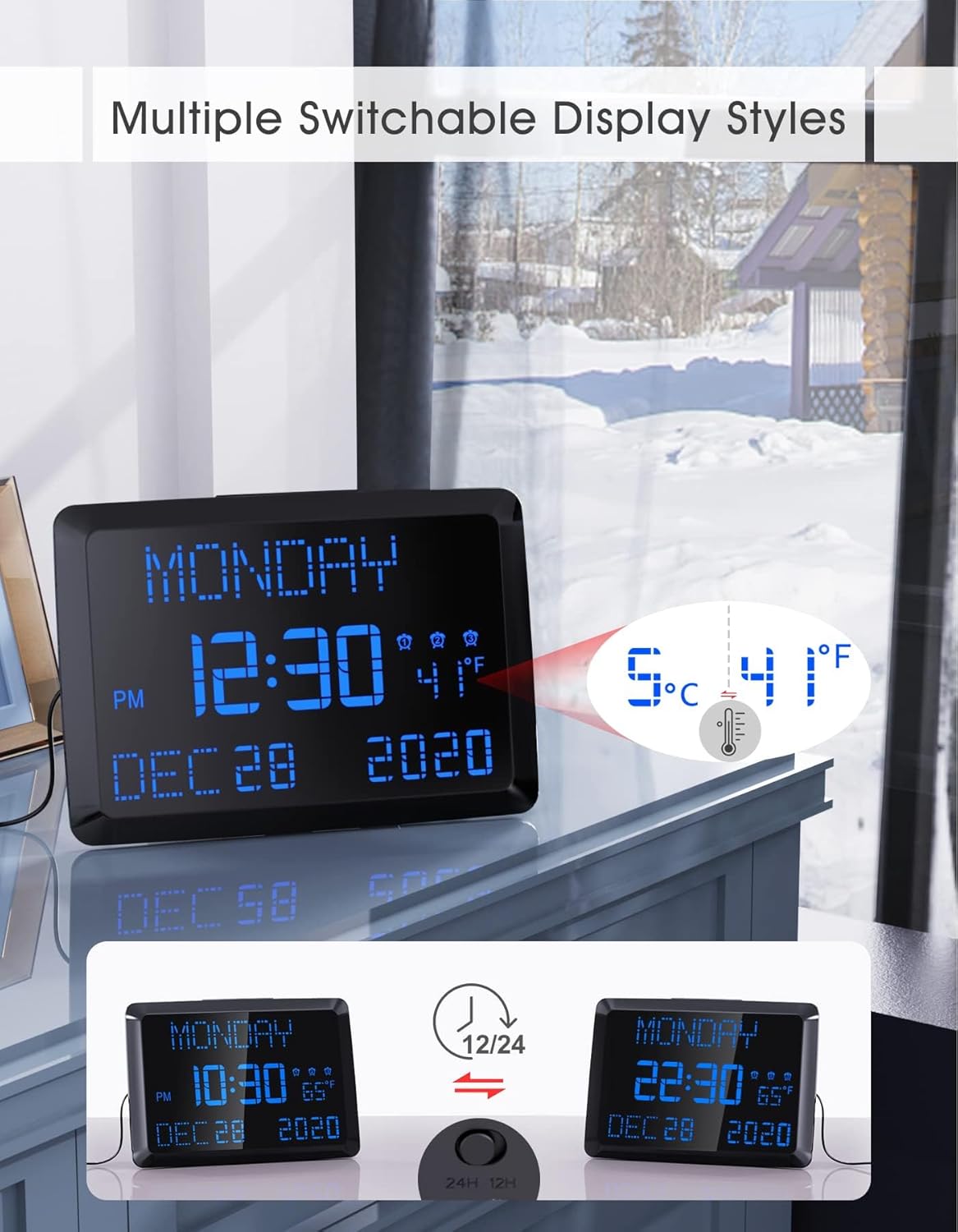
Image: Illustration demonstrating the power failure memory feature, showing the CR2032 battery location and how the clock retains settings after a power interruption.
Operating Instructions
Setting Time and Date
Refer to the user manual for specific button functions (e.g., SET, UP, DOWN buttons). Generally, press the SET button to enter time/date setting mode. Use UP/DOWN buttons to adjust values and SET again to confirm and move to the next setting (Year, Month, Day, Hour, Minute).
Alarm Settings
The clock supports 3 independent alarms. Each alarm can be set for "Weekdays Only," "Weekends Only," or "Daily Repeat."
- Press the ALARM button to cycle through Alarm 1, Alarm 2, Alarm 3 settings.
- When an alarm is selected, use the SET button to adjust the alarm time and frequency (e.g., Weekdays, Weekends, Daily).
- Use UP/DOWN buttons to change values.
- To activate/deactivate an alarm, press the corresponding alarm button (e.g., ALARM 1) until the alarm icon appears/disappears on the display.
- Snooze Function: When an alarm sounds, press the large SNOOZE/DIMMER button on top to activate a 9-minute snooze.
- Stopping an Alarm: To stop an alarm permanently, press any other button besides SNOOZE.

Image: Visual representation of the three independent alarm settings, showing options for daily, weekday-only, and weekend-only alarms, along with adjustable volume levels.
Brightness Adjustment (5-Level Dimmer)
The clock features 5 adjustable brightness levels to suit your preference, especially useful for light-sensitive sleepers or nighttime use.
- Press the SNOOZE/DIMMER button on the top of the clock to cycle through the 5 brightness levels.
- Select the level that provides optimal visibility without causing discomfort.

Image: The clock display shown at five distinct brightness levels, demonstrating the dimmer function from brightest to dimmest.
Temperature Display
The clock displays indoor temperature. You can switch between Fahrenheit (℉) and Celsius (℃).
- Locate the ℉/℃ switch or button on the back or side of the clock (refer to the physical unit for exact location) to toggle between temperature units.
12/24-Hour Format & DST Setting
The clock supports both 12-hour (with AM/PM indicator) and 24-hour time formats, and includes a Daylight Saving Time (DST) setting.
- To switch between 12/24-hour format, locate the 12/24H switch or button (often on the back).
- To enable or disable DST, find the dedicated DST button or setting option (refer to the user manual for specific steps).

Image: The clock display transitioning between 12-hour and 24-hour time formats, illustrating the switchable display styles.
USB Charging Ports
The clock is equipped with two USB charging ports, allowing you to conveniently charge your mobile devices.
- Connect your device's USB charging cable to one of the USB ports on the clock.
- Ensure the clock is powered on for the charging ports to function.

Image: A smartphone and a tablet connected to and charging from the two USB ports located on the side of the clock.
Maintenance
- Cleaning: Use a soft, dry cloth to wipe the clock's surface. Do not use abrasive cleaners or solvents, as they may damage the finish.
- Battery Replacement: The CR2032 backup battery should last for an extended period. If you notice settings are not retained during power outages, it may be time to replace the battery. Open the battery compartment on the back of the clock and replace with a new CR2032 battery.
- Storage: If storing the clock for a long period, disconnect it from power and consider removing the backup battery to prevent leakage.
Troubleshooting
| Problem | Possible Cause | Solution |
|---|---|---|
| Clock display is blank. | No power connection or power outage. | Ensure the AC adapter is securely plugged into the clock and a working power outlet. Check if the power outlet is functional. |
| Settings are lost after power outage. | CR2032 backup battery is dead or not properly installed. | Ensure the plastic pull-tab is removed from the CR2032 battery. Replace the CR2032 battery if necessary. |
| Alarm does not sound. | Alarm is not activated or volume is too low. | Verify that the alarm icon is displayed for the desired alarm. Increase the alarm volume. Check alarm settings (Weekdays/Weekends/Daily). |
| USB charging ports not working. | Clock is not powered on or cable is faulty. | Ensure the clock is connected to AC power. Try a different USB cable or device to confirm functionality. |
Specifications
| Feature | Detail |
|---|---|
| Brand | ROCAM |
| Model Number | ROCAM CR1005 |
| Display Type | Digital LED |
| Display Size | 11.5 inches |
| Color | Blue Font |
| Product Dimensions | 9.96"W x 7"H |
| Power Source | AC Adapter Powered |
| Backup Battery | 1 x CR2032 (included) |
| Alarm Clocks | 3 Independent Alarms |
| Dimmer Levels | 5 Levels |
| USB Charging Ports | 2 Ports |
| Mounting Type | Wall Mount & Desktop Placement |
| Item Weight | 1.48 Pounds |
Warranty and Support
ROCAM provides an 18-month warranty for this product, along with a 30-day refund policy. Lifetime free user support is also available.
For any questions, issues, or support needs, please contact ROCAM customer service. Your feedback is always welcome.
You can visit the official ROCAM store on Amazon for more information: ROCAM Store


