
DIRECTV H25-100
DirecTV H25-100 HD Receiver User Manual
Model: H25-100 | Brand: DIRECTV
Introduction
This manual provides essential information for the setup, operation, and maintenance of your DirecTV H25-100 HD Receiver. Please read it thoroughly before using the device to ensure proper functionality and to maximize your viewing experience.
Key Features
- Designed for SWiM (Single Wire Multiswitch) networks only.
- High-Definition (HD) video output.
- Compact design.
- 12V DC power input, suitable for various power setups.
- Multiple output options: 2x HDMI, 1x Composite, 1x Component, 1x Optical Audio.
- No DVR capability.
What's in the Box
- DirecTV H25-100 HD Receiver
- AC Power Adapter

Image: Top view of the DirecTV H25-100 HD Receiver, showcasing its compact black design.
Setup
Unpacking
Carefully remove the receiver and all accessories from the packaging. Retain the packaging for future transport or storage.
Connections
The H25-100 receiver offers various ports for connecting to your television and satellite dish. Ensure all connections are secure before powering on the device.
- Satellite Input: Connect the coaxial cable from your SWiM-enabled satellite dish to the 'SAT IN' port on the back of the receiver.
- HDMI Outputs: Use an HDMI cable to connect one of the 'HDMI' ports on the receiver to an HDMI input on your television for high-definition video and audio.
- Composite Output: For standard definition video, connect the yellow (video), white (left audio), and red (right audio) RCA cables from the receiver's 'VIDEO OUT' and 'AUDIO OUT' ports to the corresponding inputs on your television.
- Component Output: For high-definition analog video, connect the green (Y), blue (Pb), and red (Pr) component video cables from the receiver's 'COMPONENT OUT' ports to your television. Connect the white and red RCA cables for audio.
- Optical Audio Output: For digital audio, connect an optical audio cable from the 'OPTICAL AUDIO' port to a compatible audio receiver or sound system.
- Power: Connect the included AC power adapter to the 'POWER IN 12V' port on the receiver, then plug the adapter into a wall outlet.

Image: Front and back views of the DirecTV H25-100 HD Receiver, highlighting all input and output ports for connection.
Initial Power On
After all connections are made, press the 'POWER' button on the front of the receiver or on your DirecTV remote control. Follow any on-screen prompts for initial setup, such as language selection and satellite signal acquisition.
Operating Instructions
Front Panel Controls
The front panel of the H25-100 receiver provides basic controls for operation:
- POWER: Turns the receiver on or off.
- MENU: Accesses the main menu for settings and options.
- SELECT: Confirms selections within menus.
- GUIDE: Displays the program guide.
- RES (Resolution): Cycles through available video resolutions.
- Navigation Arrows (Up/Down/Left/Right): Used to navigate through menus and change channels.
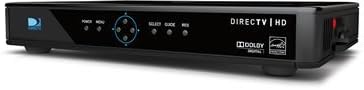
Image: Side view of the DirecTV H25-100 HD Receiver, clearly showing the front panel buttons for power, menu, selection, guide, and resolution.
Basic Operation
Once powered on and configured, you can use your DirecTV remote control (not included with this receiver) to navigate channels, access the program guide, adjust settings, and enjoy your DirecTV service.
- Changing Channels: Use the CH+/CH- buttons or enter channel numbers directly on your remote.
- Accessing Guide: Press the 'GUIDE' button to view program listings.
- Menu Navigation: Use the 'MENU' button to access system settings, parental controls, and other features.
Maintenance
Cleaning
To maintain the appearance and performance of your receiver, periodically clean its exterior. Use a soft, dry cloth to wipe away dust. For stubborn marks, slightly dampen the cloth with water. Do not use harsh chemicals, abrasive cleaners, or solvents, as these can damage the finish.
Software Updates
The DirecTV H25-100 receiver may receive automatic software updates via satellite. Ensure the receiver remains connected to power and the satellite dish to allow these updates to occur, which can improve performance and add new features.
Troubleshooting
If you encounter issues with your DirecTV H25-100 receiver, refer to the table below for common problems and their solutions.
| Problem | Possible Cause | Solution |
|---|---|---|
| No Power | Power cable loose or disconnected; power outlet not working. | Check power cable connection; try a different outlet; ensure power adapter is functioning. |
| No Signal / Searching for Satellite | Satellite cable loose or disconnected; dish alignment issue; bad weather. | Check 'SAT IN' cable connection; ensure clear line of sight to dish; wait for weather to clear. |
| No Picture / Black Screen | Incorrect TV input selected; video cable loose or faulty; receiver not powered on. | Select correct HDMI/AV input on TV; check video cable connections; power cycle receiver. |
| No Audio | Audio cable loose or faulty; TV/audio system muted or volume low; incorrect audio output setting. | Check audio cable connections; unmute TV/audio system and increase volume; verify audio settings on receiver. |
Specifications
Detailed technical specifications for the DirecTV H25-100 HD Receiver:
| Feature | Description |
|---|---|
| Model | H25-100 |
| Brand | DIRECTV |
| Color | Black |
| Connectivity Technology | HDMI, Composite, Component, Optical Audio |
| Satellite Input | 1 (SWM System Only) |
| HDMI Outputs | 2 |
| Composite Video Output | 1 |
| Component Video Output | 1 |
| Optical Audio Output | 1 |
| Power Input | 12V DC |
| ASIN | B07DB2YP79 |
| Date First Available | August 7, 2018 |
Warranty and Support
For information regarding product warranty, technical support, or service, please refer to the documentation provided by DirecTV at the time of purchase or visit the official DirecTV support website. Keep your purchase receipt as proof of purchase for warranty claims.
Related documentsH25-100


Ask a question about this manual
Ask about setup, troubleshooting, compatibility, parts, safety, or missing instructions. Manuals+ will review the question and use this page’s manual context to help answer it.