
1. Introduction
The Autel MaxiLink ML629 is an advanced automotive diagnostic scanner designed to assist in identifying and resolving issues within your vehicle's key systems. This tool provides comprehensive diagnostic capabilities for Anti-lock Braking System (ABS), Supplemental Restraint System (SRS), Engine, and Transmission systems, in addition to full OBDII functionality. This manual will guide you through the setup, operation, maintenance, and troubleshooting of your ML629 device.

Image 1.1: The Autel MaxiLink ML629 diagnostic scanner with its packaging, highlighting its ABS, Engine, SRS, and Transmission diagnostic capabilities, along with lifetime free updates.
2. Safety Information
Please read and understand all safety instructions before operating the device. Improper use can lead to damage to the device, vehicle, or personal injury.
- Always perform automotive testing in a well-ventilated area.
- Wear appropriate eye protection and protective clothing.
- Keep the device away from moisture, oil, and grease.
- Do not operate the device while driving.
- Ensure the vehicle is in Park (P) or Neutral (N) with the parking brake engaged before performing any diagnostic tests.
3. Product Overview
The Autel MaxiLink ML629 is designed for efficient and accurate vehicle diagnostics. Key features include:
- ABS, SRS, Engine, Transmission Diagnostics: Reads and clears codes for these four critical systems.
- Full OBDII Functions: Supports all 10 modes of OBDII tests.
- DTC Definitions Lookup: Built-in library with over 7000 DTC definitions.
- Live Data Stream: Displays real-time data in text or graph format.
- I/M Readiness Status: Checks emission system readiness.
- Freeze Frame Data: Captures vehicle conditions at the time a fault code is set.
- Data Review and Printing: Allows review of recorded data and printing of diagnostic reports.
- Lifetime Free Updates: Ensures the device remains current with new vehicle models and software enhancements.

Image 3.1: The Autel MaxiLink ML629 screen showing a list of its diagnostic capabilities, including DTC Lookup, reading/erasing DTCs, and diagnosing various vehicle systems.
4. Setup
4.1 Initial Connection
- Locate the vehicle's 16-pin Data Link Connector (DLC). This is typically found under the dashboard on the driver's side.
- Ensure the vehicle's ignition is OFF.
- Connect the ML629's OBDII cable to the vehicle's DLC.
- Turn the vehicle's ignition to the ON position (engine can be off). The ML629 will power on automatically.
4.2 Device Registration and Updates
To ensure full functionality and access to the latest vehicle coverage, it is recommended to register your device and perform software updates.
- Register an Autel ID: Visit the official Autel website (www.autel.com) and create an Autel ID if you do not already have one.
- Bind ML629: Log in to your Autel ID. Bind your ML629 scanner using the device's Serial Number (SN), which is a 12-digit code located on the back of the device. During the binding process, you will be prompted for a registration password, which can be found in the device's menu under "Setting > About" (a 6-digit code).
- Software Updates: After binding, you can update the scanner's software. This typically involves removing the 8GB SD card from the device, inserting it into a card reader connected to a computer, and using the Autel update software to download and install updates. Refer to the Autel website for detailed update instructions.
5. Operation
5.1 System Diagnostics (ABS, SRS, Engine, Transmission)
The ML629 can diagnose four primary vehicle systems:
- ABS (Anti-lock Braking System): Reads and clears codes related to the ABS system, which prevents wheels from locking up during braking.
- SRS (Supplemental Restraint System): Reads and clears codes for the airbag system, ensuring proper function of safety features.
- Engine: Reads and clears codes for the engine management system, helping to diagnose issues indicated by the Check Engine Light (MIL).
- Transmission: Reads and clears codes for the automatic transmission system, assisting in diagnosing shifting or performance problems.
To access these functions, navigate to the "Scan" menu on the device, select the desired system, and follow the on-screen prompts to read or clear diagnostic trouble codes (DTCs).

Image 5.1: The Autel MaxiLink ML629 interface illustrating the four main systems it can diagnose: SRS, Transmission, Engine, and ABS.
5.2 OBDII Functions
The ML629 supports all 10 modes of OBDII tests, providing comprehensive engine diagnostics:
- Read Codes: Retrieves generic (P0, P2, P3, and U0) and manufacturer-specific (P1, P3, and U1) codes.
- Erase Codes: Clears Diagnostic Trouble Codes (DTCs) and turns off the Malfunction Indicator Light (MIL).
- I/M Readiness: Checks the readiness of the emission monitoring systems.
- Live Data Stream: Displays real-time operating parameters of the vehicle.
- View Freeze Frame: Shows a snapshot of operating conditions when an emission-related fault occurred.
- O2 Monitor Test: Retrieves O2 sensor monitor test results.
- On-Board Monitor Test: Retrieves results for emission-related powertrain components and systems.
- Component Test: Allows initiation of a leak test for the vehicle's EVAP system.
- Vehicle Information: Retrieves vehicle identification number (VIN), calibration ID (CALID), and calibration verification number (CVN).
- Modules Present: Identifies communication protocols and modules present in the vehicle.
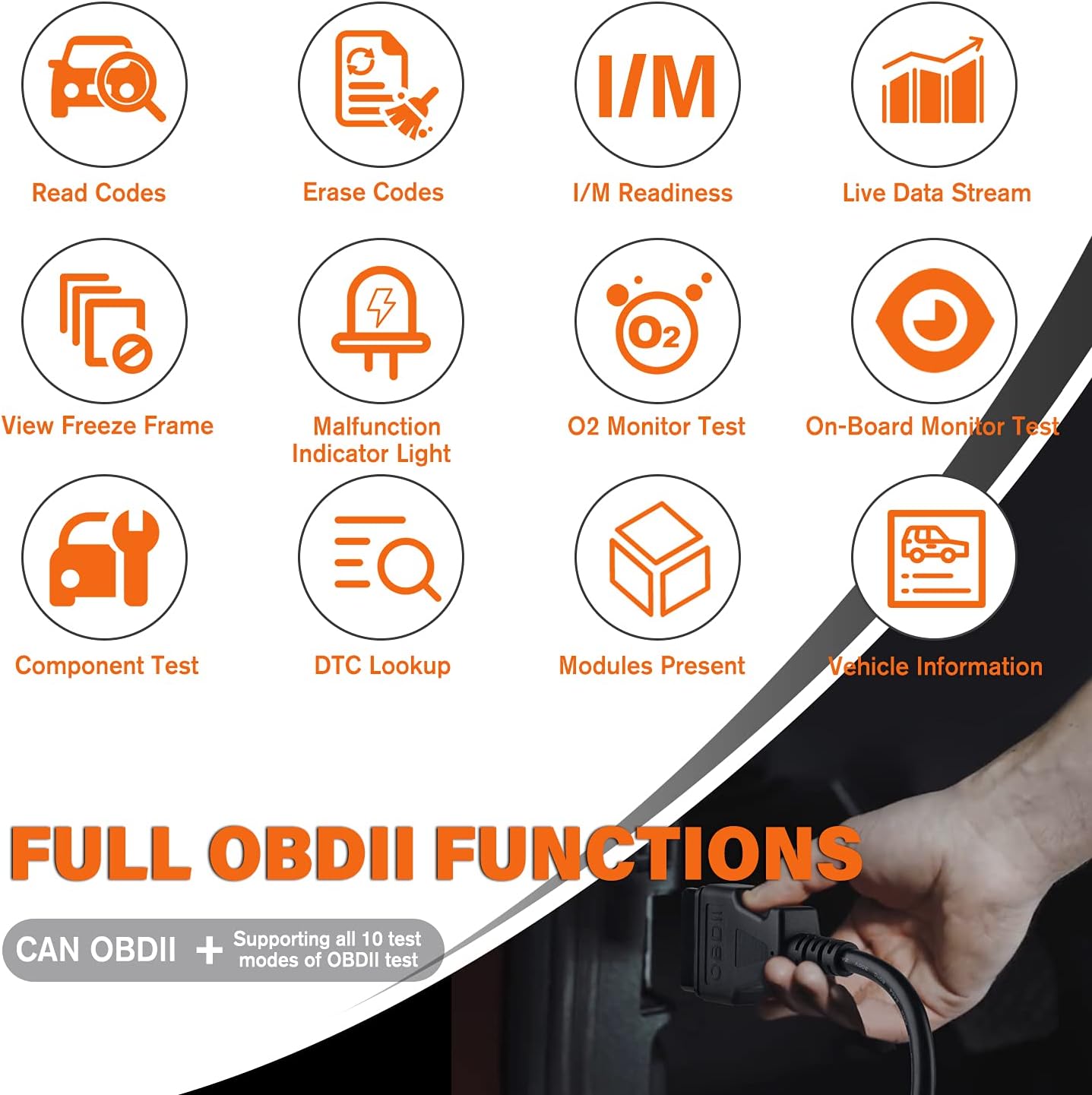
Image 5.2: A visual representation of the full OBDII functions supported by the ML629, including reading/erasing codes, I/M readiness, live data, and DTC lookup.
5.3 DTC Lookup
The ML629 features a built-in DTC library to help you understand the meaning of diagnostic trouble codes. From the main menu, select "DTC Lookup" and enter the code to view its definition.
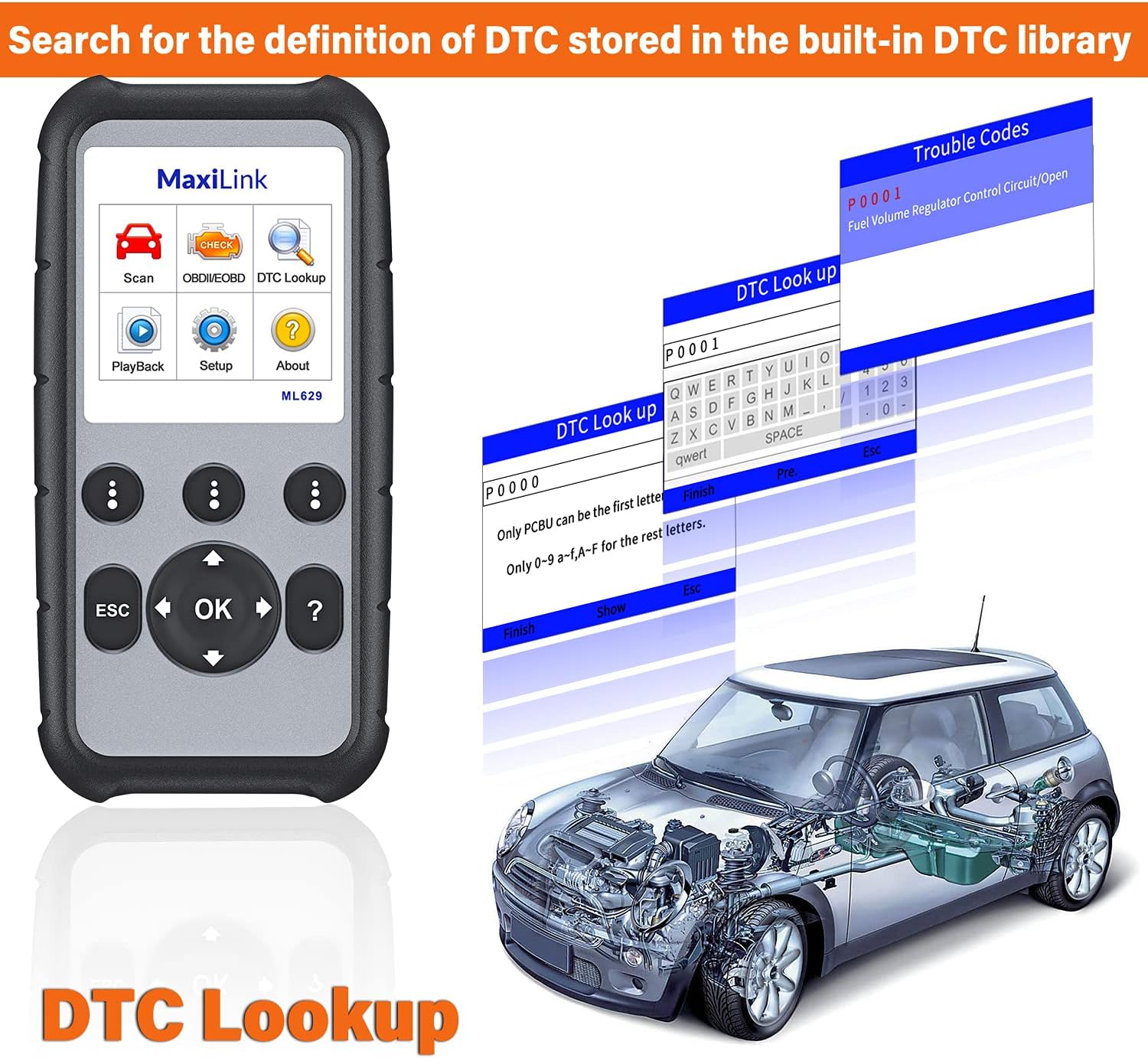
Image 5.3: The ML629 screen showing the DTC Lookup function, where users can input a code (e.g., P0001) to retrieve its definition from the device's internal library.
5.4 Live Data Stream
The Live Data Stream function allows you to view real-time sensor data from the vehicle. This data can be displayed in numerical text or graphical format, which is useful for monitoring vehicle performance and diagnosing intermittent issues.

Image 5.4: The ML629 screen showing live data stream in both numerical and graphical formats, allowing users to monitor various vehicle parameters.
6. Maintenance
6.1 Software Updates
The Autel MaxiLink ML629 comes with lifetime free software updates. Regular updates ensure your scanner has the latest vehicle coverage and diagnostic capabilities. To update the device:
- Ensure your device is registered as described in Section 4.2.
- Remove the SD card from the ML629.
- Insert the SD card into a card reader connected to a computer with internet access.
- Download and install the Autel PC Suite software from the official Autel website.
- Follow the on-screen instructions in the Autel PC Suite to download and install the latest software updates to your SD card.
- Safely eject the SD card from your computer and reinsert it into the ML629. The device will then apply the updates.
6.2 Cleaning and Storage
- Clean the device with a soft, damp cloth. Do not use abrasive cleaners or solvents.
- Store the device in a dry, cool environment, away from direct sunlight and extreme temperatures.
- Keep the OBDII cable free from kinks or damage.
7. Troubleshooting and Compatibility
7.1 Compatibility Limitations
It is important to note the following compatibility considerations for the ML629:
- ABS/SRS/Engine/Transmission Functions: These functions are primarily supported for 30+ US/EU/Asian car makes, mainly for model years 2004-2013/2014, with some support extending to 2015-2017. The device generally does not support 2018+ newer vehicles for these specific system diagnostics.
- OBDII Functions: Supports standard OBDII vehicles manufactured from 1996 onward in the US market. However, due to the Secure Gateway (SGW) / FCA AutoAuth security system, this tool may be unable to clear OBDII module codes for all vehicles equipped with an SGW.
- Function Universality: Diagnostic functions are vehicle-specific. Always verify compatibility for your specific car make, model, year, and VIN before attempting advanced diagnostics.
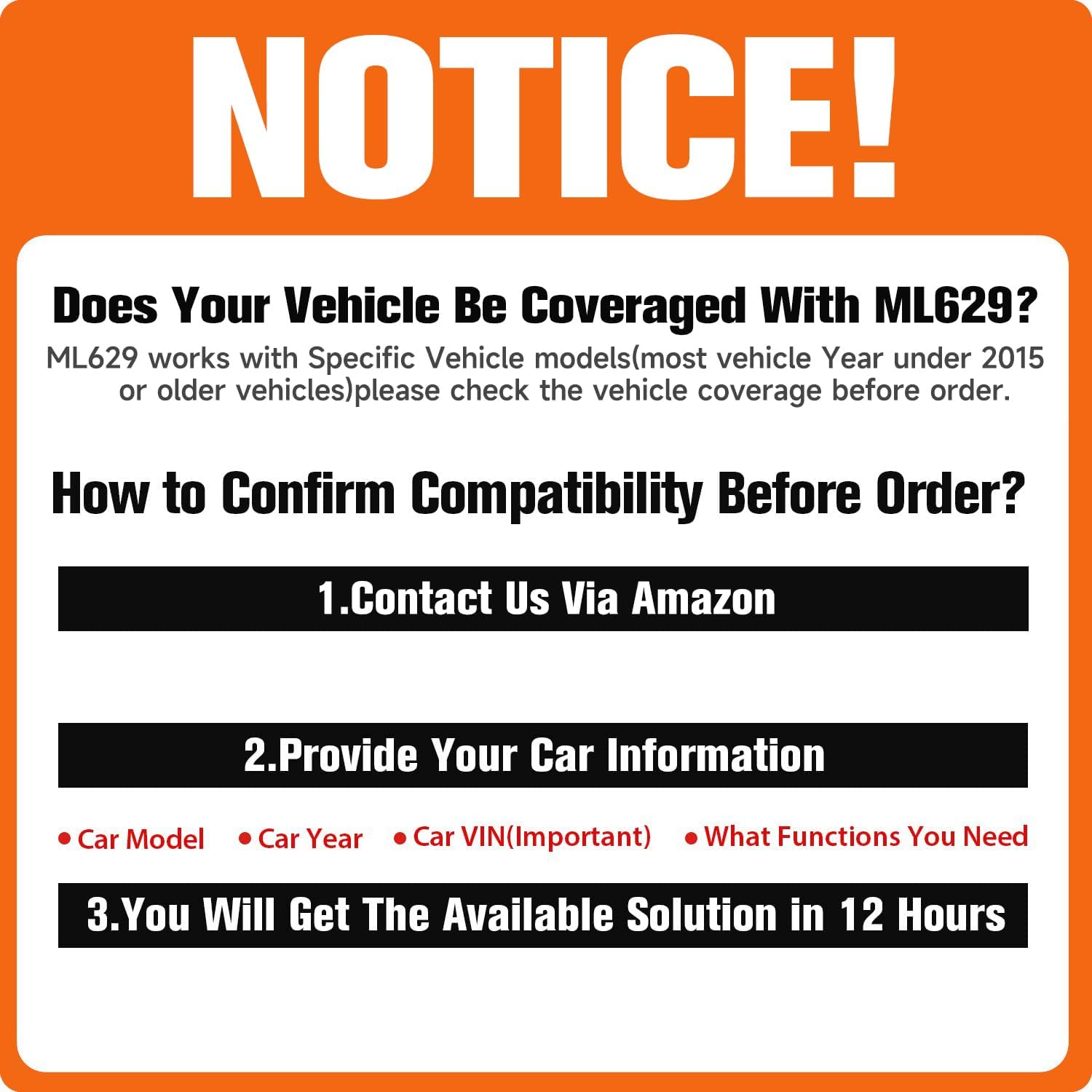
Image 7.1: A notice detailing the importance of checking vehicle compatibility for the ML629, especially concerning model years and specific functions.
7.2 Common Issues
- Device does not power on: Ensure the OBDII cable is securely connected to the vehicle's DLC and the ignition is in the ON position. Check the vehicle's fuse for the OBDII port.
- Communication error: Verify the vehicle's ignition is ON. Check for a secure connection. Ensure the vehicle is OBDII compliant. If issues persist, try on another compatible vehicle.
- Unable to clear codes: Some codes may be 'hard codes' that require a repair before they can be cleared. Ensure the underlying issue is resolved. Also, be aware of SGW limitations mentioned above.
8. Specifications
| Feature | Specification |
|---|---|
| Brand | Autel |
| Model | Autel ML629 |
| Item Weight | 0.01 ounces |
| Product Dimensions | 7.87 x 3.94 x 3.94 inches |
| Operating System | Android 6.0 |
| UPC | 758232648216 |
| Date First Available | February 10, 2019 |
9. Warranty and Support
9.1 Warranty Information
The Autel MaxiLink ML629 ABS/SRS scanner is backed by a 30-Day New Replacement & Full Refund Policy and comes with a 1-Year Warranty from the date of purchase. Please retain your proof of purchase for warranty claims.
9.2 Technical Support
Autel provides 24/7 technical and sales support. If you encounter any issues or have questions regarding the operation of your ML629, please contact Autel customer support. For language change requests, please send your 12-digit Serial Number to Autelchoice@outlook.com to receive authorization.


