
Garmin 010-01988-00
Contents
Garmin fenix 5 Plus User Manual
Premium Multisport GPS Smartwatch
Model: 010-01988-00
Introduction
The Garmin fenix 5 Plus is a premium multisport GPS smartwatch designed for athletes and adventurers. It features a 1.2-inch color display with a sapphire lens, wrist-based heart rate monitoring, and comprehensive activity and multi-sport tracking. This device includes full-color U.S. TOPO mapping with Trendline popularity routing, Bluetooth, ANT+, and Wi-Fi connectivity. It is water-resistant to 10 ATM and offers up to 12-day battery life in smartwatch mode.
Key features include:
- Premium multi sport GPS smartwatch that estimates heart rate at the wrist and includes color TOPO maps featuring trend line popularity routing to help you find and follow the best paths.
- Fit for adventure with rugged design that features stainless steel or diamond like carbon (DLC) Titanium bezel, buttons and rear case.
- Easily store and play up to 500 songs on your watch, and connect with Bluetooth headphones (sold separately) for phone free listening.
- Garmin Pay for contactless payments.
- Built-in navigation sensors include 3-axis compass, gyroscope and barometric altimeter as well as multiple satellite system (GPS, GLONASS and Galileo) network capability to track in more challenging environments than GPS alone.
- Battery performance: Smartwatch: Up to 12 days; GPS: Up to 18 hours; GPS and Music: Up to 8 hours; UltraTrac mode: Up to 42 hours.
What's in the Box
Your Garmin fenix 5 Plus package should contain the following items:
- Garmin fenix 5 Plus Sapphire Smartwatch
- Charging/Data Cable
- Documentation (User Manual)

Image: The Garmin fenix 5 Plus smartwatch, showcasing its primary display with key metrics.
Setup
1. Charging the Device
Before initial use, fully charge your fenix 5 Plus. Connect the charging/data cable to the charging port on the back of the watch and plug the other end into a USB power source. The battery indicator on the watch screen will show charging progress.
2. Powering On and Initial Setup
Press and hold the LIGHT button (top left) to power on the device. Follow the on-screen prompts to select your language, units of measure, and personal profile information. This data helps the watch accurately track your activities and health metrics.
3. Pairing with Your Smartphone
To unlock the full potential of your fenix 5 Plus, pair it with the Garmin Connect Mobile app on your smartphone. Download the app from your device's app store. Open the app, create an account (if you don't have one), and follow the instructions to add your fenix 5 Plus. This enables smart notifications, data syncing, and access to additional features.
4. GPS Acquisition
For accurate GPS tracking, ensure you are in an open area with a clear view of the sky. The watch will automatically acquire GPS signals when you start a GPS-enabled activity. Initial GPS acquisition may take longer.
Operating the Garmin fenix 5 Plus
Button Functions
The fenix 5 Plus operates primarily through its five buttons:
- LIGHT (Top Left): Press to turn on/off backlight. Hold to power on/off, access controls menu.
- UP/MENU (Middle Left): Press to scroll up through widgets and menus. Hold to access the main menu.
- DOWN (Bottom Left): Press to scroll down through widgets and menus.
- START/STOP (Top Right): Press to select an option or start/stop an activity.
- BACK/LAP (Bottom Right): Press to return to the previous screen or record a lap during an activity.
Activity Tracking
The fenix 5 Plus offers extensive activity tracking capabilities. From the watch face, press the START/STOP button to view the activity list. Select your desired activity (e.g., Run, Bike, Swim) and press START/STOP again to begin. The watch will display real-time metrics such as distance, pace, heart rate, and more.

Image: The watch display showing "Training Status Productive," indicating the device's advanced fitness tracking.
Navigation and Maps
Utilize the built-in TOPO maps for navigation. From the activity menu, select an activity that uses GPS (e.g., Hike, Trail Run). You can view your current location on the map, navigate to saved waypoints, or follow pre-loaded courses. The Trendline popularity routing feature helps you discover and follow popular routes.
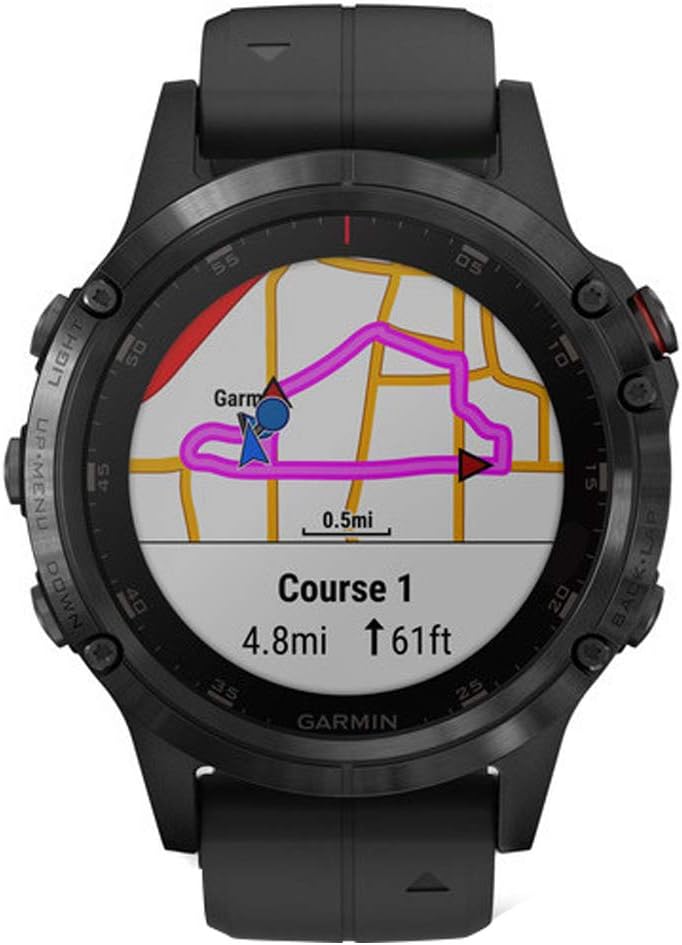
Image: The watch display showing a detailed color topographic map, useful for outdoor navigation.

Image: The watch display showing detailed climb metrics, including vertical speed and elevation changes.
Music Storage and Playback
The fenix 5 Plus allows you to store up to 500 songs directly on the device. Connect your watch to a computer and use Garmin Express to transfer music files. Once loaded, pair your Bluetooth headphones (sold separately) with the watch to enjoy phone-free listening during your activities.

Image: The watch display showing music playback controls, allowing users to manage their audio directly from the wrist.
Garmin Pay™ Contactless Payments
Set up Garmin Pay in the Garmin Connect Mobile app to make contactless payments directly from your watch. Add your credit or debit cards, and then access the Garmin Pay wallet from the controls menu on your watch. Hold your watch near a compatible payment terminal to complete transactions.

Image: The watch display showing the Garmin Pay interface, ready for contactless transactions.
Maintenance
Cleaning the Device
Regularly clean your fenix 5 Plus to maintain its performance and appearance. Wipe the device with a soft, damp, lint-free cloth. For stubborn dirt, use a mild soap solution and rinse thoroughly with water. Ensure the device is completely dry before charging or prolonged use.
Caring for the Heart Rate Sensor
The optical heart rate sensor on the back of the watch requires direct skin contact for accurate readings. Keep the sensor clean and free of debris. If you experience inaccurate readings, try adjusting the watch's position on your wrist or cleaning the sensor area.

Image: The back of the watch, highlighting the optical heart rate sensor.
Water Resistance
The fenix 5 Plus is water-resistant to 10 ATM (100 meters). It is suitable for splashes, rain or snow, showering, swimming, diving, and snorkeling. Avoid pressing buttons underwater to prevent water ingress.
Troubleshooting
Device Not Turning On or Responding
If your device is not turning on or is unresponsive, try connecting it to the charging cable and a power source. If it still doesn't respond, perform a soft reset by holding the LIGHT button for 15 seconds until the screen turns off. Then, press LIGHT again to restart.
GPS Signal Issues
Ensure you are in an open outdoor area with a clear view of the sky. Avoid tall buildings or dense tree cover. Syncing your device with Garmin Connect regularly can help update satellite data, improving GPS acquisition times.
Inaccurate Heart Rate Readings
Ensure the watch is worn snugly but comfortably above your wrist bone. Clean the optical sensor. Environmental factors, skin conditions, and certain movements can affect accuracy. For highly accurate heart rate data during intense activities, consider using a compatible external heart rate monitor (sold separately).
Connectivity Problems (Bluetooth/Wi-Fi)
Ensure Bluetooth is enabled on your smartphone and the watch is within range. For Wi-Fi, ensure the watch is connected to a known network configured through Garmin Express or the Garmin Connect app. Try restarting both your watch and smartphone.
Specifications
| Feature | Detail |
|---|---|
| Product Dimensions | 1.9 x 0.6 x 1.9 inches |
| Item Weight | 3.04 ounces |
| Item Model Number | 010-01988-00 |
| Batteries | 1 Lithium Polymer batteries required (included) |
| OS Compatibility | Android (not compatible with Windows 95, 98, ME, Windows and Mac OS 10.3 and earlier) |
| Connectivity Technologies | Bluetooth, Wi-Fi, ANT+ |
| GPS | Built-in GPS (GPS, GLONASS, Galileo) |
| Human Interface Input | Buttons |
| Scanner Resolution | 240 x 240 pixels |
| Color | Black W/Black band |
| Water Resistance | 10 ATM |
| Standing Screen Display Size | 1.2 Inches |
| Memory Storage Capacity | 16 GB |
| Battery Life (Smartwatch Mode) | Up to 12 days |
| Battery Life (GPS Mode) | Up to 18 hours |
| Battery Life (GPS + Music) | Up to 8 hours |
| Battery Life (UltraTrac Mode) | Up to 42 hours |
Warranty and Support
For detailed warranty information and product support, please refer to the official Garmin website or the full user manual provided in PDF format. You can access the PDF user manual via the following link:
Garmin also provides extensive online resources, including FAQs, video tutorials, and customer service contact information, to assist you with any questions or issues you may encounter.
Documents and downloads
Ask a question about this manual
Ask about setup, troubleshooting, compatibility, parts, safety, or missing instructions. Manuals+ will review the question and use this page’s manual context to help answer it.