1. Introduction
This manual provides detailed instructions for the setup, operation, and maintenance of your Cooler Master CM310 Gaming Mouse. The CM310 is designed for gamers seeking reliable performance and comfort. It features an adjustable 10000 DPI optical sensor, ambidextrous design with rubber side grips, and customizable RGB illumination.

Figure 1: Cooler Master CM310 Gaming Mouse
2. Package Contents
Verify that your package contains the following items:
- Cooler Master CM310 Gaming Mouse (1 unit)
3. Product Features
The Cooler Master CM310 Gaming Mouse offers several key features:
- Gaming-Grade Optical Sensor: A 10000 DPI optical sensor provides precise tracking and responsiveness.
- Ambidextrous Ergonomic Design: Shaped for comfort and suitable for both left and right-handed users, accommodating various grip styles.
- Rubberized Side Grips: Enhances grip stability and control during use.
- Balanced Weight: Calibrated to 100 grams for optimal handling and control.
- RGB Illumination: Features five preset lighting modes and effects for customizable aesthetics.
- Eight Programmable Buttons: Provides extensive control options for various applications.

Figure 2: High-Precision 10000 DPI Optical Sensor

Figure 3: Ergonomic and Well-Balanced Design

Figure 4: RGB Illumination Zones
4. Setup
4.1 Connecting the Mouse
- Locate an available USB port on your computer.
- Plug the USB connector of the Cooler Master CM310 Gaming Mouse into the USB port.
- The operating system will automatically detect and install the necessary drivers. This is a plug-and-play device, and no additional software installation is typically required for basic functionality.
Once connected, the mouse's RGB illumination should activate, indicating it is powered on and ready for use.
5. Operating Instructions
5.1 Button Functions
The CM310 mouse features 8 buttons:
- Left Click Button
- Right Click Button
- Scroll Wheel (Clickable)
- DPI Cycle Button (behind scroll wheel)
- RGB Mode Cycle Button (behind scroll wheel, next to DPI button)
- Forward Side Button
- Backward Side Button
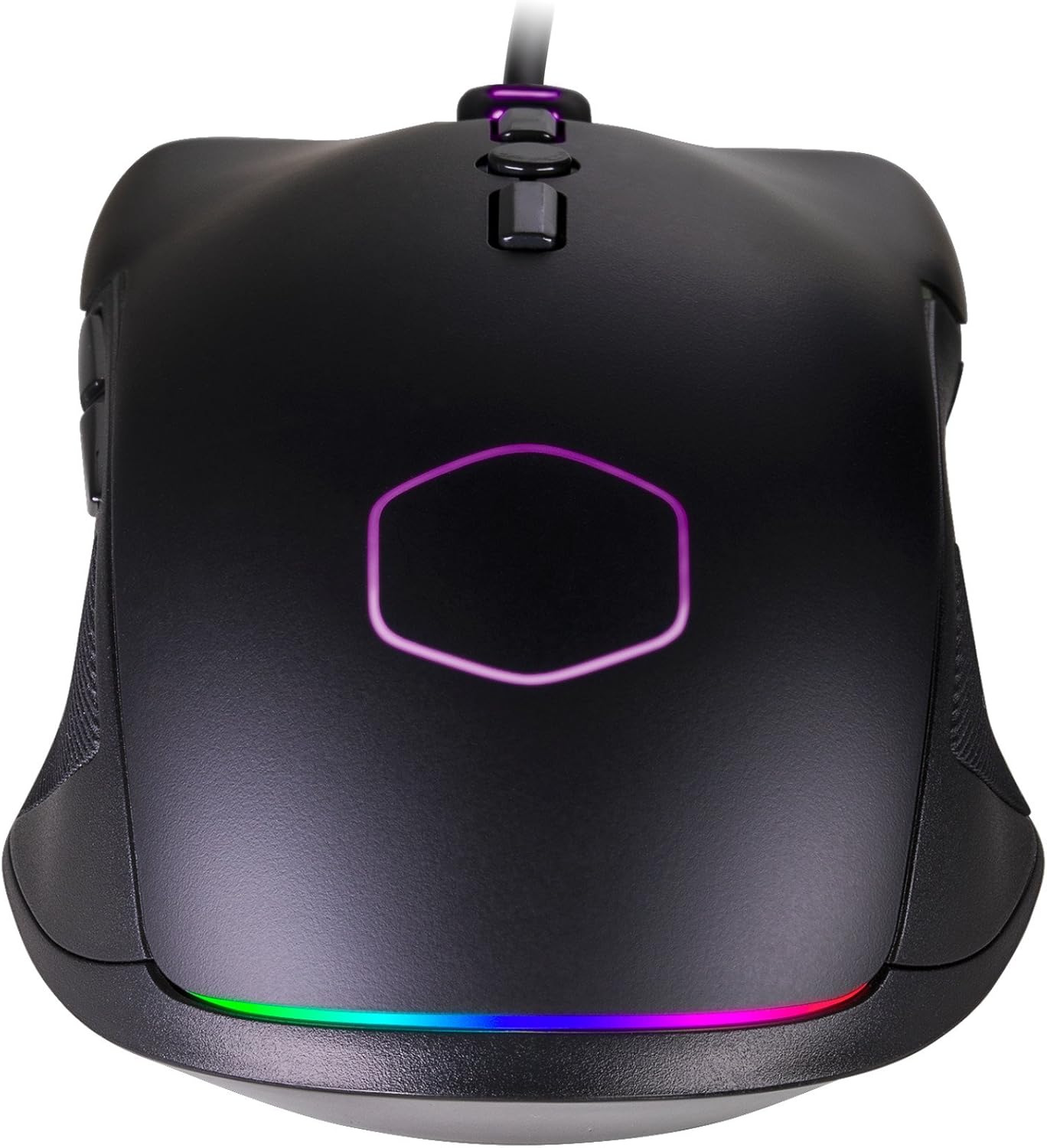
Figure 5: Button Layout
5.2 DPI Adjustment
The CM310 allows for on-the-fly DPI (Dots Per Inch) adjustment. Press the dedicated DPI Cycle Button (located behind the scroll wheel) to cycle through preset DPI levels. Each press will switch to the next DPI setting, allowing you to quickly adapt to different tasks or gaming scenarios.
5.3 RGB Illumination Control
Customize the mouse's lighting effects using the RGB Mode Cycle Button (located behind the scroll wheel, adjacent to the DPI button). Press this button to cycle through the five preset RGB illumination modes and effects. This allows you to personalize the mouse's appearance without requiring additional software.
6. Maintenance
6.1 Cleaning
- Ensure the mouse is disconnected from your computer before cleaning.
- Use a soft, dry, lint-free cloth to wipe the surface of the mouse.
- For stubborn dirt, lightly dampen the cloth with water. Avoid using harsh chemicals, abrasive cleaners, or excessive moisture, as these can damage the mouse.
- Use a cotton swab or compressed air to clean around the scroll wheel and sensor area.
6.2 Storage
When not in use for extended periods, store the mouse in a cool, dry place away from direct sunlight and extreme temperatures.
7. Troubleshooting
7.1 Mouse Not Responding
- Check USB Connection: Ensure the USB cable is securely plugged into a working USB port on your computer. Try a different USB port.
- Restart Computer: Sometimes a simple system restart can resolve connectivity issues.
- Test on Another Computer: If possible, test the mouse on another computer to determine if the issue is with the mouse or your computer's setup.
7.2 RGB Illumination Not Working
- Check Connection: Ensure the mouse is properly connected and receiving power.
- Cycle Modes: Press the RGB Mode Cycle Button multiple times to ensure you are not on a "lights off" setting or a very dim mode.
7.3 Inaccurate Tracking
- Clean Sensor: Ensure the optical sensor on the bottom of the mouse is clean and free of dust or debris.
- Mouse Pad Surface: Use the mouse on a clean, uniform surface or a high-quality mouse pad for optimal tracking performance.
- Adjust DPI: Experiment with different DPI settings using the DPI Cycle Button to find the sensitivity that best suits your needs.
8. Specifications
| Feature | Detail |
|---|---|
| Brand | Cooler Master |
| Model Number | CM310KKWO2 |
| Sensor Type | Optical |
| DPI | Up to 10000 |
| Number of Buttons | 8 |
| Illumination | RGB (5 preset modes) |
| Grip Type | Ambidextrous with Rubberized Side Grips |
| Weight | 100 grams (4.8 ounces) |
| Connectivity | USB 2.0 |
| Hardware Platform | PC |
| Operating System | Windows or Linux |
| Product Dimensions (LxWxH) | 1.6 x 2.8 x 5 inches |
| Manufacturer | Cooler Master USA, Inc. |
9. Warranty Information
Cooler Master products are covered by a limited warranty. For detailed information regarding the warranty period, terms, and conditions applicable to your CM310 Gaming Mouse, please refer to the official Cooler Master website or the warranty card included with your purchase (if applicable). Keep your proof of purchase for warranty claims.
10. Support
For technical support, driver downloads, FAQs, or further assistance, please visit the official Cooler Master support website:
You may also contact Cooler Master customer service directly through the contact information provided on their website.